

Who can do this: Anyone on the job req’s hiring team, or anyone whose security role has All Job Req Access. Some actions need their own permission, noted below.Availability: The Fraud and AI Tasks tabs only appear when those features are turned on for your account. Ask your Customer Success Manager.
Open a Candidate Application
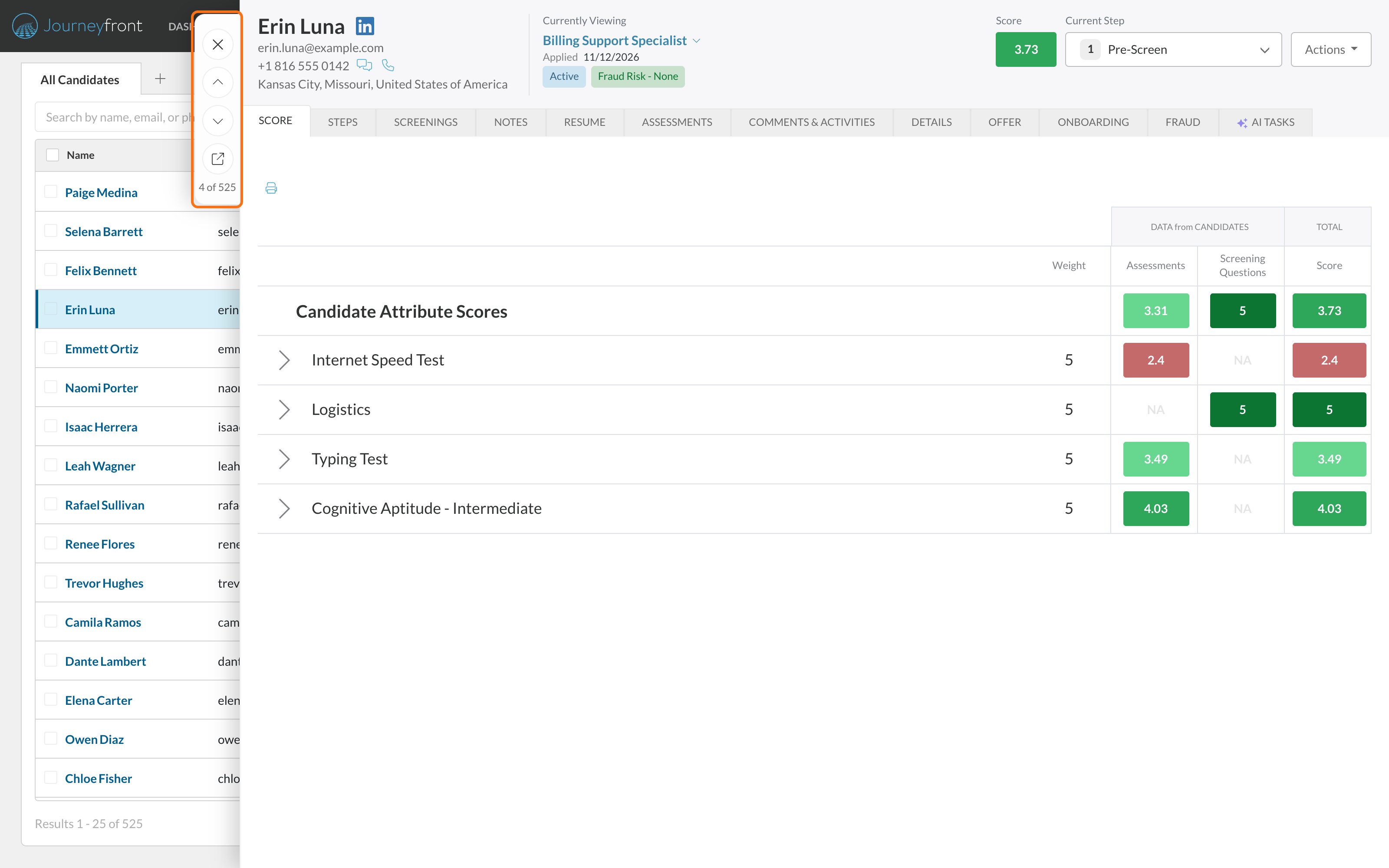
- From a list: on the Candidates page or a job req’s Candidates tab, click the candidate’s name. The Candidate Application opens in a side panel, so you can review candidate after candidate without losing your place. See The Candidates page.
- In its own page: in the side panel, click the Open in a new tab icon, or Ctrl-click (Cmd-click on a Mac) the candidate’s name in the list.
- From the Candidate Profile: click a row on the Applications tab.
The header
The top of the Candidate Application tells you who the candidate is and where they stand.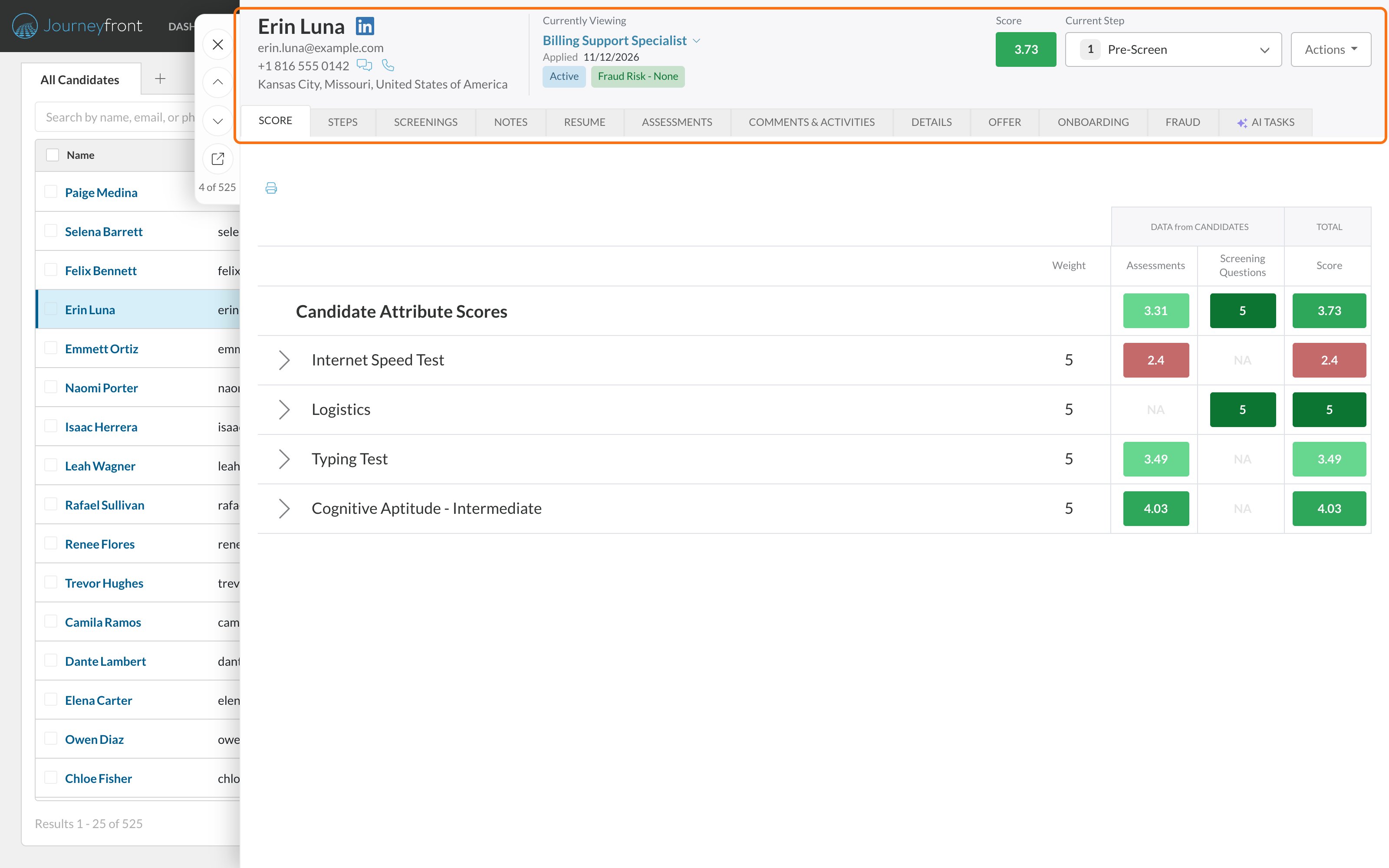
- Name and contact details. The LinkedIn icon next to the name opens the candidate’s LinkedIn profile, when they gave one. Icons next to the phone number open text messages and calling, if your team uses them.
- Currently Viewing. Switch to the person’s Candidate Profile or to any of their other Candidate Applications and jobs.
- Applied date and status, such as Active, Hired (with the start date) or Rejected (with the date and rejection reason), and the candidate’s fraud risk level. See Fraud flags.
- Score. The candidate’s overall score for this job req. See How scoring works.
- Current Step. The step the candidate is in. Pick another step to move them. See Move candidates through steps.
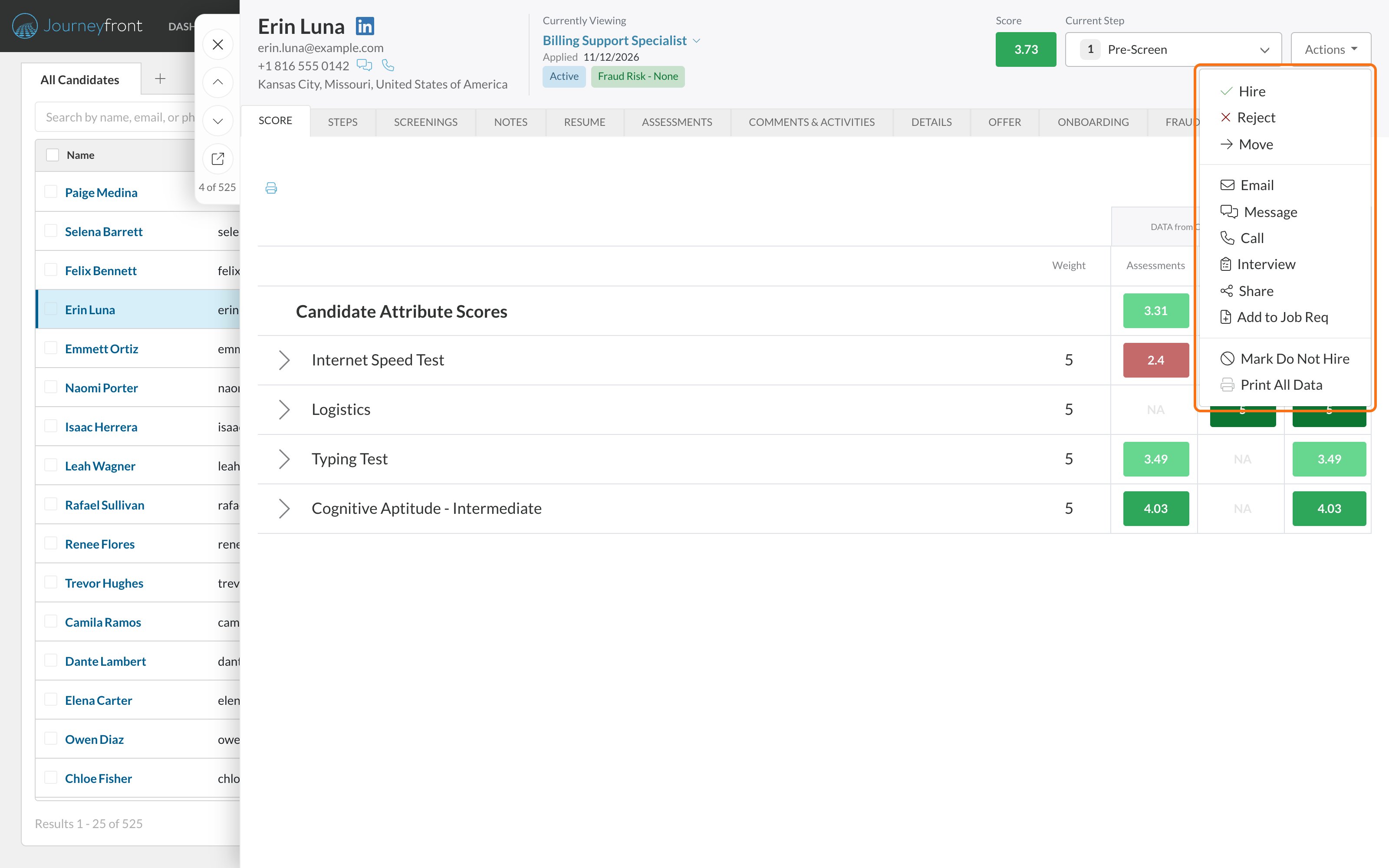
The Actions menu
The tabs
The tabs appear in this order. When the window is too narrow to show them all, the rest move into a More menu at the end of the row.
Click through the tabs below to see each one on a sample candidate. This candidate has no language assessment, so the Language tab doesn’t appear.
- Score
- Steps
- Screenings
- Notes
- Resume
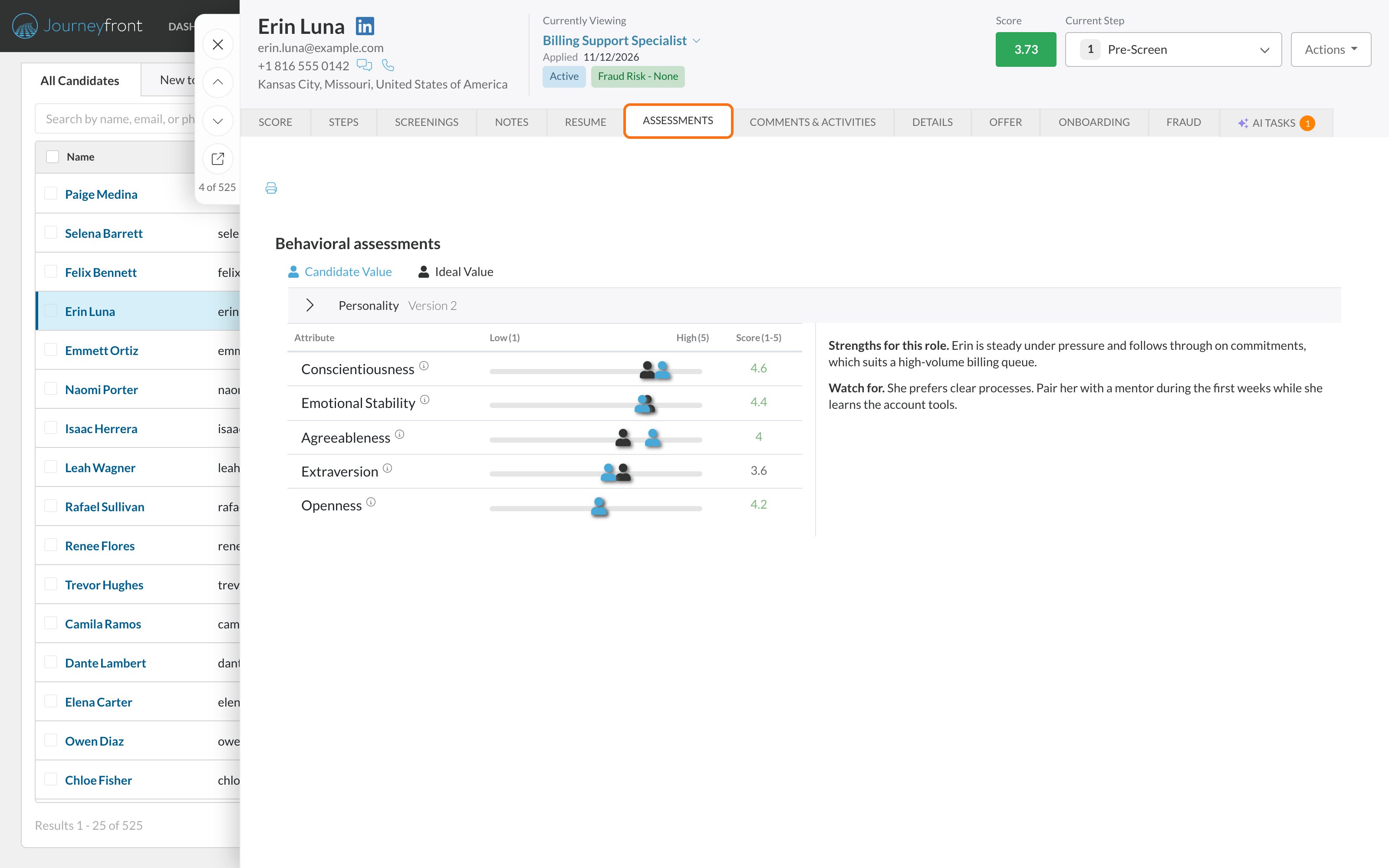
- Assessments
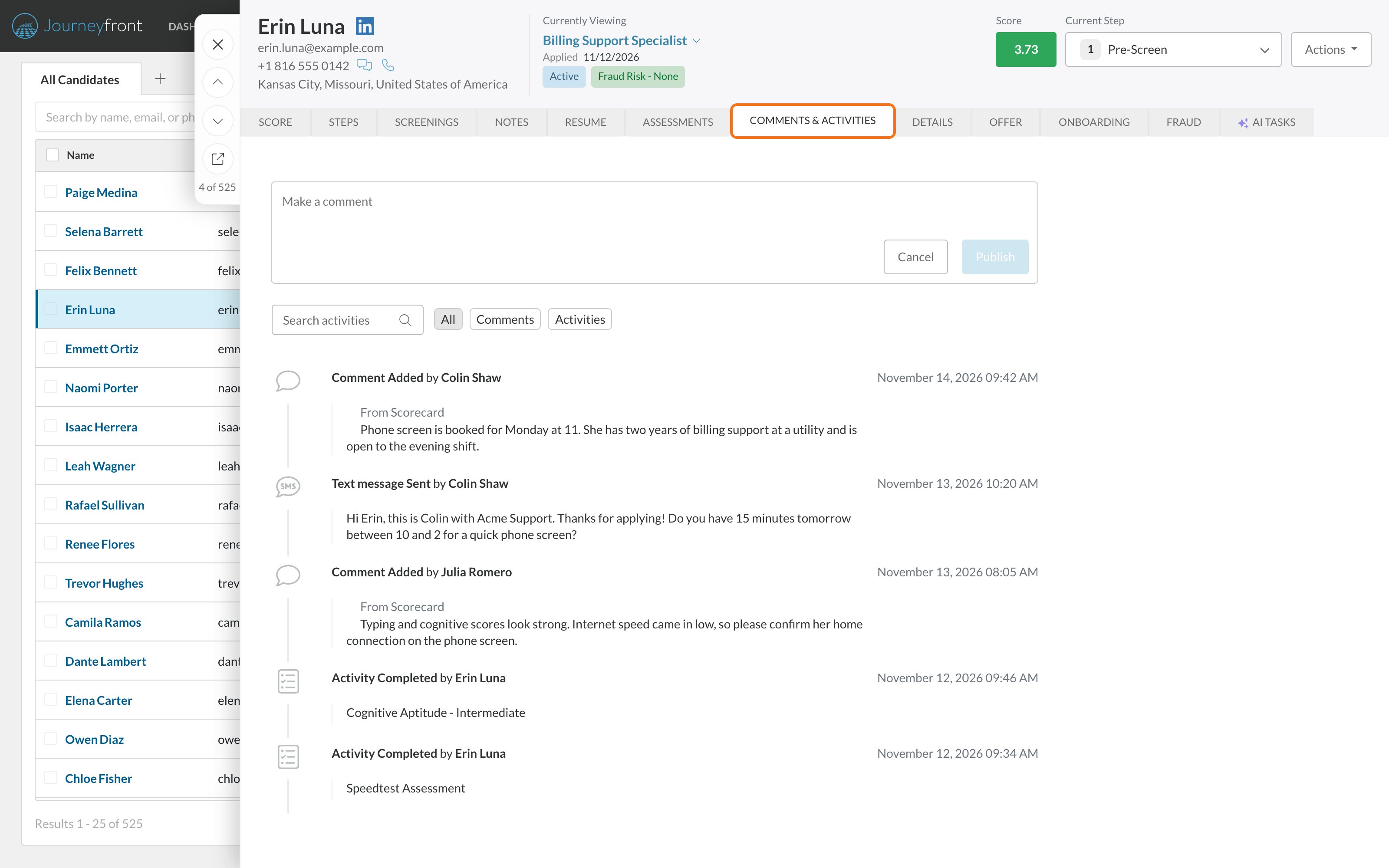
- Comments & Activities
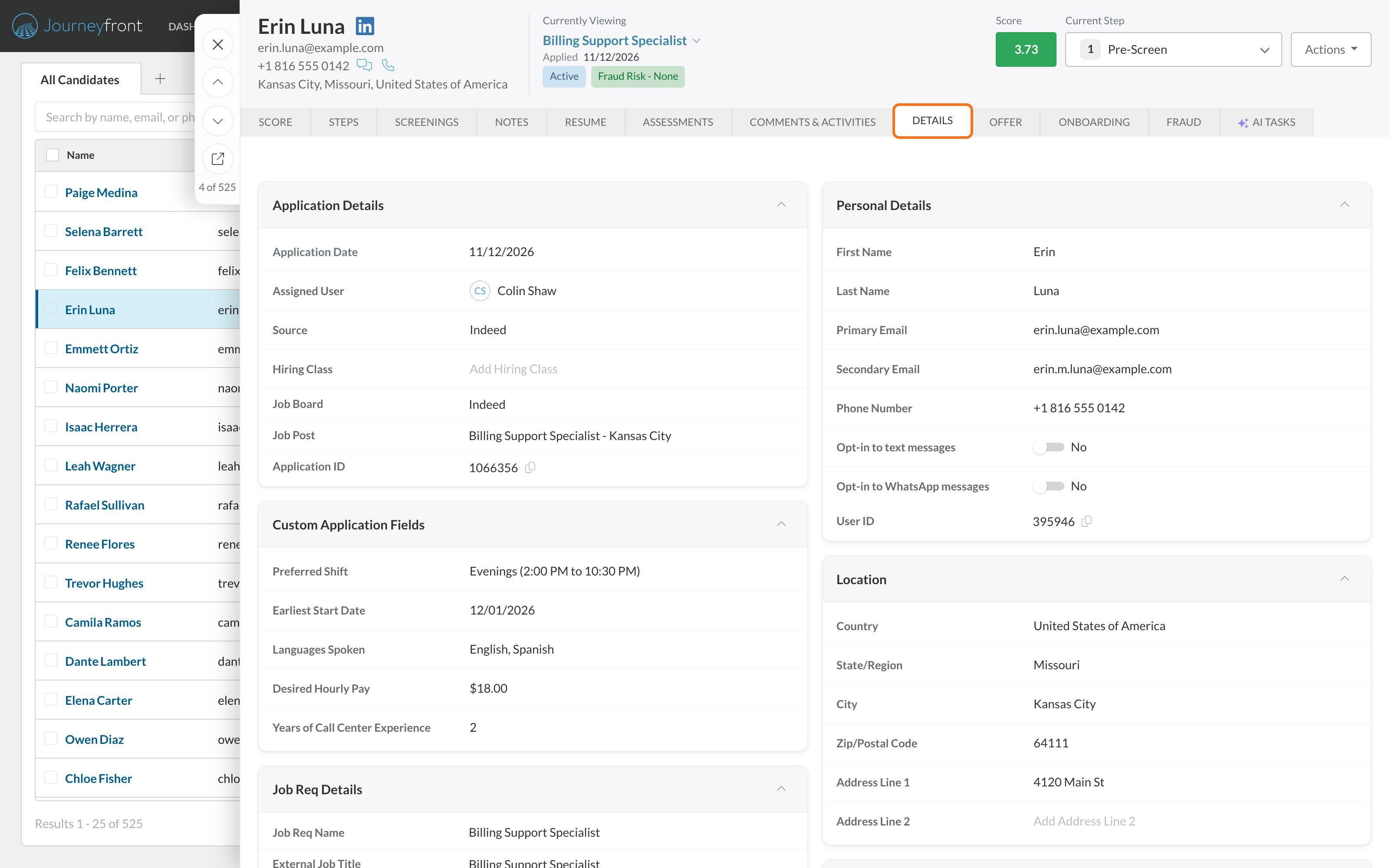
- Details
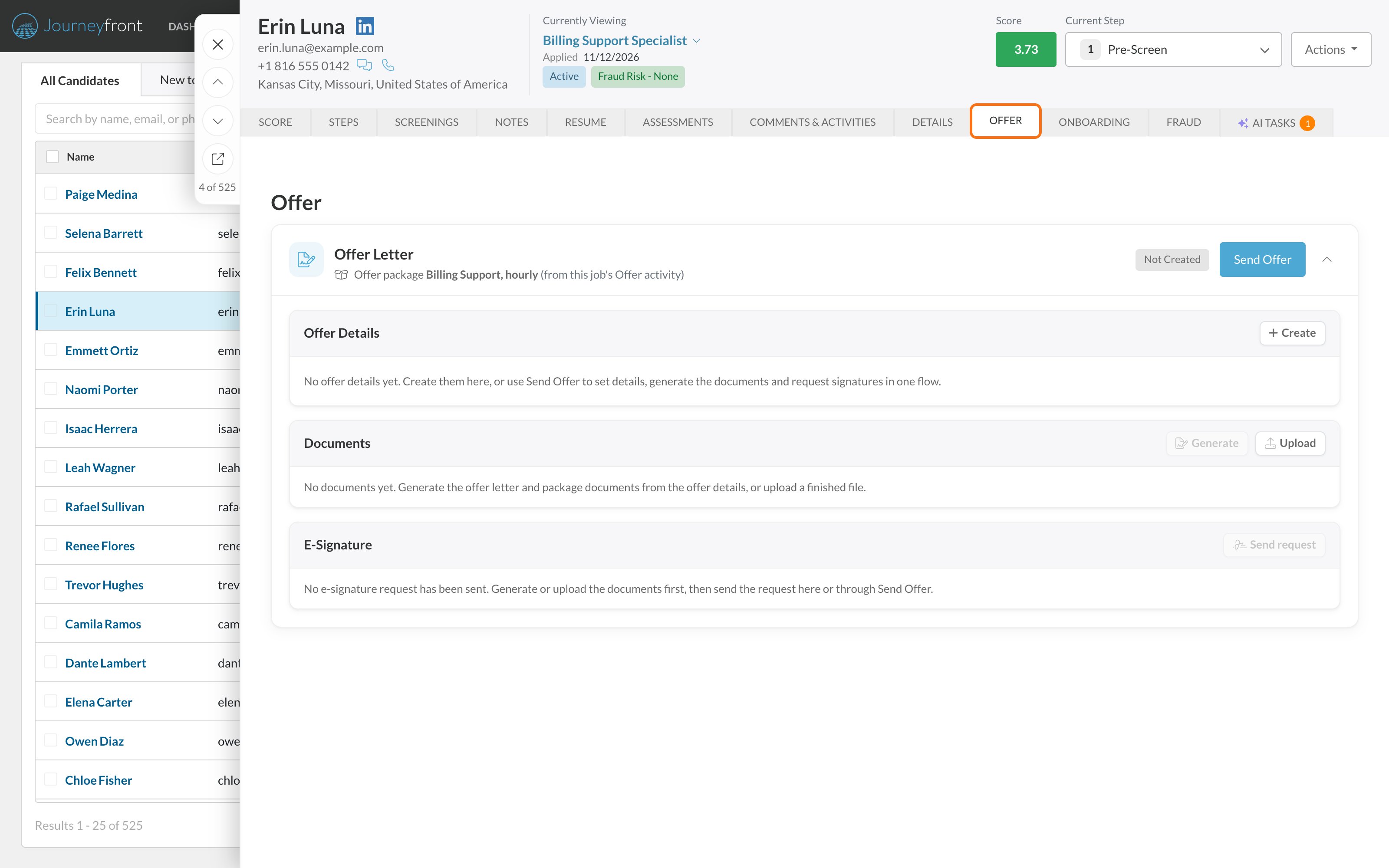
- Offer
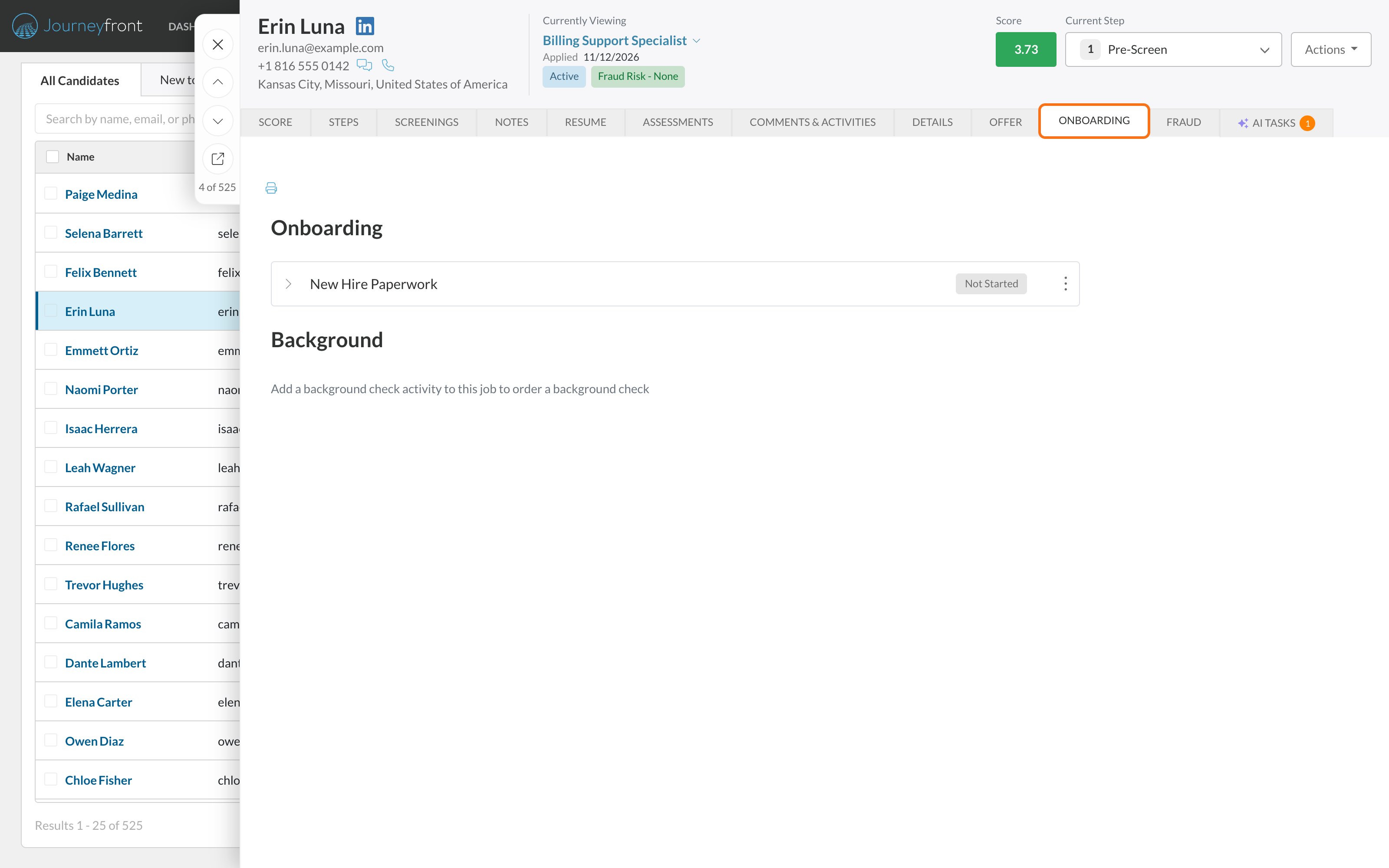
- Onboarding
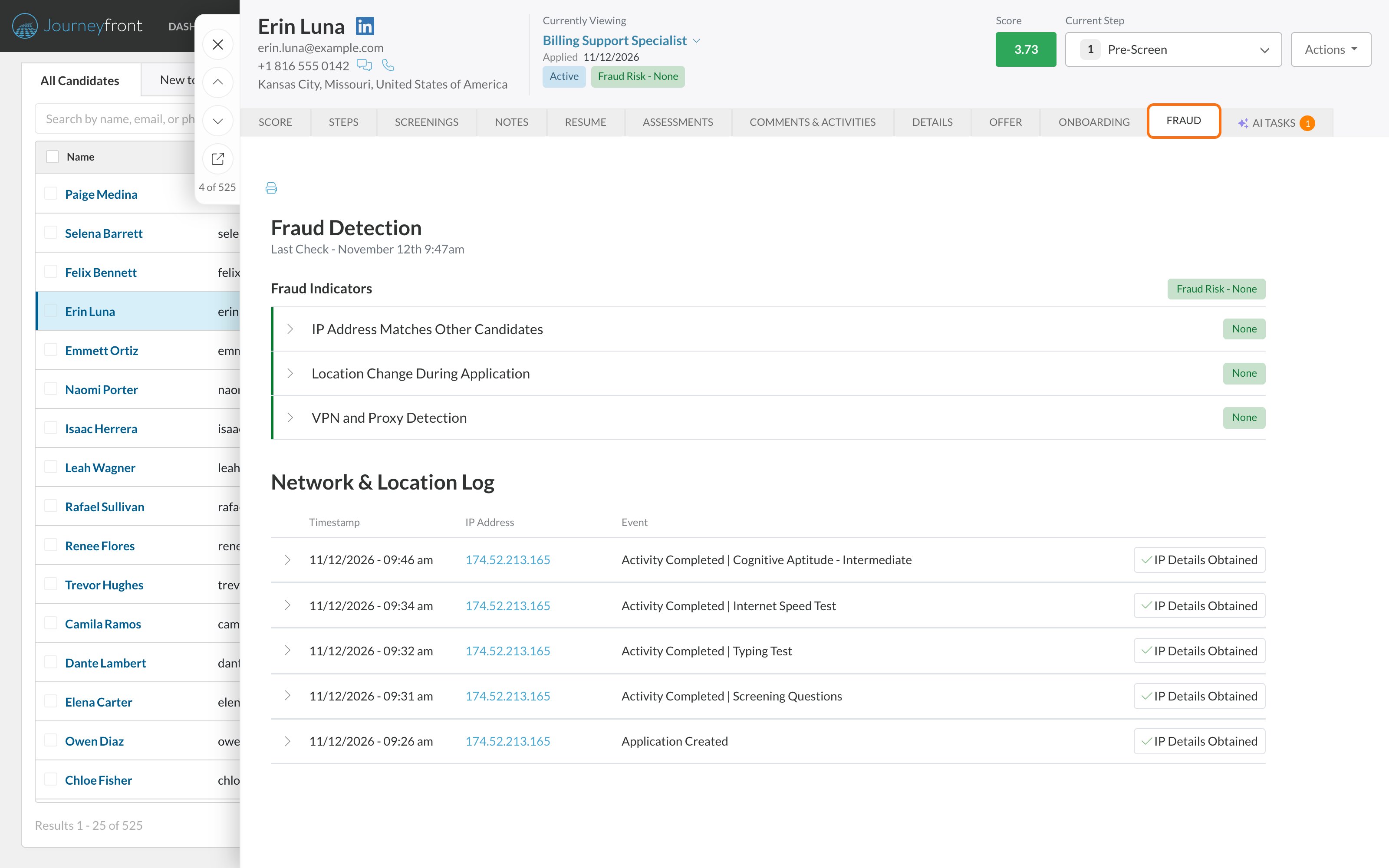
- Fraud
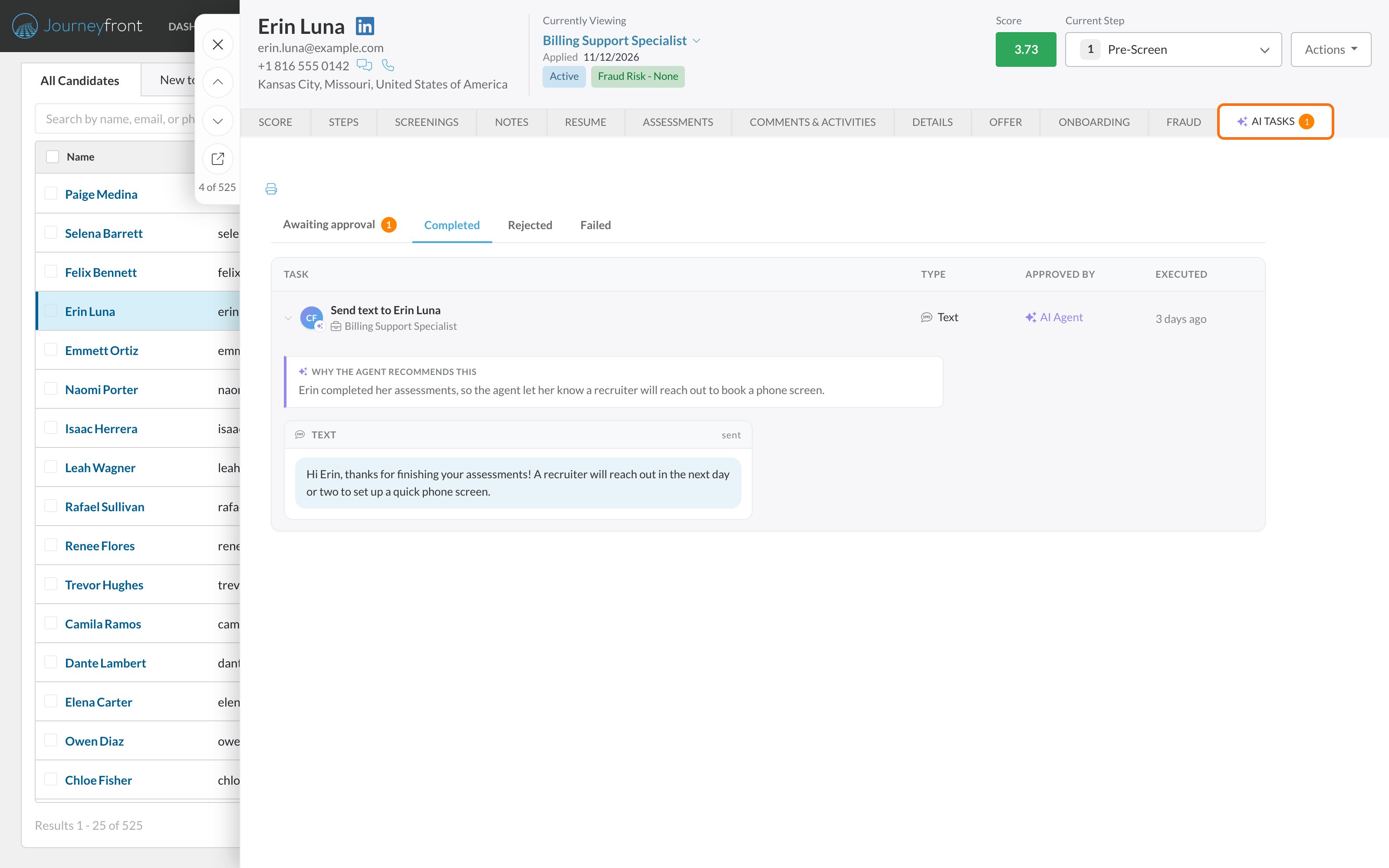
- AI Tasks
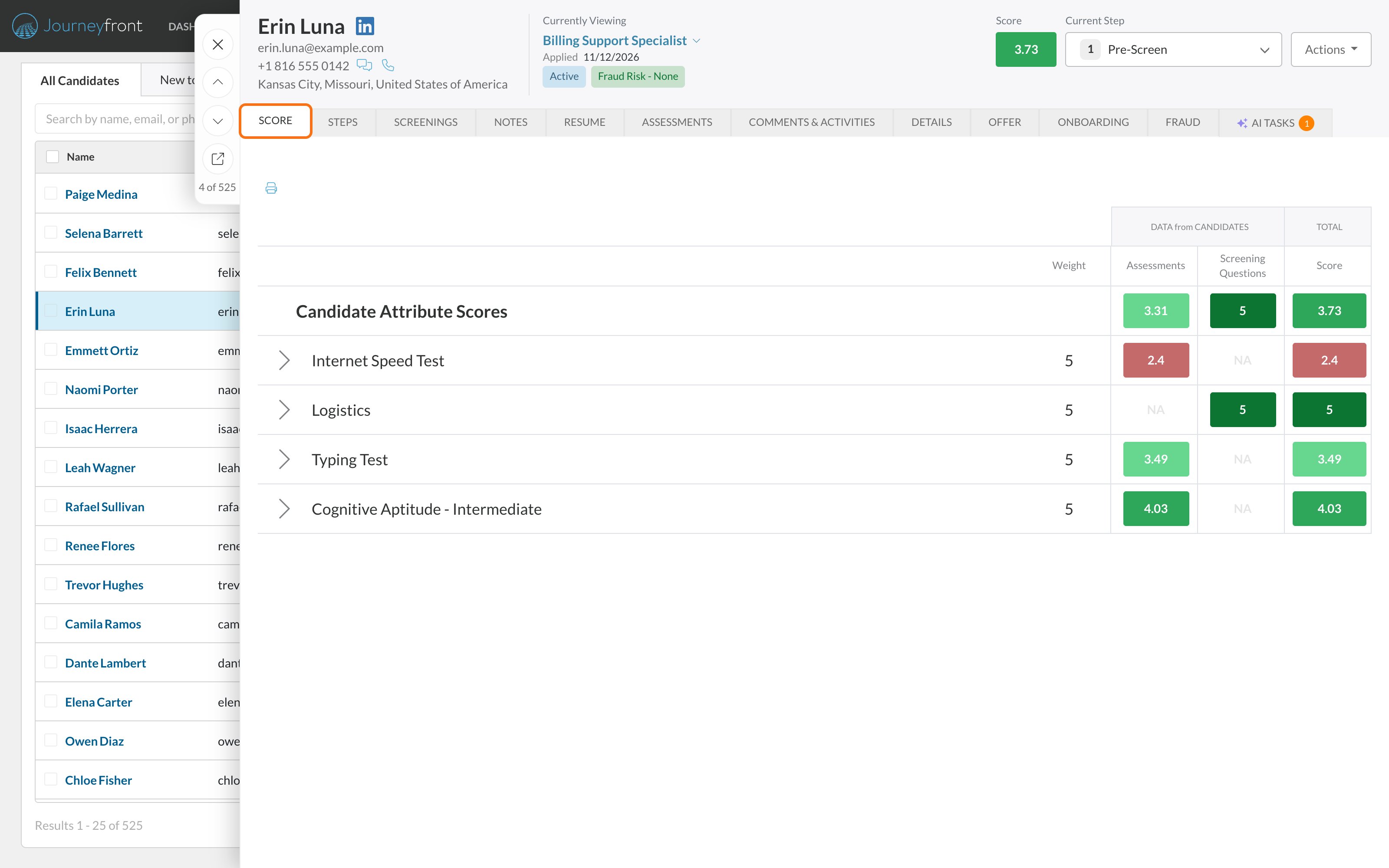
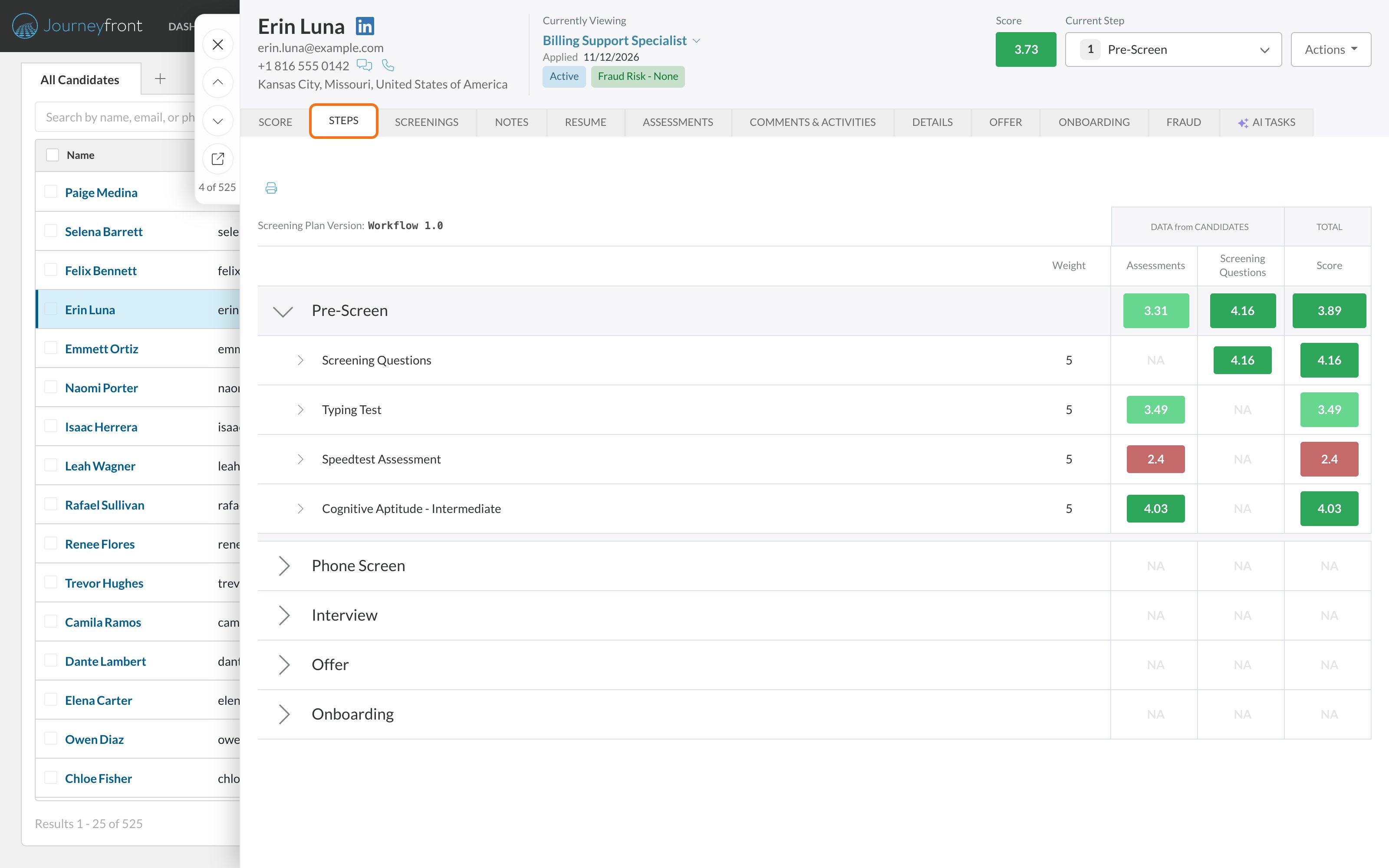
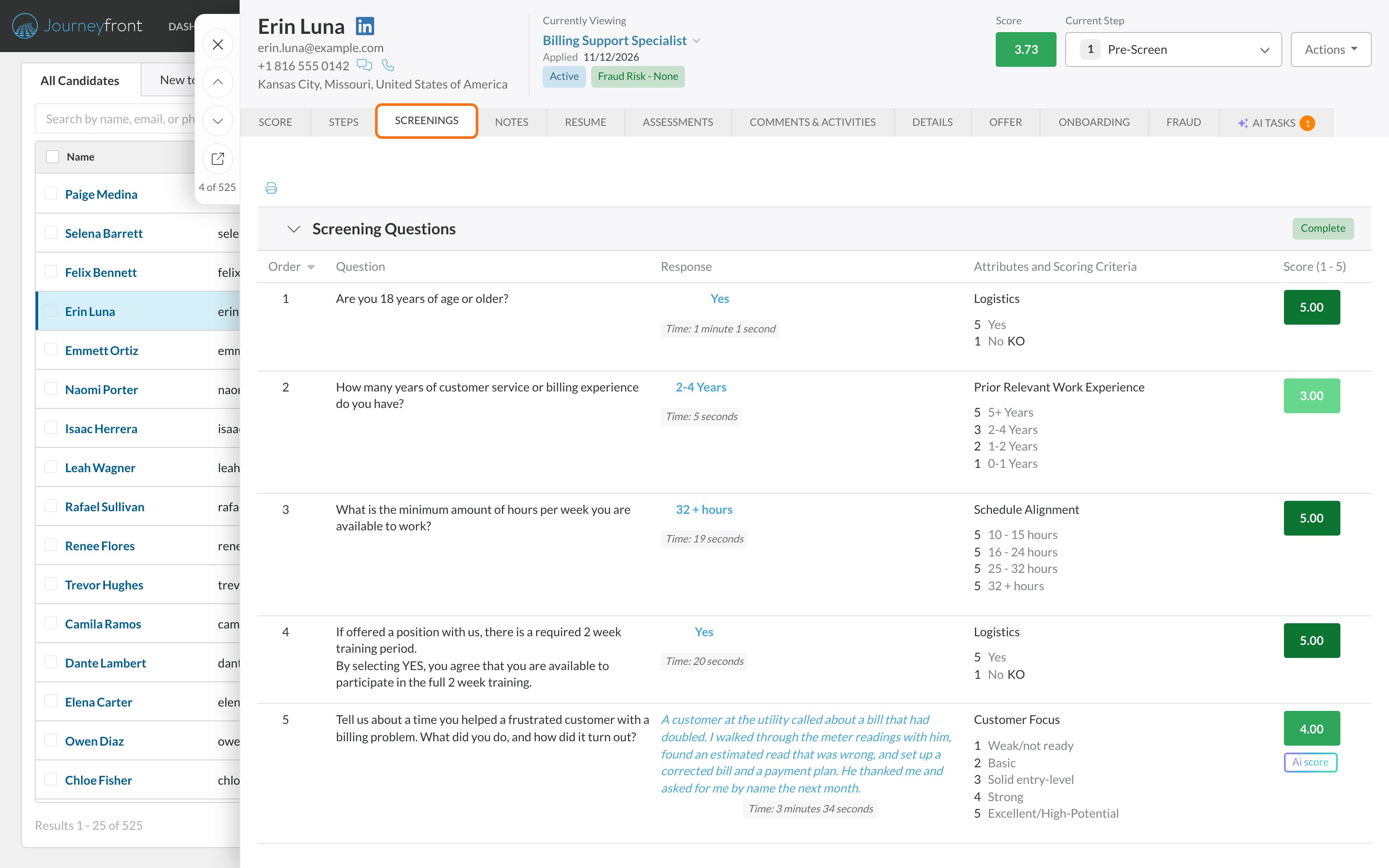
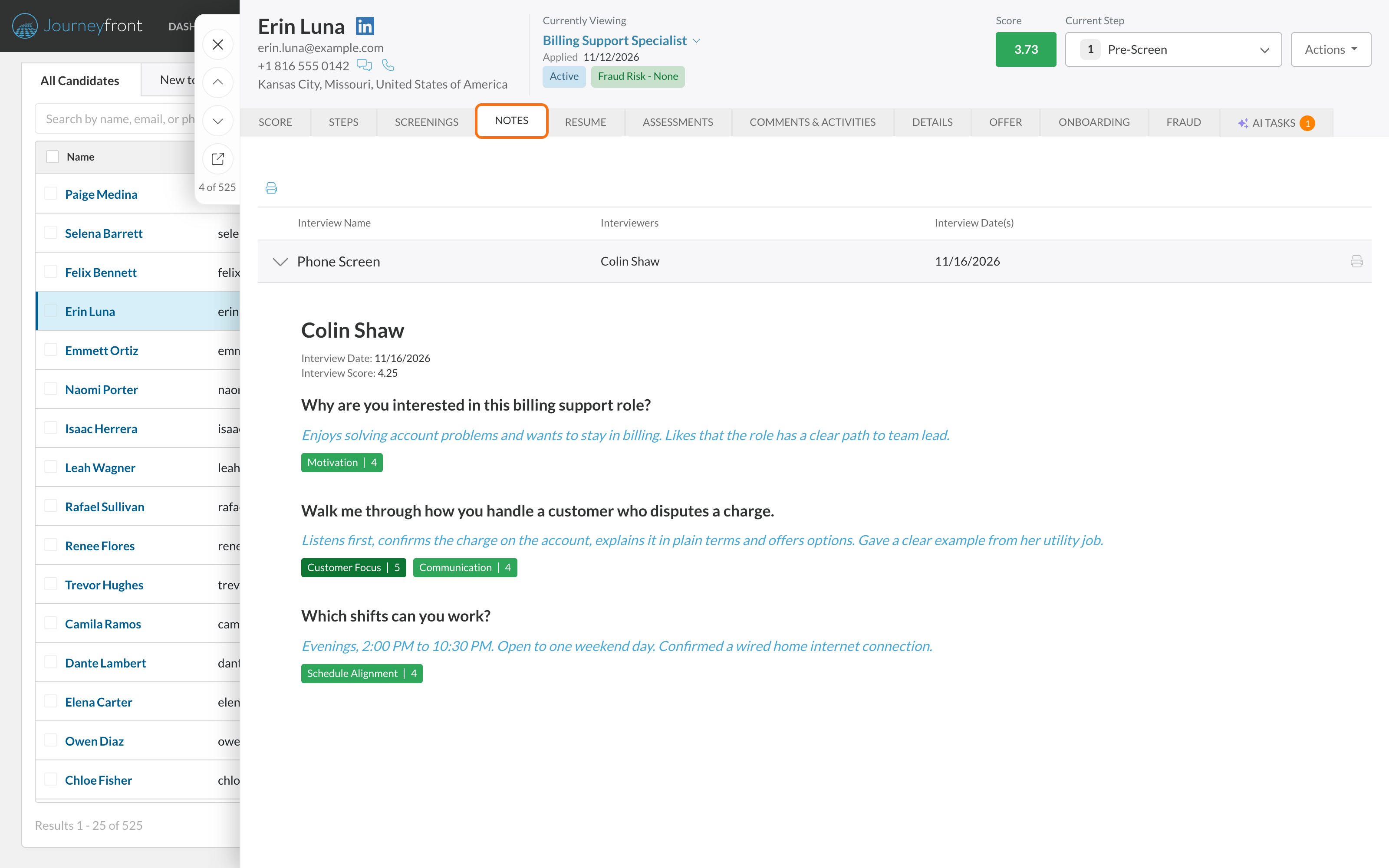
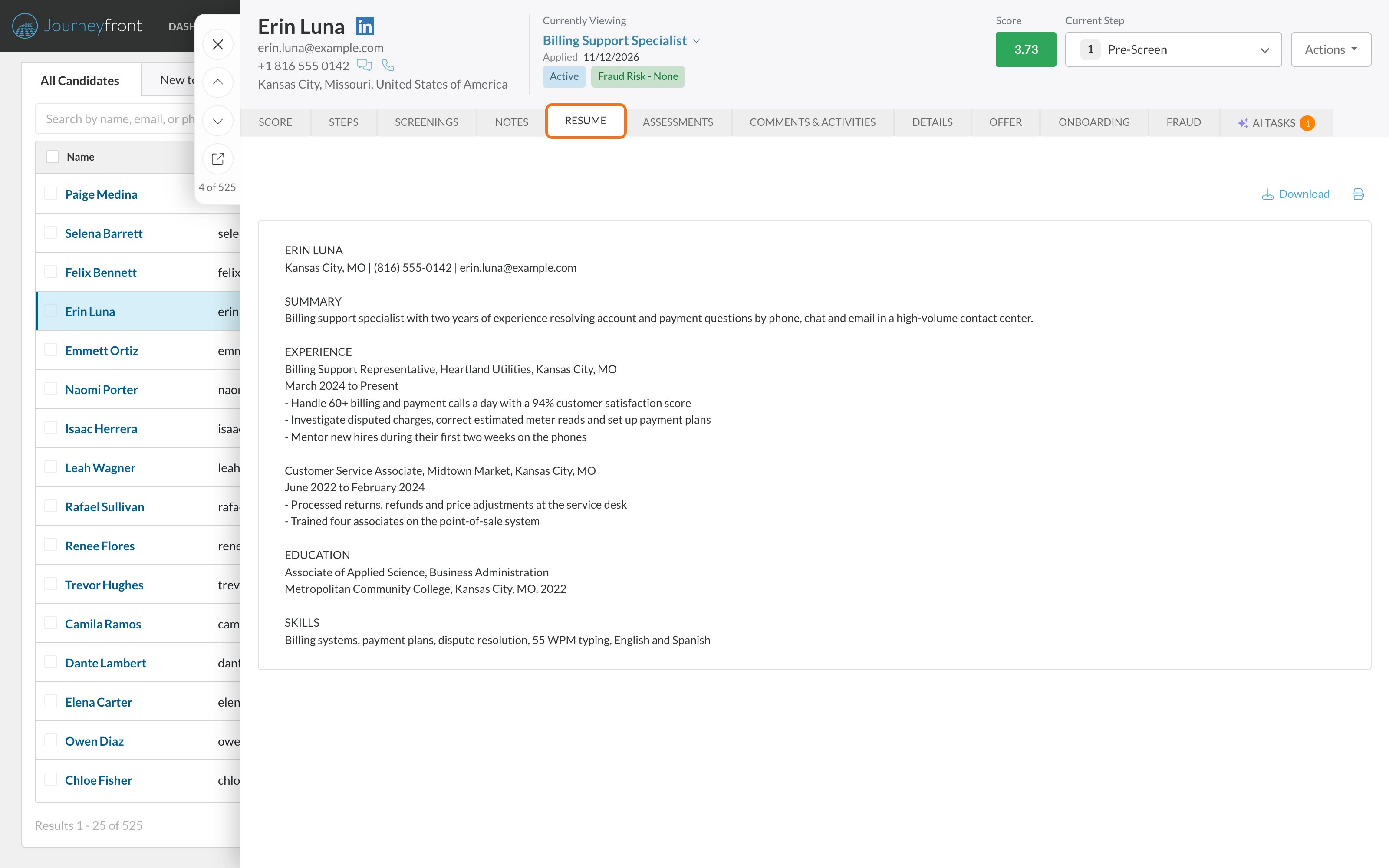
- Score, Steps and Screenings: Reading scores and How scoring works.
- Notes: Interview notes.
- Comments & Activities: Comments and activity.
- Resume: AI resume scoring, if your account uses it.
- Assessments and Language: Assessments overview and Language assessments.
- Details: Edit candidate details.
- Offer: Send an offer.
- Onboarding: Onboarding forms.
- Fraud: Fraud flags.
- AI Tasks: AI agents, for reviewing and approving what agents do, and assigning agents to the candidate.
Users whose security role has Can Delete Scores can delete an activity’s score on the Steps tab with Delete Score. Language assessment and skills test scores can’t be deleted.
FAQ
How do I see a candidate's LinkedIn profile?
How do I see a candidate's LinkedIn profile?
Click the LinkedIn icon next to the candidate’s name at the top of the Candidate Application or Candidate Profile. It only appears when the candidate gave a LinkedIn URL. To ask every candidate for one, go to the job req’s Setup, then Application Form, and set the LinkedIn field to Required. See Application form.
Why don't I see the Fraud or AI Tasks tab?
Why don't I see the Fraud or AI Tasks tab?
Those tabs only appear when the feature is turned on for your account. The AI Tasks tab also needs at least one AI agent set up, or tasks for this candidate. Ask your Customer Success Manager.
Why don't I see the Language tab?
Why don't I see the Language tab?
It appears when the candidate has language assessment results. For some language assessments, it appears as soon as the assessment is part of the candidate’s workflow, and shows a Refresh Score button if a completed assessment’s scores haven’t arrived yet.
Where did some of the tabs go?
Where did some of the tabs go?
On a narrower screen, tabs that don’t fit move into the More menu at the end of the tab row. A number on More means a tab inside it has something waiting, such as AI tasks to review.
Where do I find the Application ID?
Where do I find the Application ID?
On the Details tab, in the Application Details card. The User ID is in the Personal Details card. Both have a copy button. See Candidate Profiles and Candidate Applications.
Why can't I hire this candidate?
Why can't I hire this candidate?
Hire only appears in Actions for users whose security role has Hire Candidates, and only while the candidate isn’t already hired or rejected.
Can candidates see any of this?
Can candidates see any of this?
No. The Candidate Application, including scores, comments and notes, is only visible to your team.
Related
Candidate Profiles and Candidate Applications
The person versus their application to one job req.
The Candidates page
Find candidates and open them in the side panel.
Edit candidate details
Update contact details and custom fields.
Share and print
Send a Candidate Application to a teammate or print it.