

Who can do this: Anyone on the job req’s hiring team. To see and add comments, your security role needs View & Submit Comments.
Add a comment
1
Open the Comments & Activities tab
Open the Candidate Application and click Comments & Activities.
2
Write your comment
Type in the Make a comment box.
3
Click Publish
Your comment appears at the top of the list with your name and the time.
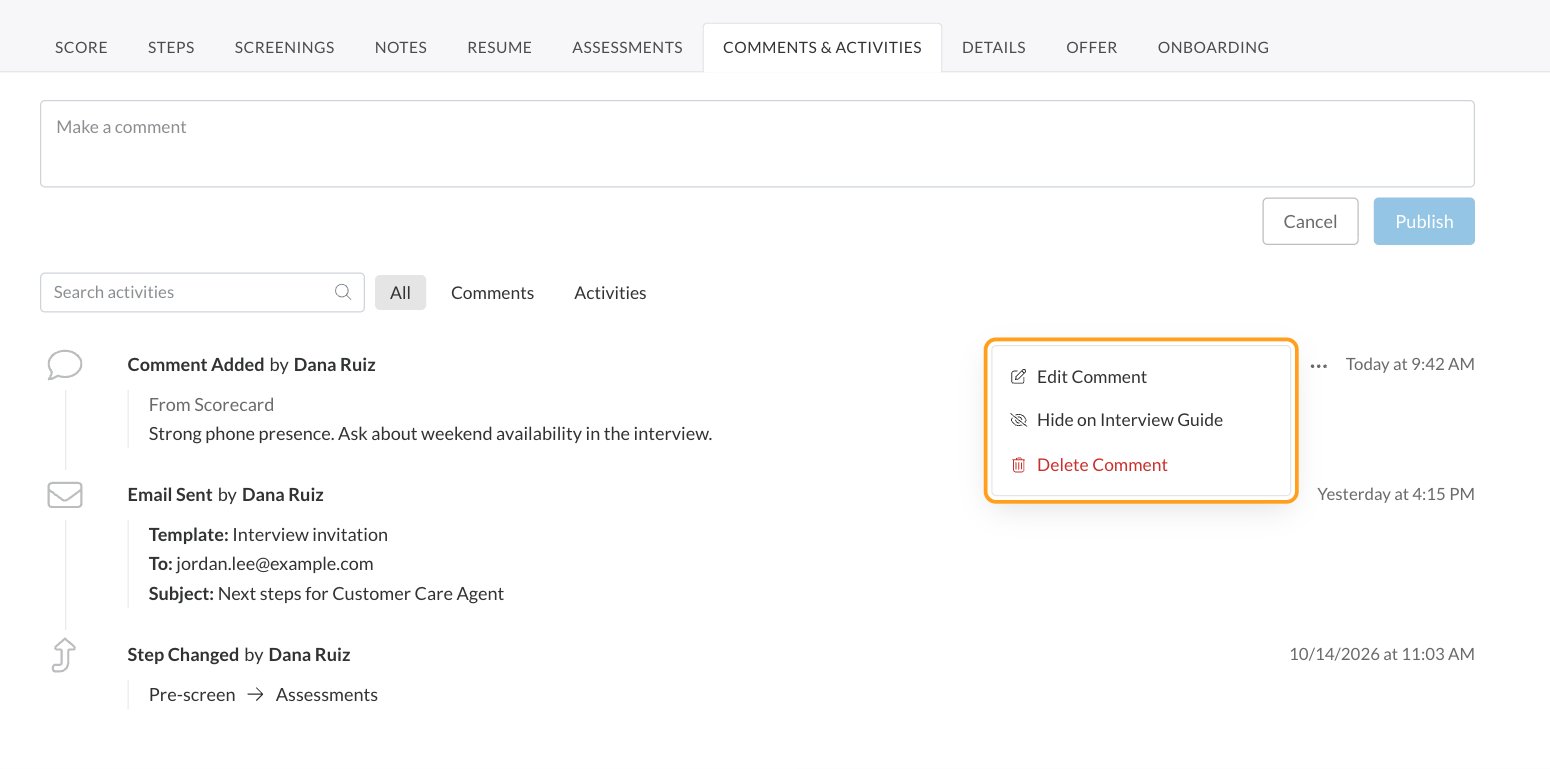
Edit, hide or delete your comment
Click the … menu next to a comment you wrote:- Edit Comment: change the text and click Update.
- Hide on Interview Guide: comments you add on the Candidate Application also show to interviewers on the candidate’s interview guides. Hide a comment to keep it on the Candidate Application only. An eye icon marks hidden comments. Click Show on Interview Guide to undo.
- Delete Comment: removes it after you confirm. This can’t be undone.
Comments during an interview
Interviewers can leave comments while they conduct an interview, in the Comments panel on the right side of the interview guide. Click the comment icon to open or close the panel. Comments added there appear on the Candidate Application’s Comments & Activities tab, labeled with the interview’s name. See Conduct an interview.The activity history
The Comments & Activities tab also lists everything that happened on this application, newest first, such as:- Emails sent, with the template, sender, recipient, subject and message (click Read More for the full email)
- Text messages and calls, including call recordings and transcripts when your calling provider supplies them
- Step changes, shown as the old step and the new step
- Source, assigned user and hiring class changes
- Rejections, hires and Do Not Hire flags
- Documents uploaded or deleted
The Candidate Profile’s Activity Feed
The Candidate Profile’s Activity Feed tab brings together comments and activity from every one of the person’s Candidate Applications. Each item is labeled with the job req it came from. Comments you add on the Activity Feed belong to the person, not to one application, and are labeled “Candidate Profile”. Use them for notes that matter for every role, like “Prefers evening shifts”. See Candidate Profiles and Candidate Applications.FAQ
Can candidates see comments?
Can candidates see comments?
No. Comments and the activity history are only visible to your team.
Why can't I see or add comments?
Why can't I see or add comments?
Your security role needs View & Submit Comments. Without it, the Comments & Activities tab only shows activity. Ask an admin to check your role. See Security roles.
Can I edit or delete someone else's comment?
Can I edit or delete someone else's comment?
No. Only the person who wrote a comment can edit, hide or delete it.
Where do interviewers' comments go?
Where do interviewers' comments go?
Comments added in an interview guide’s Comments panel show on the Candidate Application’s Comments & Activities tab, labeled with the interview’s name. Interviewers’ notes on each question are on the Notes tab. See Interview notes.
Do comments carry over to the candidate's other applications?
Do comments carry over to the candidate's other applications?
No. A comment on a Candidate Application stays with that application. To read comments from all of the person’s applications in one place, open their Candidate Profile’s Activity Feed.
Related
The Candidate Application
Every tab, explained.
Interview notes
What interviewers recorded on each interview guide.
Email candidates
Emails you send are logged in the activity history.
Share and print
Send a Candidate Application to a teammate.