

Who this is for: Hiring managers, team leads and anyone who interviews candidates. You need a Journeyfront user account; ask your Journeyfront admin if you don’t have one. What you can see depends on your security role and the job reqs you’re on.
Get set up
1
Sign in
Accept your invitation email and set your password, or sign in with your company’s SSO. See Logging in and passwords.
2
Connect your calendar
Go to Interviews, then My Profile. Connect your calendar under Synced Calendar, and set your Time Zone and default Conferencing service. Booked interviews then land on your calendar, and candidates only see times you’re free. See Your availability and calendar.
3
Set your interview hours
Go to Interviews, then My Availability, and choose the hours candidates can book with you.
4
Check your job reqs
Open Job Reqs and make sure you see the job reqs you hire for. If one’s missing, ask your recruiter or admin to add you to its hiring team. See Hiring team.
Your interviews
Go to Interviews, then My Interviews. Upcoming lists the interviews booked with you, with the time, the candidate, the interview and job req, and the interviewers. Past lists earlier interviews with their status and your score. Each row has icons to start the interview, open the candidate’s Candidate Application and copy the interview link. The ⋮ menu has the same actions. See My Interviews.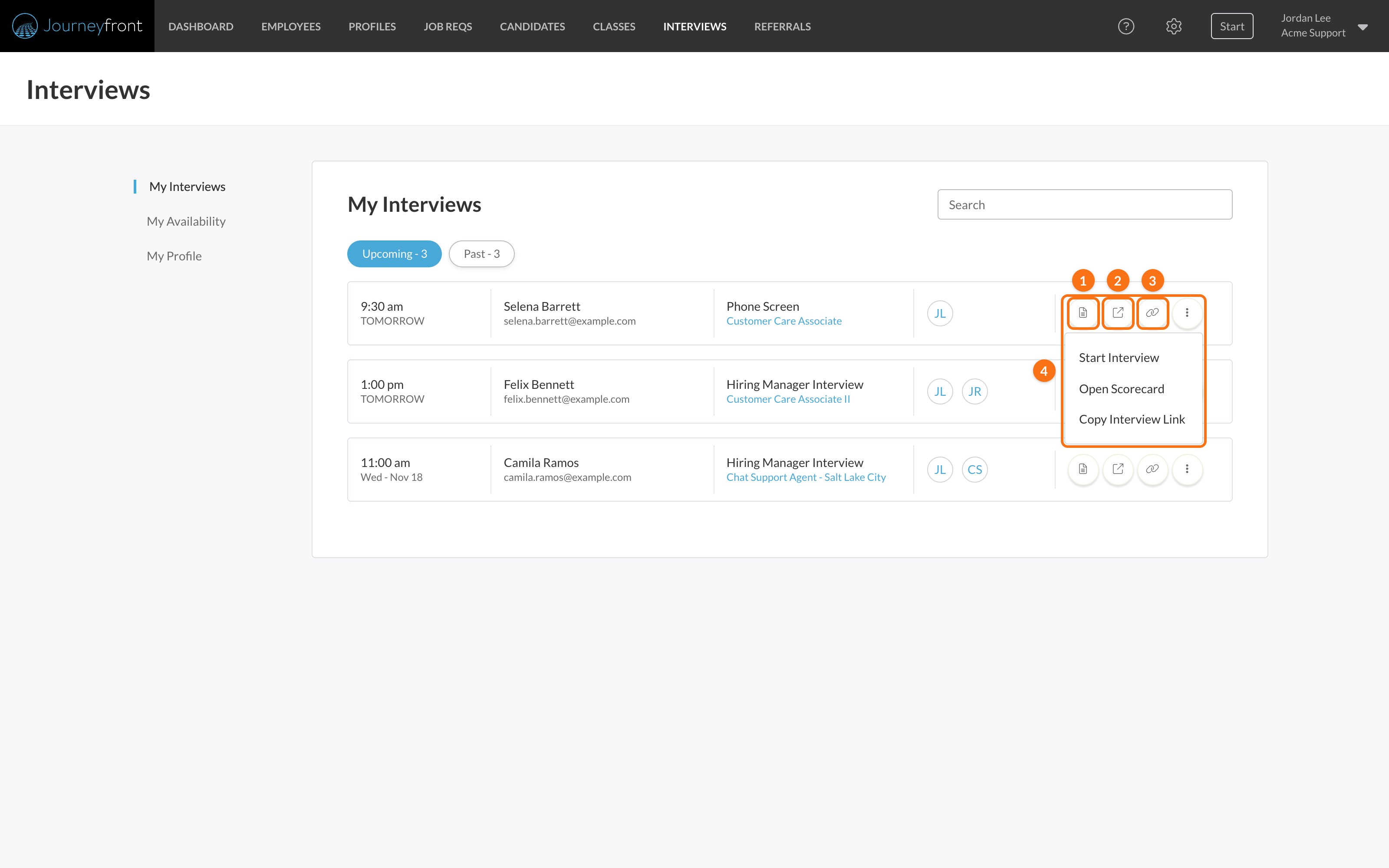
Run an interview and submit feedback
1
Open the interview guide
Click the start icon in My Interviews, use the link on your calendar event, or click Start, then Interview, at the top of any page.
2
Ask, take notes and score
For each question, type what the candidate said in Notes and score each attribute from 1 to 5 against the scoring criteria. If an answer didn’t give you enough to judge, click Unable to score.
3
Submit
Click Submit - I’m all done. Your scores and notes appear on the candidate’s Candidate Application for the rest of the team. To stop and come back, click Save - I’ll finish later.
Review candidates
Your recruiter can send you a candidate with Share. You’ll get an email with their message and a link to the Candidate Application. You need to be signed in, and on the job req’s hiring team (or have access to every job req), to open it. See Share and print. On the Candidate Application, start with these tabs:
Leave your view as a comment on Comments & Activities, so the recruiter and the rest of the team see it in one place. Comments need the View & Submit Comments permission. See Comments and activity.
To learn what the scores mean, see Reading a candidate’s scores.
If you manage employees
If your company tracks performance in Journeyfront, you may be asked to review the people on your team: click Start, then Performance Review, pick the employee and the review period, and score each question. See Performance reviews.FAQ
Why isn't an interview in My Interviews?
Why isn't an interview in My Interviews?
My Interviews shows interviews booked with you as an interviewer, plus guides you’ve opened. If the candidate hasn’t booked yet, or someone else was picked as the interviewer, it won’t be there. Open the guide from Start, then Interview, instead.
Why can't I submit my feedback?
Why can't I submit my feedback?
Every attribute on every question needs a score from 1 to 5, or Unable to score. Fix the questions marked in red and submit again.
I submitted by mistake. Can I change it?
I submitted by mistake. Can I change it?
Yes, once it’s unlocked by someone with the Can Unlock Interviews permission. See Conduct an interview.
Why don't candidates see my open times?
Why don't candidates see my open times?
Check that your calendar is connected in My Profile and that My Availability has hours set. See Your availability and calendar.
Can candidates see my notes or scores?
Can candidates see my notes or scores?
No. Interview notes, scores and comments are only visible to your team.
Related
Conduct an interview
The interview guide, step by step.
Your availability and calendar
Connect your calendar and set your hours.
The Candidate Application
Every tab, explained.
How the pieces connect
How job reqs, workflows, postings, candidates and hiring classes relate.