

Who can do this: Anyone who can open the Candidate Application can see its scores. Deleting an activity’s score needs Can Delete Scores, and unlocking an interviewer’s submitted feedback needs Can Unlock Interviews.
The overall score
The Score tile at the top of the Candidate Application is the candidate’s overall score for this job req. It rolls up the candidate’s attribute group scores, plus their predictive model scores when the job req uses predictive models. It’s the same Overall Score you can sort and filter by on the Candidates page. Scores are on a 1 to 5 scale: the Job Adaptive Score, which reflects what this job needs. Tests measured in their own units, like words per minute, also show their raw result. Colors run from dark red for low scores to dark green for high ones, so you can scan a table quickly.The Score tab
The Score tab shows the candidate’s scores by attribute, in the attribute groups your team set up for this job req. It answers “how does this person measure up on what matters for this job?”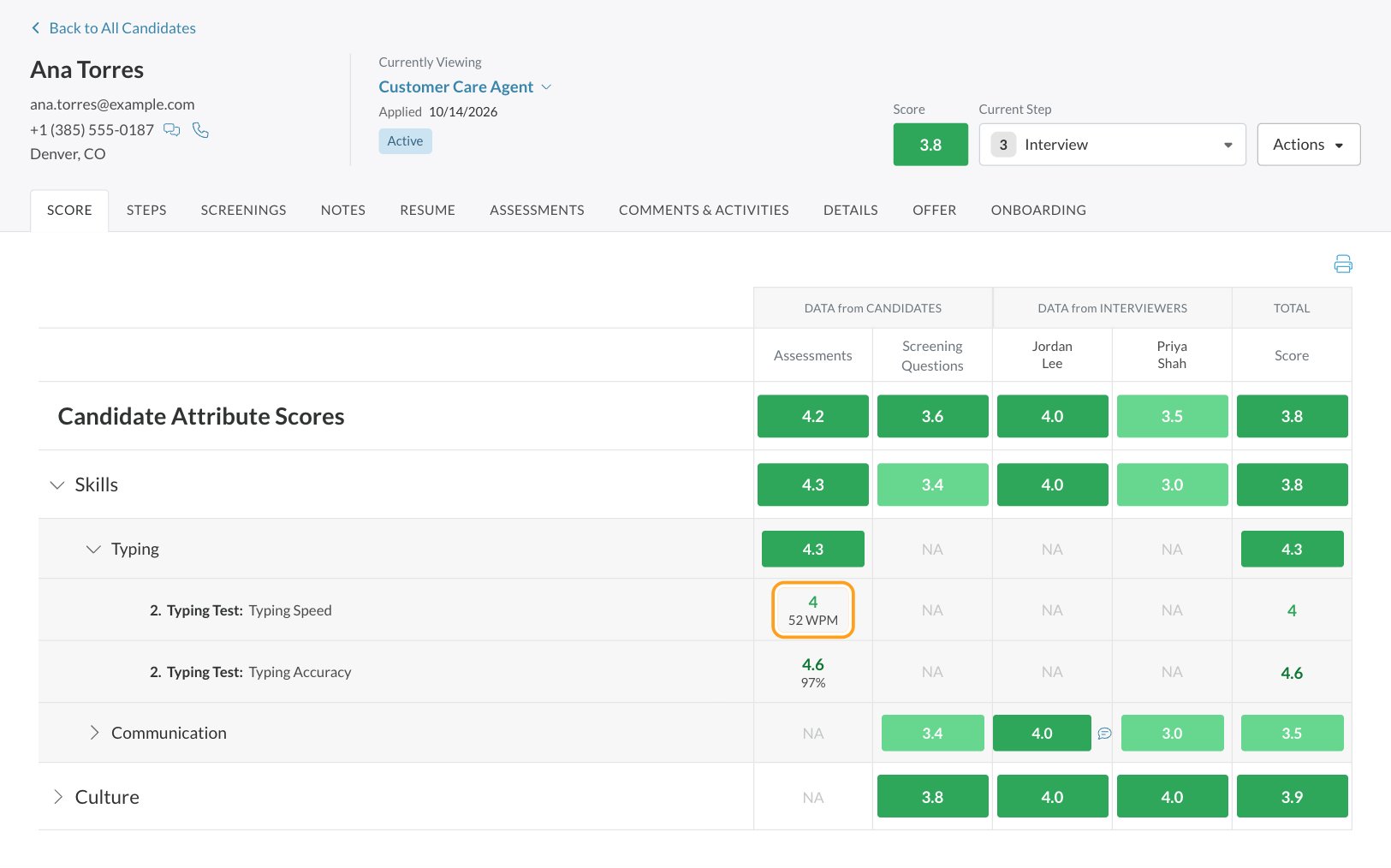
- Candidate Attribute Scores, the first row, rolls up the candidate’s scores across all your attribute groups.
- Each attribute group comes next, in the order you set. Click a group to see its attributes, and click an attribute to see every question or test that measured it, labeled with the step number and activity.
- Columns show where each score came from: Assessments, Screening Questions, one column per interviewer under DATA from INTERVIEWERS, and Resume when the job req uses AI resume scoring. Score, under TOTAL, is the combined result for that row.
- Raw results appear under the score for tests measured in their own units: words per minute and accuracy for a typing test, and Mbps for an internet speed test.
Predictive scores
If the job req uses predictive models and Use Predictive Model is on, the Score tab starts with Candidate Predictive Scores, above the attribute scores:- The first row is the candidate’s combined predictive score.
- Each model follows with its own score. Expand a model to see the traits it looks at, with the candidate’s value next to the ideal value for each one.
Interviewer scores and notes
When interviewers submit feedback, each one gets a column under DATA from INTERVIEWERS on the Score and Steps tabs. Up to four interviewers show at a time; use the arrows next to their names to see more. A comment icon next to an interviewer’s score means they left a note. Hover over it to read the note, or click it to open the full Interview Notes. For every interviewer’s notes in one place, open the Notes tab. See Interview notes.The Steps tab
The Steps tab shows the same results in workflow order: each step, then its activities, then each question or test, then the attributes it measured. Use it to see how a candidate did at each stage, for example the phone screen versus the assessment step.- Activities scored by AI resume scoring show an AI Resume Review line with a sparkle icon.
- Raw results, like words per minute, show under the score just as on the Score tab.
Delete an activity’s score
Users with Can Delete Scores can remove the score from one activity:1
Hover over the score
On the Steps tab, expand the step and hover over the activity’s score. It changes to Delete Score.
2
Confirm
Click it, then click Yes at Delete?
Unlock an interviewer’s feedback
Submitted interview feedback is locked so it can’t change after the fact. If an interviewer needs to correct it, someone with Can Unlock Interviews can unlock it:1
Find the interview
On the Steps tab, expand the step with the interview. Hover over the interviewer’s score on the interview’s row. It changes to Unlock Interview.
2
Confirm
Click it, then click Yes at Unlock? The interviewer can now edit and submit their feedback again.
The Screenings tab
The Screenings tab lists every screening question the candidate was asked, grouped by activity. Each activity shows its status, and each question shows:
Click Order, Question or Response to sort.
Score an answer yourself
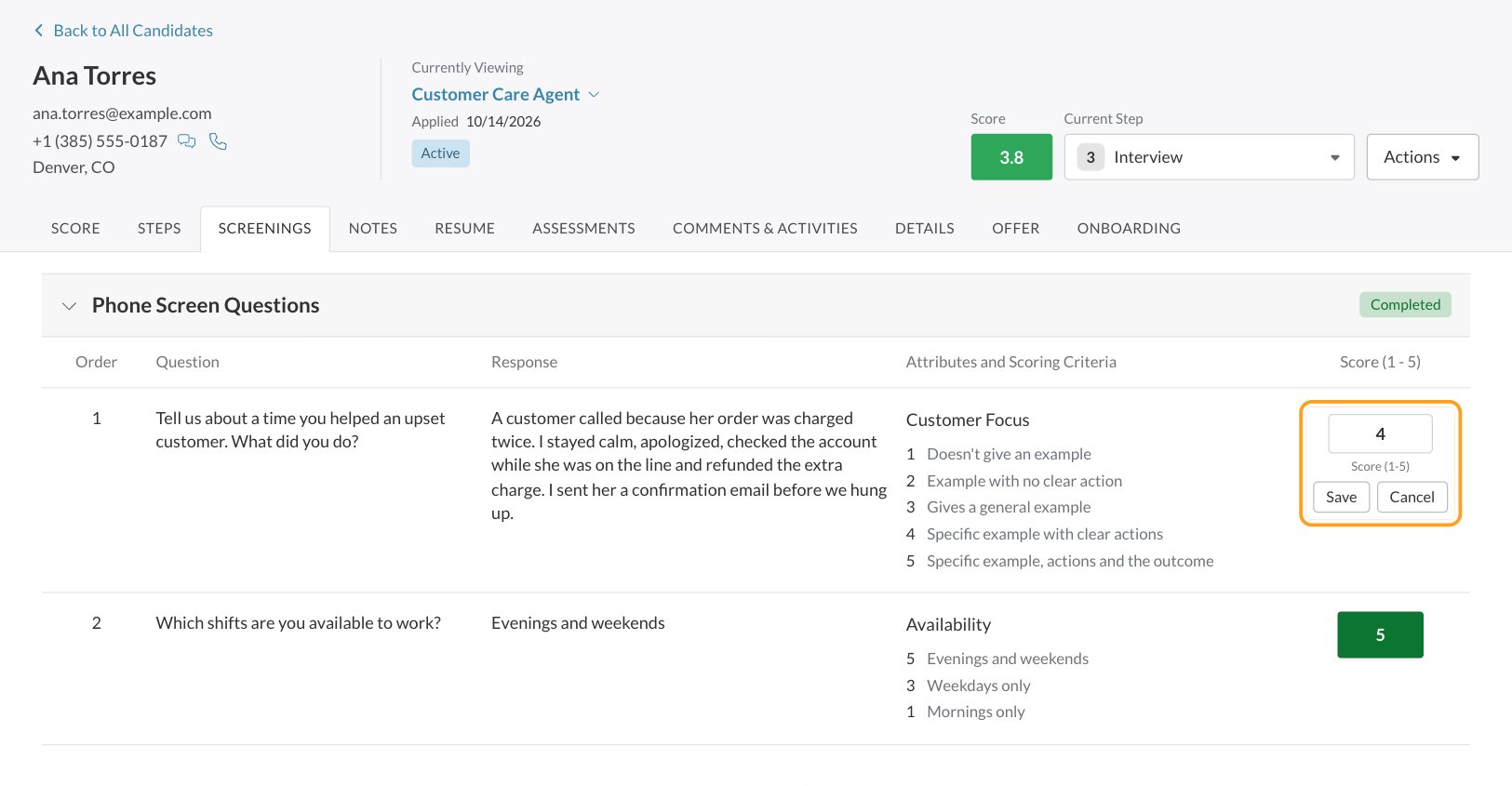
Many answers are scored automatically from the question’s scoring options. Others, such as free-form text, video and audio answers, wait for a person to score them, unless the question uses AI scoring.1
Find the answer
On the Screenings tab, find the answer. Unscored answers show a Score button.
2
Use the scoring criteria
Read the answer and compare it with the criteria in Attributes and Scoring Criteria.
3
Enter the score
Click Score, enter a number from 1 to 5 (decimals like 3.5 are fine) and click Save.
The Assessments tab
The Assessments tab shows results that aren’t simple question scores.- Behavioral assessments: expand an assessment to see each trait it measured. The slider shows the Candidate Value, where the candidate landed from Low (1) to High (5), next to the Ideal Value your job req is looking for. Score (1-5) is the candidate’s score for that trait. Not Scored means the trait is measured but doesn’t count for this job req. A description of the assessment appears beside the table. See Behavioral assessment.
- System requirements checks appear under SRL Assessments, with the overall result, the score, and each requirement compared with the candidate’s system. If results couldn’t be retrieved, you’ll see Error Getting Results and a Retry button. See System requirements.
FAQ
Why does a score say NA?
Why does a score say NA?
There’s no score to show yet. The candidate may not have reached or finished that activity, an answer may still need someone to score it, or nothing in the workflow measured that attribute for this candidate. On the Screenings tab, answers waiting for a person to score them show a Score button.
What does KO mean?
What does KO mean?
The candidate gave an answer marked as a knockout on a screening question. KO replaces the score so knocked-out candidates are easy to spot. See Screening questions.
Why does the same result score differently on two job reqs?
Why does the same result score differently on two job reqs?
Scores are Job Adaptive Scores, based on what each job needs. The same typing speed can be strong for one role and average for another. Compare raw results, like words per minute, when you want the same yardstick across roles. See How scoring works.
How do I see an interviewer's notes?
How do I see an interviewer's notes?
Hover over the comment icon next to their score on the Score or Steps tab, or open the Notes tab to read every interviewer’s notes together.
Can I change a score?
Can I change a score?
It depends on the score:
- Screening answers you scored by hand: use the edit icon under the score on the Screenings tab.
- AI scores: users with Edit AI Scores can change them. See AI-scored questions.
- Interview feedback: someone with Can Unlock Interviews unlocks it so the interviewer can resubmit.
- Activity scores: users with Can Delete Scores can delete them on the Steps tab.
Why is the Weight column different on each job req?
Why is the Weight column different on each job req?
Weights belong to each job req, so two job reqs can value the same attribute differently. They’re set on the job req’s Attributes page. See Attributes.
Can candidates see their scores?
Can candidates see their scores?
Not the scores on this page. Job Adaptive Scores, the overall score and group scores are only visible to your team. Candidates can see some of their own results after a test: their typing speed and accuracy, a report after a skills test, and a profile report after the behavioral assessment unless your account hides it. See Assessments overview.
Related
How scoring works
Raw scores, the Job Adaptive Score and how scores roll up.
Attributes
Choose what counts for each job req.
The Candidate Application
Every tab, explained.
Conduct an interview
How interviewers score and submit feedback.