

Who can do this: Users with the Manage Job Req Settings permission turn on and set up AI resume scoring for a job req. Anyone who can view a Candidate Application can review and edit its resume score.Availability: AI resume scoring needs to be turned on for your account. Ask your Customer Success Manager.
People stay in control
- AI informs decisions; people make them. A resume score is one input among many. It doesn’t hire or reject anyone on its own.
- Every score shows its reasoning, and highlights the lines of the resume behind it, so you can check the evidence yourself.
- Your team can change any score. Edits are recorded, so you can always tell AI scores from scores a person reviewed.
- Your data stays yours. Candidate data isn’t used to train the AI provider’s models.
Turn it on for a job req
1
Open AI Resume Scoring
Open the job req and go to Setup, then AI Resume Scoring. Switch it from Off to On.
2
Choose when to score
Turn on Auto Score New Resumes to score every new resume as candidates apply. Leave it off to score candidates one at a time.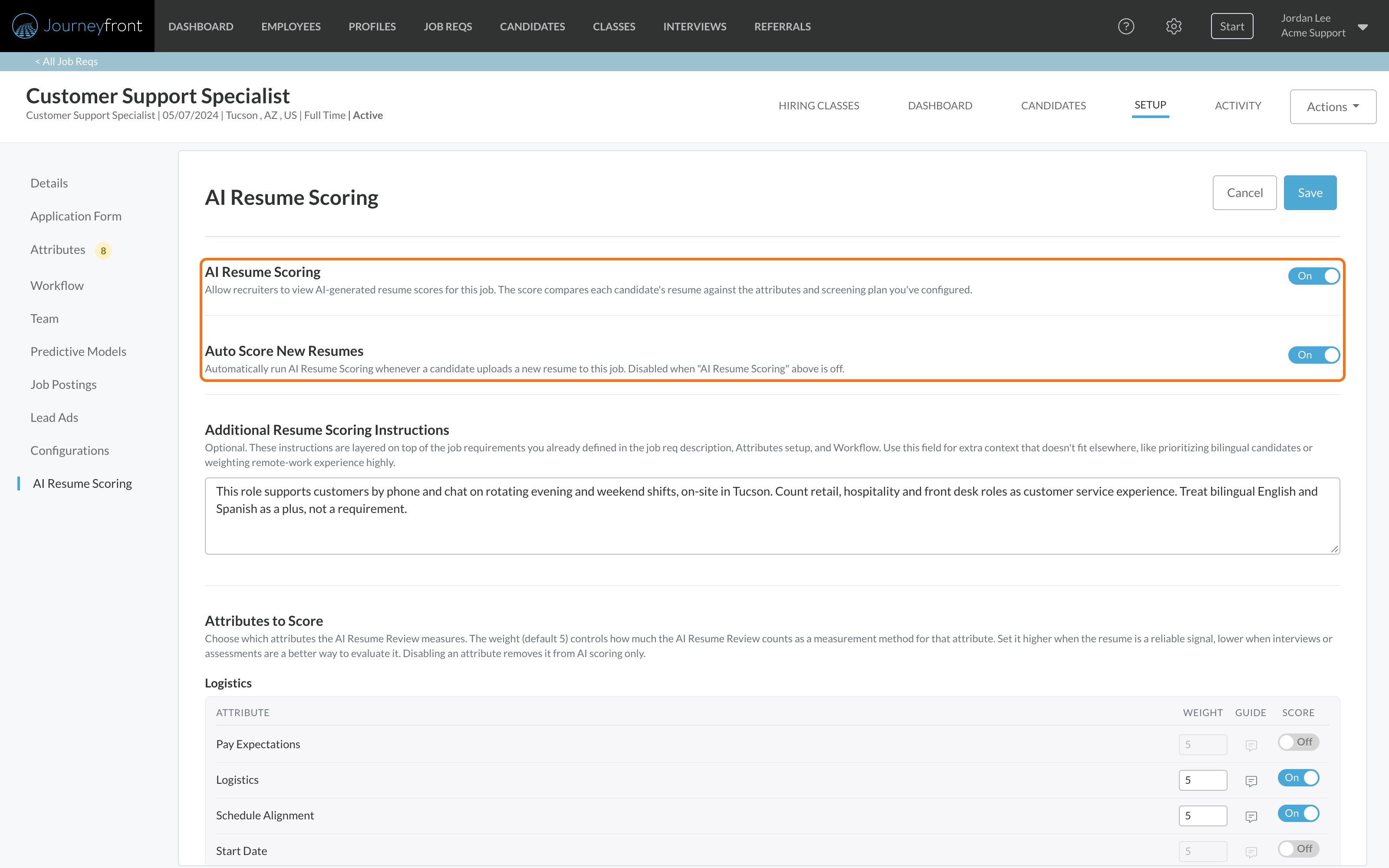
3
Choose the attributes
Under Attributes to Score, switch Score to On for each attribute the resume should be scored on, and set its Weight. The weight decides how much the resume counts as a way of measuring that attribute. Attributes are listed by attribute group; switching one Off leaves it out of AI resume scoring only.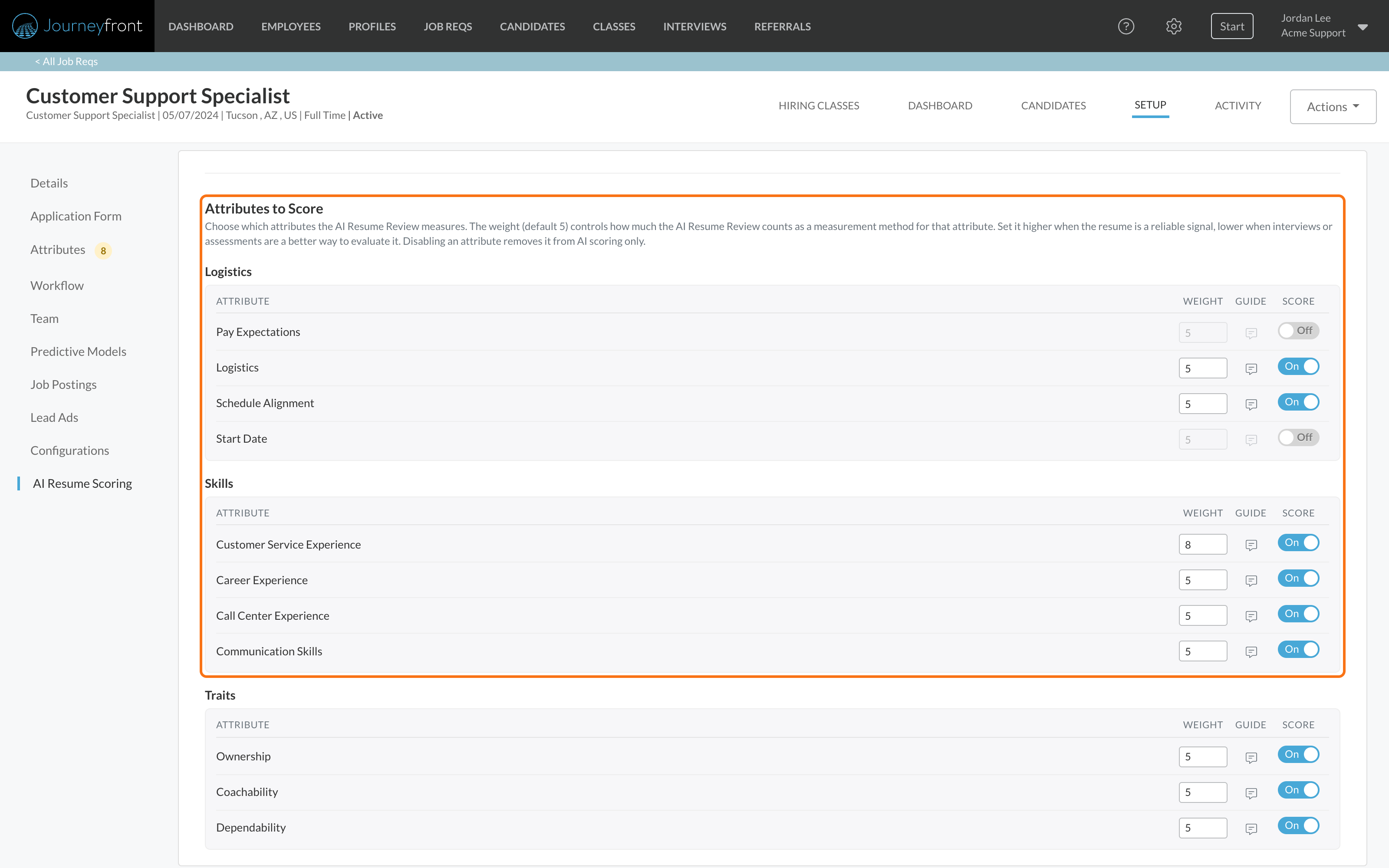
4
Add guidance (optional)
Use an attribute’s Guide for guidance about that one attribute, or Additional Resume Scoring Instructions for guidance that applies to every resume for this job. For example: “This role is fully on-site, so treat remote-only experience as a gap.”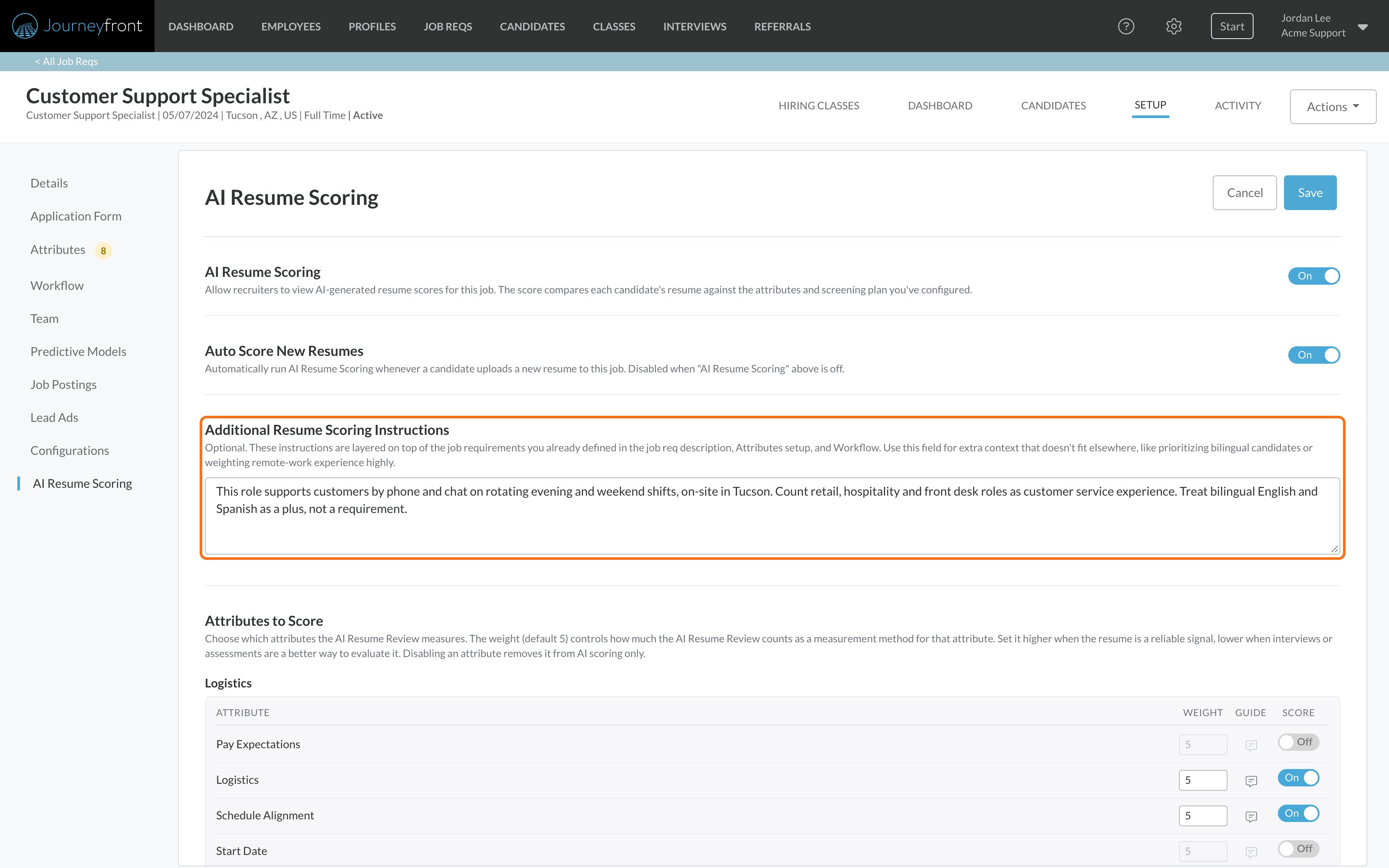
5
Save
Click Save.
Attributes
Set up the attribute groups that resumes are scored against.
Where resume scores show up
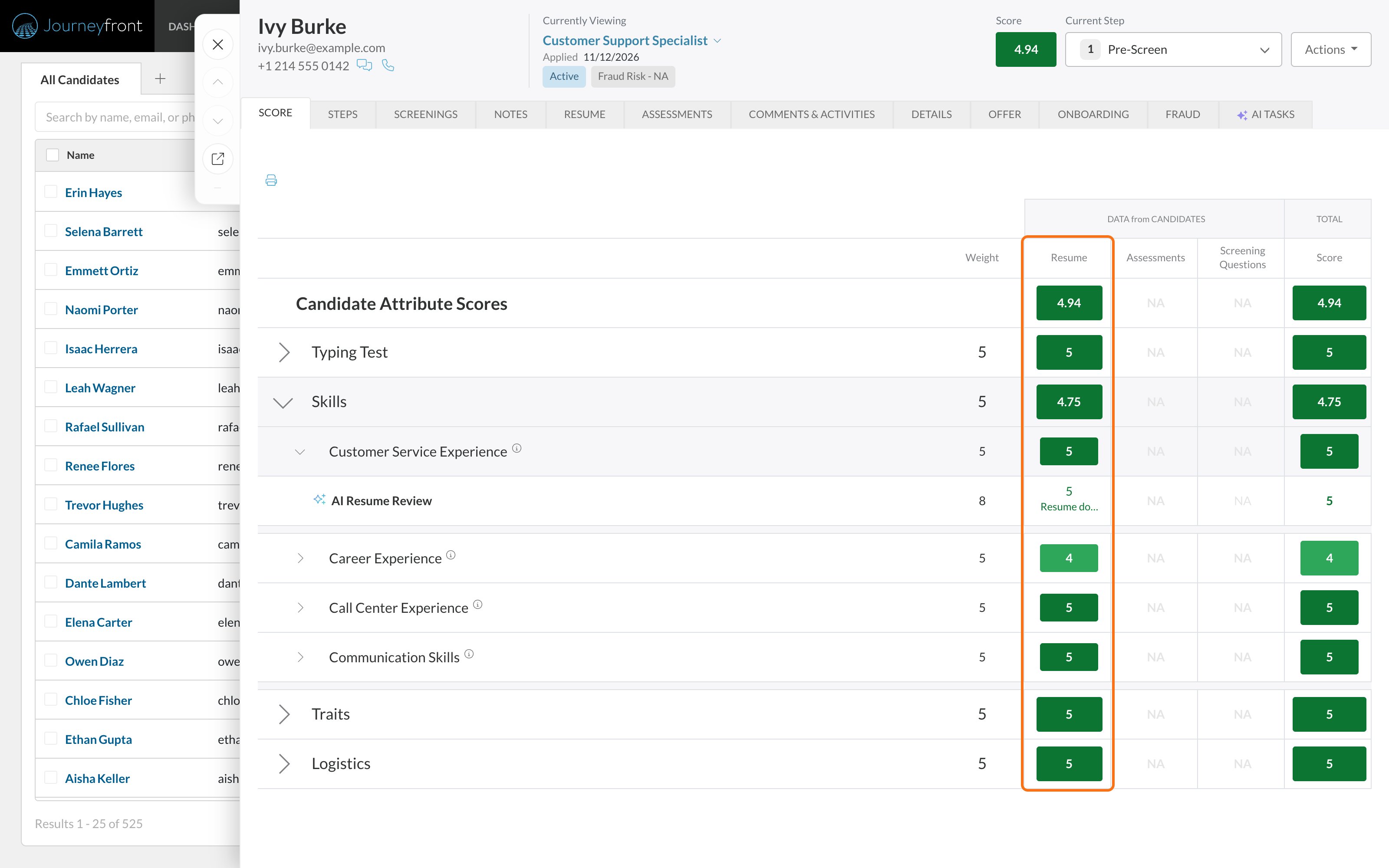
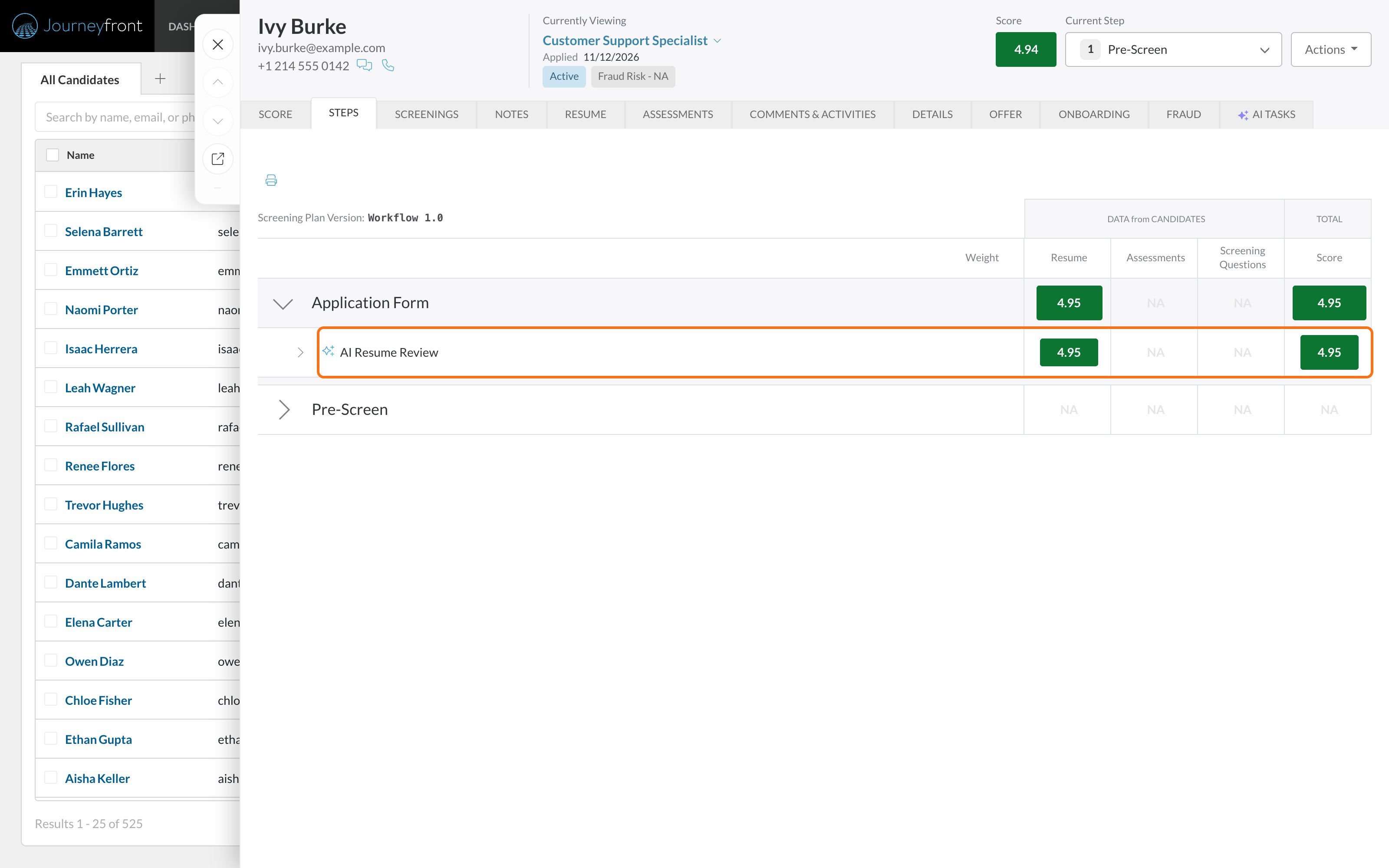
Once a resume is scored, its score appears in four places. Candidate lists. Sort or filter by the AI Resume Score column to start with your strongest applicants. Click a score to open its breakdown on the Resume tab.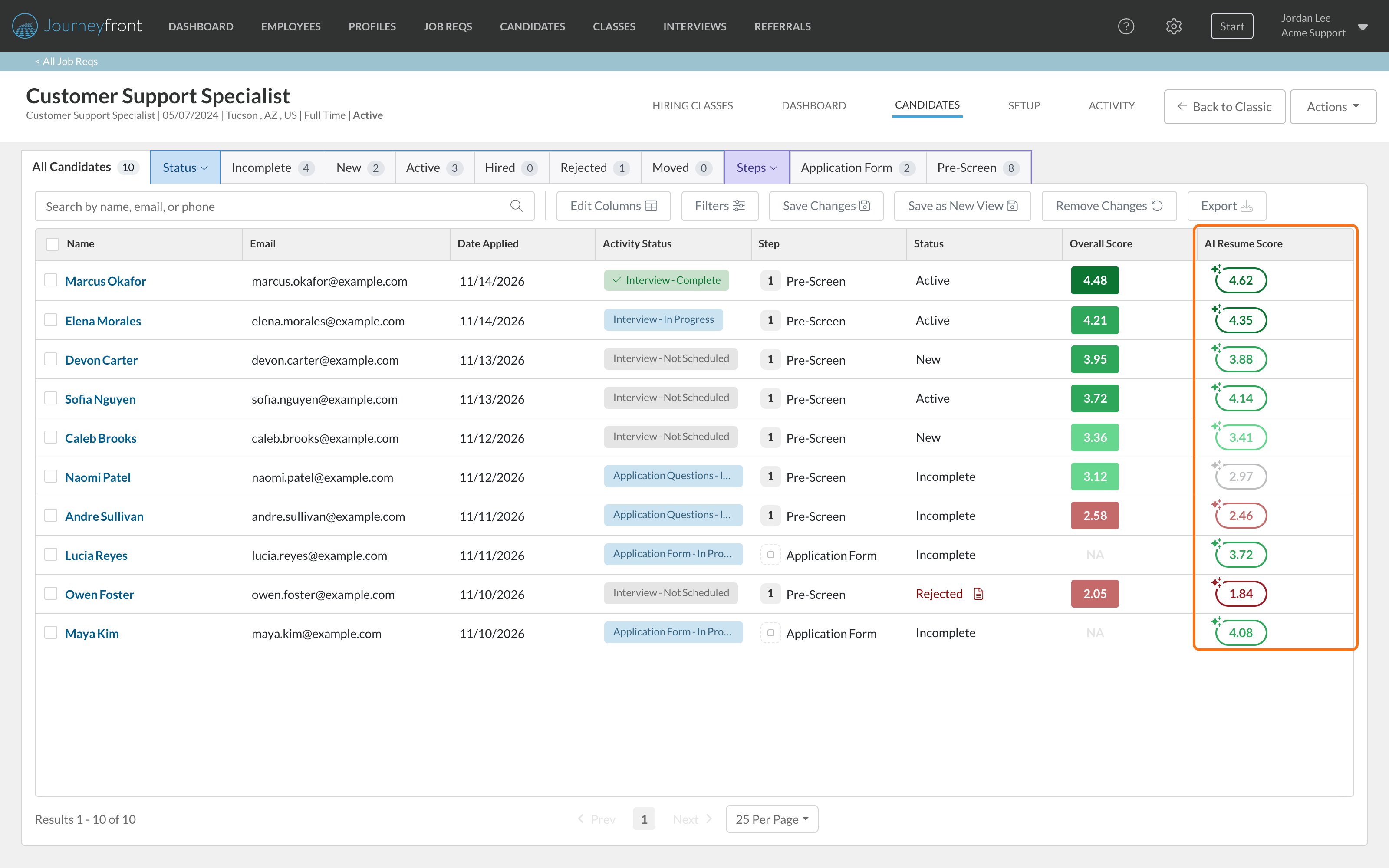
Review a candidate’s resume score
1
Open the Resume tab
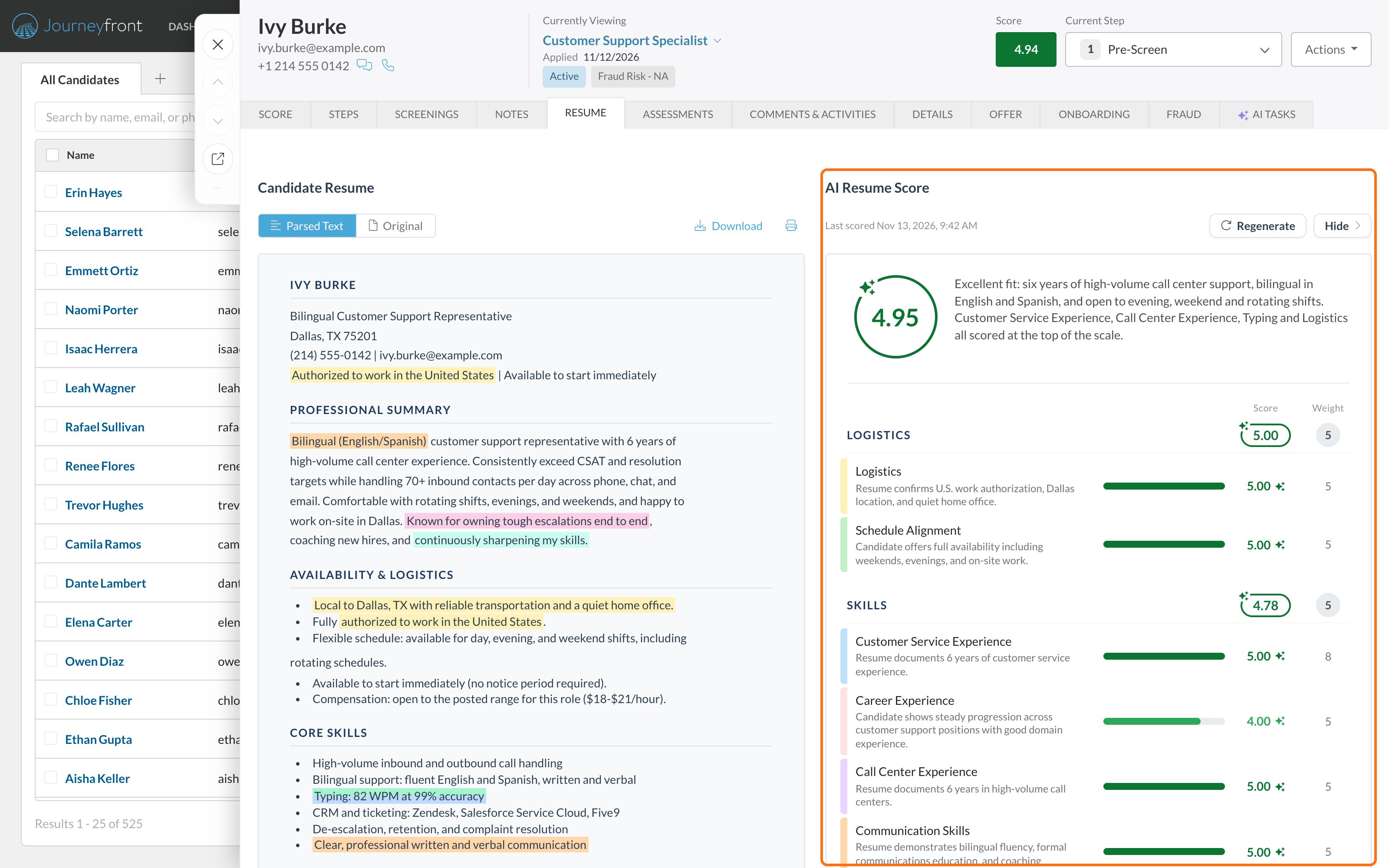
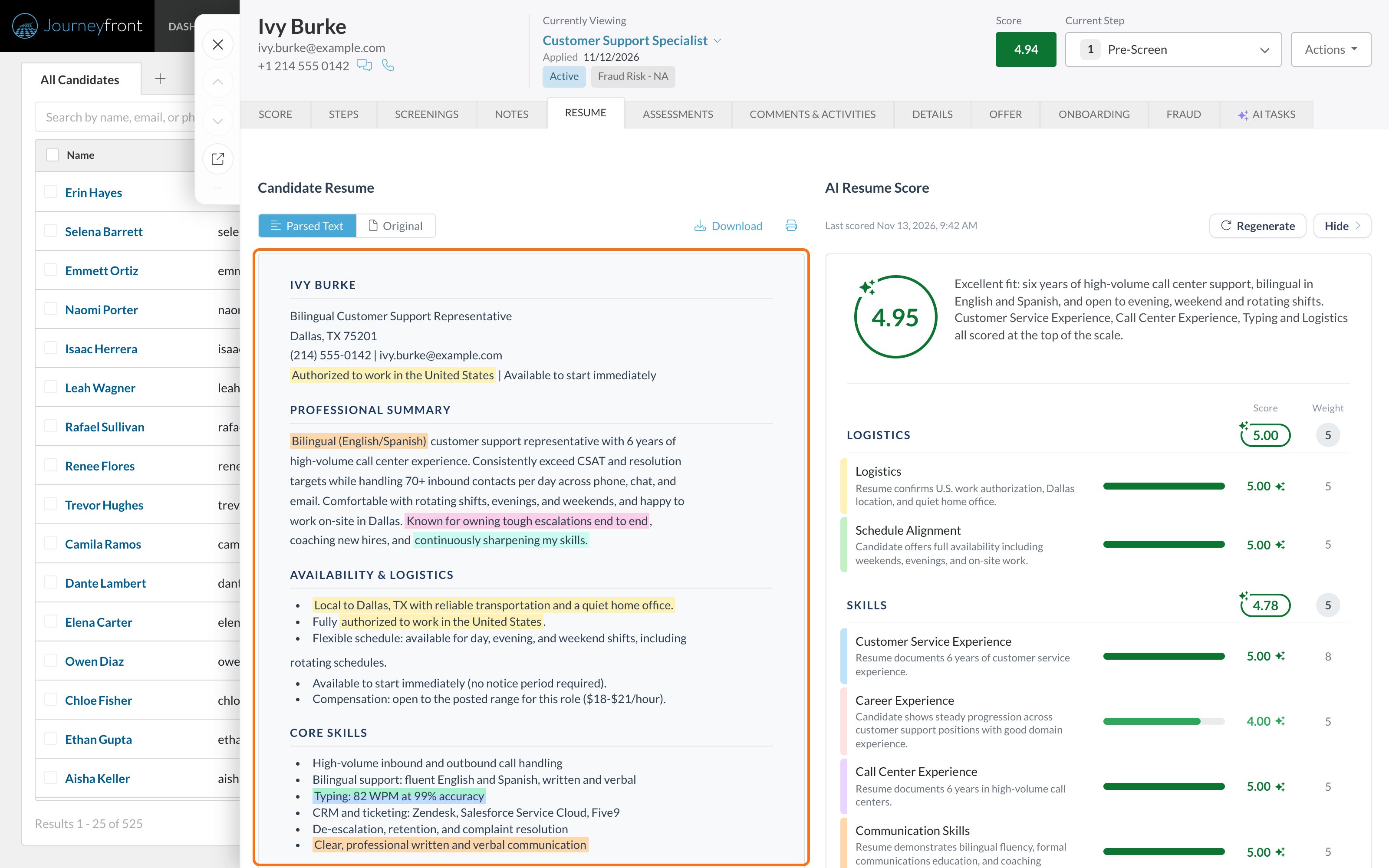
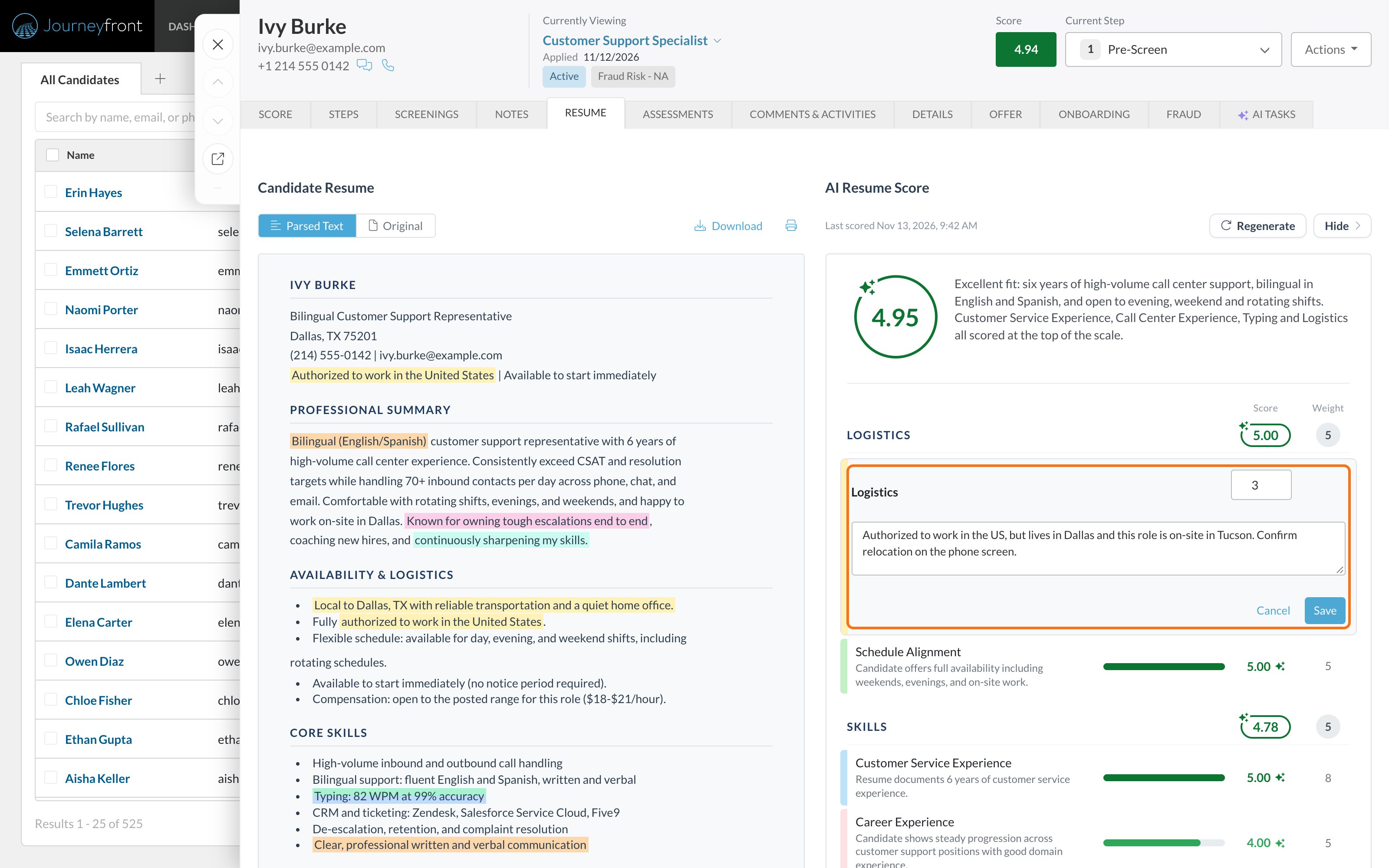
Open the candidate’s Candidate Application and select the Resume tab. The resume is on the left and the AI Resume Score is on the right. Click Hide to give the resume the full width, and AI Resume Score to bring the panel back.
2
Read the summary
At the top you’ll see the overall resume score and a short summary of the fit. Below it, each attribute shows its Score, its Weight and a sentence explaining why.
3
Check the evidence
Each attribute has its own color, matching the phrases highlighted in the resume that support its score. All highlights are on to start; click an attribute to turn its highlights off or back on. Highlights appear in the Parsed Text view; Original shows the file exactly as the candidate uploaded it.
Change a score you disagree with
1
Edit the attribute
On the Resume tab, hover over the attribute and click the pencil icon, Edit score and reasoning.
2
Enter your score
Enter a score from 1 to 5 and update the reasoning to explain your judgment.
3
Save
Click Save. The overall resume score and the summary update, and the attribute is marked as edited by a person.
When a resume is scored or re-scored
A resume is scored on its own only when Auto Score New Resumes is on for the job req. Otherwise, scoring happens when someone on your team asks for it.FAQ
Is the AI deciding who gets hired?
Is the AI deciding who gets hired?
No. The resume score is decision support. Your team sees the reasoning and the evidence, can change any score, and makes the call.
Does the resume score change a candidate's overall score?
Does the resume score change a candidate's overall score?
Yes. It counts like any other measurement, alongside screening questions and assessments, so a strong or weak resume moves where the candidate ranks.
If I change the attributes or instructions, are past scores updated?
If I change the attributes or instructions, are past scores updated?
Not right away. With Auto Score New Resumes on, a candidate is re-scored the next time someone opens their Resume tab. With it off, click Regenerate on the candidates you want re-scored. Either way, re-scoring replaces any manual edits.
What happens if a candidate has no resume?
What happens if a candidate has no resume?
No resume score is produced. The Resume tab shows that there’s no resume on file, and you can upload one from there.
What can't the AI see?
What can't the AI see?
It only judges what’s in the resume. It can’t confirm that a claim is true, and it can’t credit experience the candidate left out. Treat a low score as a prompt to look closer, not a verdict.
Is our candidate data used to train AI models?
Is our candidate data used to train AI models?
No. Customer data is not used to train the AI provider’s models.
Related
AI-scored questions
Let AI score video, audio and written screening answers.
Attributes
The traits and skills resumes are scored against.
How scoring works
Raw scores, the Job Adaptive Score and how scores roll up.