

Who can do this: Admins with Company Settings Access manage the attribute library. Users with the Manage Job Req Settings permission set up attributes on a job req.
How attributes fit together
Your attribute library
Every attribute your account can use, from Journeyfront’s standard set and your own.
Activities measure them
Each question, test and assessment in a workflow measures one or more attributes.
Each job req picks what counts
You group a job req’s attributes and decide how much each one matters.
The attribute library
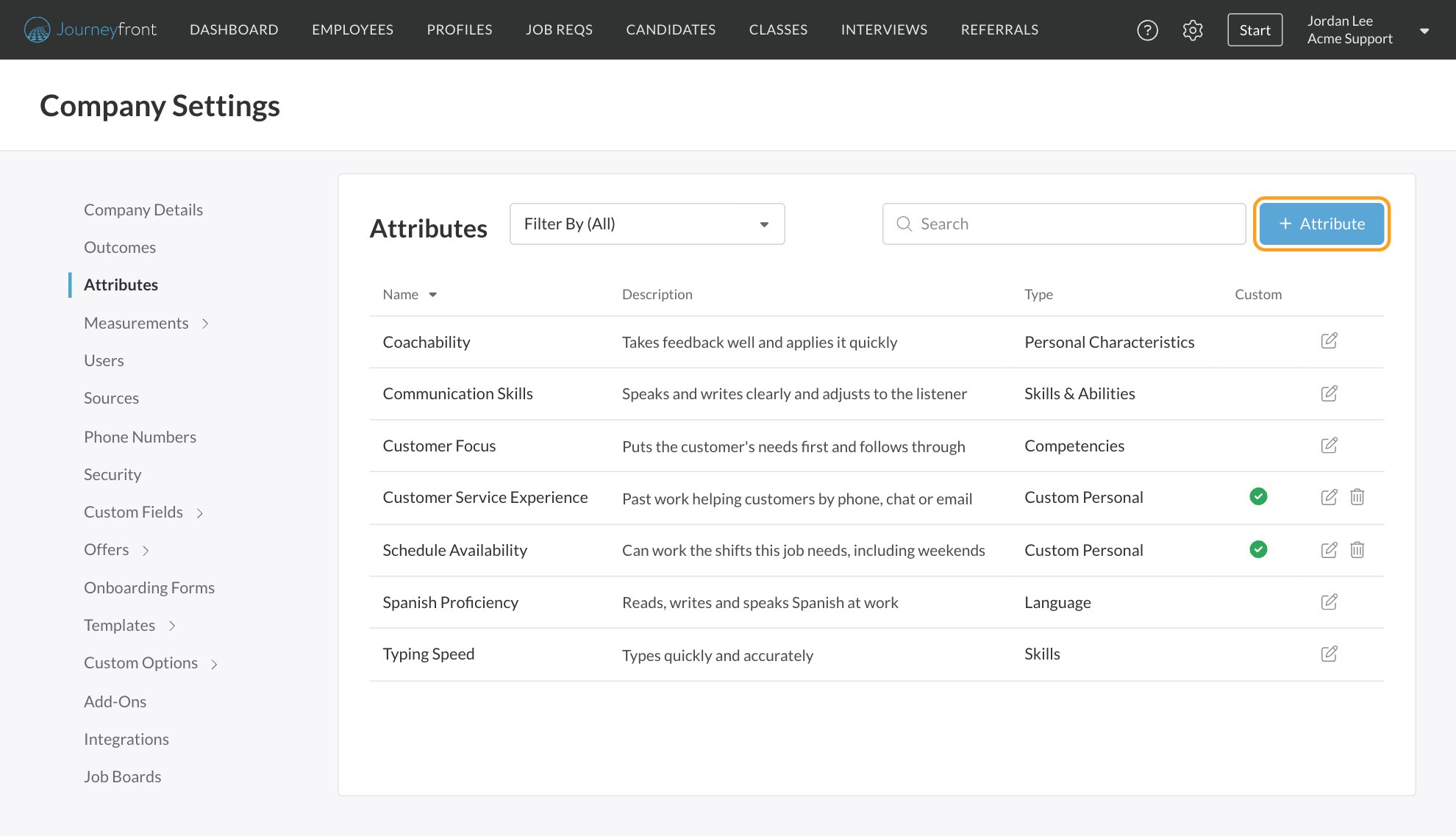
Go to Settings, then Attributes to see every attribute on your account, with its Name, Description and Type. Attributes your team created are marked Custom.- To add an attribute, click Attribute at the top of the list, then give it a name and description.
- To find one, search or filter the list by type.
- To change an attribute, click the edit icon on its row, then Edit. You can edit and delete only your own Custom attributes; Journeyfront’s standard attributes are view-only.
- Deleting a custom attribute also removes it from the attribute groups of every job req that uses it.
Measured vs. scored
An attribute is measured when something in a job req’s workflow, like a screening question or a typing test, is set up to score it. It only counts toward a candidate’s score once you add it to an attribute group on that job req’s Attributes page. That gives you control: a workflow can measure lots of things, and you choose which of them shape the score for this job.Set up attributes on a job req
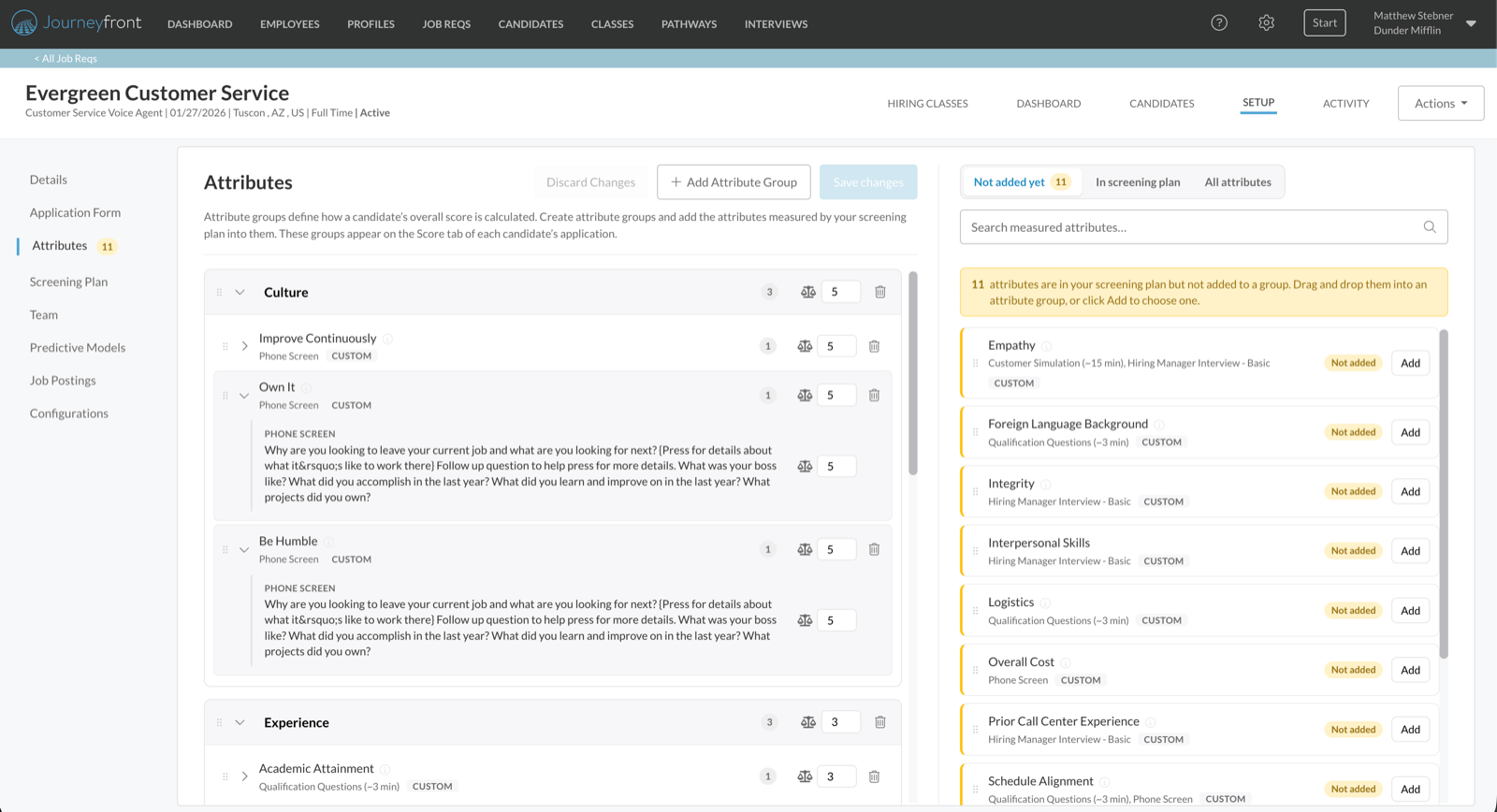
Open the job req and go to Setup, then Attributes. Your attribute groups are on the left, and the attributes you can add are on the right.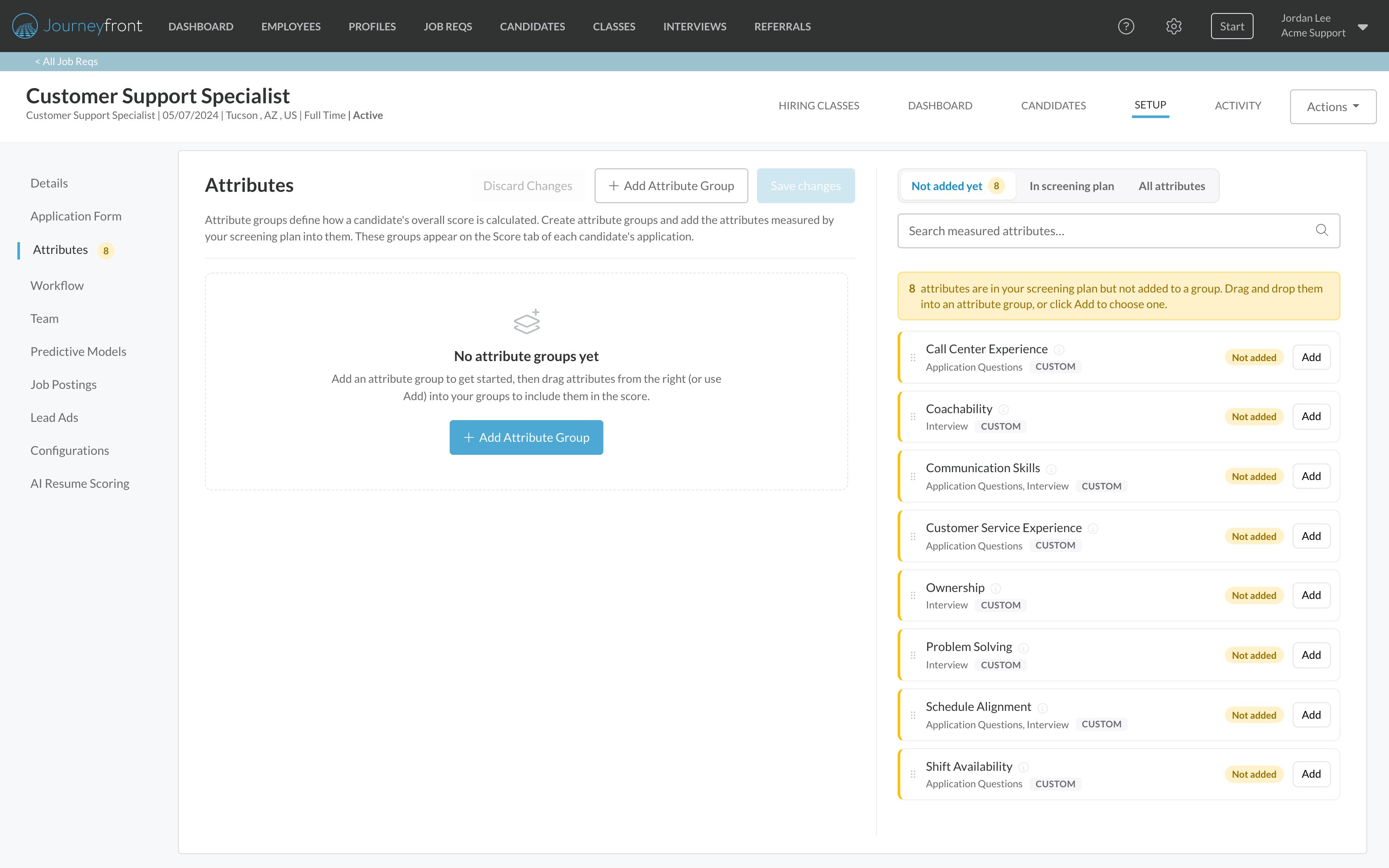
1
Create a group
Click Add Attribute Group and name it, for example Culture, Experience or Skills.
2
Add attributes to the group
Drag an attribute by its handle from the list on the right onto the group, or click Add on the attribute and choose the group.
3
Set how much each one matters
Give each group, and each attribute in it, a weight that reflects its importance for this job (see below).
4
Save
Click Save changes to apply everything at once, or Discard Changes to start over.
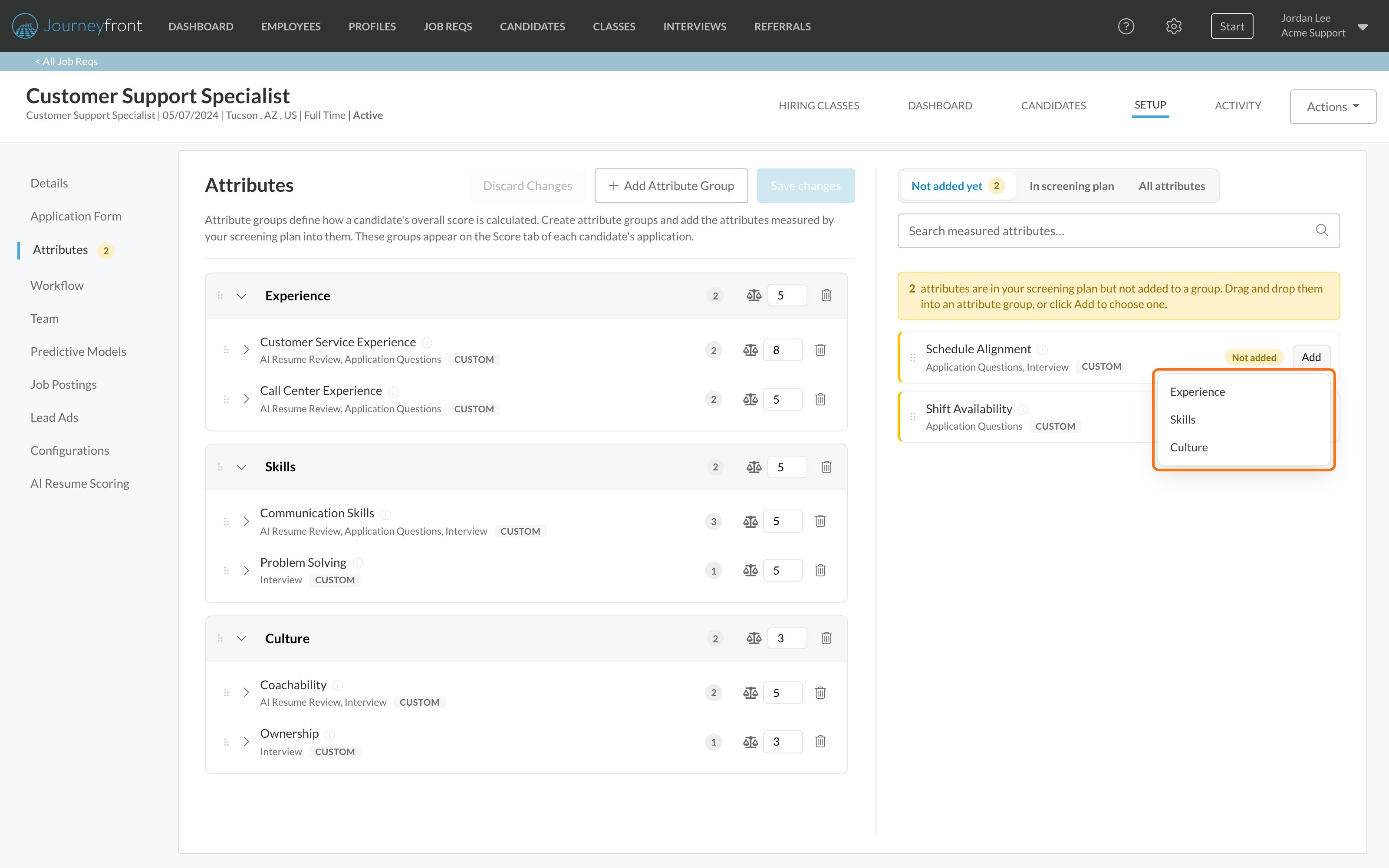
- Where it’s measured: the activities that score it, such as Application Questions or Interview.
- Default or Custom: Default attributes come from a standard Journeyfront activity; Custom attributes were created for your account.
- Whether it’s in a group: Not added, or Added with the number of groups it’s in. The same attribute can belong to more than one group.
- How many questions or tests measure it: once it’s in a group, a count appears next to it. Expand the attribute to see each one.
Decide how much each one matters
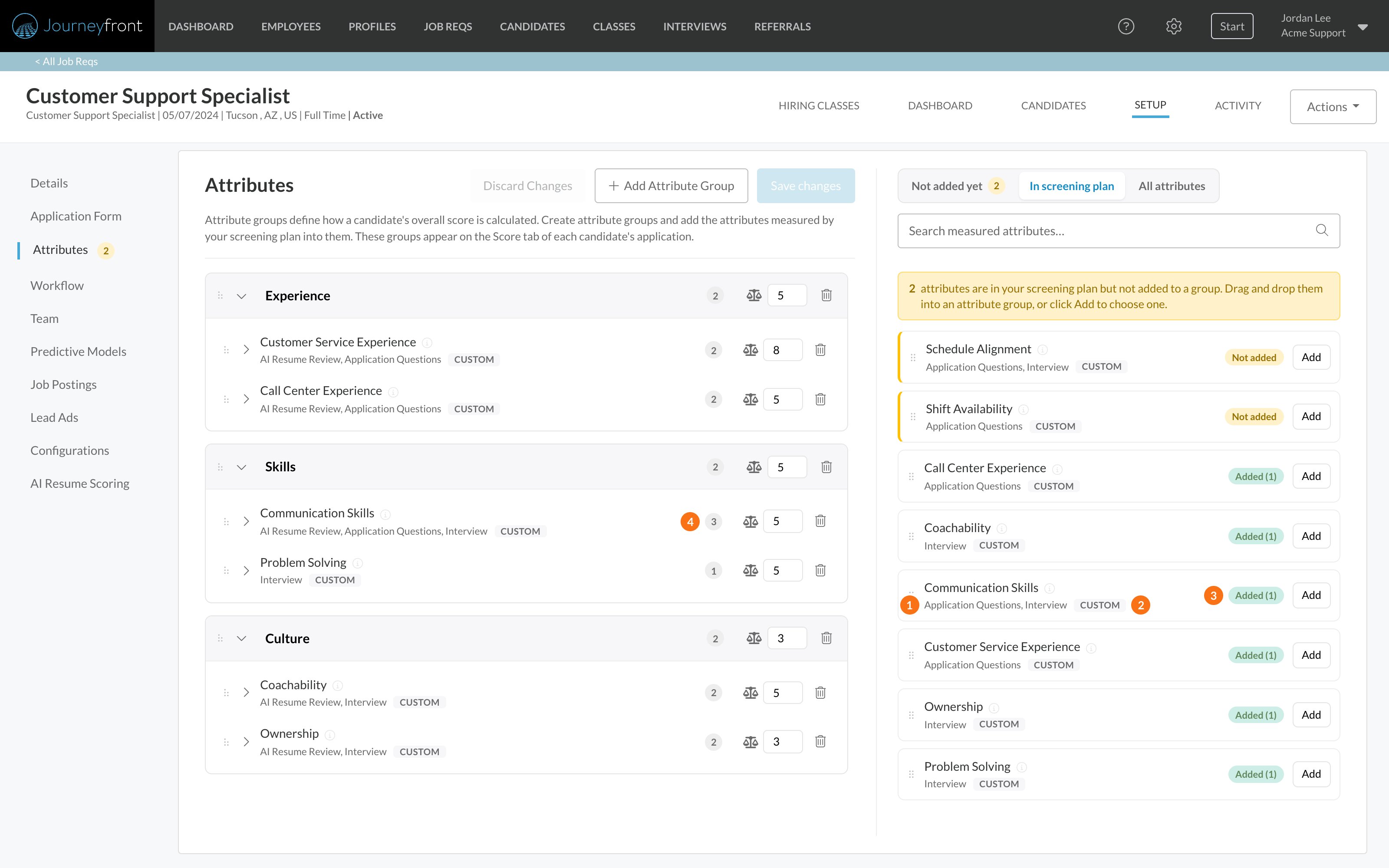
You can set importance at three levels:- Group: how much the whole group counts compared with your other groups.
- Attribute: how much an attribute counts within its group.
- Question or test: expand an attribute to see everything that measures it, and decide how much each one counts.
Find attributes that aren’t scored yet
A number next to Attributes in the job req’s setup menu shows how many measured attributes aren’t in a group yet. Open the Not added yet tab to see them.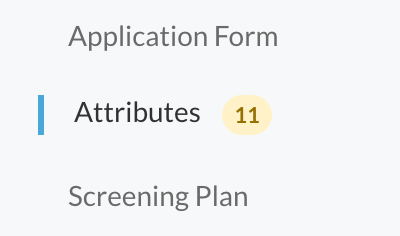
Create a new attribute from a job req
If the attribute you need doesn’t exist yet, open All attributes and search for it. Below the results, click Create Attribute, then add a name and description and click Save. The new attribute joins your library and you can add it to a group straight away.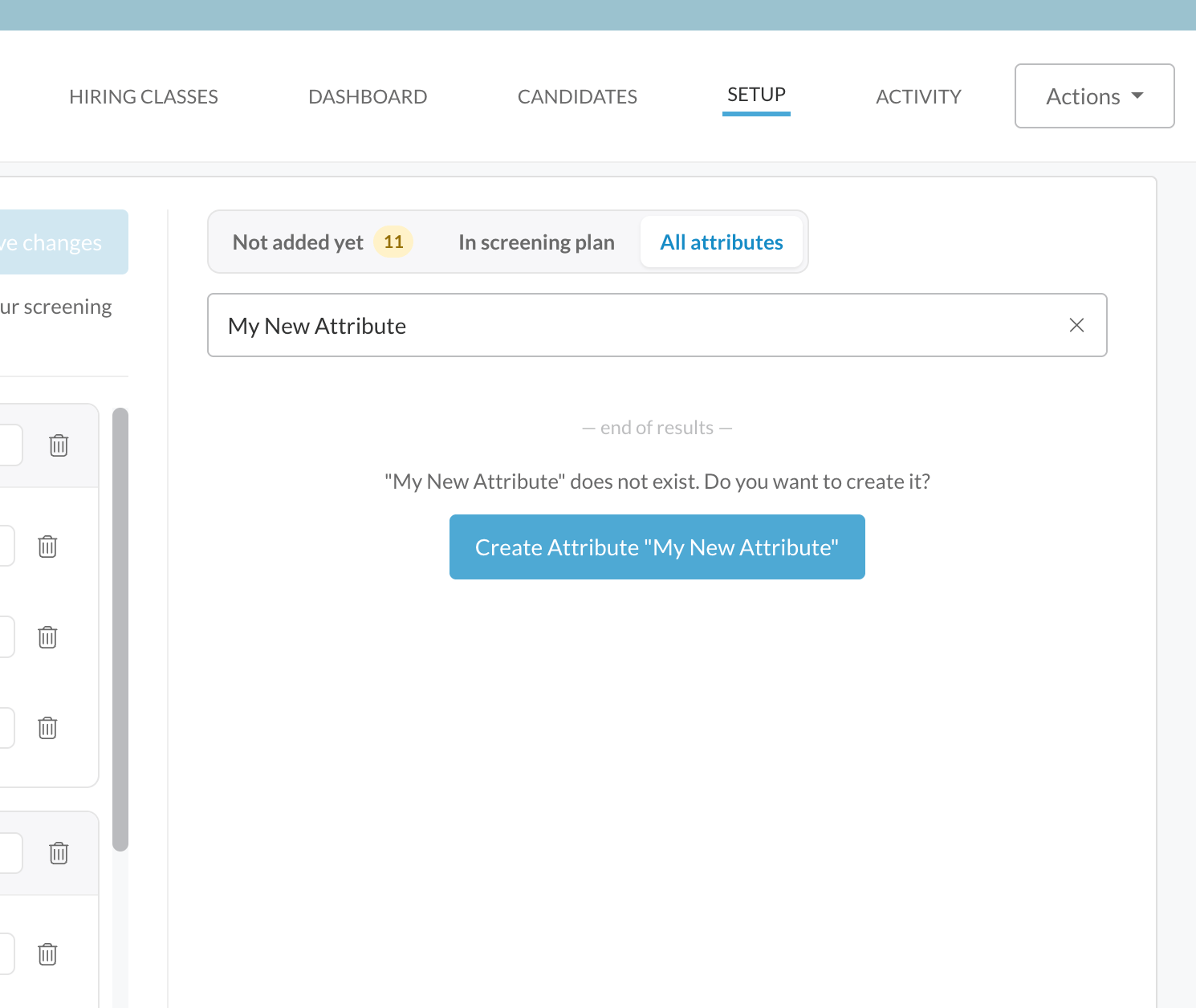
Reorder or remove
- Drag a group by its handle, or drag attributes within a group, to change the order. Candidates’ scores display in this order.
- Click the trash icon on an attribute to remove it from a group, or on a group’s header to delete the group.
See a candidate’s attribute scores
Open a candidate’s Candidate Application and select the Score tab. Candidate Attribute Scores shows your attribute groups in the order you set, each with its score on the 1 to 5 Job Adaptive Score scale. Expand a group to see its attributes, and expand an attribute to see the questions and tests behind it. Tests measured in their own units show the raw result under their score, such as a typing test’s words per minute and accuracy or an internet speed test’s Mbps.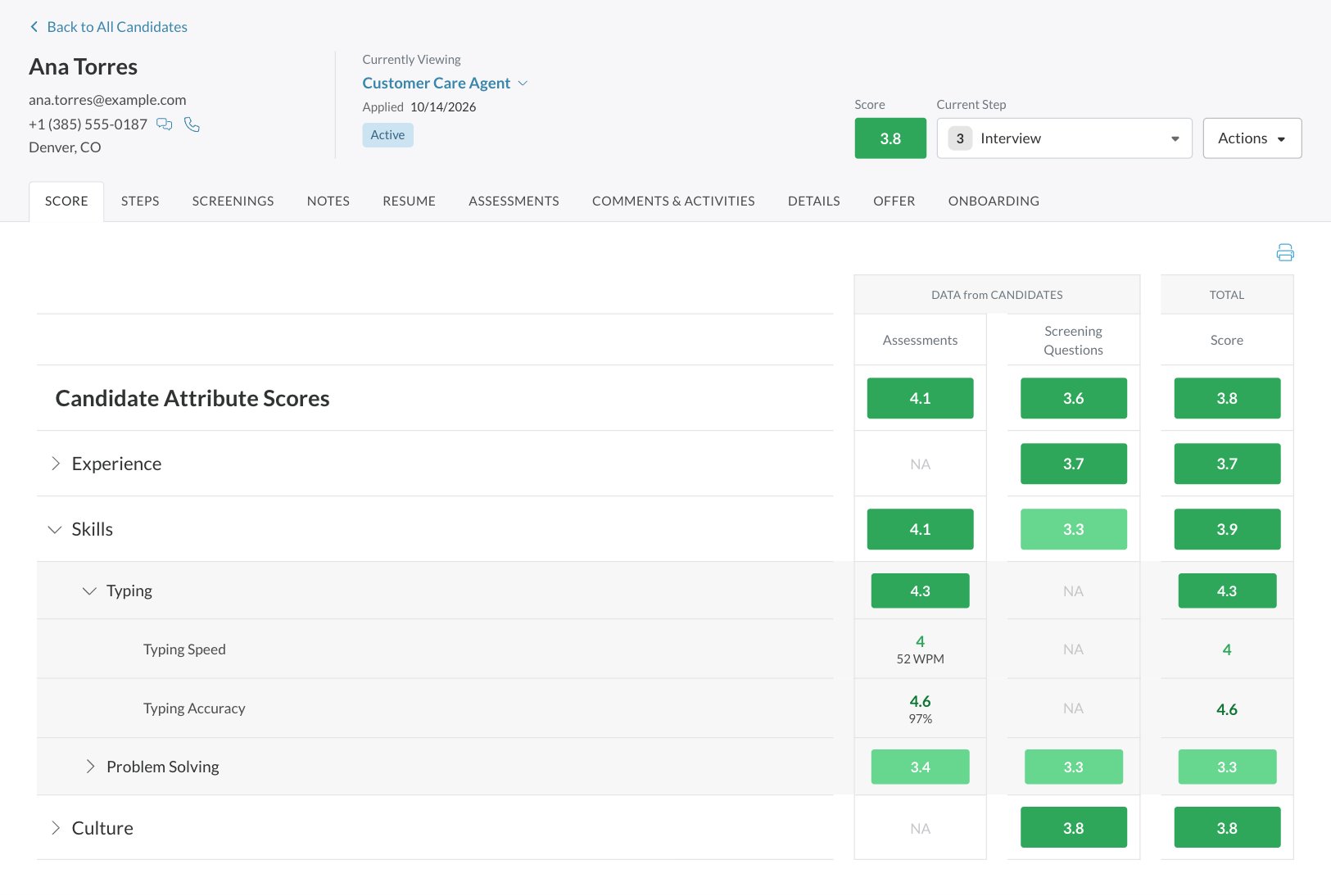
FAQ
Why isn't one of my attributes showing a score?
Why isn't one of my attributes showing a score?
Most likely it isn’t in a group yet. Check the Not added yet tab on the job req’s Attributes page and add it to a group. If it isn’t on that tab either, nothing in the workflow measures it yet.
What's the difference between an attribute and an attribute group?
What's the difference between an attribute and an attribute group?
An attribute is one trait or skill, like Coachability. An attribute group is a category you create on a job req, like Skills, to organize attributes. Attributes only count toward the score once they’re in a group.
Can I add an attribute the workflow doesn't measure?
Can I add an attribute the workflow doesn't measure?
Yes, from the All attributes tab. It won’t produce a score until something in the workflow measures it.
When do my changes take effect?
When do my changes take effect?
When you click Save changes. Saving updates the scores of candidates on that job req.
Do changes on one job req affect other job reqs?
Do changes on one job req affect other job reqs?
No. Groups and weights belong to each job req. Changes to an attribute’s name or description in Settings, then Attributes, apply everywhere that attribute is used.
How do attribute scores become the overall score?
How do attribute scores become the overall score?
Each attribute’s score comes from the questions and tests that measure it. Attribute scores roll up into group scores, and groups roll up into the candidate’s overall score, with the weights you set deciding how much each one counts (a weighted average). Only attributes in a group are included. If the job req uses predictive models, the overall score combines this attribute group roll-up with the predictive model roll-up, weighted by the job req’s Scoring Weights (under Setup, then Configurations). See Predictive models.
Who can edit attributes?
Who can edit attributes?
Admins with Company Settings Access manage the attribute library. Users with the Manage Job Req Settings permission can set up attributes on a job req. If you can’t make changes, ask your Journeyfront admin to check your security role.
Related
How scoring works
Raw scores, the Job Adaptive Score and how scores roll up.
AI resume scoring
Score resumes against your attributes.
AI-scored questions
Let AI score video, audio and written answers.
Set up an interview activity
Interview questions that measure attributes.
How the pieces connect
How job reqs, workflows, postings, candidates and hiring classes relate.