

Who can do this: Everyone on a job req can see candidate scores.
Raw scores and the Job Adaptive Score
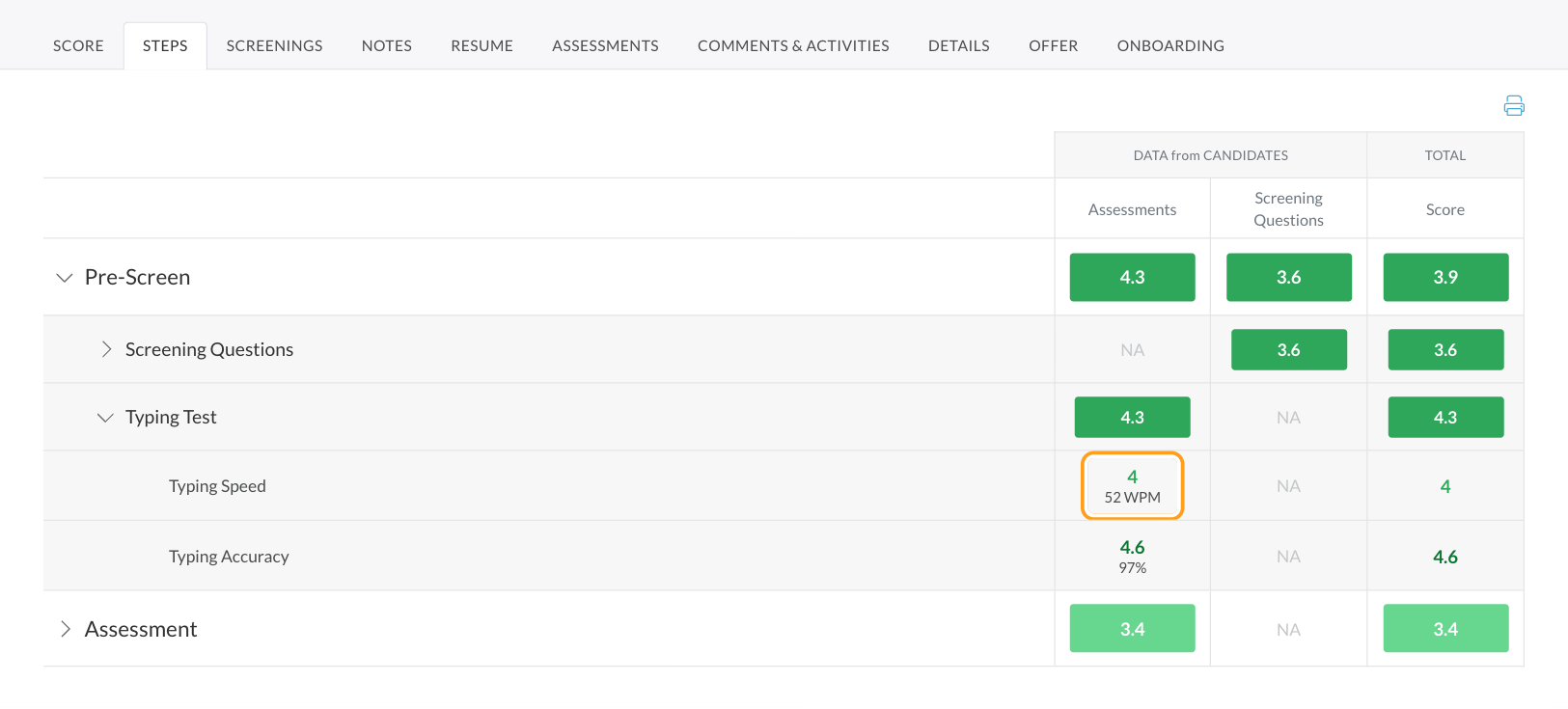
- A raw score is the actual result, in its own units: words per minute on a typing test, for example.
- The Job Adaptive Score standardizes that result to a 1 to 5 scale based on what the job requires.
How scores roll up
Activities
Each scored activity, such as an assessment or skills test, has its own score.
Attributes
Every activity measures one or more attributes, so scores also roll up by attribute.
Overall
Attribute groups roll up into one overall score, along with predictive models when the job req uses them.
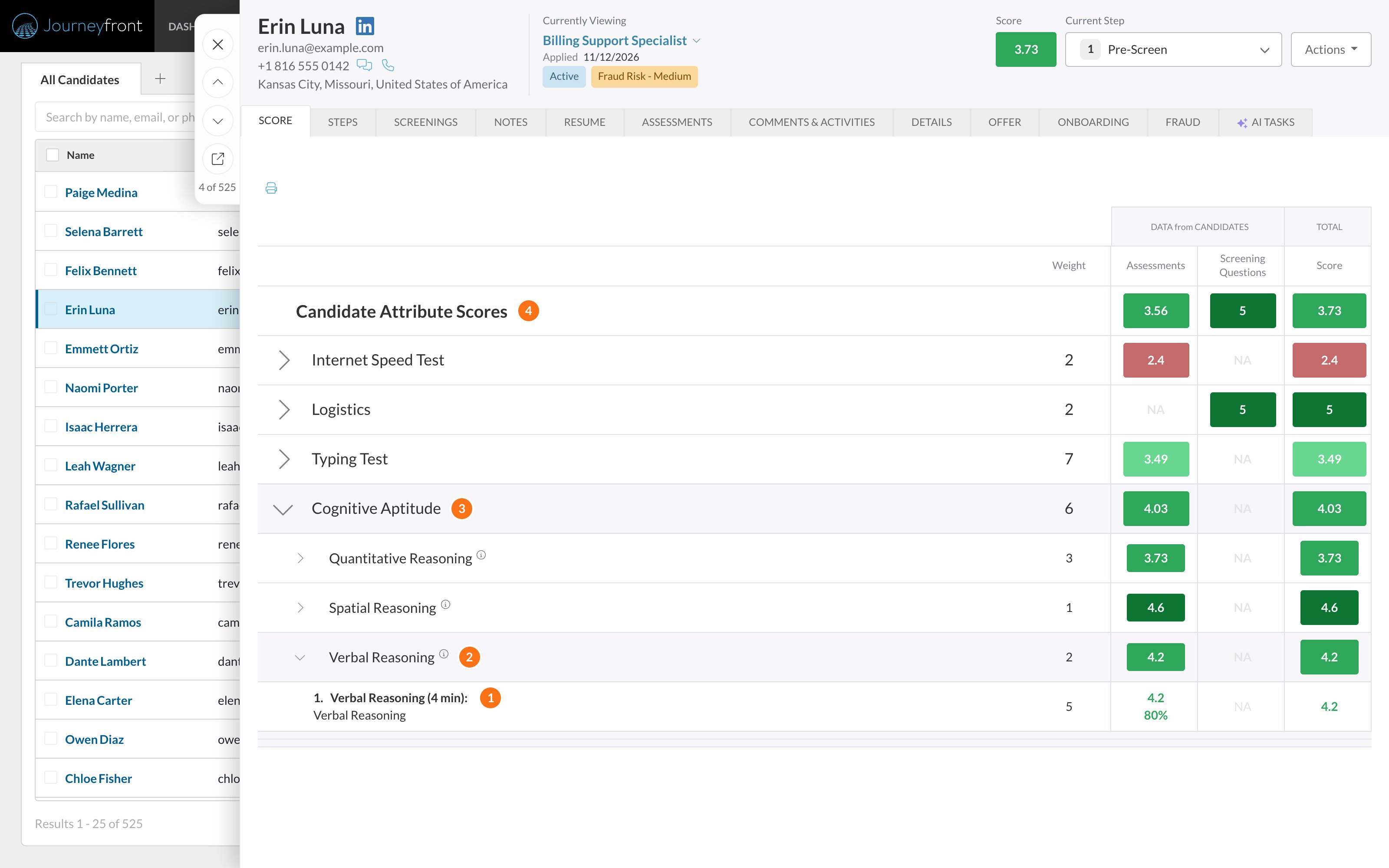
- Question or test. Each question or test that measures an attribute gets a 1 to 5 score. Here, the Verbal Reasoning test scored 4.2, from a raw result of 80%.
- Attribute. The attribute’s score is the weighted average of the questions and tests that measure it. Verbal Reasoning has one test, so it’s 4.2.
- Attribute group. The group’s score is the weighted average of its attributes. Cognitive Aptitude averages Quantitative Reasoning (3.73, weight 3), Spatial Reasoning (4.6, weight 1) and Verbal Reasoning (4.2, weight 2): (3.73 × 3 + 4.6 × 1 + 4.2 × 2) ÷ 6 = 4.03.
- Overall score. Candidate Attribute Scores is the weighted average of the groups, here 3.73. It’s the score at the top of the Candidate Application and on the Candidates page.
Attributes
Choose a job req’s attribute groups and set their weights.
Putting scores to work
- Sort and filter the Candidates page by score to work the strongest candidates first.
- Automate with rules that act on scores, so strong candidates move forward without waiting on a recruiter.
- Close the loop. Journeyfront can connect hiring scores to how people actually perform and how long they stay, so you can see which scores predict success in your roles.
Scores inform decisions; people make them. Use scores alongside interviews and your team’s judgment.
FAQ
Why doesn't a candidate have a score yet?
Why doesn't a candidate have a score yet?
Scores appear after a candidate completes a scored activity. An attribute counts only when it’s in an attribute group on the job req’s Attributes page; the Attributes menu item shows an orange count when some aren’t. If they’ve finished and a score is still missing after a few minutes, contact support with the candidate’s Application ID.
Where can I see the raw result, like typing speed?
Where can I see the raw result, like typing speed?
Open the candidate’s Candidate Application and select the Steps or Score tab. Tests measured in their own units, like a typing test’s words per minute and accuracy or an internet speed test’s Mbps, show the raw result under the Job Adaptive Score.
Are scores comparable across job reqs?
Are scores comparable across job reqs?
Job Adaptive Scores use the same 1 to 5 scale everywhere, but each one reflects that job’s requirements. Compare raw scores when you want the same yardstick across roles.
Related
How the pieces connect
How job reqs, workflows, postings, candidates and hiring classes relate.
Reading a candidate's scores
Where each score shows on a Candidate Application.