

Who can do this: Users with the Manage Job Req Settings permission set reminders for a job req. Changing the reminder email needs Company Settings Access.
How reminders work
- Every candidate with a booked interview on the job req gets a reminder email at each time you choose before the interview.
- New job reqs send reminders 24 hours before and 1 hour before.
- The setting covers every interview on the job req.
- Reminders go to candidates. Interviewers have the interview on their own calendar, so their usual calendar reminders apply.
Choose when reminders go out
1
Open the job req's Configurations
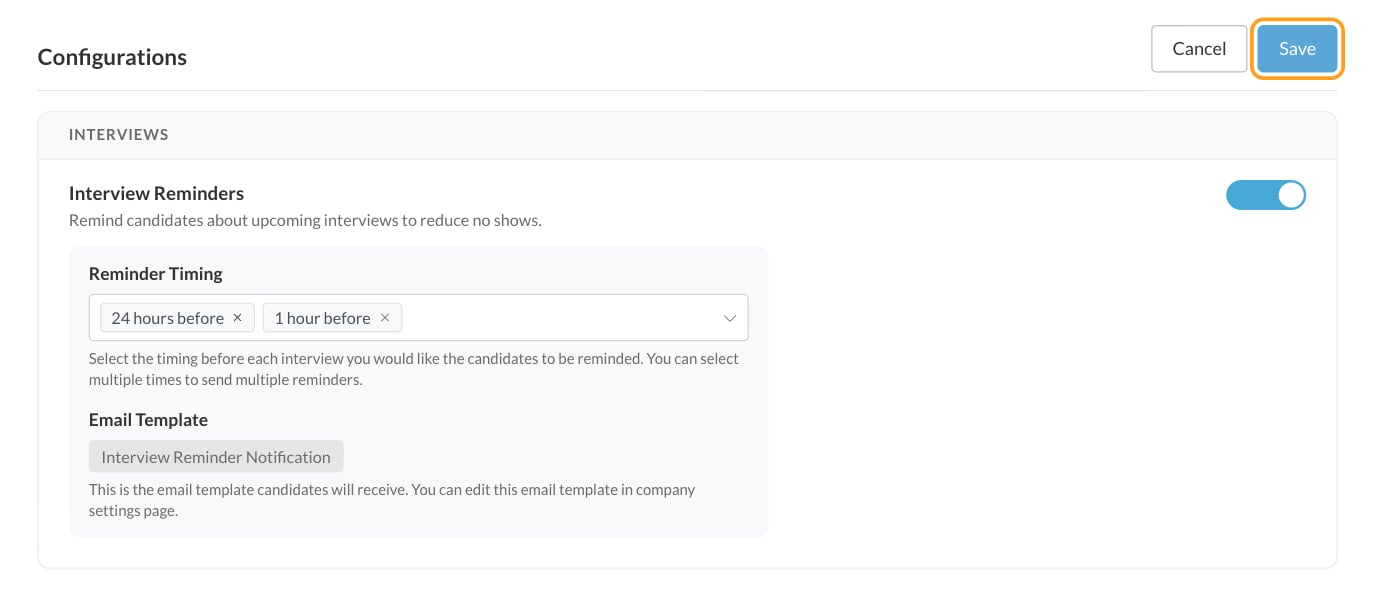
Open the job req and go to Setup, then Configurations. Find Interview Reminders in the Interviews card.
2
Turn reminders on or off
Use the switch next to Interview Reminders. When it’s off, the card says candidates won’t receive interview reminders for this job.
3
Pick the times
Under Reminder Timing, choose one or more of: 1 hour before, 2 hours before, 4 hours before, 12 hours before, 24 hours before and 48 hours before. Each time you pick sends its own email.
4
Save
Click Save at the top of the page.
What candidates receive
The reminder uses the Interview Reminder Notification email. By default its subject is “Your upcoming interview with” your company name, and it includes:- Who they’re interviewing with, and the date and time
- The interview type, such as video, phone or in-person
- The video link for video interviews, or the address for in-person interviews
- A link to reschedule or cancel their interview. When the interview activity has Allow candidates to reschedule off, the link says “cancel” instead, and the page it opens offers Cancel Interview with a note to contact the recruiter for a new time.
Change the reminder email
The Email Template shown in the Interviews card is for reference. To change the wording, go to Settings, then Templates, then E-mail Template, open the System Emails tab, and edit Interview Reminder Notification. The change applies to reminders on every job req. See Email templates and Template variables.Good to know
- Only booked interviews get reminders. Candidates who haven’t picked a time yet don’t get interview reminders. To follow up with them, see See who hasn’t booked.
- Canceled or declined interviews don’t. If an interview is canceled, or the candidate or an interviewer declines it, no more reminders go out.
- Late bookings skip early reminders. A reminder only goes out at its time. If a candidate books 3 hours before the interview, the 24-hour reminder is skipped and the 1-hour reminder still goes out.
- Each reminder is recorded in the candidate’s activity history, like other emails. See Comments and activity.
FAQ
Will a candidate get several emails if I pick several times?
Will a candidate get several emails if I pick several times?
Yes, one email for each time you selected.
If I turn reminders off on one job req, does it affect others?
If I turn reminders off on one job req, does it affect others?
No. Reminders are set per job req.
Can I send text message reminders instead?
Can I send text message reminders instead?
Interview reminders are emails. To text candidates about their interview, set up an automation rule with a Send SMS to Candidate action. See Automation rules and Text messages.
Do interviewers get reminders?
Do interviewers get reminders?
Not from Journeyfront. Each interview is on the interviewer’s own calendar, so their calendar’s reminders apply.
Why didn't a candidate get a reminder?
Why didn't a candidate get a reminder?
Check that Interview Reminders is on for the job req, that the interview was booked before the reminder time, and that it hasn’t been canceled or declined. Then check the candidate’s email address, and ask them to look in their spam or junk folder.
Can I choose a different email template for one job req?
Can I choose a different email template for one job req?
No. Every job req uses the Interview Reminder Notification template. Edit that template to change what all candidates receive.
Related
Job settings
All of a job req’s Configurations.
Candidate self-scheduling
Invites, confirmations and rescheduling.
See who hasn't booked
Follow up with candidates who haven’t picked a time.
Email templates
Edit the emails candidates receive.