

How it works
The candidate gets a link
They pick a time
The interview is booked
Reminders go out
Before you start: connect interviewer calendars
Open times come from each interviewer’s connected calendar, so every interviewer should do this once:Connect a calendar
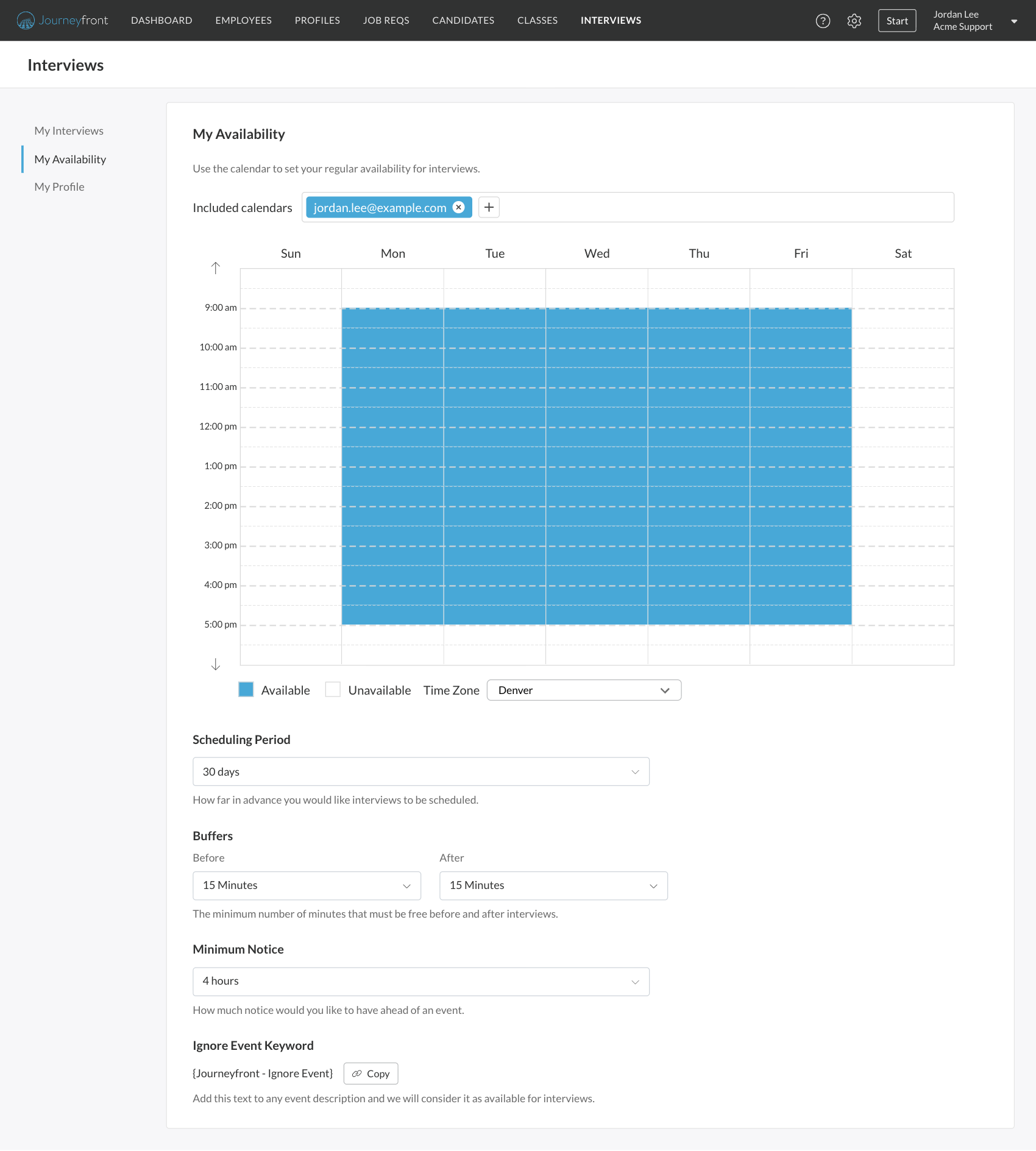
Set regular availability
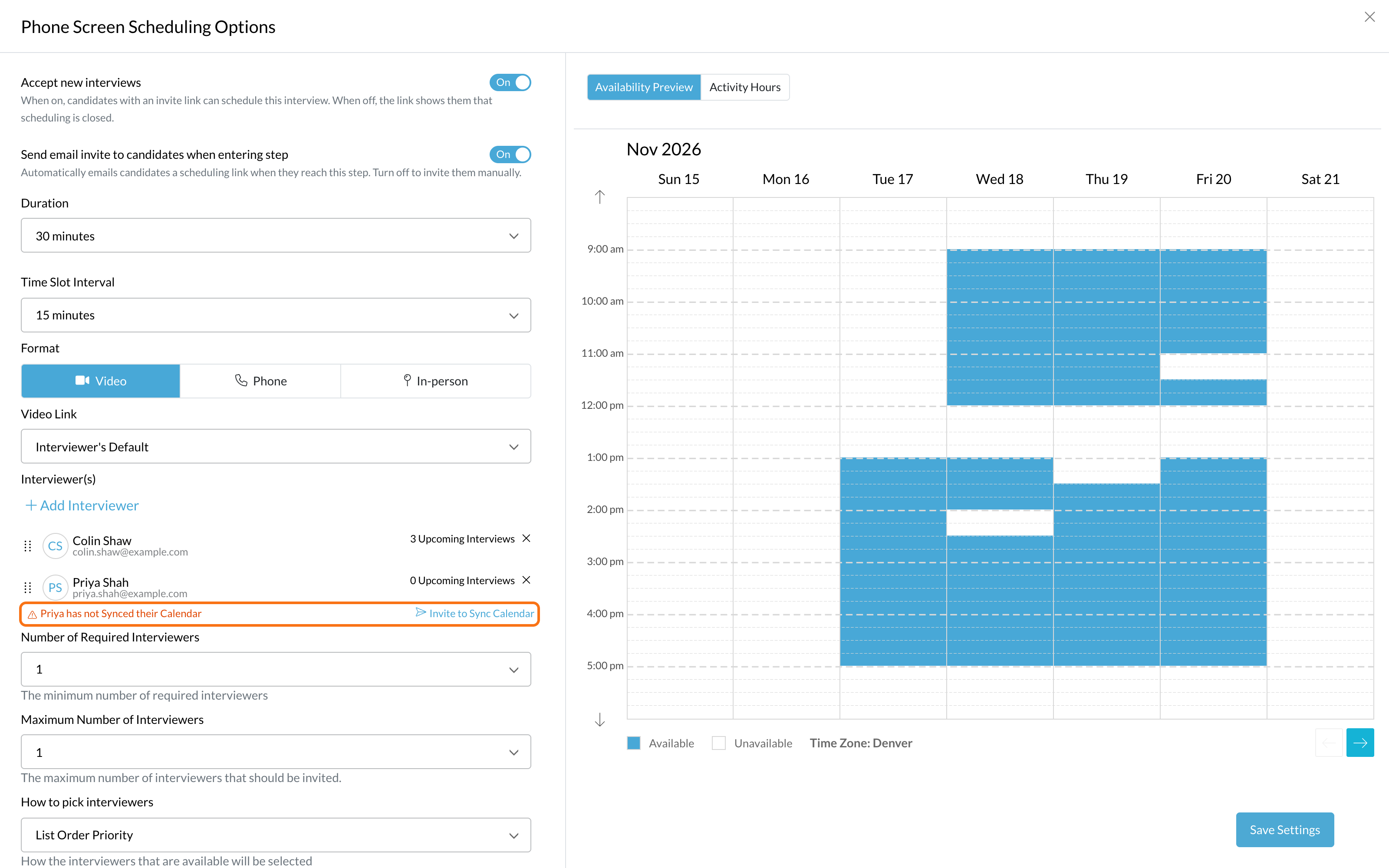
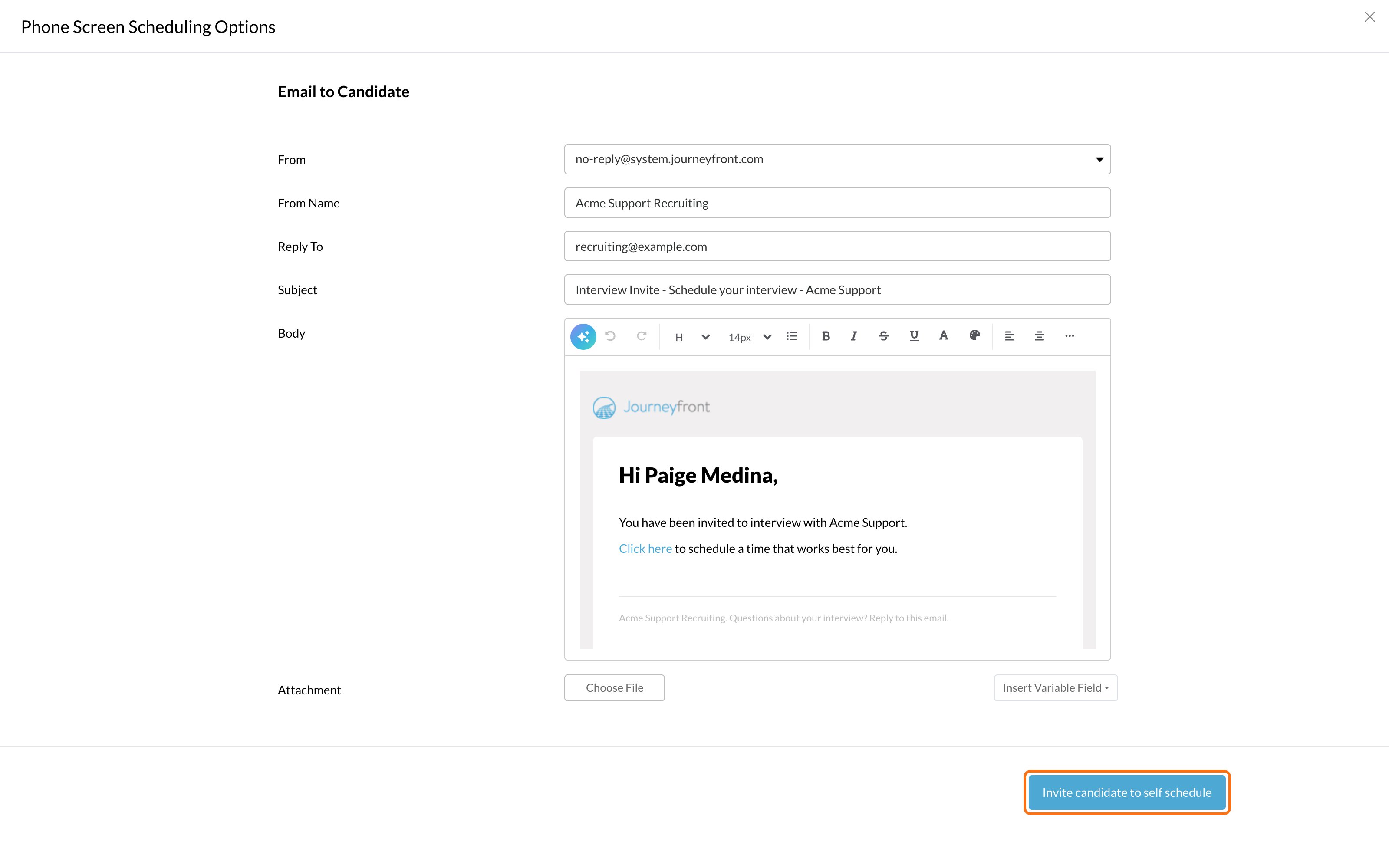
Send a scheduling link
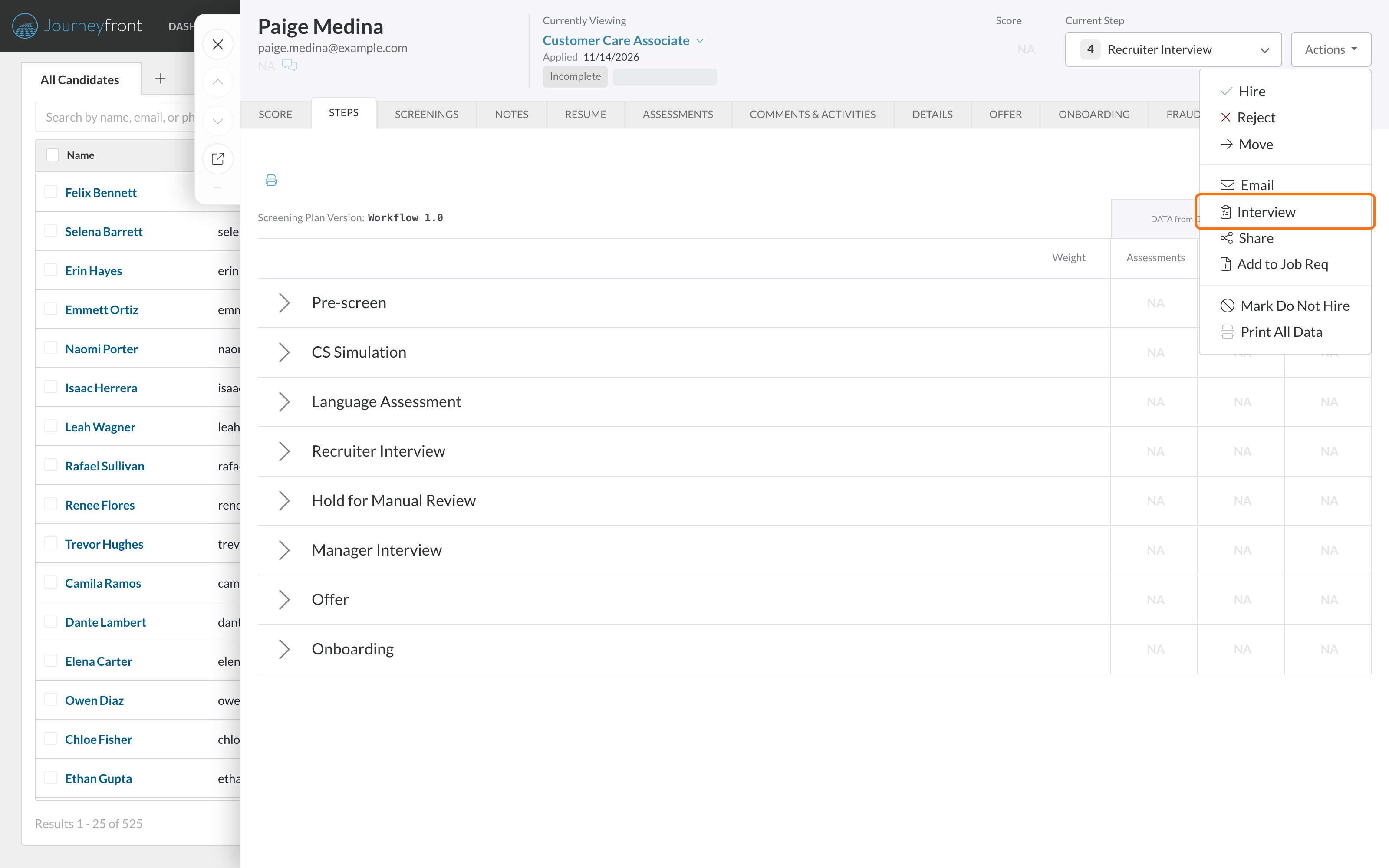
Automatically: turn on Send email invite to candidates when entering step on the interview activity. Every candidate who reaches the step gets a link. For one candidate:Open the candidate's interviews
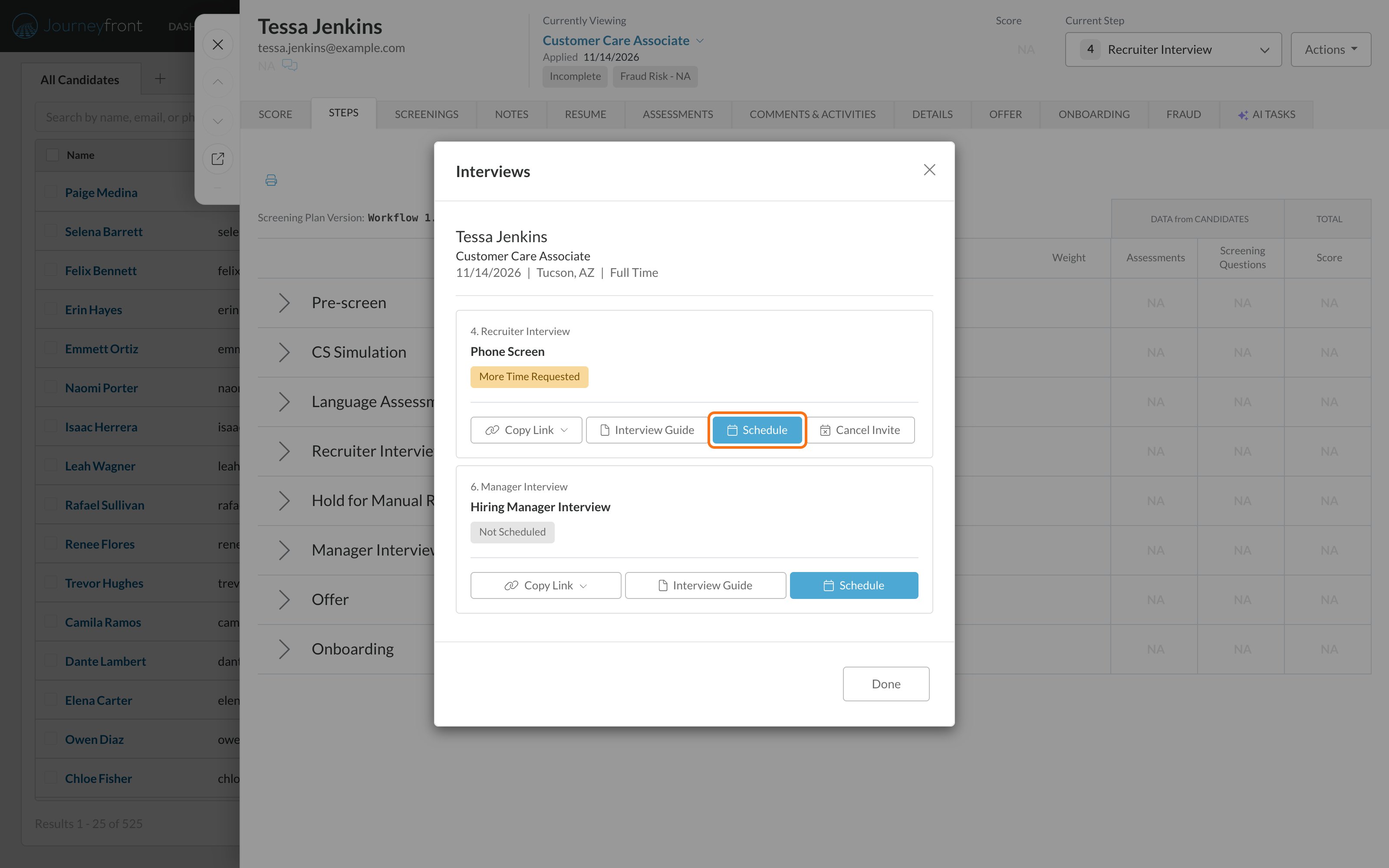
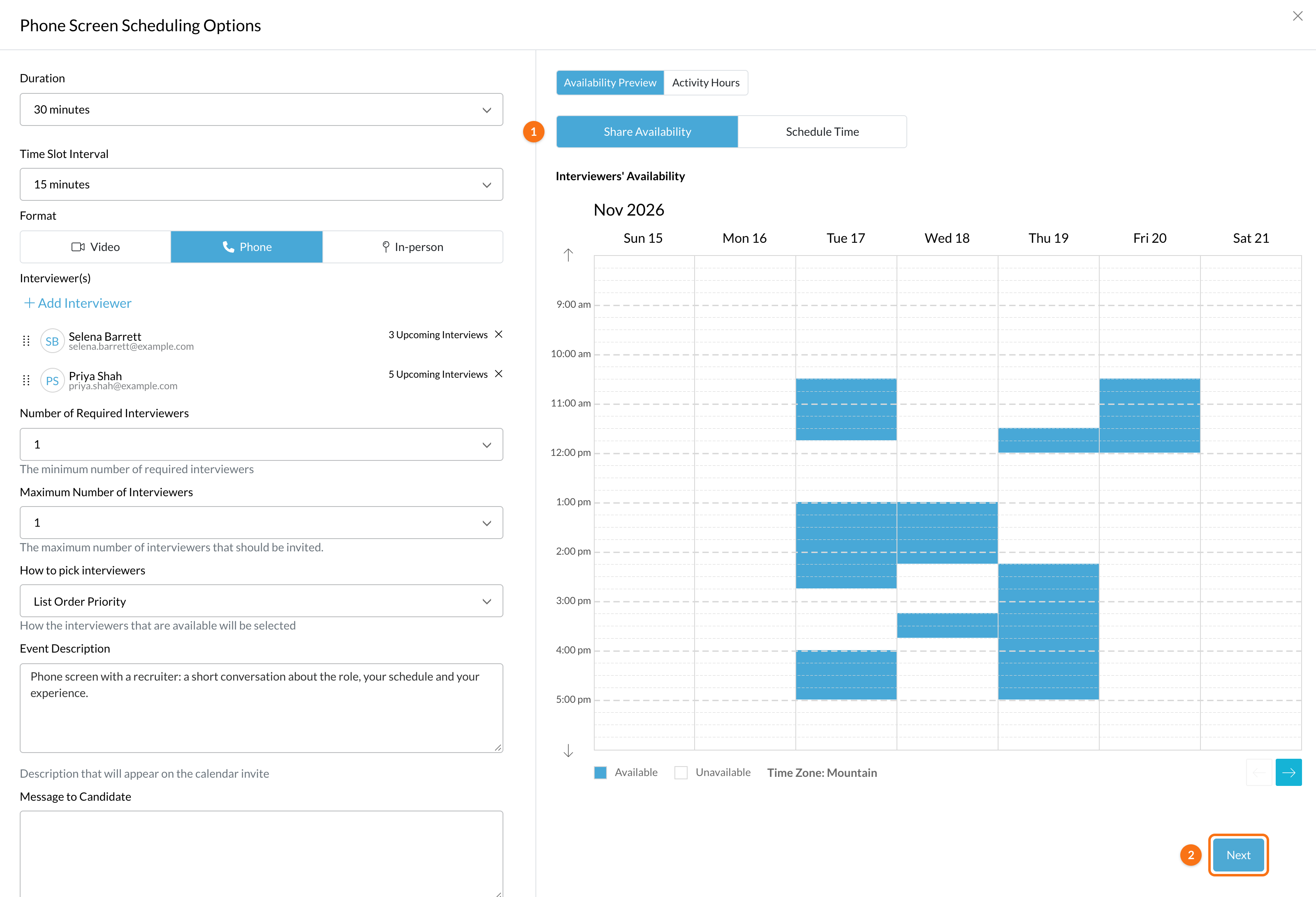
Click Schedule
Share availability
Review the email and send it
Schedule an interview for a candidate
Copy a candidate’s scheduling link
To text a candidate their link, or paste it into a message, open Actions, then Interview. On the interview, open Copy Link and choose Copy Candidate Scheduling Link. Copy Interview Guide Link copies the interviewer’s guide instead. Copy Candidate Scheduling Link is available once the candidate has a link: after an invite is sent, and while the interview is booked. Before that, or when the link is canceled or expired, it’s grayed out and its tooltip says why.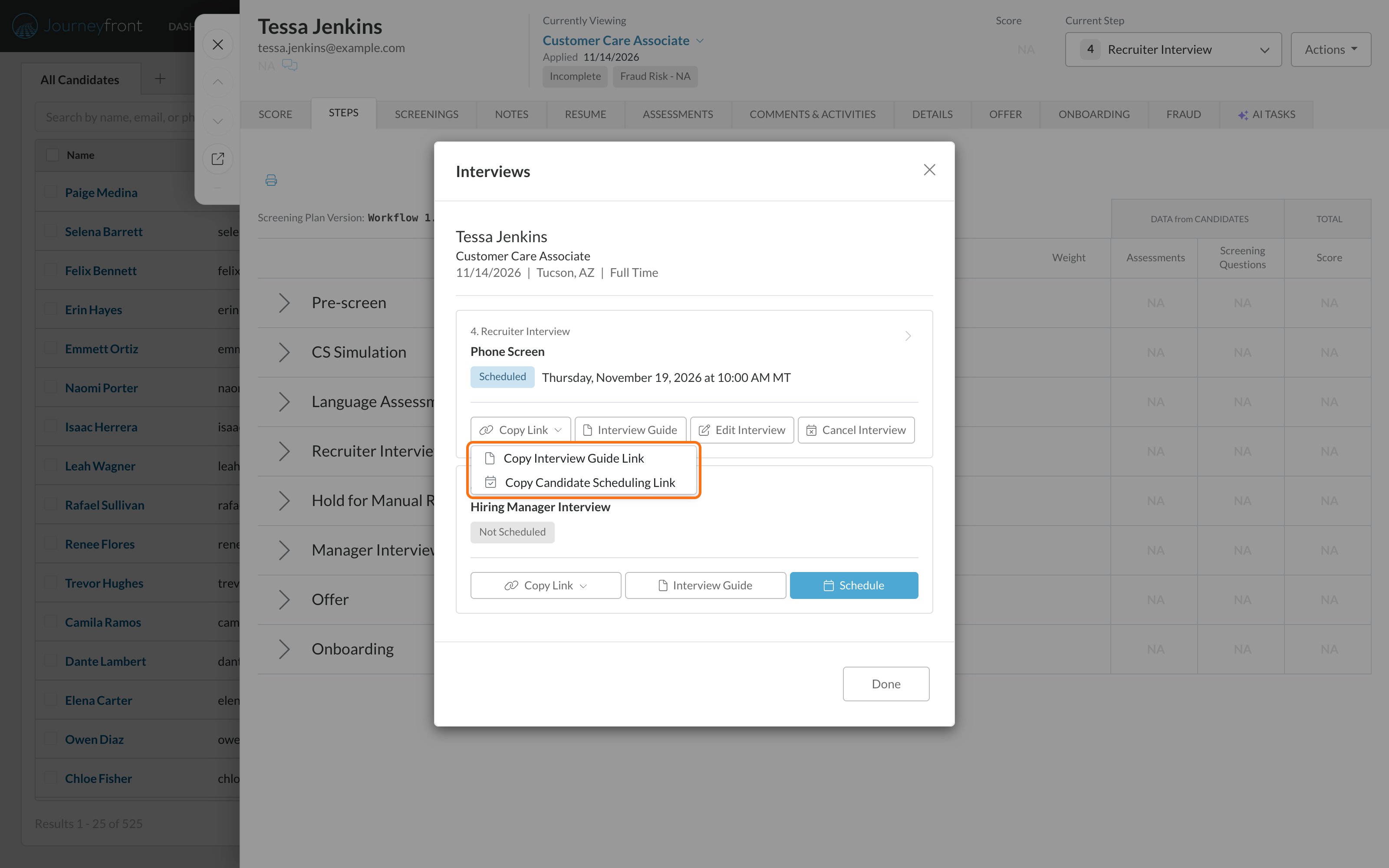
Cancel an interview or invite
Cancel from the candidate’s Interviews window: on the Candidate Application, open Actions, then Interview.Click Cancel Interview or Cancel Invite
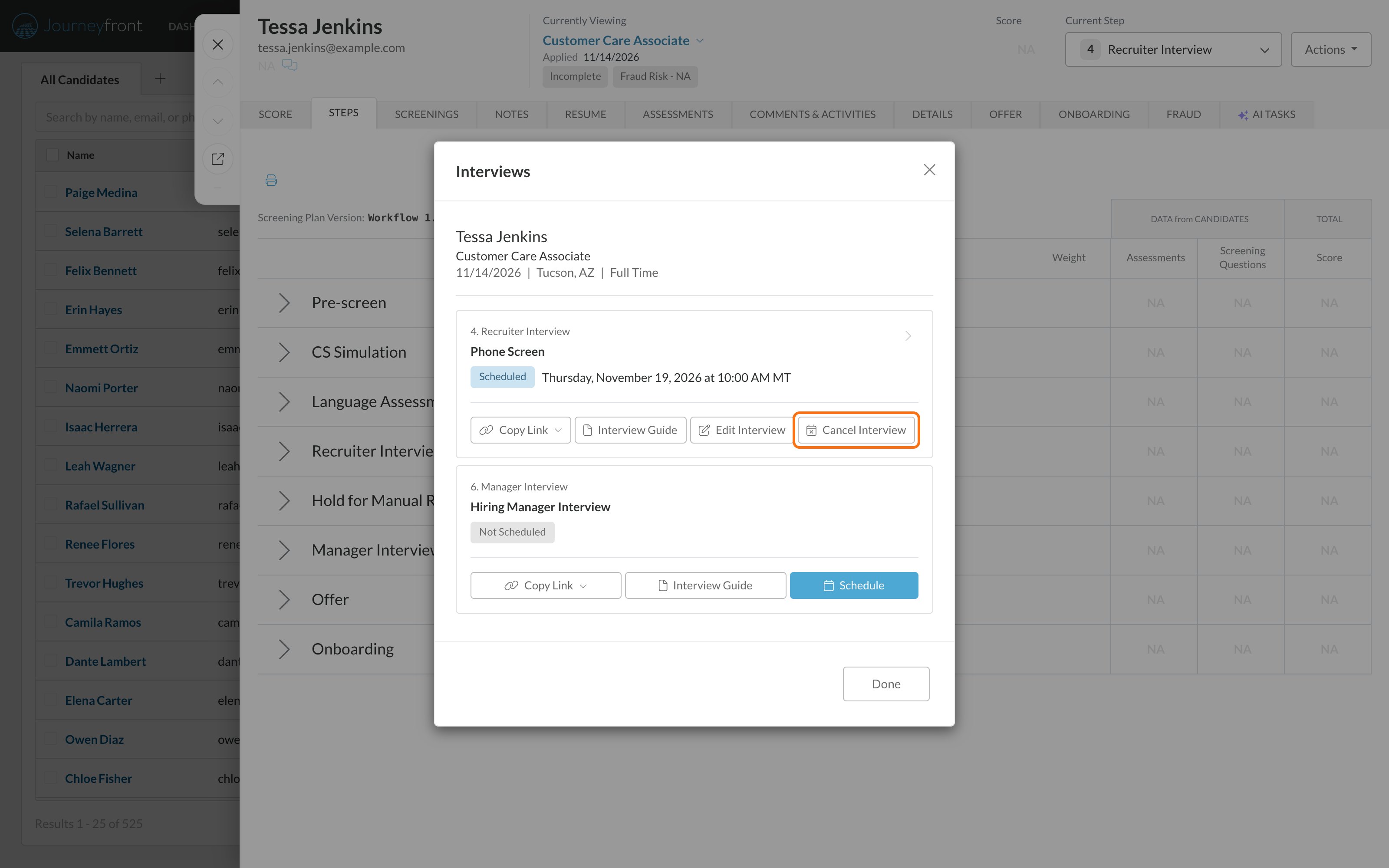
Add a reason
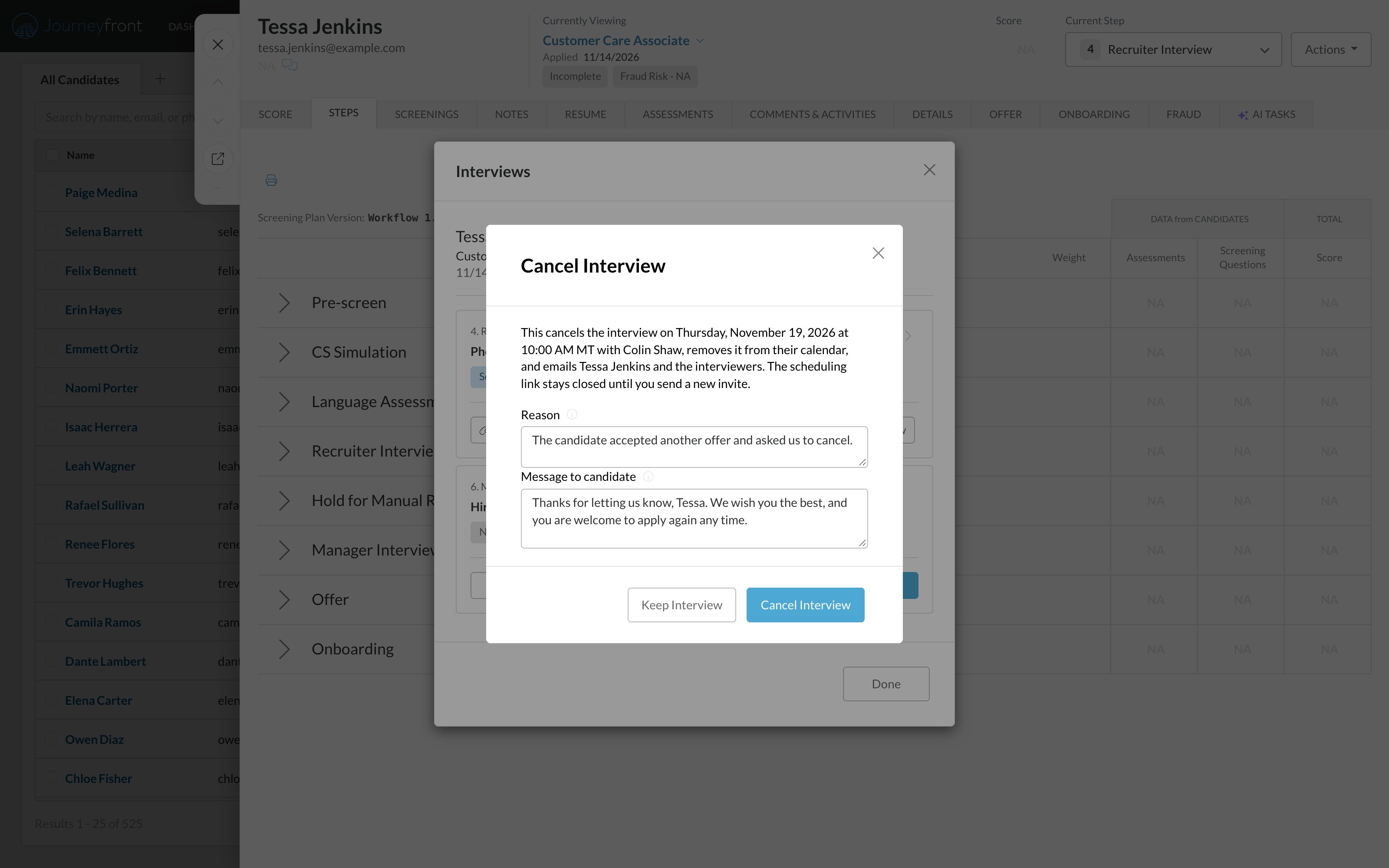
Confirm
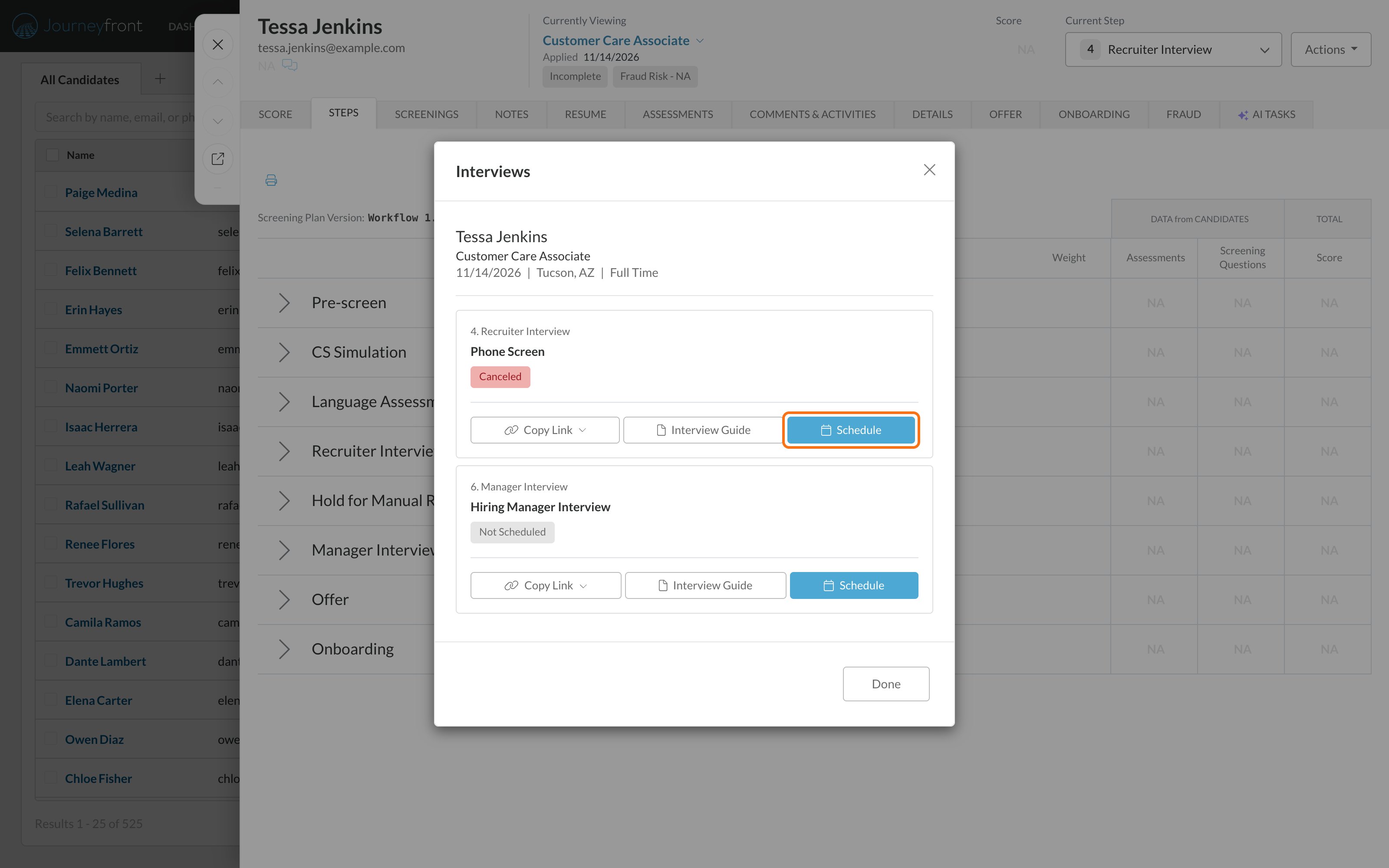
When an interviewer changes the calendar event
Journeyfront keeps the interview in step with the interviewer’s own calendar:- Moved: if the interviewer drags the event to a new time in Google or Outlook, Journeyfront takes the new time. The candidate gets an email with it, and reminders follow the new time.
- Deleted: if the interviewer deletes the event, the interview is canceled and the candidate is emailed.
Control what the link allows
These settings live on the interview activity, under Scheduling Options.- Accept new interviews, Allow candidates to reschedule and Allow candidates to request more time apply to every open interview right away, booked or not.
- A new Days until link expires moves the expiry of invites that haven’t been booked yet, still counted from when each invite was sent.
- Removing an interviewer from the activity takes them off invites that haven’t been booked yet. Adding one adds them to those invites.
- Booked interviews always keep their time and their interviewers.
- If you changed one of these settings on a single candidate’s interview, saving the activity only replaces it when you change that same setting on the activity.
Set interview hours for an activity
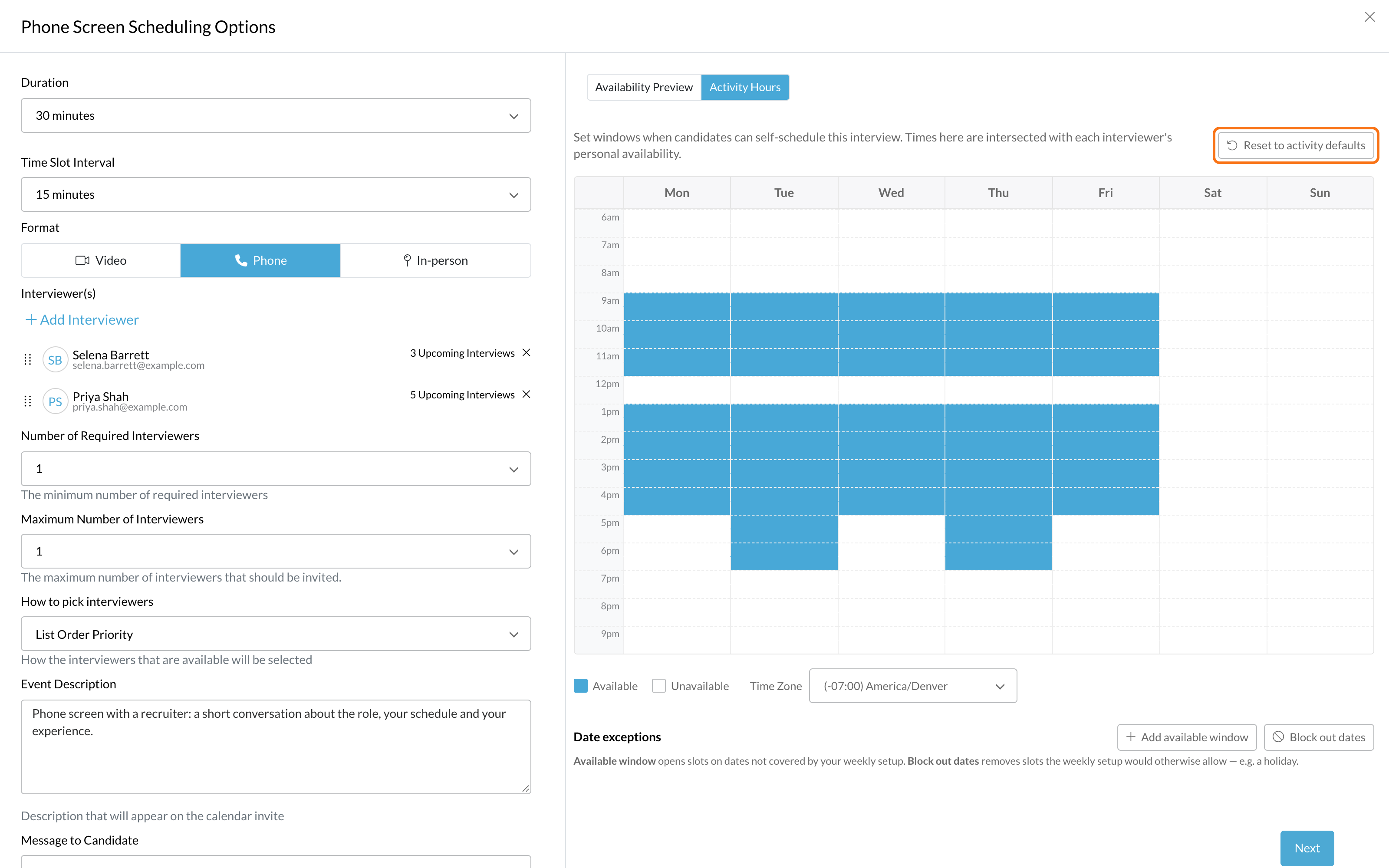
Activity hours set the windows when candidates can book one specific interview, separate from each interviewer’s own calendar. Candidates only see times that fit both the interviewer’s availability and the activity hours. This helps when the same interviewers cover several kinds of interview. For example, your recruiters might hold customer care interviews from 12 to 1 and technical support interviews from 2 to 4, without changing their personal calendars every week. Activities without activity hours keep working exactly as before.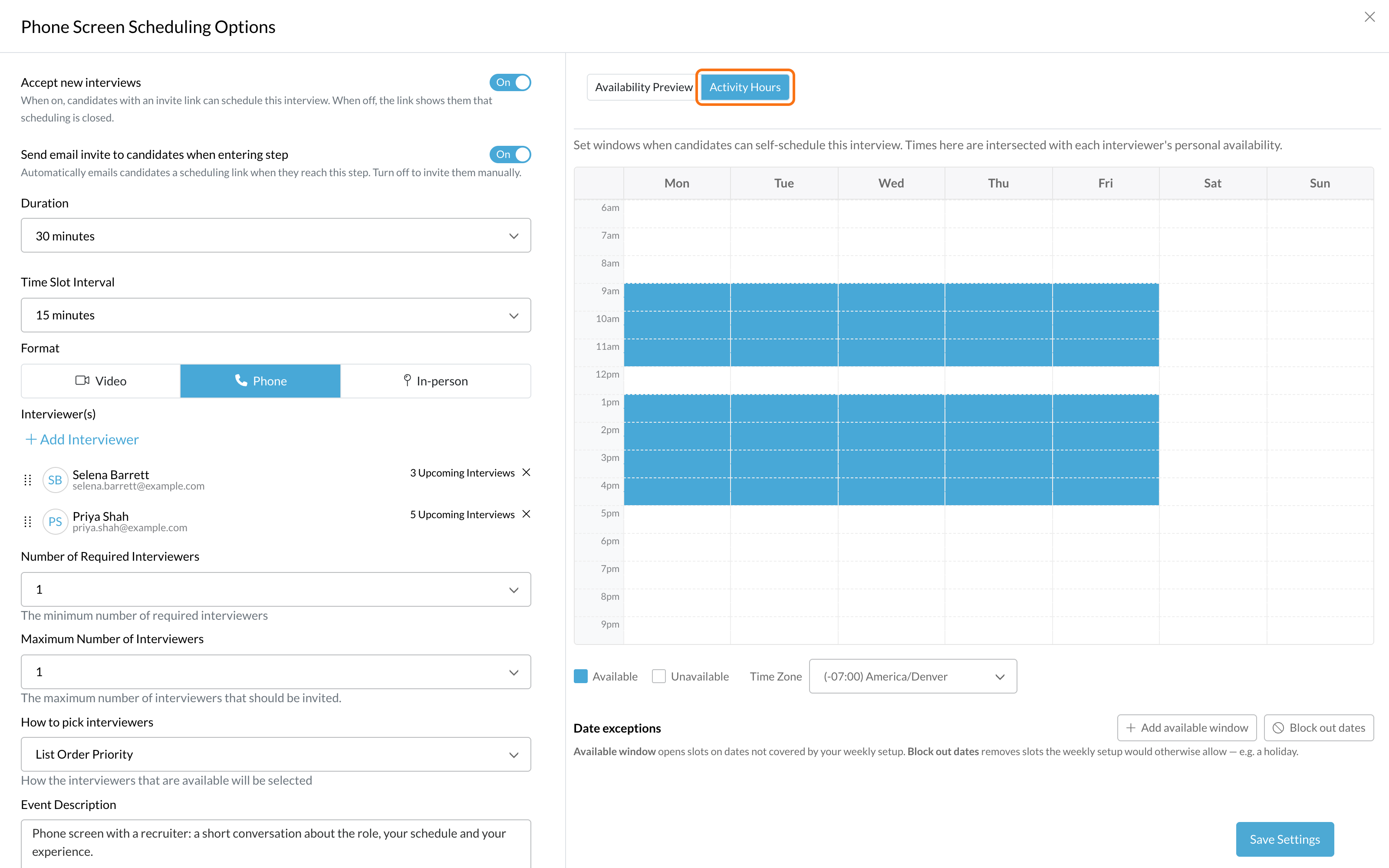
Set weekly hours
Open Activity Hours
Paint the bookable times
Pick a time zone
Save
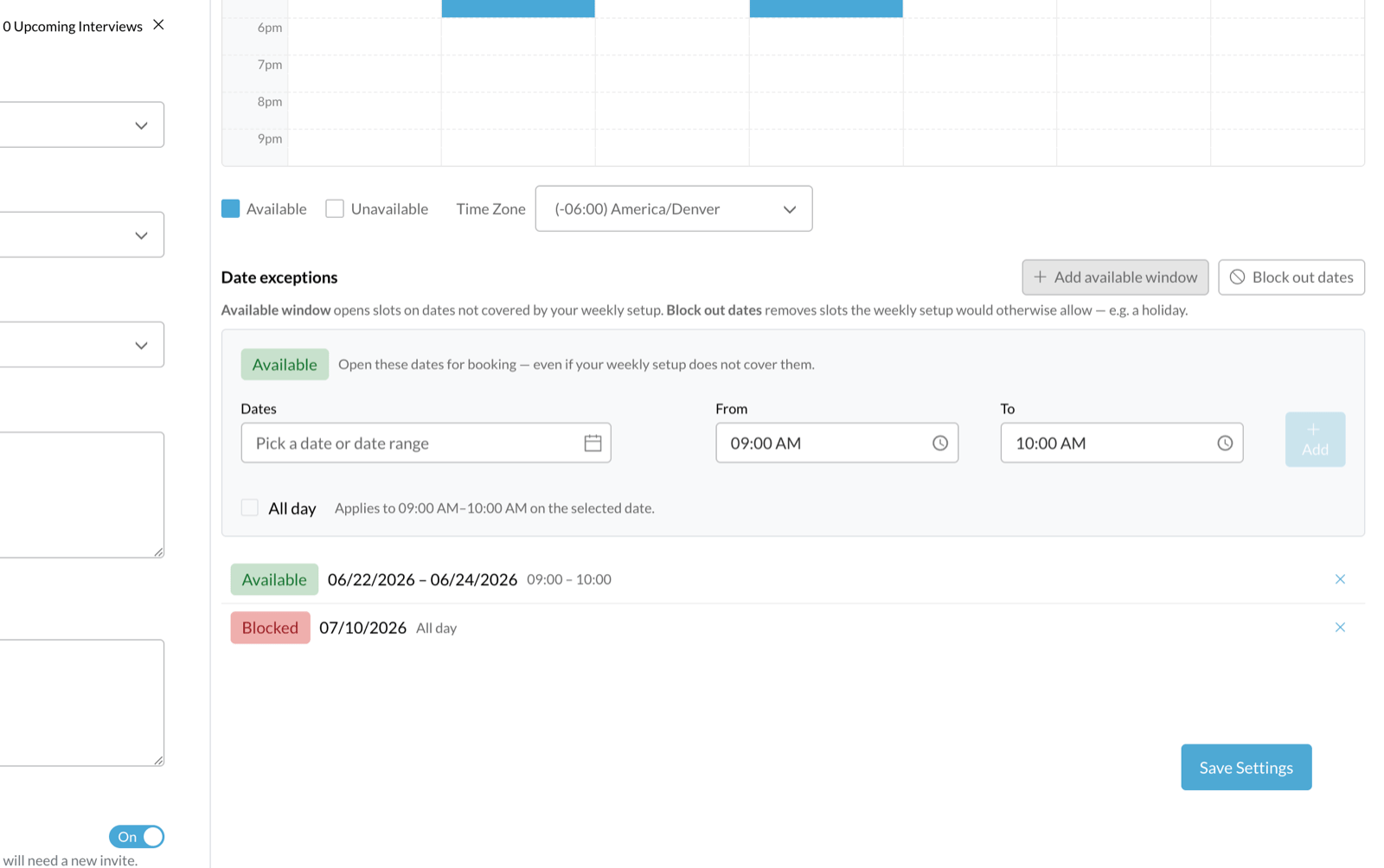
Add or block specific dates
Under Date exceptions:- Add available window opens times on dates outside your weekly hours, such as a Saturday hiring event. Pick the dates, set From and To, and click Add. It shows in the list as Available.
- Block out dates removes dates, such as a holiday or a training day. All day is checked by default; uncheck it to block only part of a day. It shows in the list as Blocked.
Preview what candidates will see
Click Availability Preview to see the times candidates will actually be offered: your interviewers’ availability combined with the activity hours. It updates as you edit, before you save.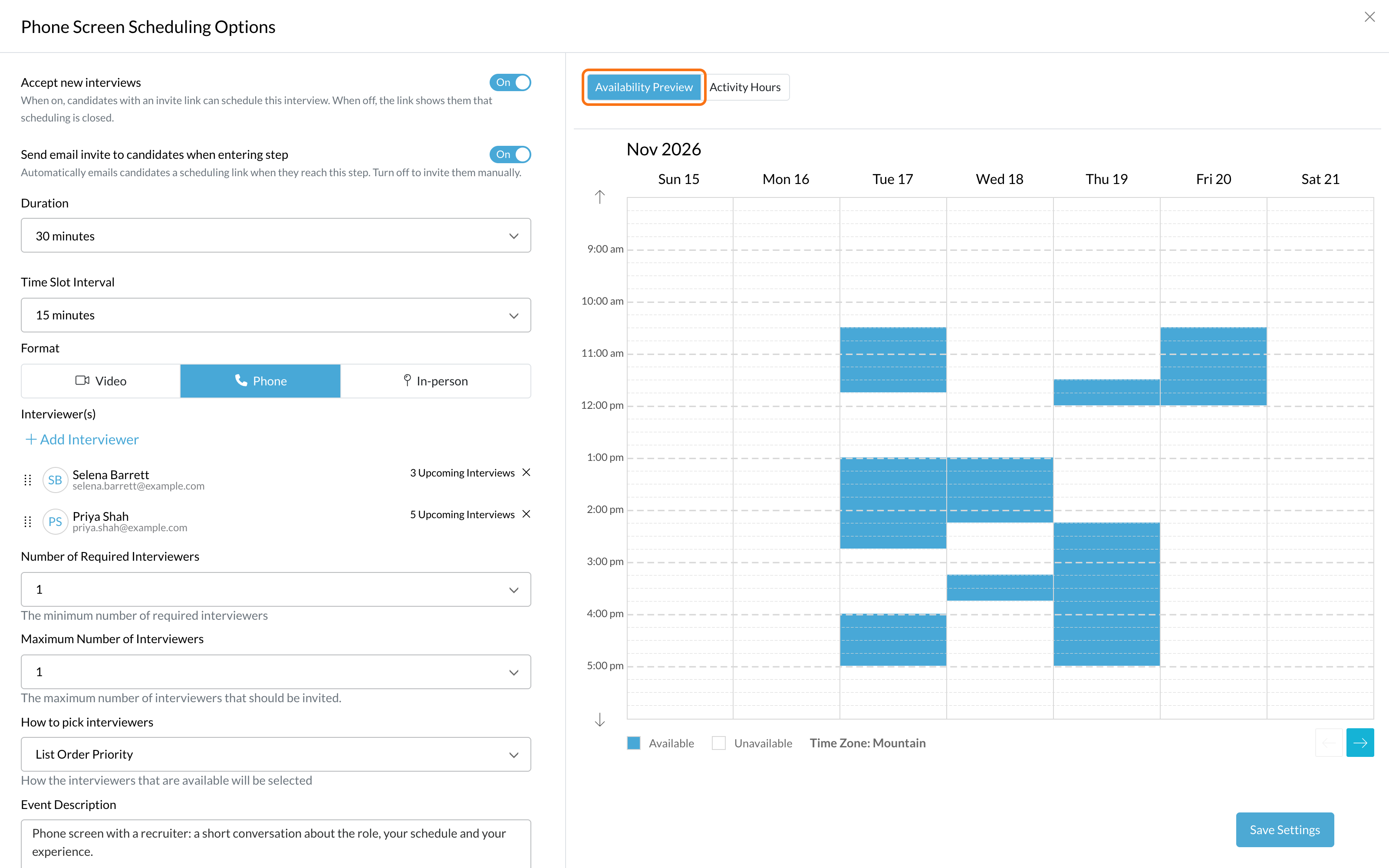
Customize hours for one candidate
Need a special window for one candidate, such as an accommodation or a one-off slot?Open the candidate's interview
Edit their hours
Send the invite
Activity hours vs. My Availability
Track scheduling status
Each interview on a Candidate Application shows where scheduling stands:| Status | What it means |
|---|---|
 | No scheduling link has been sent yet. |
 | The candidate has a link but hasn’t booked. |
 | The interview is booked. |
 | The candidate asked for more availability. |
 | An interviewer submitted the interview guide. |
 | An interviewer declined the calendar invite. |
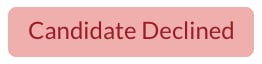 | The candidate canceled the interview from their link. Their reason is in the candidate’s history. |
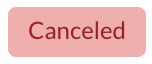 | A recruiter canceled the interview or invite, or an interviewer deleted the calendar event. |
What candidates see
- An email invite. The default subject is “Interview Invite - Schedule your interview” with your company name. You can change its wording in the Interview Schedule Invite system email.
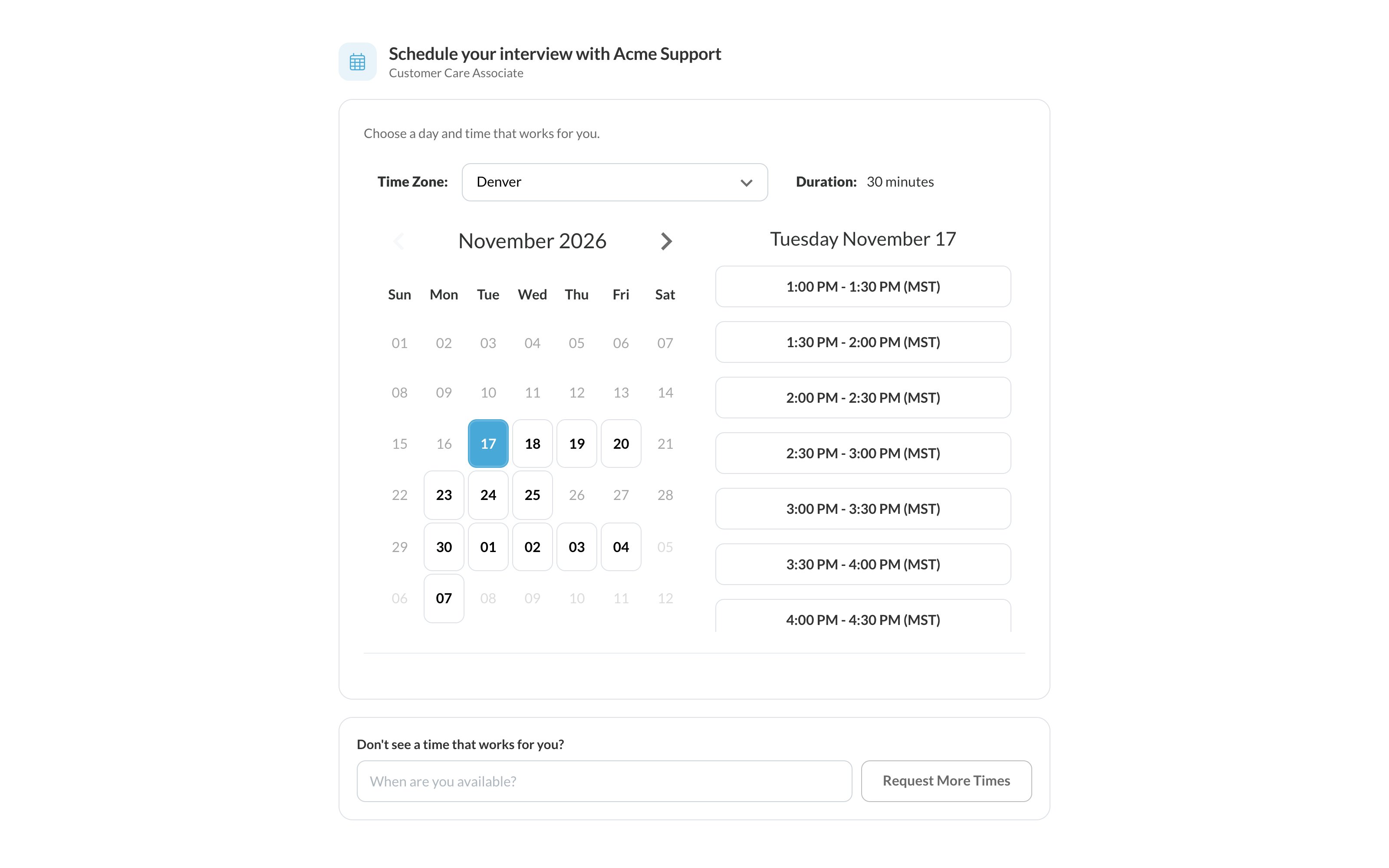
- A booking page. The link opens “Schedule your interview with” your company name, and asks them to choose a day and time that works for them. Times show in their own time zone, and they don’t need to sign in.
- Help when nothing fits. If no times are open, the page says “No times are open right now.” If requesting more time is allowed, they can say when they’re available and click Request More Times.
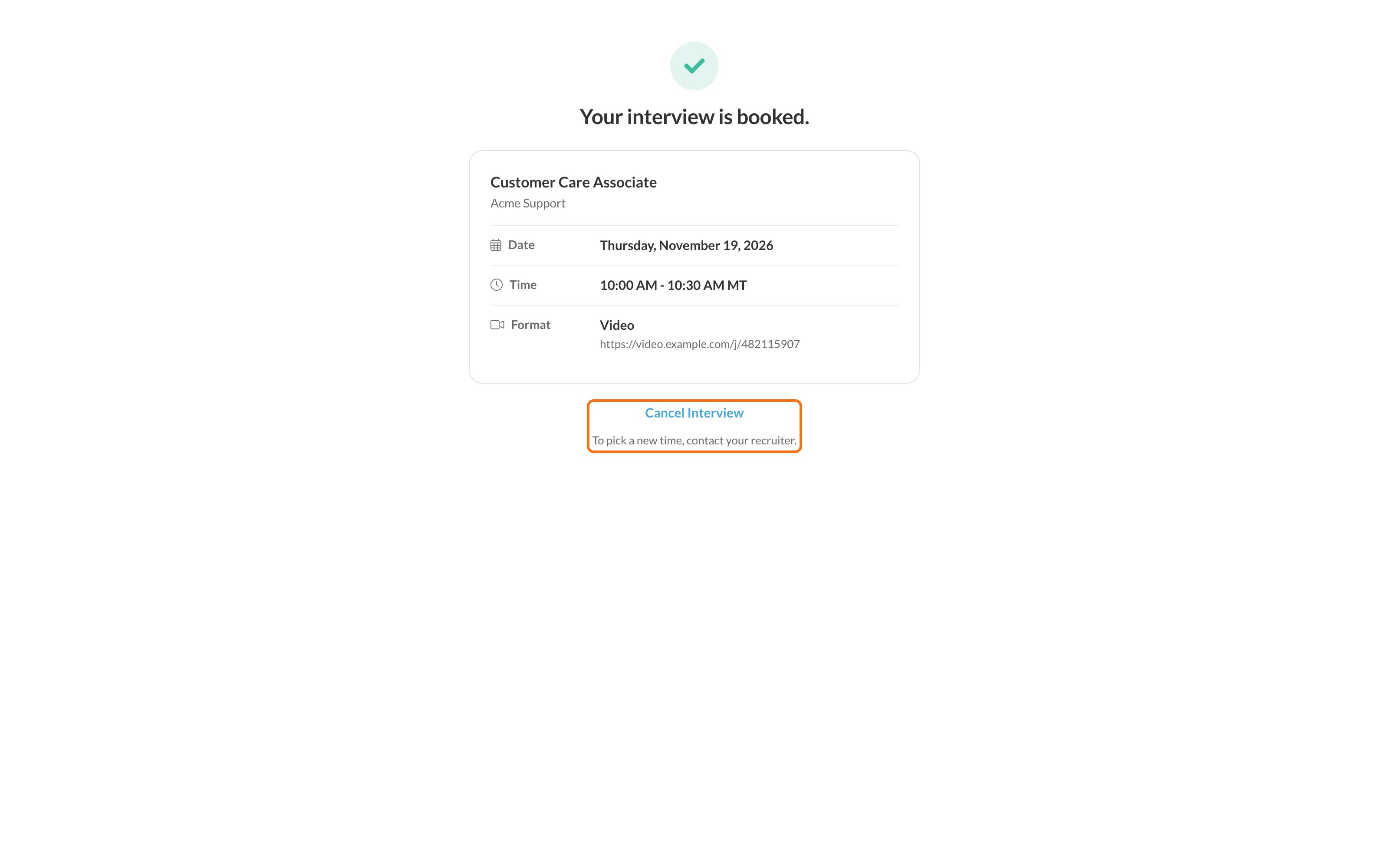
- Their booked interview. After booking they get a confirmation email with a link to cancel, or to reschedule or cancel if you allow rescheduling. Opening the link shows the date, time, length and format of their interview, with the join link or address, plus Cancel Interview and, if you allow it, Reschedule. Canceling asks for a reason.
- Reschedule off. Instead of Reschedule, the page says “To pick a new time, contact your recruiter.”
- A closed link. The page explains what happened: the link expired, the interview isn’t taking new bookings, the candidate canceled, or you canceled it. They’re told to contact the recruiting team or watch for a new invite.
Book your interview time
Team emails and system emails
FAQ
Why does a candidate see no open times?
Why does a candidate see no open times?
- Calendars: every interviewer in the pool has connected a calendar in Interviews, then My Profile. Interviewers without one can’t be booked.
- Working hours: every interviewer has saved working hours in My Availability. Interviewers without them offer no times. Scheduling Options flags both problems.
- Required interviewers: Number of Required Interviewers set to All means every interviewer must be free at once. Lower it if you can.
- Personal settings: interviewers’ My Availability hours, Scheduling Period, Minimum Notice and Buffers can all shrink what’s open.
- Activity hours: the painted hours may be too narrow, or dates may be blocked.
- Length: a long Duration needs a long free block on every required calendar.
A candidate says they can't find their interview link. What should I do?
A candidate says they can't find their interview link. What should I do?
- Did we send it? If the interview shows Not Scheduled, no link has gone out. Send email invite to candidates when entering step may be off for this activity.
- Right address? Check the email address on the candidate’s Candidate Profile.
- Spam? Ask the candidate to check spam, junk and promotions folders for an email about scheduling an interview.
- Still active? If the candidate opened the link and saw that it’s no longer active, it has expired or Accept new interviews is off.
Can a candidate change their interview time?
Can a candidate change their interview time?
Does rejecting or moving a candidate cancel their interview?
Does rejecting or moving a candidate cancel their interview?
Why can't I cancel an interview?
Why can't I cancel an interview?
What time zone do candidates see?
What time zone do candidates see?
When does a scheduling link expire?
When does a scheduling link expire?
Can activity hours repeat on a pattern like every other Tuesday?
Can activity hours repeat on a pattern like every other Tuesday?
Can activity hours cover overnight shifts?
Can activity hours cover overnight shifts?
Can I change hours for one candidate without affecting anyone else?
Can I change hours for one candidate without affecting anyone else?