

Who can do this: Anyone with a Journeyfront user account at your company can open an interview guide and submit their own feedback. The Comments panel needs View & Submit Comments. Unlocking submitted feedback needs Can Unlock Interviews.
Open the interview guide
Pick whichever way fits your day:- From your calendar event. When the interview activity has Include interview guide on calendar event turned on, the event on your calendar has a link to the guide.
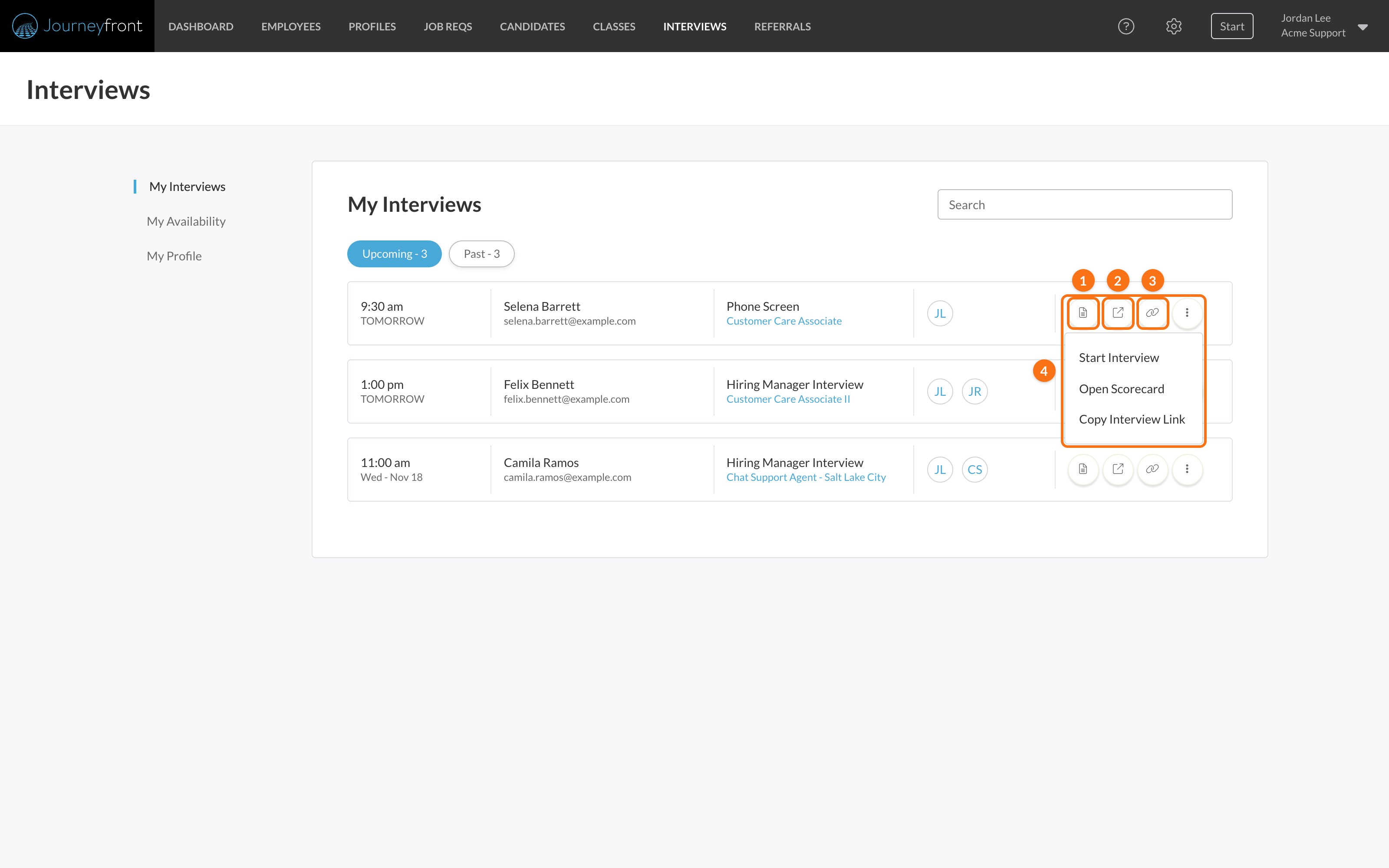
- From My Interviews. Go to Interviews, then My Interviews, and click the Start Interview icon on the interview’s row. See My Interviews below.
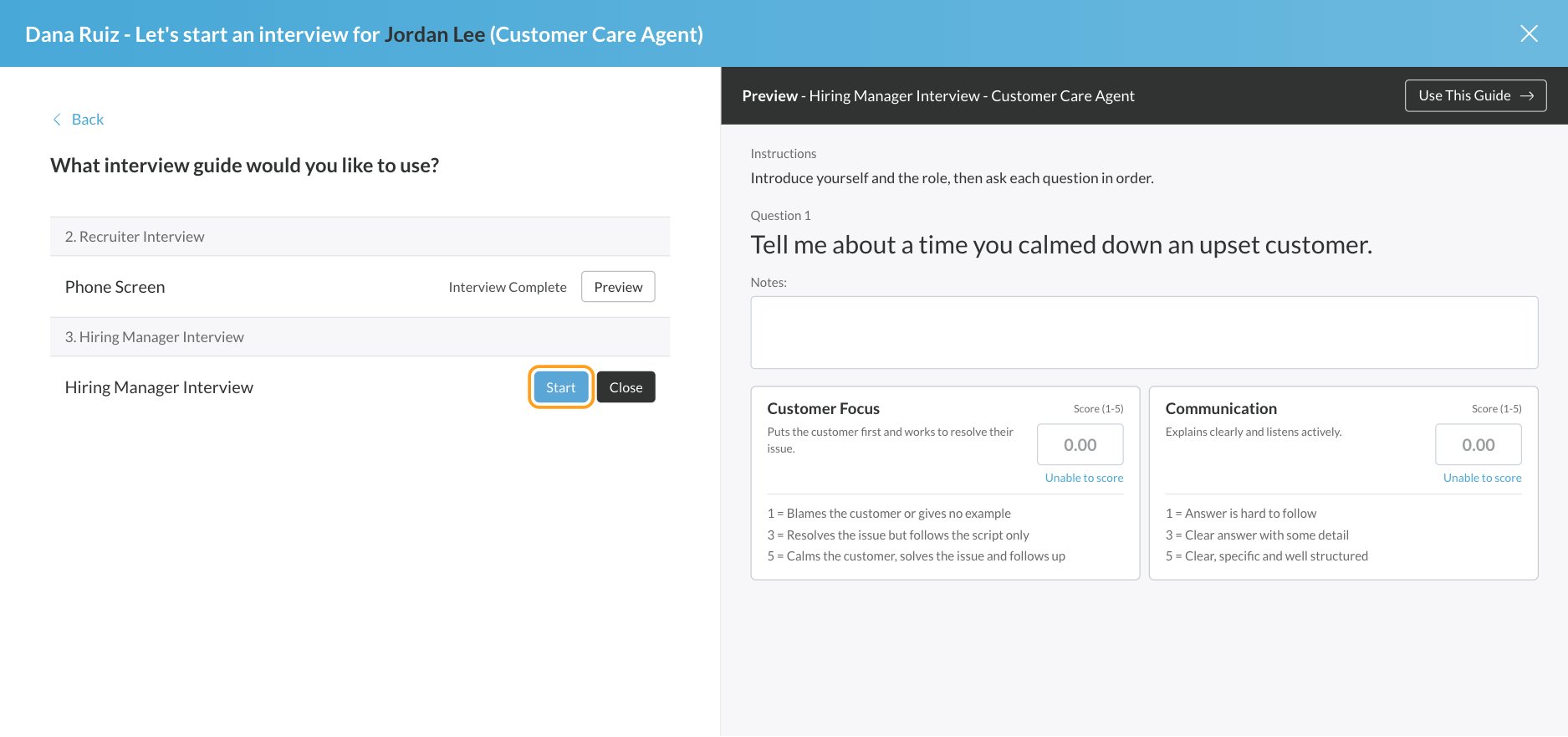
- From Start. Click Start at the top of the app, then Interview. Find the candidate under “Who are you interviewing?”, click their row, and click Start next to the interview. Click Preview first if you want to read the questions before you begin.
- From the candidate. On their Candidate Application, open Actions, then Interview, and click Interview Guide on the interview. In a candidate list, the Interview column’s Interview Link opens the same window.
Share the guide with another interviewer
To send the guide to someone else, copy its link: Copy Interview Link in My Interviews, or Copy Link, then Copy Interview Guide Link in the candidate’s Actions, then Interview window. (Copy Candidate Scheduling Link in the same menu copies the candidate’s booking page, not the guide.) Each interviewer who opens the link fills in and submits their own feedback.Fill in the guide
The top of the guide shows the candidate, the job req they applied for, you as the interviewer, and the Instructions from your team. Then, for each question:1
Ask the question
Ask it as written. Hover over an attribute’s name to read its description.
2
Take notes
Type what the candidate said in the Notes box. Each note can be up to 4,000 characters.
3
Score each attribute
Compare the answer with the scoring criteria under each attribute and enter a score from 1 to 5 in its Score (1-5) box. If the answer didn’t give you enough to judge an attribute, click Unable to score.
Comments
If your security role has View & Submit Comments, a Comments panel sits on the right of the guide. Click the comment icon to open or close it. It shows your team’s comments on the candidate, and anything you add there appears on the Candidate Application’s Comments & Activities tab, labeled with the interview’s name. See Comments and activity.Save and finish later
Click Save - I’ll finish later to keep your answers and leave. To pick up where you left off, open the guide again from any of the places above. Under Start, then Interview, the button reads Continue. If you click Close at the top before submitting, Journeyfront asks what to do: Yes - Save Answers, Yes - Discard Answers, or No - Cancel to stay. To throw away everything you’ve entered, click Cancel - discard answers, then confirm. This can’t be undone.Submit your feedback
When you’ve scored every attribute, click Submit - I’m all done. If anything is missing, Journeyfront points to it: every attribute needs a score from 1 to 5, or Unable to score. Fix the questions marked in red and submit again. Once submitted:- You’ll see Interview Submitted, with links to the candidate’s Candidate Application and the job req’s candidates, if you have access to them.
- Your feedback is locked, and the guide shows Submitted.
- Your scores appear in your own column on the candidate’s Score and Steps tabs, and your notes on their Notes tab. See Reading a candidate’s scores.
My Interviews
Interviews, then My Interviews, lists the interviews you’re booked for and the interview guides you’ve worked on. Use the Search box to find a candidate, interview or job req.
The icons on each row:
- Start Interview (Open Interview Guide on past interviews) opens the interview guide.
- Open Scorecard opens the candidate’s Candidate Application.
- Copy Interview Link copies the guide’s link, to share with another interviewer.
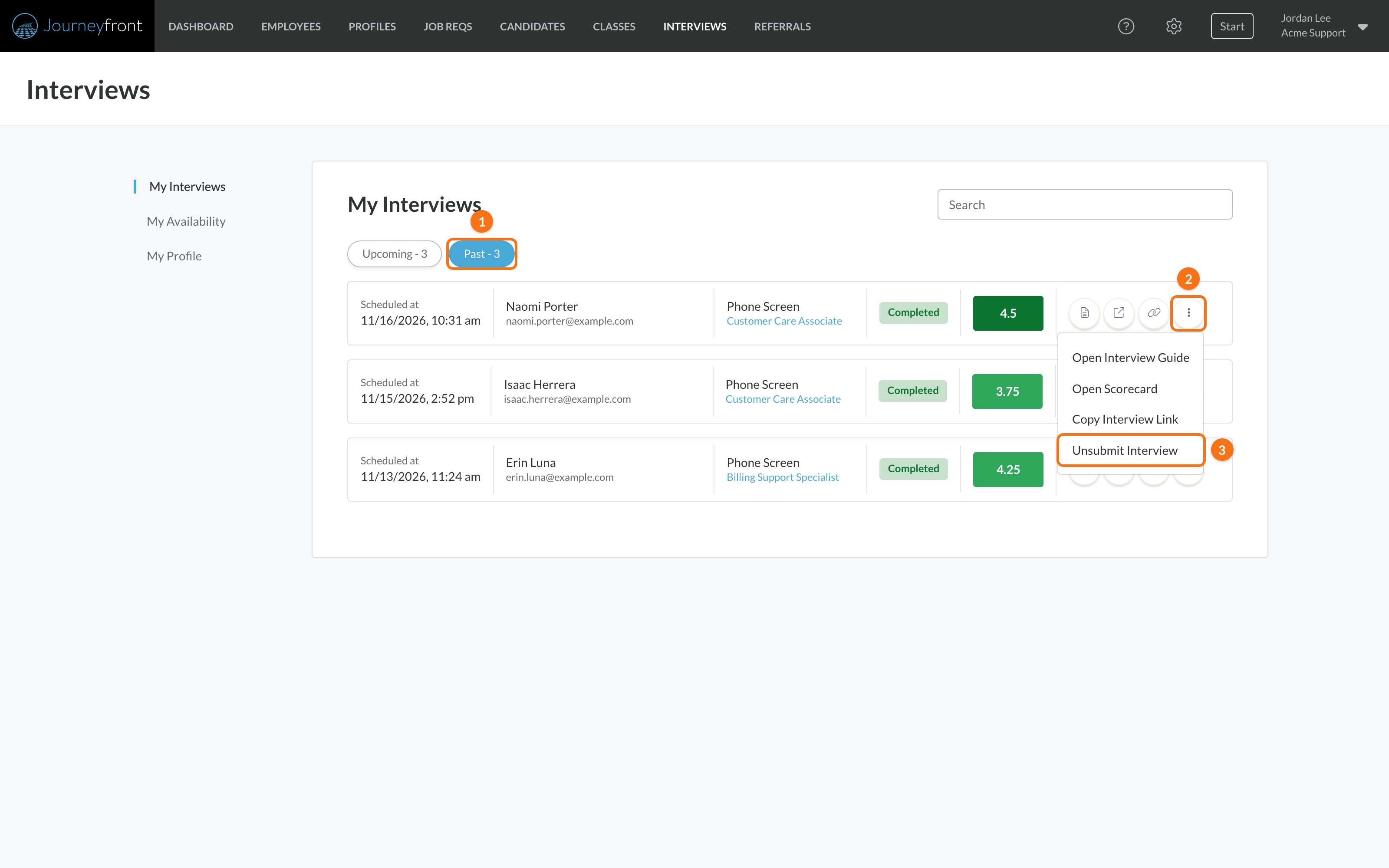
- The ⋮ menu has the same actions, plus Unsubmit Interview on past interviews.
Unlock submitted feedback
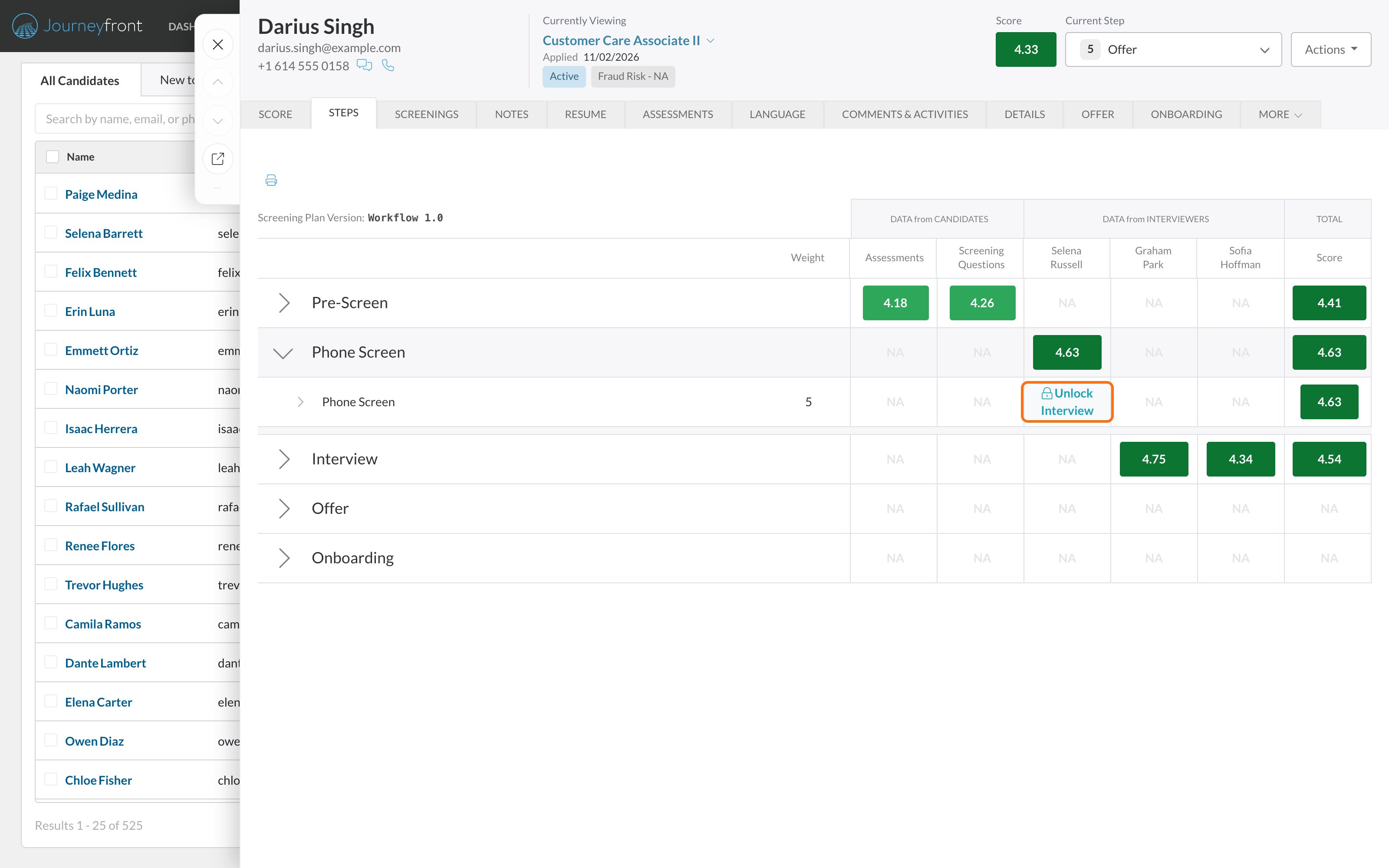
Submitted feedback is locked so scores can’t quietly change after a decision. If an interviewer needs to correct theirs, someone whose security role has Can Unlock Interviews unlocks it:-
From the candidate: on the Candidate Application’s Steps tab, expand the step with the interview, hover over the interviewer’s score on the interview’s row and click Unlock Interview, then Yes.
-
From My Interviews: to unlock your own feedback, open the Past tab (1), click ⋮ on the interview (2) and choose Unsubmit Interview (3).
FAQ
Why isn't my interview in My Interviews?
Why isn't my interview in My Interviews?
My Interviews shows interviews that are booked with you as an interviewer, plus any interview guides you’ve opened. If the candidate hasn’t booked yet, or someone else was picked as the interviewer, it won’t be there. Open the guide from Start, then Interview, or from the candidate instead.
Can more than one person submit feedback for the same interview?
Can more than one person submit feedback for the same interview?
Yes. Each interviewer fills in and submits their own guide. Every interviewer’s scores show in their own column on the candidate’s Score and Steps tabs.
Why can't I submit?
Why can't I submit?
Every attribute on every question needs a score from 1 to 5, or Unable to score. Look for the messages in red, fix those questions, and click Submit - I’m all done again.
What happens if I close my browser in the middle of an interview?
What happens if I close my browser in the middle of an interview?
Your answers save as you go, so open the guide again and continue where you left off.
Can I score on paper and enter it later?
Can I score on paper and enter it later?
You can print the guide with Print, but the scores only count once they’re entered in Journeyfront and submitted. Entering them right away keeps your team’s view of the candidate up to date.
I submitted by mistake. Can I change my feedback?
I submitted by mistake. Can I change my feedback?
Yes, once it’s unlocked. Ask someone with Can Unlock Interviews, or unsubmit it yourself from My Interviews if your role has that permission.
Can candidates see my notes or scores?
Can candidates see my notes or scores?
No. Interview notes and scores are only visible to your team.
Related
Interview guides
Build the questions and scoring criteria.
Your availability and calendar
Set the hours candidates can book with you.
Reading a candidate's scores
Where your feedback shows up.
Interview notes
Read every interviewer’s notes and scores on the Notes tab.