

Who can do this: Each interviewer connects their own calendar and video service under Interviews, then My Profile. There’s no company-wide setup for an admin to do.
Supported calendars
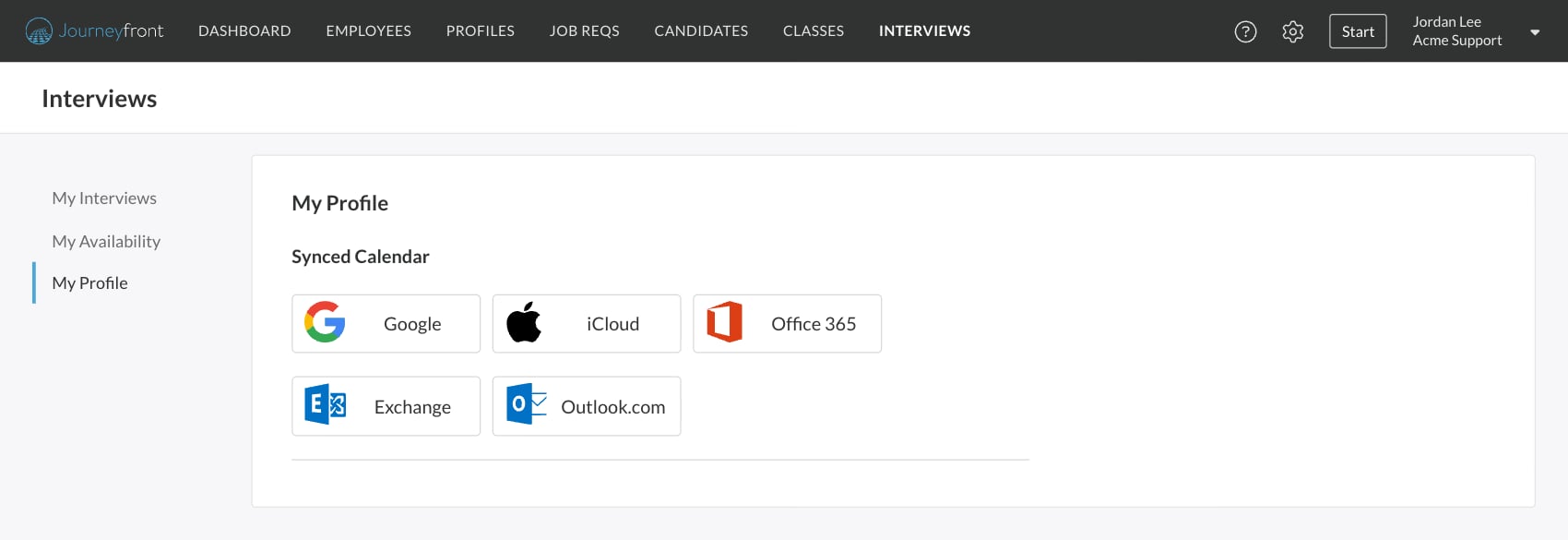
You can connect a calendar from:- iCloud
- Office 365
- Exchange
- Outlook.com
Supported video services
Each interviewer picks their default under Conferencing in My Profile. An interview activity can use each interviewer’s default (Interviewer’s Default) or one Custom Link for everyone, and interviews can also be by Phone or In-person. See Set up an interview activity.
What the connection does
- Finds open times. Journeyfront checks when you’re busy on your connected calendars and offers candidates only the times you’re free and inside your hours in My Availability.
- Adds interviews to your calendar. Booked interviews are created on your Preferred Calendar, with the video link from your conferencing service, and a link to the interview guide when the interview activity turns that on.
- Lets you keep some events open. Add the Ignore Event Keyword from My Availability to an event’s description, and that time counts as free for interviews.
Connect your calendar and video service
1
Open My Profile
Click Interviews at the top of the app, then My Profile.
2
Connect a calendar
Under Synced Calendar, choose your provider, sign in and allow access. Repeat for any other calendar you want counted.
3
Pick your Preferred Calendar and Time Zone
Choose where interviews should be added, and the time zone you work in.
4
Choose your video service
Under Conferencing, pick your default. Click Add Conferencing Service first if it isn’t listed.
5
Set your hours
Go to My Availability and mark when you can interview. See Your availability and calendar.
Change or reconnect
- Switch calendars: in Synced Calendar, use Edit Accounts to remove the connected account, then connect the new one. Check your Preferred Calendar afterward.
- Reconnect a video service: if a service in the Conferencing list shows Re-connect, click it and sign in again.
For admins and recruiters: get interviewers connected
You can’t connect a calendar for someone else, but you can see who still needs to and nudge them. When you add interviewers to an interview activity, anyone who hasn’t synced their calendar is flagged, with an Invite to Sync Calendar button that emails them a request to connect. The button then shows Invited. An interview activity needs at least one interviewer with a connected calendar before its settings can be saved, unless it’s set to use the candidate’s Assigned User.FAQ
Can Journeyfront see the details of my meetings?
Can Journeyfront see the details of my meetings?
Journeyfront uses your calendar to know when you’re busy and to add interviews to it. Candidates never see your events, only the open times they can book.
Why isn't Google Meet in my Conferencing list?
Why isn't Google Meet in my Conferencing list?
Google Meet only appears after you’ve connected a Google calendar. Connect it under Synced Calendar, then pick Google Meet under Conferencing.
Do candidates need a calendar or video account?
Do candidates need a calendar or video account?
No. Candidates book from a link without signing in, and join with the link in their confirmation email and calendar invite.
An interviewer's open times look wrong. What should I check?
An interviewer's open times look wrong. What should I check?
Ask them to check that their calendar still shows under Synced Calendar, that their Time Zone is right, and that their My Availability hours are saved. See Your availability and calendar.
Related
Your availability and calendar
My Profile and My Availability, step by step.
Set up an interview activity
Interviewers, format and video link for an interview.
Candidate self-scheduling
How candidates book from your open times.
Integrations overview
Everything Journeyfront connects to.