

Who can do this: Anyone on the job req’s hiring team, or with All Job Req Access, can find these candidates and send them a new scheduling link. Setting up an automatic nudge needs Manage Job Req Settings.
Interview statuses to watch
Each interview on a Candidate Application has a scheduling status. These are the ones that mean “not booked yet”:
See Candidate self-scheduling for every status.
Build a “hasn’t booked” view
1
Open the job req's candidates
Open the job req. It opens on the Candidates tab. (To look across job reqs, use the Candidates page and add the Job Req filter.)
2
Filter to the interview step
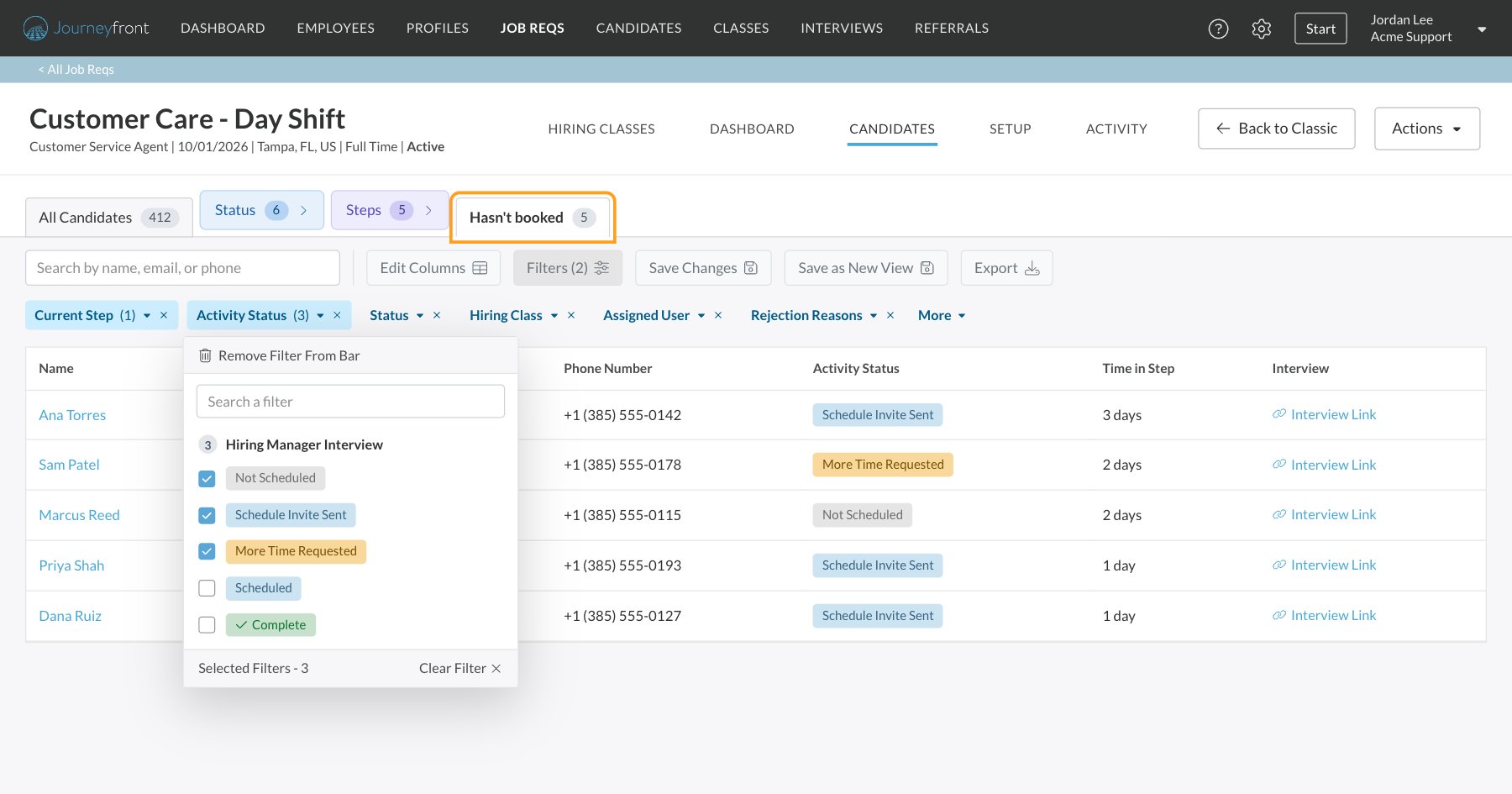
Click Filters. In Current Step, choose the step that holds the interview. On a job req, you can also click that step’s tab in the Steps group.
3
Filter by interview status
Open Activity Status. Statuses are grouped by activity: under your interview’s name, tick Not Scheduled, Schedule Invite Sent and More Time Requested.
4
See who's waited longest
Click Edit Columns and add Time in Step and Interview, then sort. You can also add the Time in Current Step filter, from More, to show only candidates who’ve waited a certain time.
5
Save the view
Click Save as New View and name it, for example “Hasn’t booked”. It appears as a tab, ready every morning. If several recruiters follow up on the same job req, set Who can see this to share it, so everyone works the same list. See Saved views.
Check one candidate’s interview
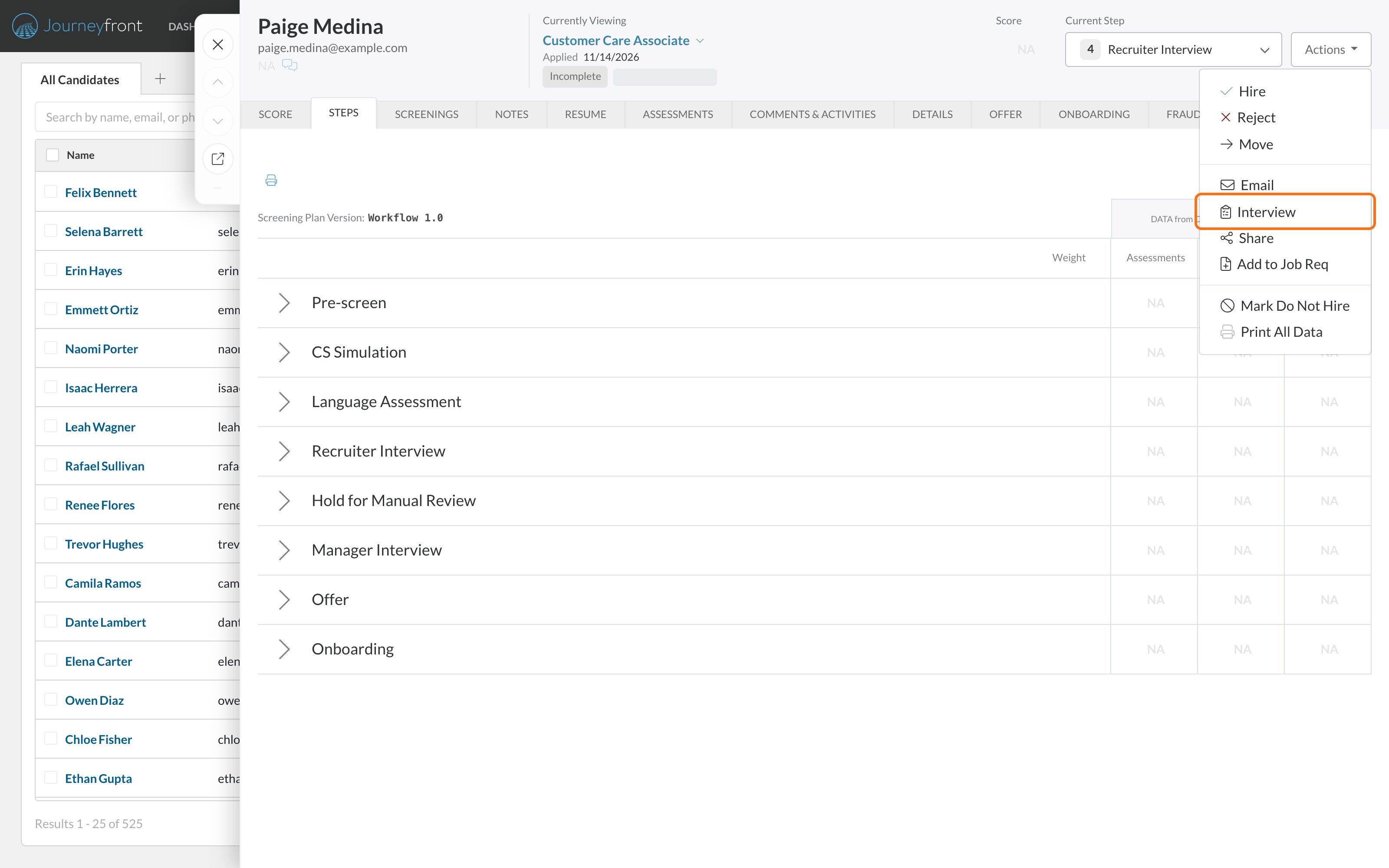
Open the candidate’s Interviews window in either of two ways. From the list: click Interview Link in the Interview column. If you don’t see the column, add it with Edit Columns.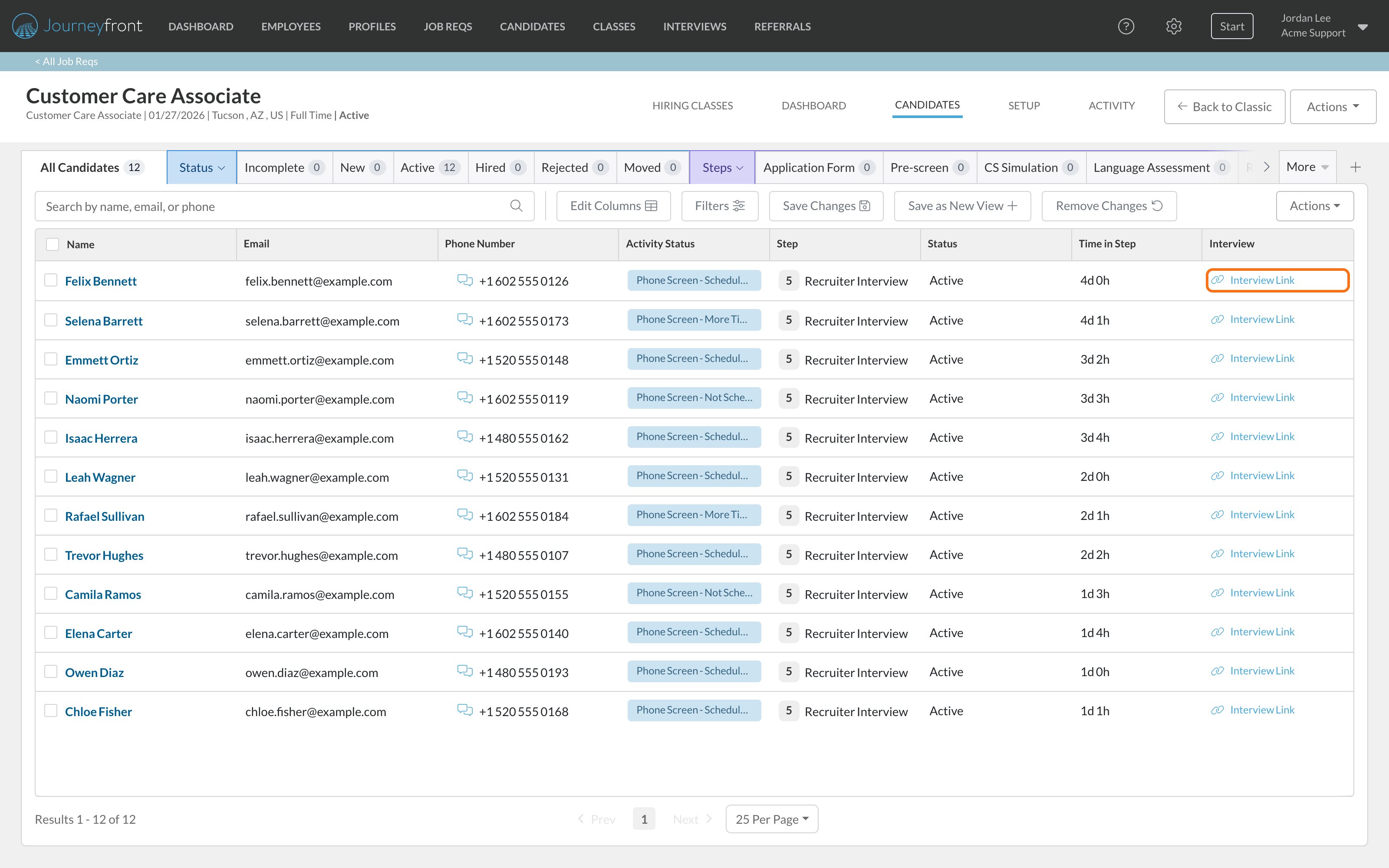
Help them book
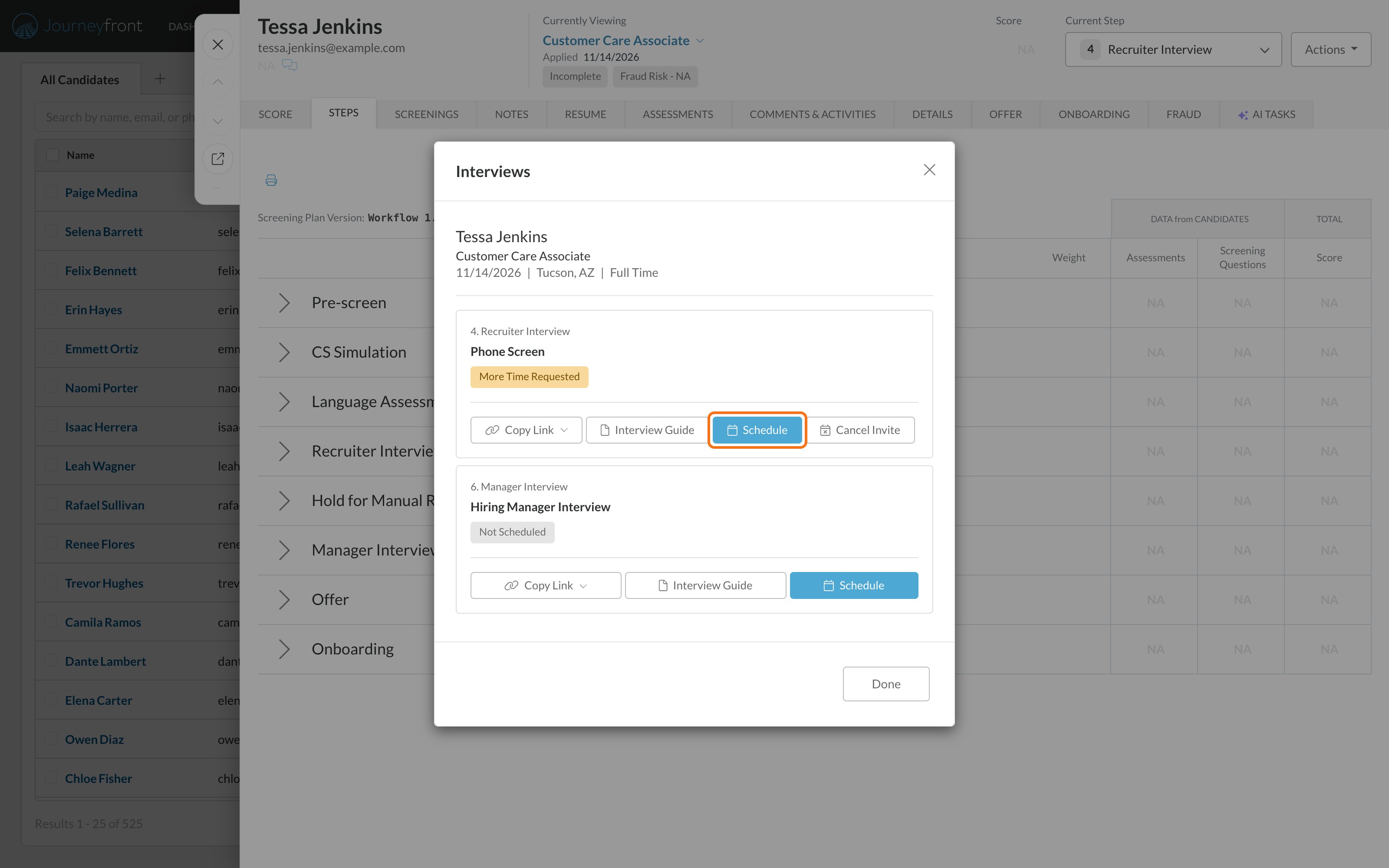
Pick what fits the situation:- Send a fresh link. In the Interviews window, click Schedule on the interview, choose Share Availability, click Next, and then Invite candidate to self schedule. Use this when the first email went missing or the link expired.
- Book it for them. Click Schedule, choose Schedule Time, pick an open time and click Schedule Interview. Handy after a phone call where you agree a time together.
- Open up more times. For More Time Requested, ask interviewers to widen their hours in My Availability, or add interviewers to the interview activity. See Your availability and calendar.
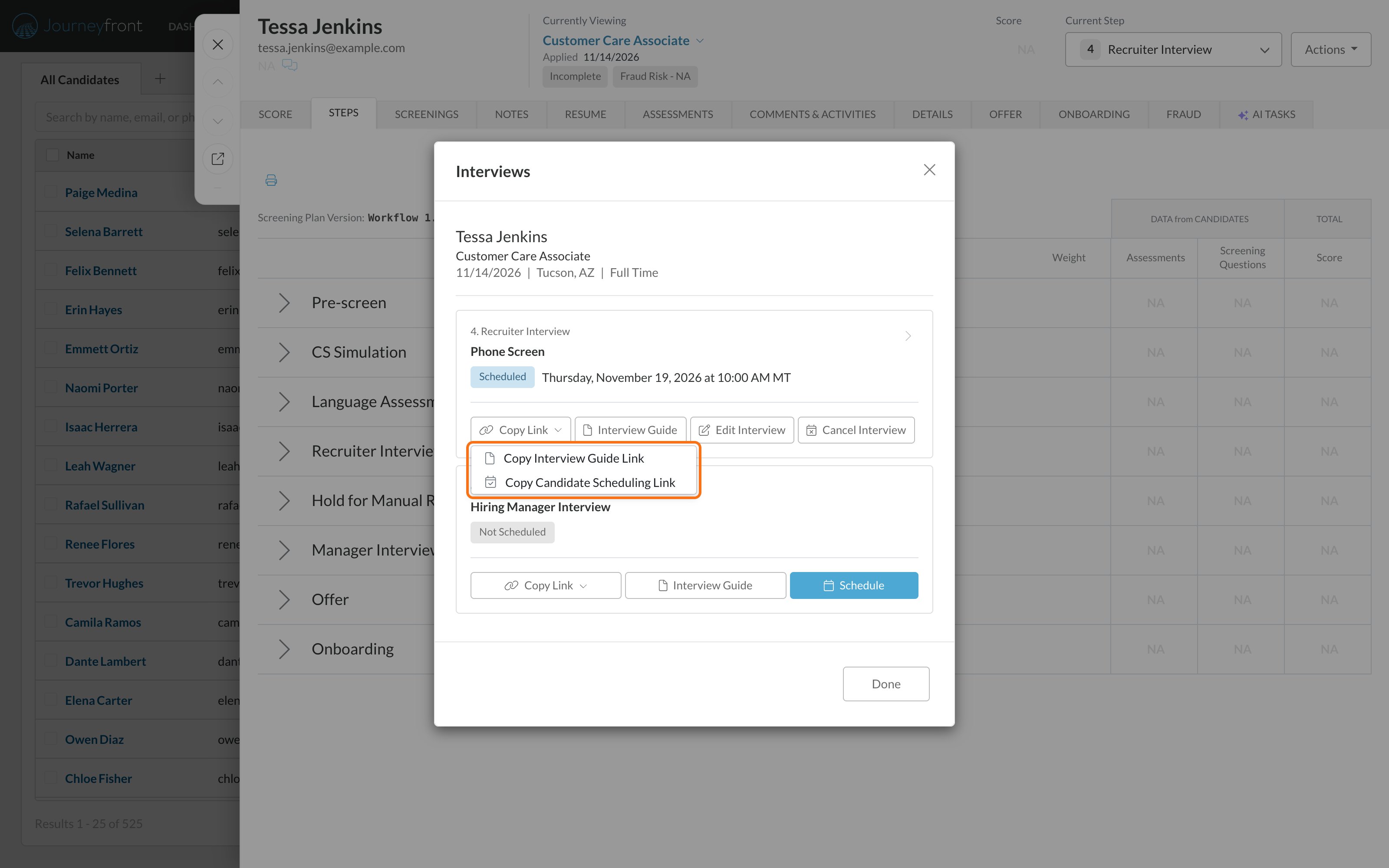
- Text them their link. In the Interviews window, open Copy Link on the interview and choose Copy Candidate Scheduling Link, then paste it into a text or message. It’s available while the candidate has an open invite or a booking.
- Reach out. Email or text candidates from the list: tick them and use E-mail or Message. Ask them to look for the scheduling email from Journeyfront, including in spam and junk folders. See Bulk actions.
Nudge candidates automatically
An automation rule can follow up for you. For example:- Trigger: Candidate Time in Step Reaches, the interview step, 2 Days.
- Condition: Activity Status is, your interview activity, Schedule Invite Sent.
- Action: Send SMS to Candidate or Send Email to Candidate with a friendly reminder.
1
Open the Workflow page
Open the job req and go to Setup, then Workflow.
2
Add an automation to the interview step
Click the purple lightning bolt next to the interview step’s name. The automation editor opens with the trigger set to Candidate Moved to Step.
3
Set it up
Name the automation. Change the Trigger to Candidate Time in Step Reaches and set Days. Click + Add Condition for the interview’s status, and + Add Action for the email or text.
4
Turn it on and save
New automations start Off. Switch Enabled to On and click Save.
If candidates show Not Scheduled
Candidates should get a scheduling link as soon as they reach the interview step. If many show Not Scheduled, check the interview’s settings: on the job req’s Workflow page, click Create New Version (or Edit Draft), click the interview, and under Interview Scheduler click View and Edit Details. Make sure Send email invite to candidates when entering step is on, and that Accept new interviews is on if your account has it. See Set up an interview activity.FAQ
Do interview reminders go to candidates who haven't booked?
Do interview reminders go to candidates who haven't booked?
No. Reminders only go out for booked interviews. Use a saved view and the steps above, or an automation rule, to follow up with candidates who haven’t booked. See Interview reminders.
A candidate says their link doesn't work. What now?
A candidate says their link doesn't work. What now?
It has probably expired, or scheduling is paused for that interview. Send a fresh link with Share Availability, or book a time for them with Schedule Time.
Can I see who hasn't booked across all my job reqs?
Can I see who hasn't booked across all my job reqs?
Yes. Build the same view on the Candidates page. The Activity Status filter lists each interview by name, so tick the not-booked statuses under every interview you want to include.
Why is a candidate missing from my view?
Why is a candidate missing from my view?
Check that they’re in the step you filtered on, and that their interview status is one you ticked. Candidates who booked show Scheduled and drop out of the view, which is the point.
Related
Candidate self-scheduling
Scheduling links, statuses and what candidates see.
The Candidates page
Filters, columns and saved views.
Automation rules
Follow up with candidates automatically.
Interview reminders
Reminders for candidates who’ve booked.