

Who can do this: Anyone who can see the candidates. Some actions need a permission in your security role, listed below.
Select candidates
Tick the box next to each candidate, or tick the box in the header to select every candidate on the current page. The actions bar shows how many you’ve selected. Click the box on the left of the bar, or the x on the right, to clear your selection.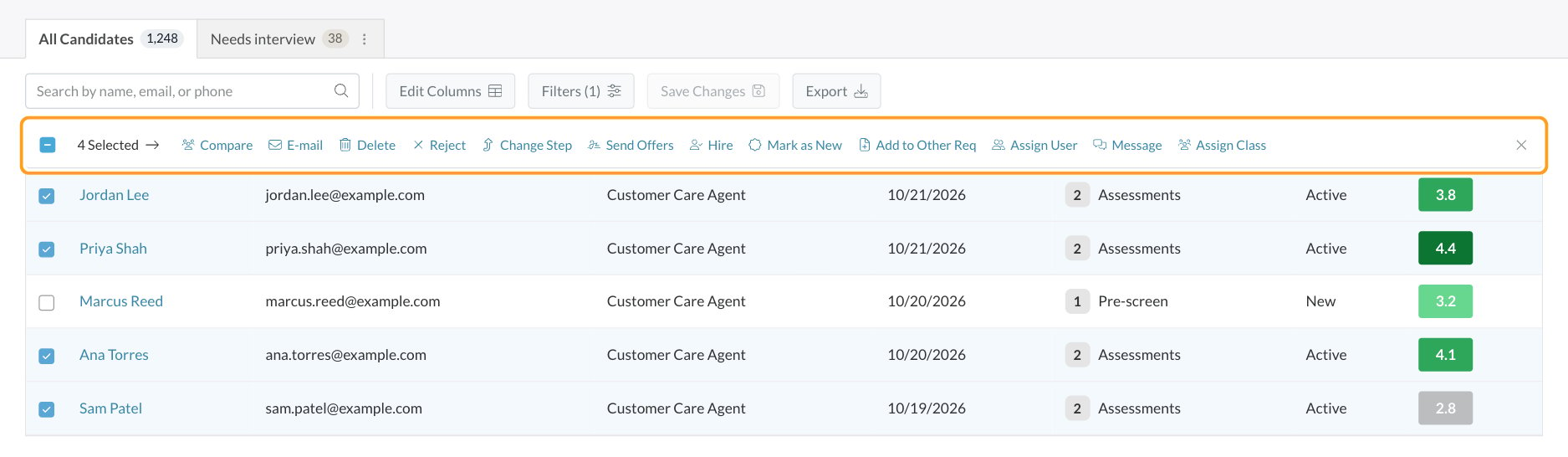
All bulk actions
When you message a group, candidates without a phone number, or who aren’t opted in to texts, are skipped. Journeyfront offers to email them instead.
Assign AI agents in bulk
To assign an AI agent to a group of candidates, switch the job req’s Candidates tab to the classic layout with Back to Classic, select the candidates and click Assign AI Agent. It appears when AI agents are turned on for your account, your security role has Assign AI Agents, and at least one agent is active. See AI agents.Why some actions disappear
The actions bar only shows what you can do to everyone you selected.- Across job reqs. On the Candidates page you can select candidates from different job reqs. Reject, Change Step, Send Offers, Compare, Assign User and Assign Class then disappear, because each job req has its own workflow, team and hiring classes. Narrow your selection to one job req, or work from that job req’s Candidates tab.
- Across workflow versions. When a job req’s workflow changes, candidates who applied earlier stay on the version they started with. Change Step, Send Offers and Compare need everyone on the same version. Add the Job Version column with Edit Columns to see who’s on which, and act on each group separately.
- Over the bulk hire limit. Hire stays visible but is greyed out when you select more than 100 candidates. Hover over it to see why.
- Permissions. Actions that need a permission don’t appear at all without it. Ask your Journeyfront admin to check your security role. See Security roles.
Delete candidates
1
Select the candidates
Tick the candidates whose applications you want to remove.
2
Click Delete
The Remove Candidate(s) window asks you to confirm.
3
Click Yes
The applications disappear from the job req and from your candidate lists.
On a hiring class
The candidate list on a hiring class has a shorter actions bar: E-mail, Delete, Reject, Change Step, Hire, Assign User and Message, with the same permissions as above.FAQ
Why don't I see Reject or Change Step?
Why don't I see Reject or Change Step?
Your selection probably includes candidates from more than one job req, or from different versions of the workflow. See Why some actions disappear.
Why don't I see Delete, E-mail, Message, Send Offers or Hire?
Why don't I see Delete, E-mail, Message, Send Offers or Hire?
Each of these needs a permission in your security role: Delete Applicants, Send Emails, Send Messages, View and Send Offers or Hire Candidates. Ask your Journeyfront admin.
How do I select more than one page of candidates?
How do I select more than one page of candidates?
The header checkbox selects the candidates on the current page. Show more rows per page at the bottom of the list, or narrow your filters so everyone fits on one page.
What happens to hired candidates in a bulk reject?
What happens to hired candidates in a bulk reject?
They’re skipped. To reverse a hire, use Un-Hire on the Candidate Application. See Hire candidates.
Can I undo a bulk action?
Can I undo a bulk action?
Most bulk actions can be reversed one candidate at a time: un-reject, change the step back, reassign, or remove from a class. Merges can’t be undone. Deleted applications can be recovered one at a time, as described in Delete candidates.
Related
The Candidates page
Filter, sort and save views before you act.
Move candidates through steps
Change Step and its moving actions.
Bulk hire
Hire a whole group at once.
Security roles
The permissions behind each action.