

Who can do this: Users with the Send Messages permission. Creating message templates needs the Company Settings Access permission.Availability: Uses the Text Messages add-on. Your admin sets up a texting provider and a sending number first (see Texting providers).
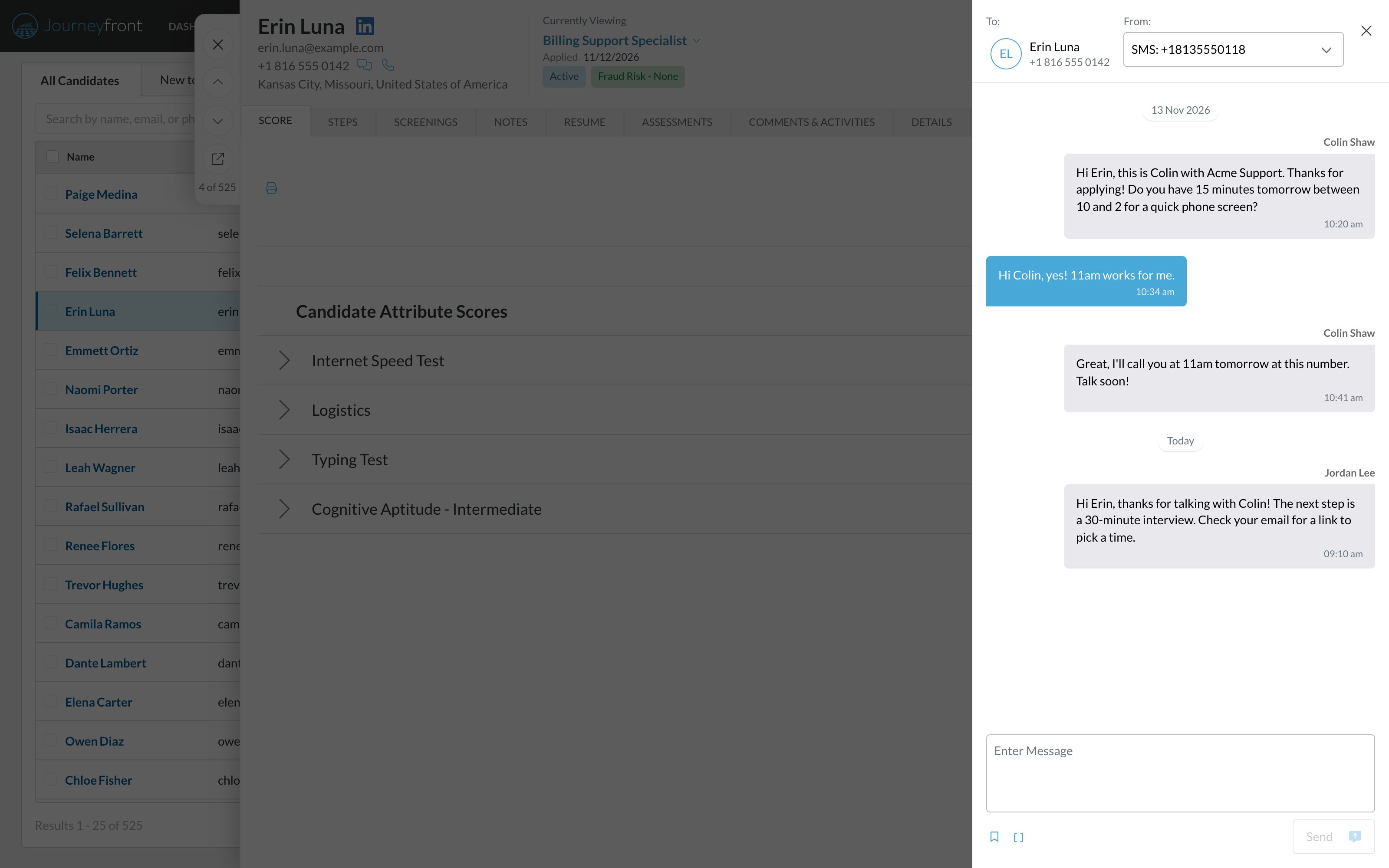
Send a message to one candidate
1
Open the message panel
Open the Candidate Application and click the message icon next to the candidate’s phone number. The message panel opens with your conversation so far. You can also click Actions, then Message.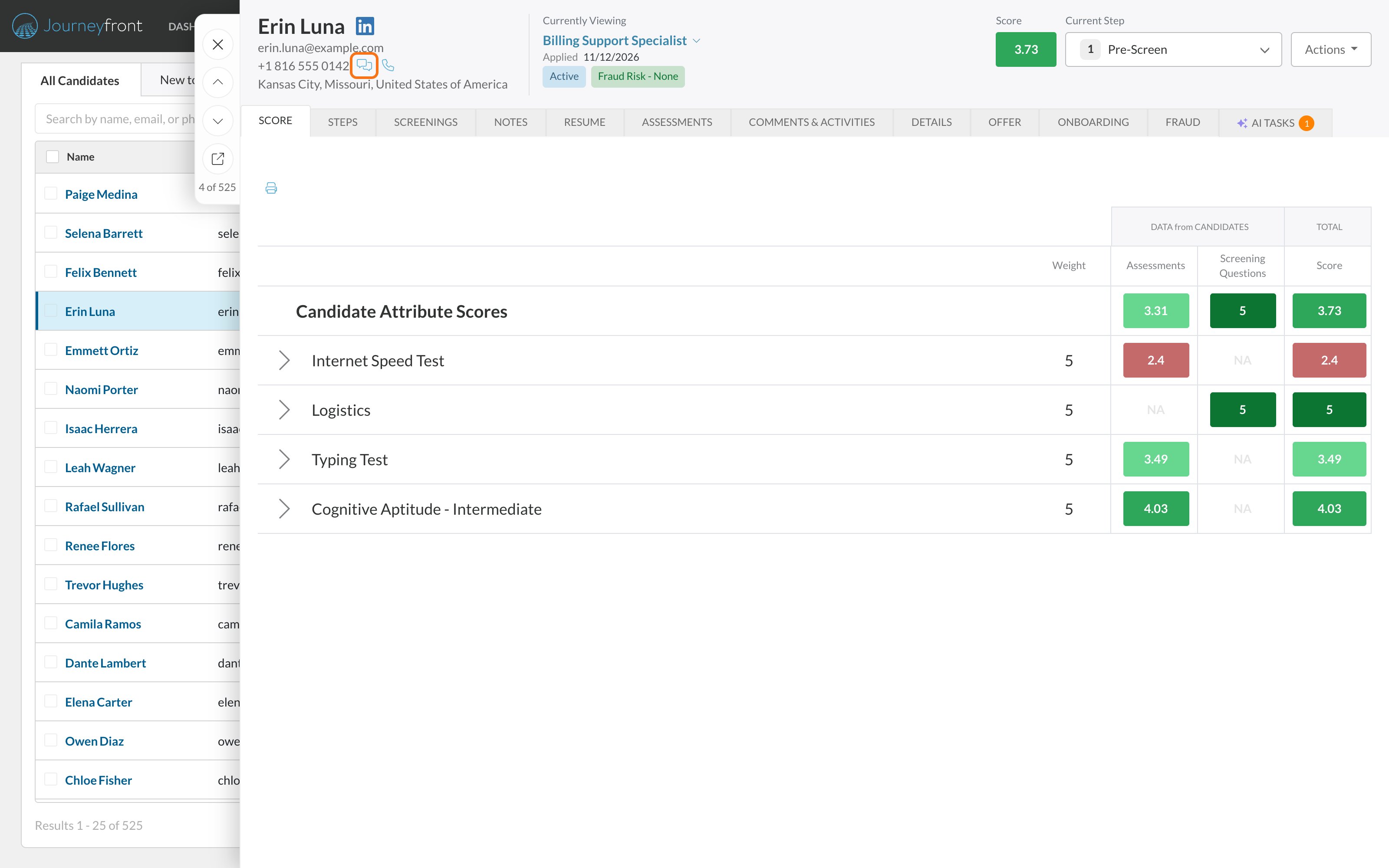
2
Choose the number to send from
In From, choose a number. Text numbers are labeled “SMS:” followed by the number. Your WhatsApp number, if you have one, is labeled “WhatsApp”.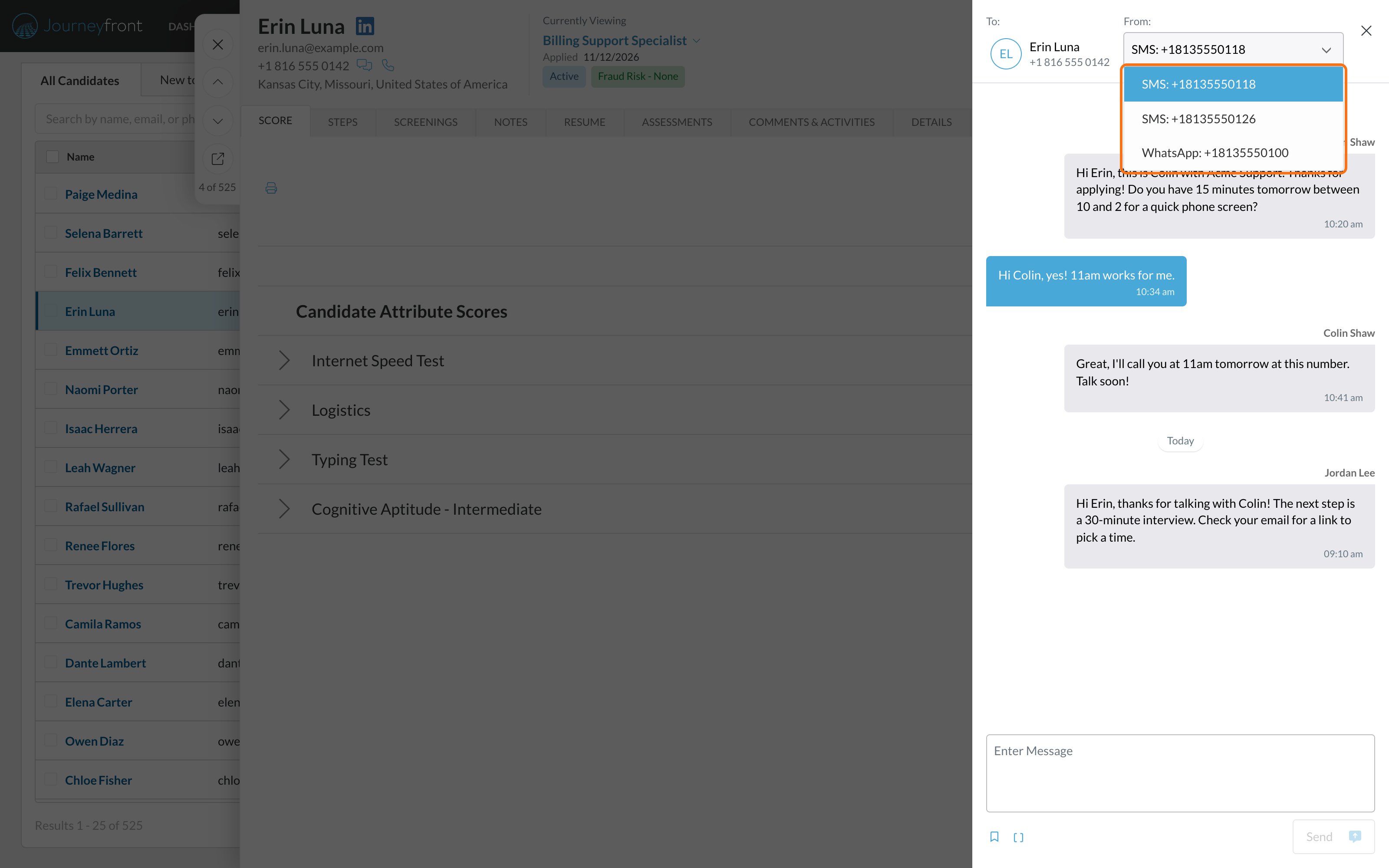
3
Write your message
Type a message, or click the bookmark icon (Message Template) and choose Use Template on a saved message. The template’s text goes into the message box, where you can edit it, and its variables are filled in with the candidate’s details when it sends. See Message templates.
4
Send
Click send. The message goes out right away.
Message many candidates at once
1
Select candidates
On the Candidates page, or a job req’s Candidates tab, select the candidates you want to message.
2
Click Message
Click Message in the actions bar.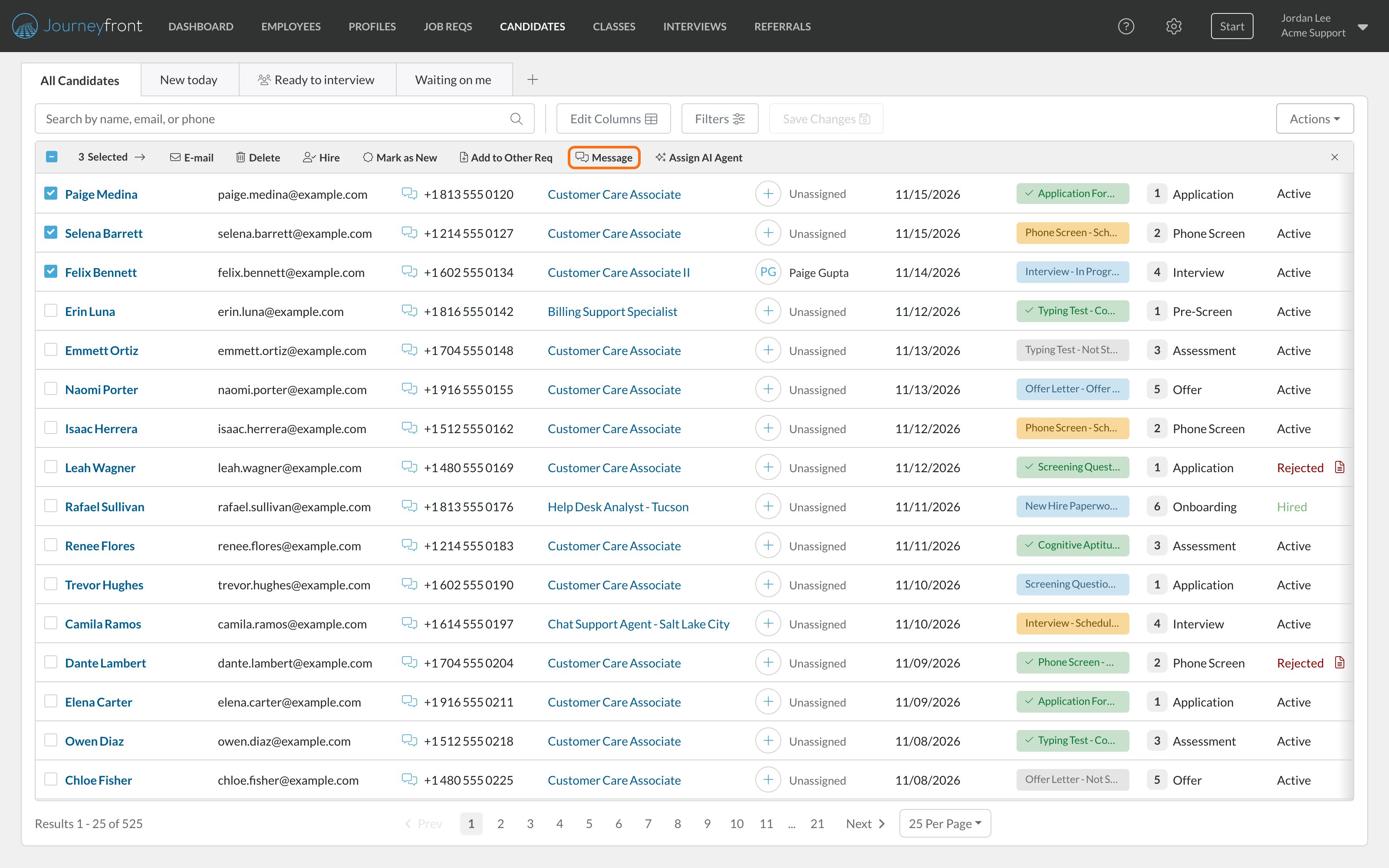
3
Choose a number and write your message
Pick a number in Text From, then write a message or choose a Template.
4
Send now or schedule it
Send right away, or tick Delay sending message and pick a date and time.
Send messages automatically
An automation rule on a job req’s workflow can text candidates for you when they reach a step, with the Send SMS to Candidate action (or Send WhatsApp Message to Candidate) and one of your message templates.Automation rules
Set up rules that send messages when candidates reach a step.
Where conversations show up
- The message panel shows the full conversation for the number you pick in From.
- The Comments & Activities tab on the Candidate Application logs messages alongside the candidate’s other history, such as comments and calls.
- Unread badges tell you a candidate has replied. Open the message panel to read the reply and answer it.
- The candidate your team texted from that number in the last 30 days.
- Otherwise, the candidate whose application changed most recently.
- Otherwise, any candidate in your account with that phone number.
Track delivery
Each text shows the time it was sent. If a message can’t be delivered, Not delivered appears under it. Hover over it to see why. Common causes, like a landline or a candidate who opted out, are explained in plain words. For anything else, you see the provider’s error message and code.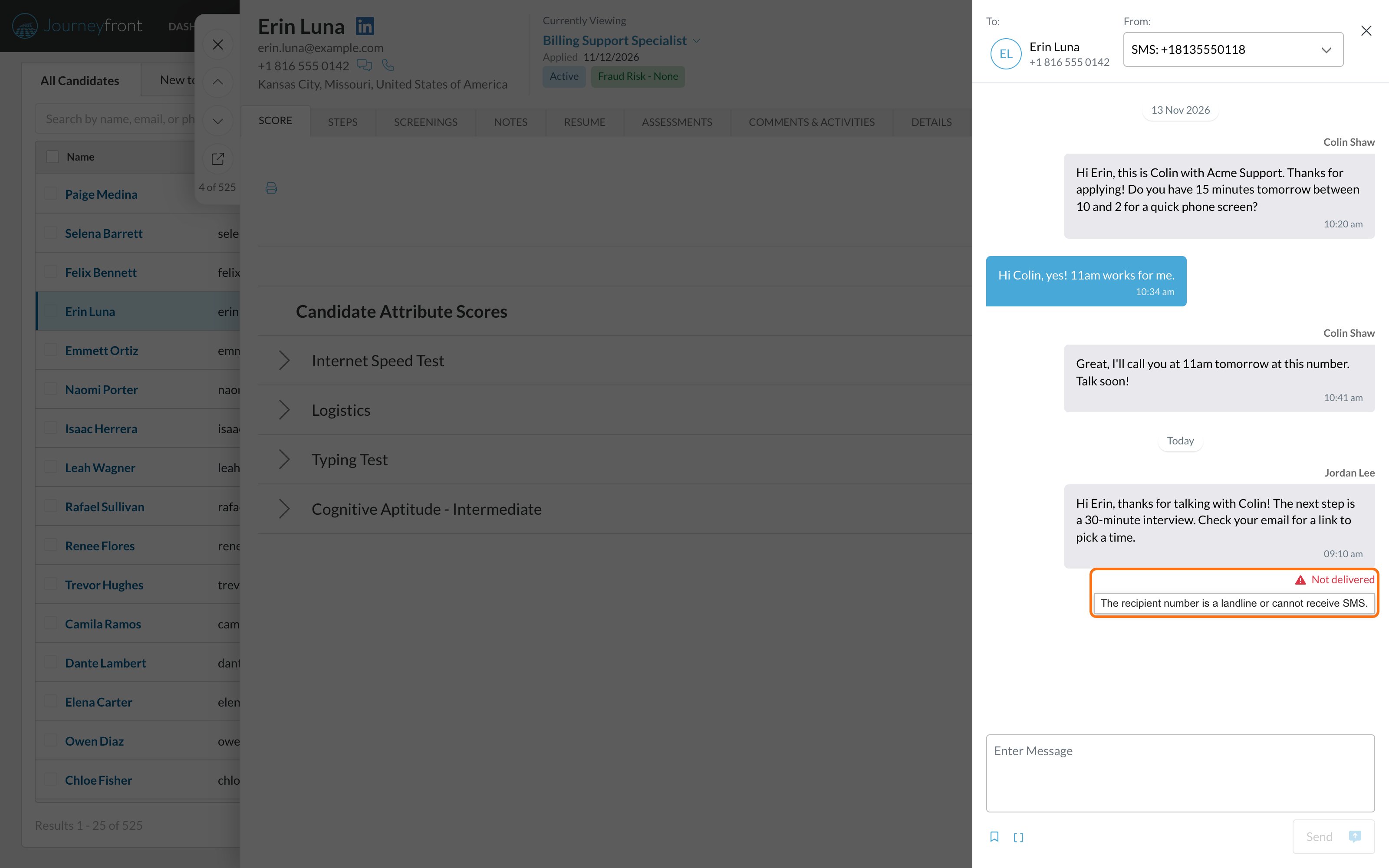
Message templates
Save your common messages as templates so anyone on your team can send them, with each candidate’s details filled in. Admins create them in Settings, then Templates, then Message Template.Message templates
Create text and WhatsApp templates, add variables, and see where they’re used.
Opt-in and opt-out
- Candidates opt in to texts on your application form. If a candidate hasn’t opted in, the message panel shows a warning at the top.
- A candidate who replies STOP (or STOPALL, UNSUBSCRIBE, CANCEL, END or QUIT) stops getting texts from your account. Replying START, YES or UNSTOP opts them back in.
- An opt-out applies to every record in your account with that phone number.
- Messages scheduled before a candidate opted out aren’t sent.
Credits and billing
If Journeyfront provides your texting account, texts draw from a prepaid messaging balance. Admins can see the balance in Settings, then Add-Ons, then Text Messages. If your company uses its own Twilio or Webex Connect account, your provider bills you directly and there’s no Journeyfront balance. See Add-ons and credits.What candidates see
Text messages come from your sending number. Candidates can reply, and can reply STOP at any time to opt out.FAQ
Why don't I see our number in the From list?
Why don't I see our number in the From list?
Only numbers that can send on that channel appear. A number connected only to WhatsApp won’t show for SMS, and a removed number won’t show at all. Ask your admin to check Settings, then Phone Numbers.
Can I schedule a message for later?
Can I schedule a message for later?
Yes, when you message several candidates at once with the Message action.
Why was my message not delivered?
Why was my message not delivered?
Hover over Not delivered on the message to see the reason. Common causes are an invalid or landline number, or a candidate who opted out.
A candidate says they replied, but I don't see it. Why?
A candidate says they replied, but I don't see it. Why?
First check whether the reply landed on another record with the same phone number. If replies aren’t arriving at all, ask your admin to check the Candidate replies step in Settings, then Add-Ons, then Text Messages. It shows whether replies are reaching Journeyfront.
Does it matter which provider our numbers use?
Does it matter which provider our numbers use?
No. The message panel, templates, replies and delivery updates work the same for every provider.
Related
Message candidates on WhatsApp.
Texting providers
Set up your provider and phone numbers.
Add-ons and credits
See your messaging balance and usage.
Calling candidates
Call candidates and log every call.
Message templates
Saved messages for texts and WhatsApp.