

Who can do this: Anyone who can open the Candidate Application. Anyone with a role on your account can play call recordings.Availability: Automatic call logging needs Webex Contact Center or QUO connected for your company and for you. See Calling.
Call a candidate
Open the Candidate Application and click the phone icon in the header, or open Actions and choose Call via Webex (or Call). You can also call from the Candidate Profile. What happens next depends on how your company calls candidates.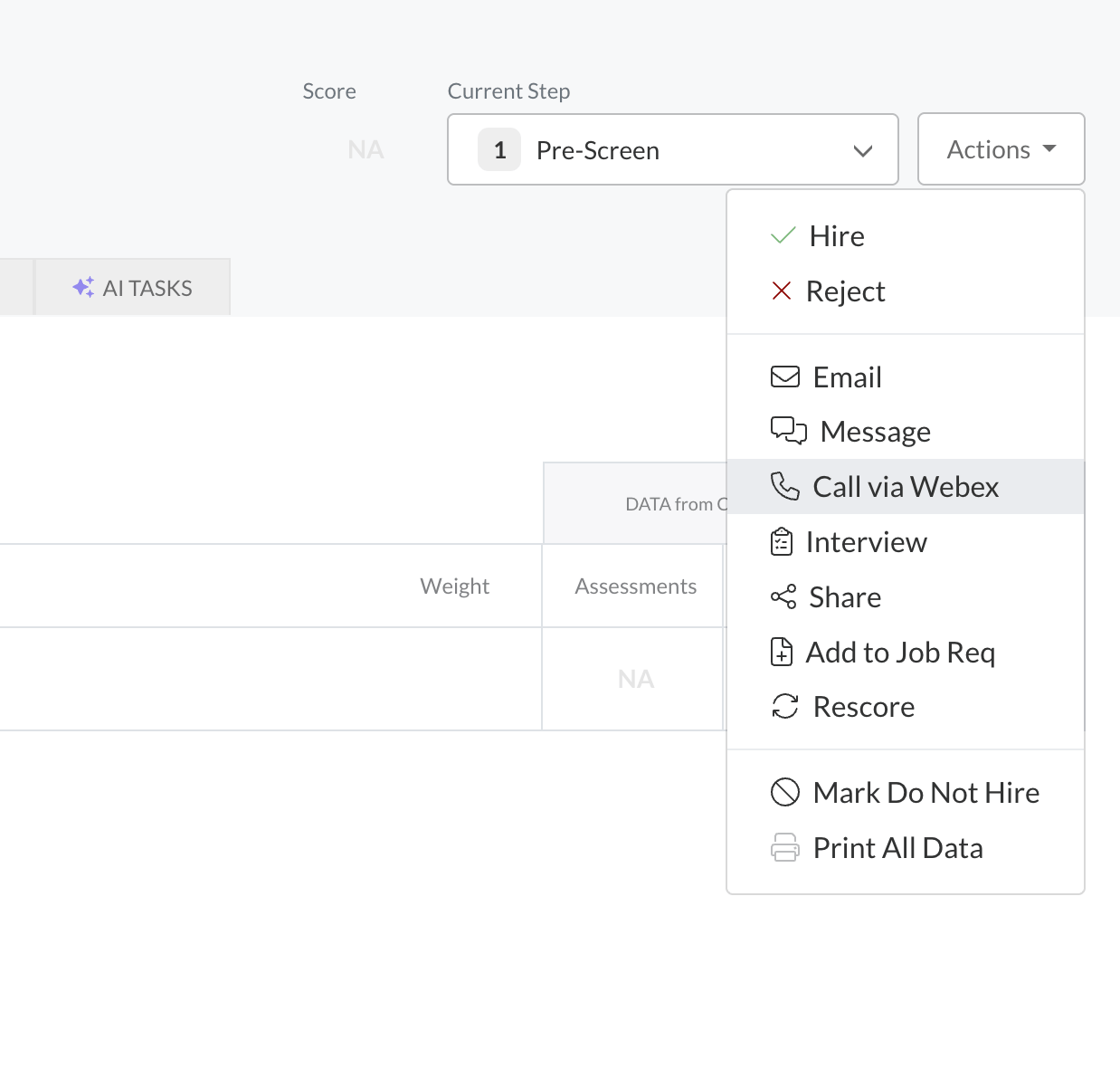
- Webex Contact Center
- QUO
- No calling integration
1
Get ready in Webex
Sign in to the Webex Agent Desktop and set yourself to Available.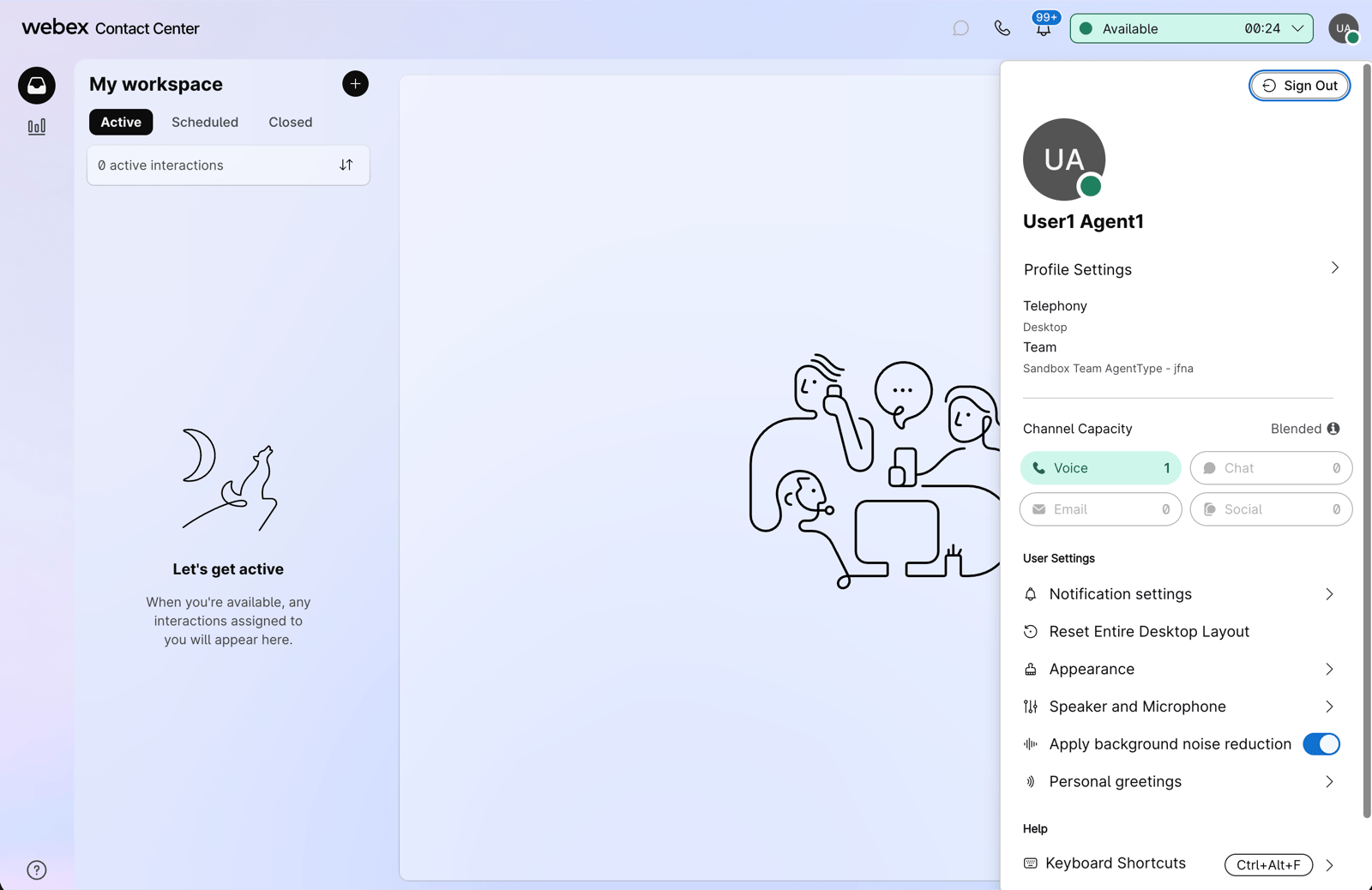
2
Click the phone icon
Open the candidate in Journeyfront and click the phone icon. The tooltip reads “Waiting for you to answer in Webex.”
3
Answer in your Agent Desktop
Webex rings you first. Answer in the Agent Desktop, and Webex then dials the candidate. The phone icon shows the call is in progress.
4
Log how it went
When the call ends, choose how it went and add a note if you like. See Log the call outcome.
Log the call outcome
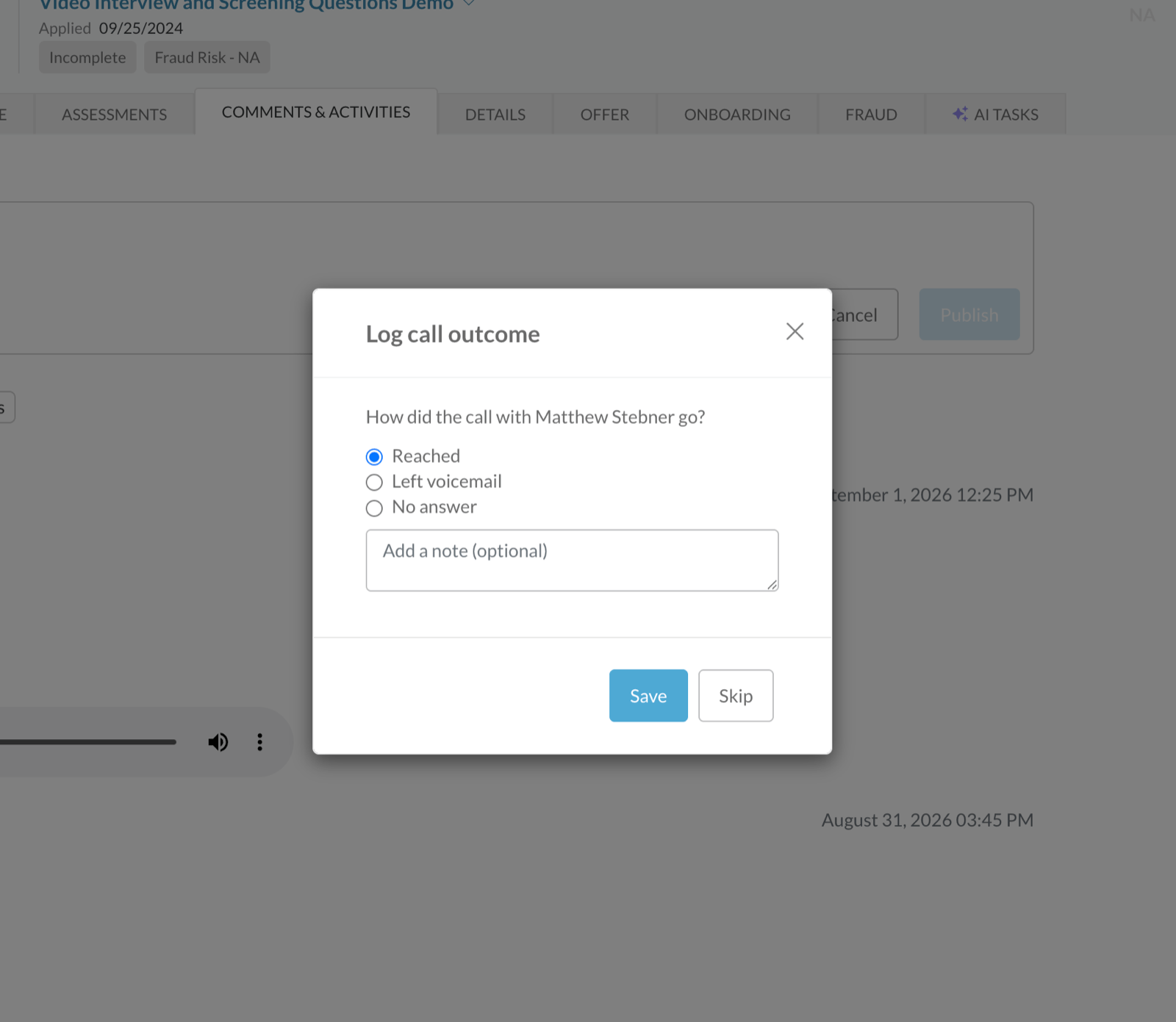
With Webex Contact Center, the Log call outcome window opens when a call ends and asks how the call went:- Reached: you spoke with the candidate.
- Left voicemail: you left a message.
- No answer: nobody picked up.
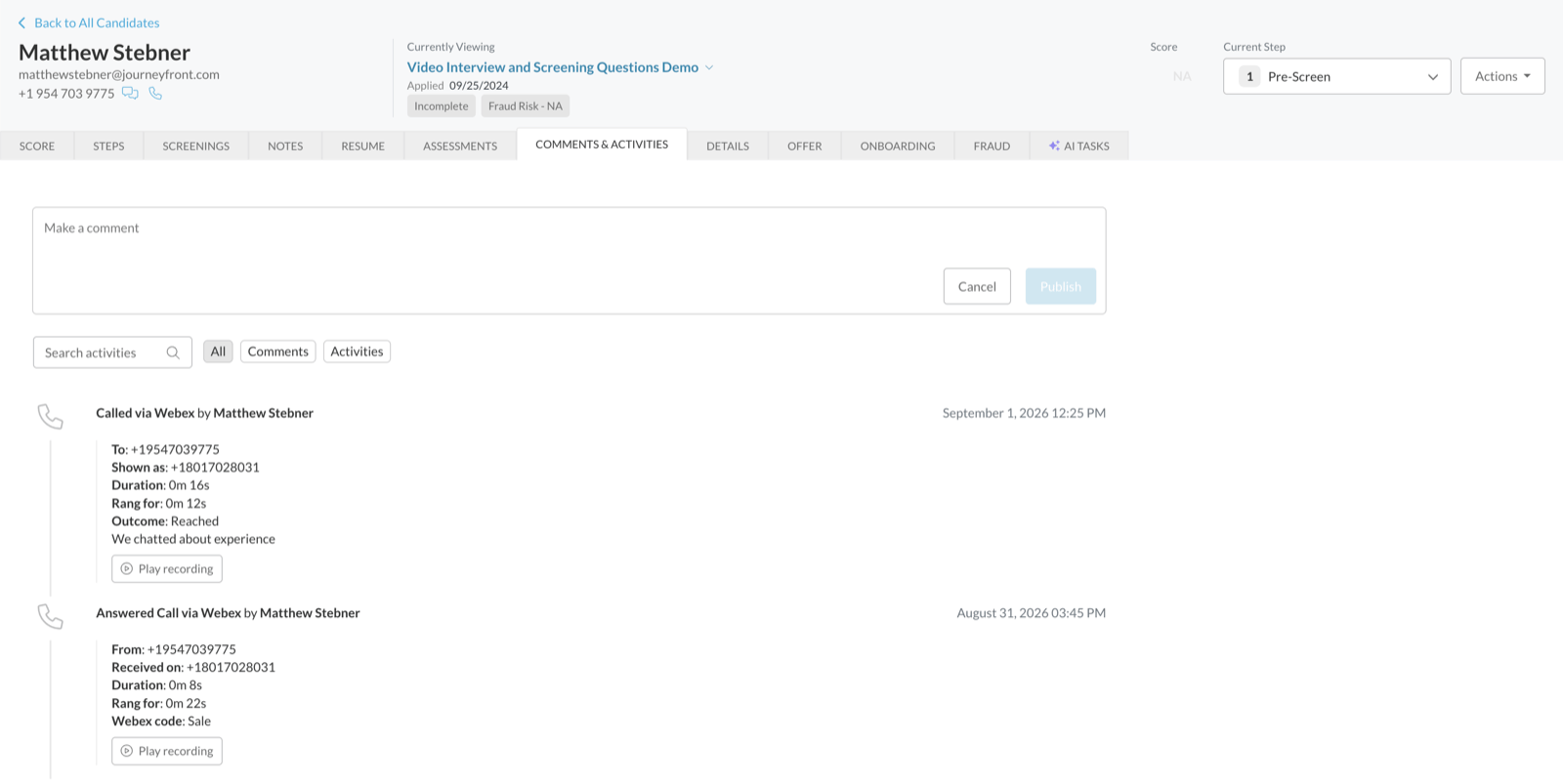
Find calls on the Candidate Application
Calls appear on the Candidate Application’s Comments & Activities tab, newest first. Each entry is titled by what happened, such as Called via Webex, Called via QUO, Answered Call via Webex for a call from the candidate, or Webex Call Failed for a call that didn’t reach anyone. Depending on your provider, an entry can show:
Below the details, Play recording and View transcript appear when they’re available.
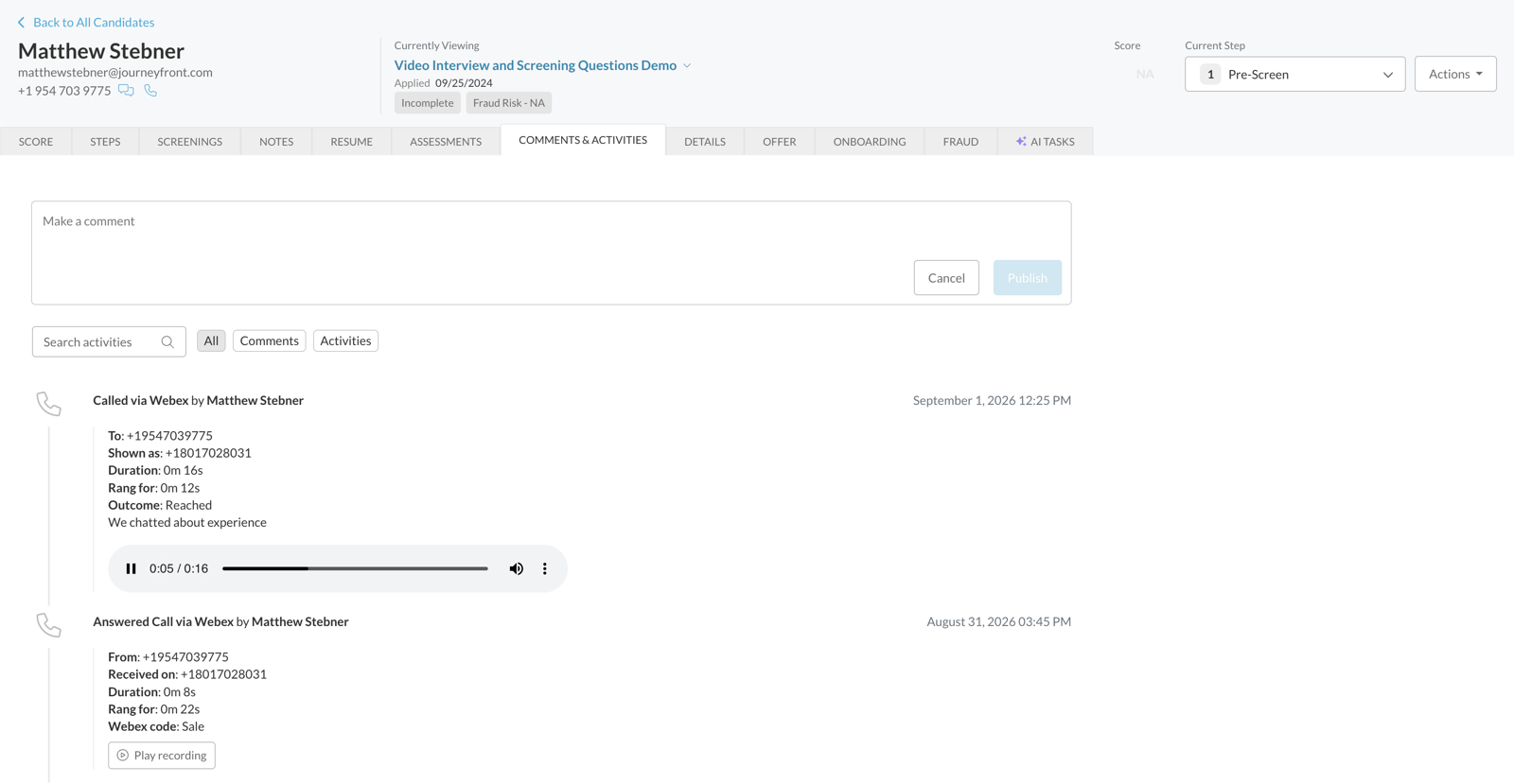
Calls from candidates
When a candidate calls you back, that call is logged on their record too, including when a different member of your team answers. A call is only logged when the caller’s number matches a candidate in your account, so personal and internal calls never appear. If the candidate has applied to more than one job req, the call goes on one Candidate Application: the one you most recently called them about. If there wasn’t a recent call to that number, it goes on the application with the most recent activity. Either way, it’s on the right candidate.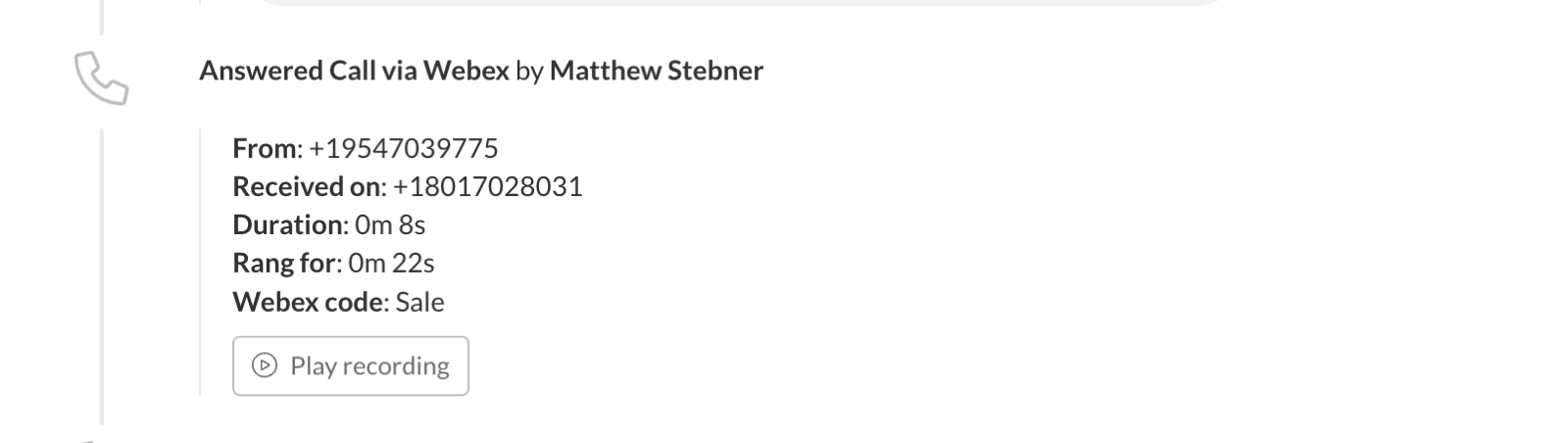
Recordings and transcripts
- Recordings: click Play recording and the audio plays in place. Anyone with a role on your account can play it, not only the recruiter who made the call. Recordings stay with your calling provider and are streamed when you play them.
- Transcripts: click View transcript to read the conversation. Transcripts come from QUO. Webex Contact Center doesn’t provide them.
FAQ
Do I need the Webex Agent Desktop open to make a call?
Do I need the Webex Agent Desktop open to make a call?
Yes. Webex rings you first and connects the candidate only after you answer, so you need to be signed in and set to Available.
Why am I asked how the call went?
Why am I asked how the call went?
Webex can tell that a call connected, but not whether a person or a voicemail greeting answered. Your answer records what actually happened.
I clicked the phone icon and nothing happened. Why?
I clicked the phone icon and nothing happened. Why?
With Webex, make sure you’re signed in to the Agent Desktop and set to Available. If the call rings for a few seconds and then ends, ask your admin to check the Webex setup on Webex Contact Center.
Who can hear a call recording?
Who can hear a call recording?
Anyone with a role on your Journeyfront account, from the candidate’s record.
Why is there no recording on a call?
Why is there no recording on a call?
Recording is a setting in your calling provider. Ask your admin to check that call recording is turned on. If a recording won’t load, it may have expired or been removed in your provider.
A call landed on a different job req than I expected. Why?
A call landed on a different job req than I expected. Why?
When a candidate has more than one application, a call from them goes on the job req you most recently called them about, or else the one with the most recent activity. The call is still on the right candidate.
What if I haven't connected my calling account?
What if I haven't connected my calling account?
The phone icon opens your computer’s default calling app instead, and the call isn’t logged. Connect your account in Personal Settings, then Integrations.
Related
Calling setup
Connect Webex Contact Center or QUO.
Text messages
Message candidates by SMS or WhatsApp.
How the pieces connect
How job reqs, workflows, postings, candidates and hiring classes relate.
Finding your way around
Where everything lives in Journeyfront.