

Who can do this: Users with the Send Messages permission send WhatsApp messages. Creating WhatsApp templates needs Company Settings Access.Availability: WhatsApp is part of the Text Messages add-on. Your admin connects your company’s WhatsApp Business number first (see WhatsApp setup).
Send a WhatsApp message
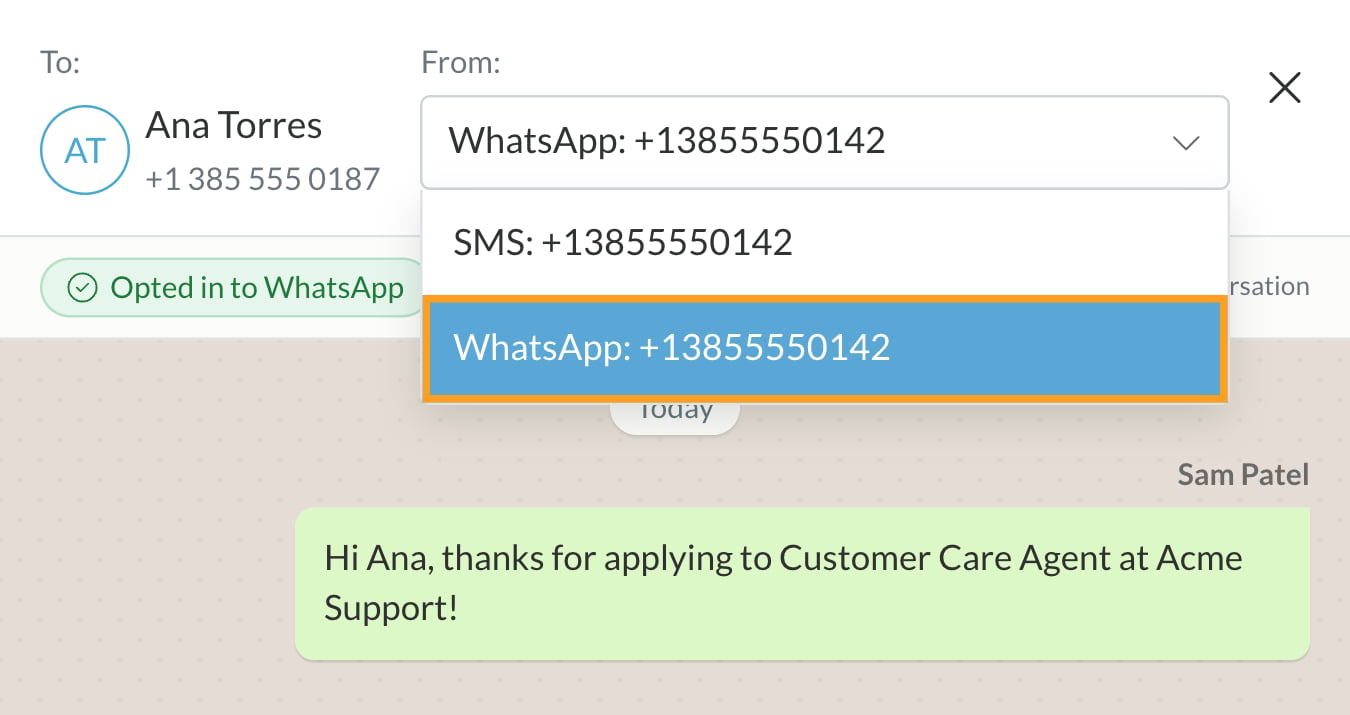
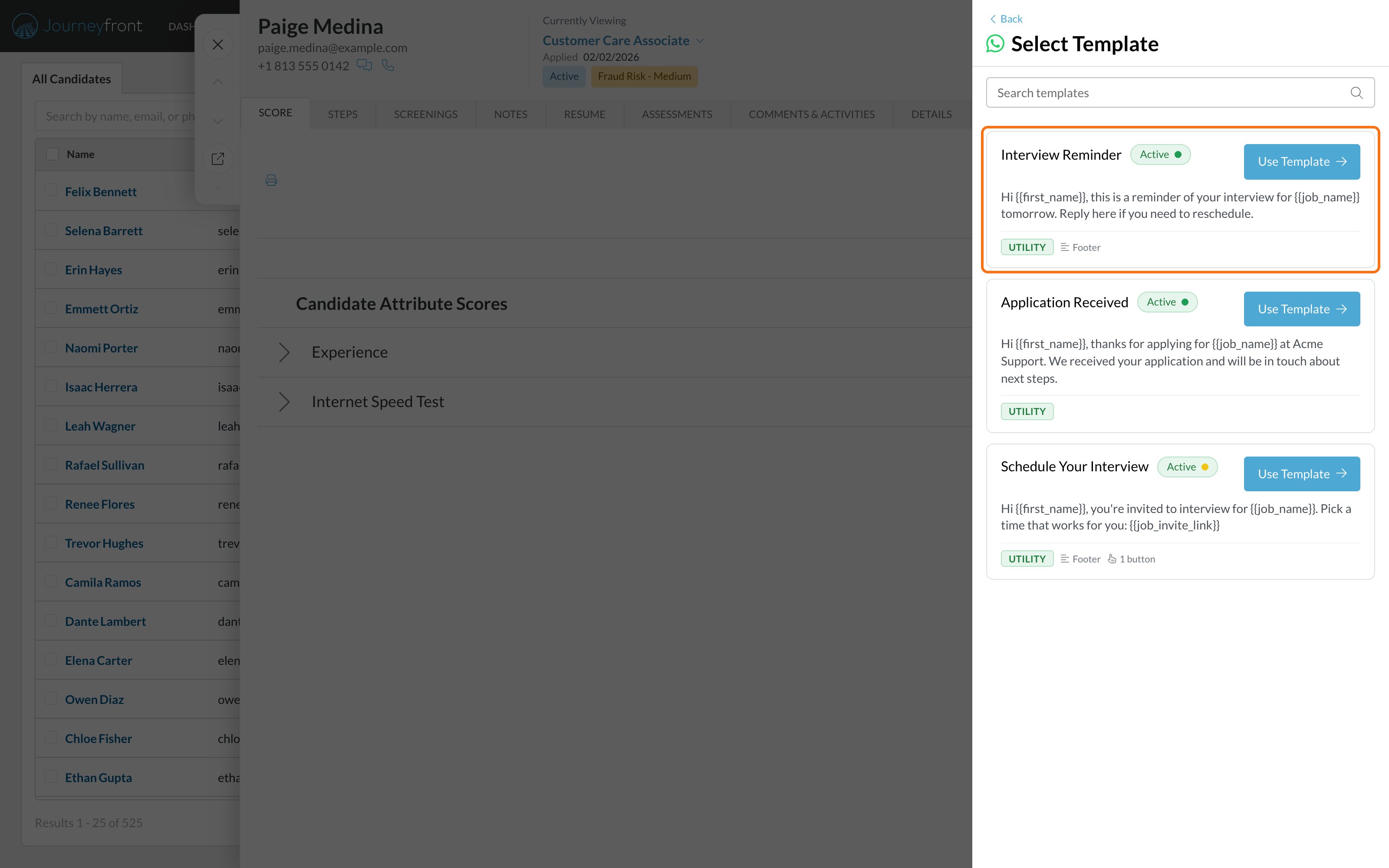
- To one candidate: open the Candidate Application, click the message icon, and choose your WhatsApp number in From (it’s labeled “WhatsApp”). To start a conversation, pick an approved template. You’ll see a preview with the candidate’s details filled in before you send.
- To many candidates: select candidates on the Candidates page or a job req’s Candidates tab, choose Message, pick your WhatsApp number and an approved template. You can send now or schedule it.
- Automatically: on a job req’s workflow, add an automation with the Send WhatsApp Message to Candidate action and an approved template.
WhatsApp rules
- Templates start conversations. To message a candidate first, use an approved template.
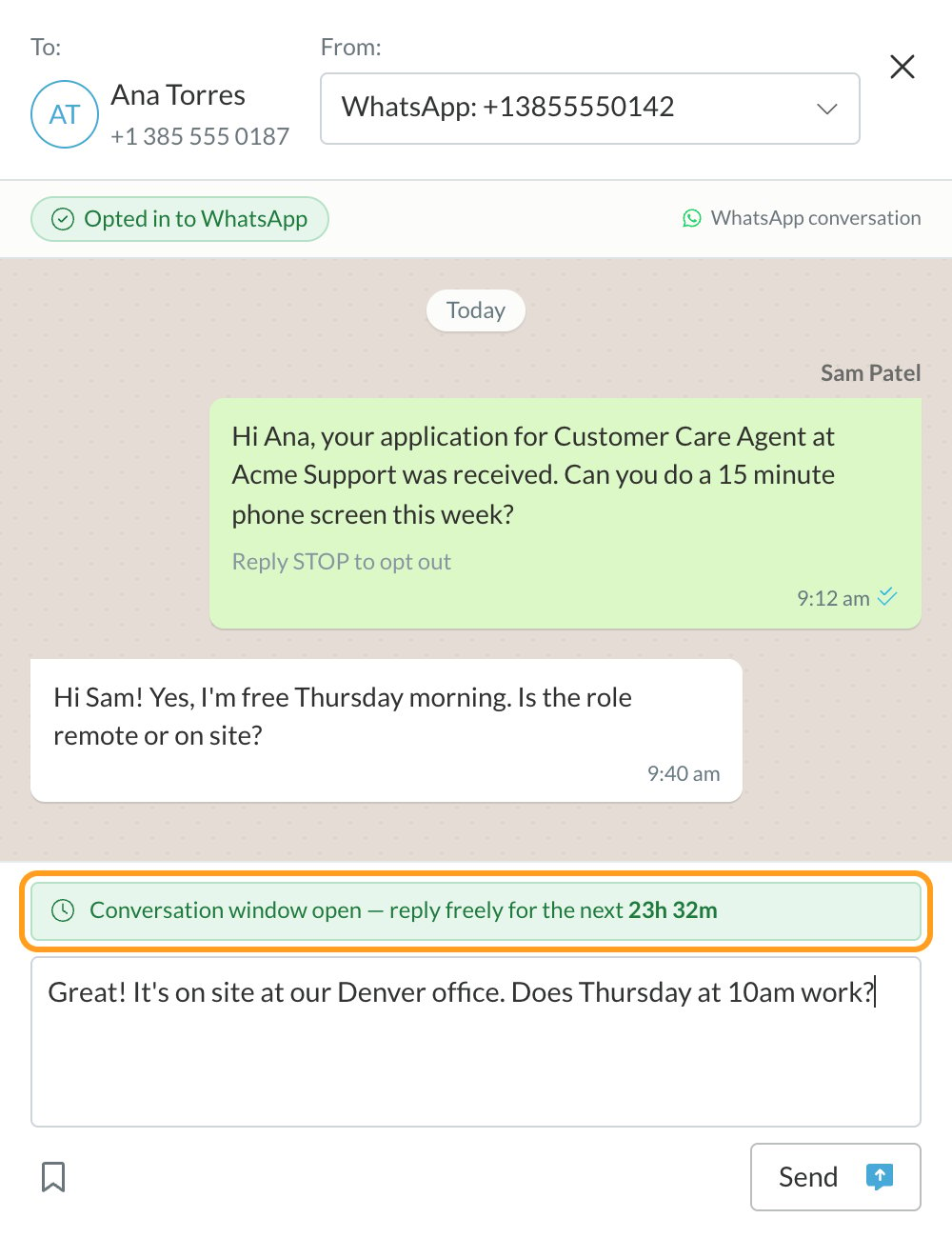
- Free-form replies for 24 hours. Once the candidate replies, you can type free-form messages for 24 hours. After that, you need a template again.
- Candidates must be on WhatsApp on the phone number you have for them.
- Daily limits. WhatsApp limits how many new conversations your business can start each day. See WhatsApp limits and quality.
Connect WhatsApp
An admin connects your company’s WhatsApp Business number once. WhatsApp goes through the same provider you text through, so set up texting first.1
Open the Text Messages add-on
Go to Settings, then Add-Ons, then Text Messages, and click Connect WhatsApp.
2
Choose the number and display name
Choose the phone number candidates will message you on and confirm the display name candidates will see. Then click Connect your WhatsApp Business Account.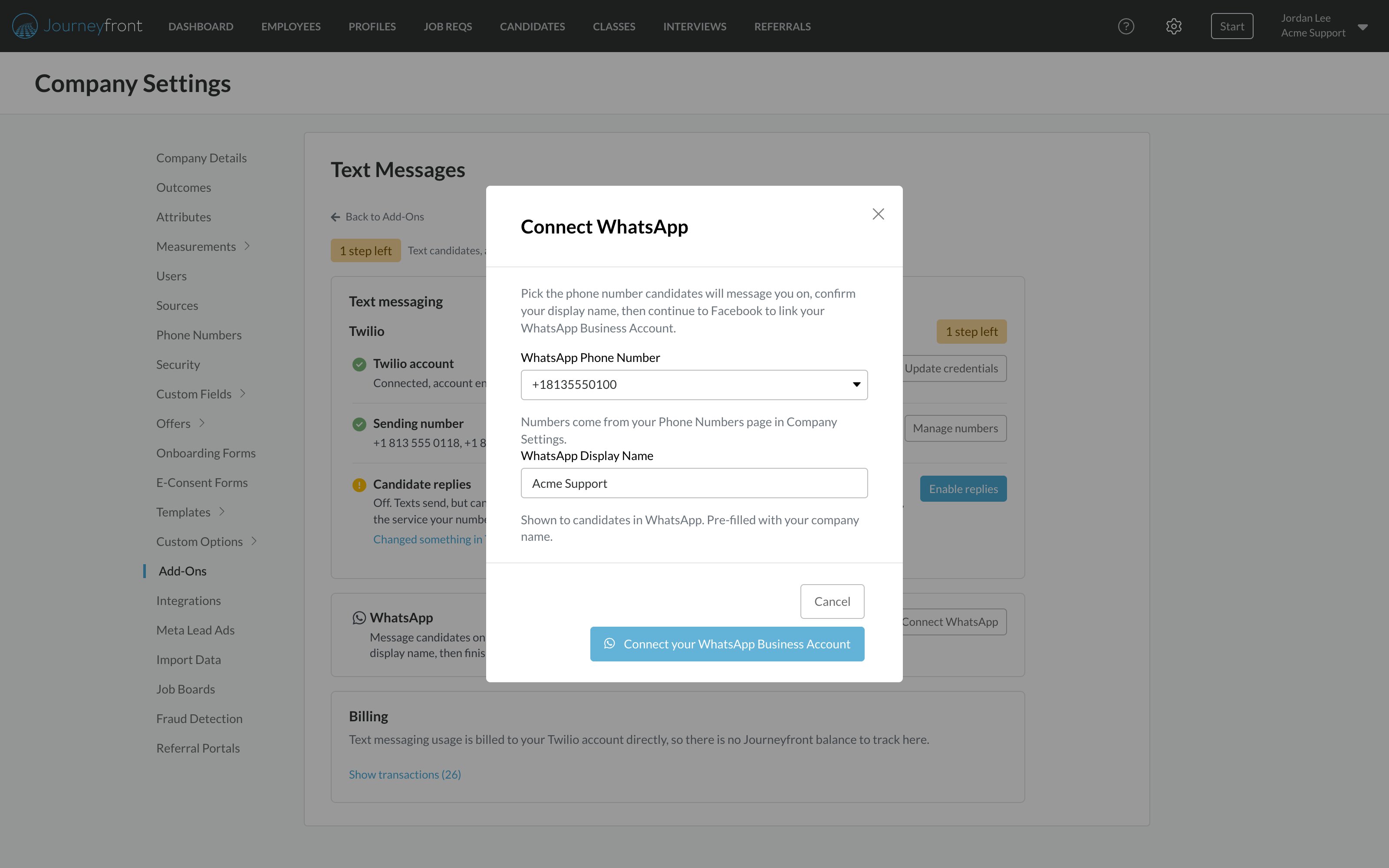
3
Finish in Facebook
In the Facebook window, select your own business account. When asked about the phone number, choose “Use a display name only.” The number is ready to message once its status shows Online.
WhatsApp templates
Create your templates ahead of time so they’re approved and ready when you need them. A message template can hold both an SMS version and a WhatsApp version, and Journeyfront uses the right one for the channel you send on. The WhatsApp tab on a template appears once your WhatsApp number is connected. If your WhatsApp number sends through Twilio (Journeyfront’s account or your own):1
Open the template
Go to Settings, then Templates, then Message Template. Open a template, or click Add Message Template, and select the WhatsApp tab.
2
Choose a category
Choose Utility for messages about the candidate’s application, such as confirmations, reminders and next steps. Choose Marketing only for promotional messages.
3
Write the message
Write the Body. You can add bold or italic text and insert variables, like the candidate’s first name, from the menu. Optionally add a header, a footer and up to three buttons.
4
Check the preview
The live preview shows exactly what the candidate will receive.
5
Submit for approval
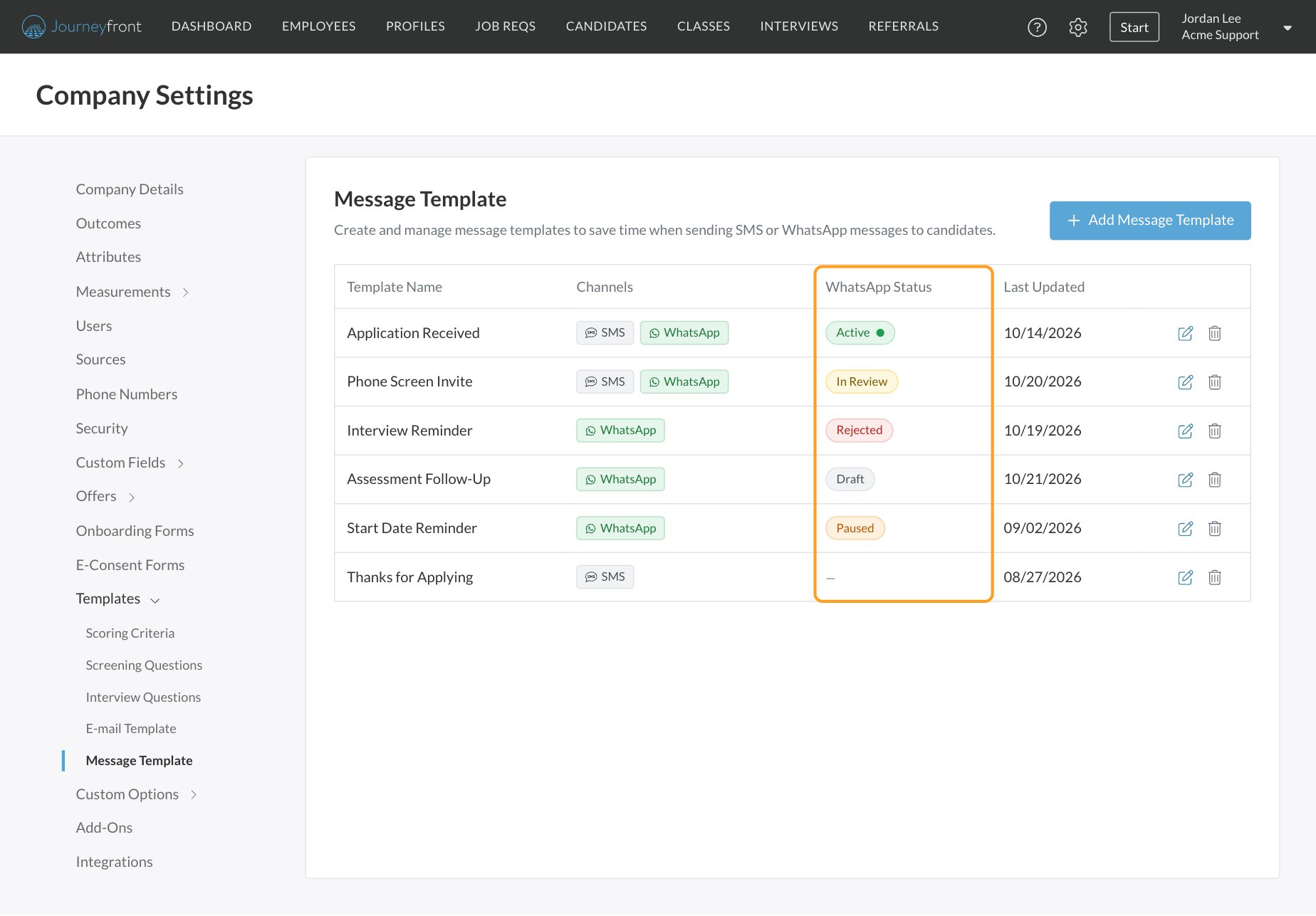
Click Submit for Approval. WhatsApp usually reviews templates within minutes to a few hours, and the status updates on its own. Once it shows Active, the template is approved and ready to send.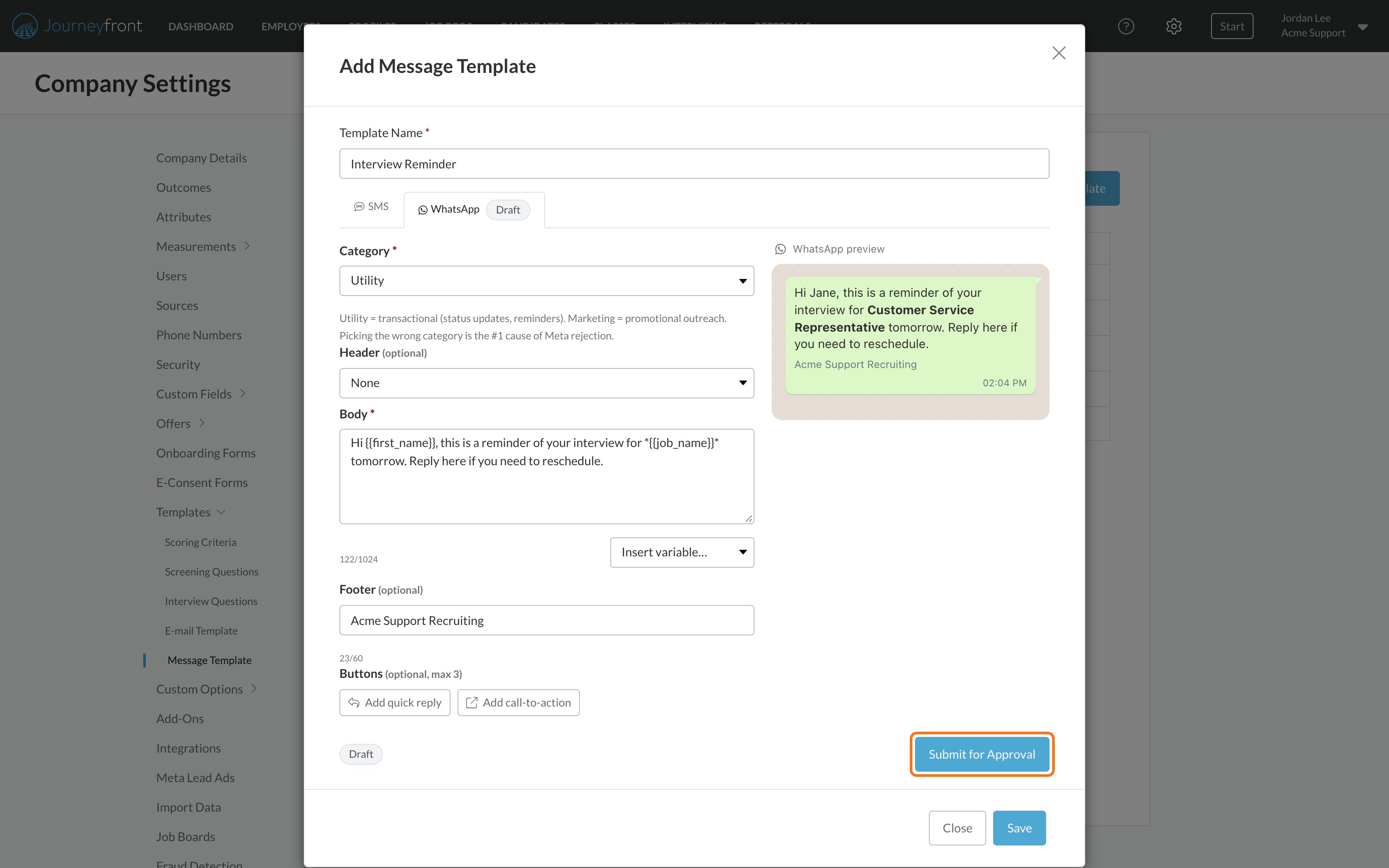
Track delivery
WhatsApp messages show a clock while sending, a check when sent, and double checks when delivered or read. If a message can’t be delivered, Not delivered appears under it. Hover over it to see the reason.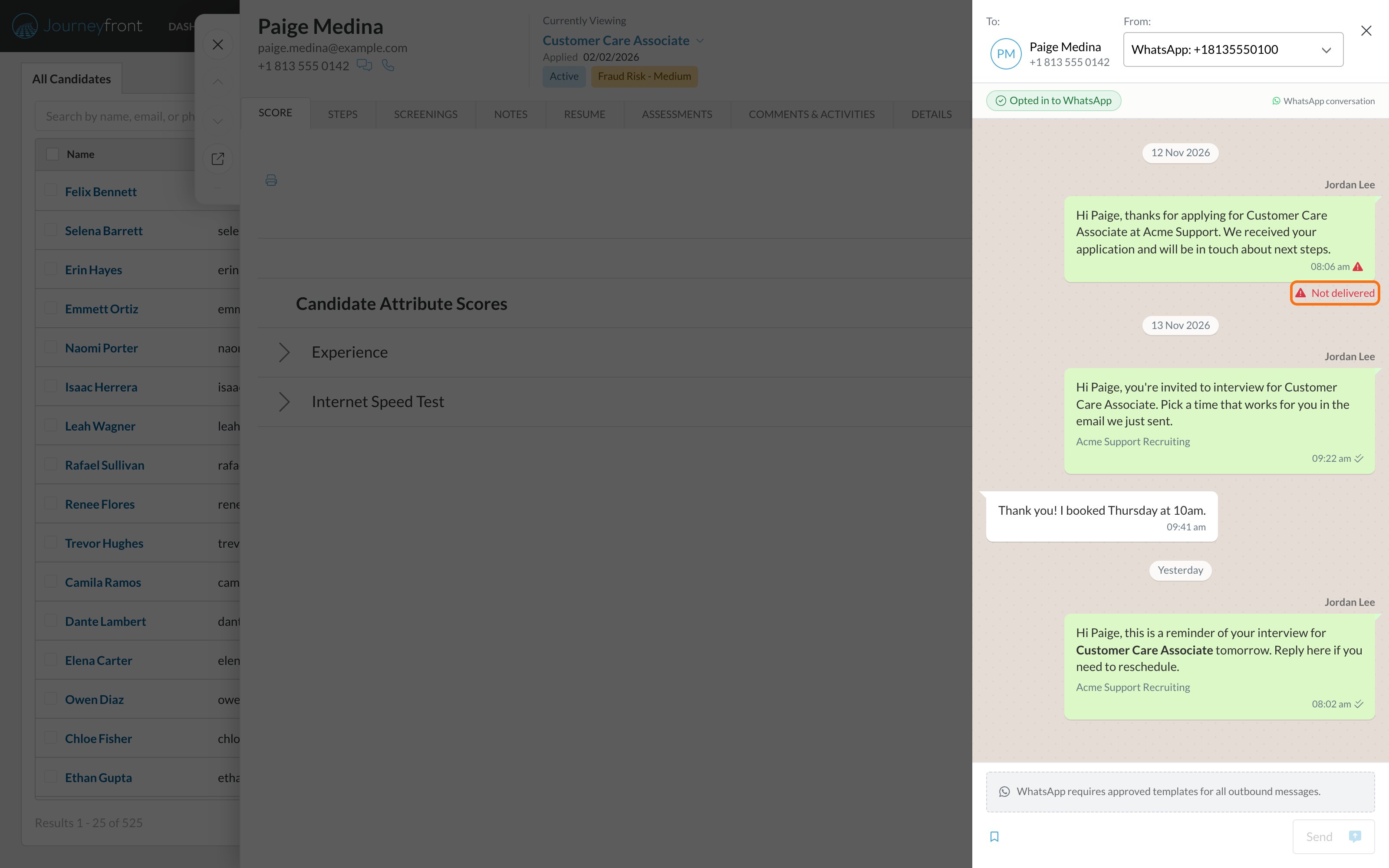
Consent
Once WhatsApp is connected, your application form asks candidates for WhatsApp consent alongside text message consent. The two are tracked separately, and the message panel shows whether a candidate has opted in to WhatsApp.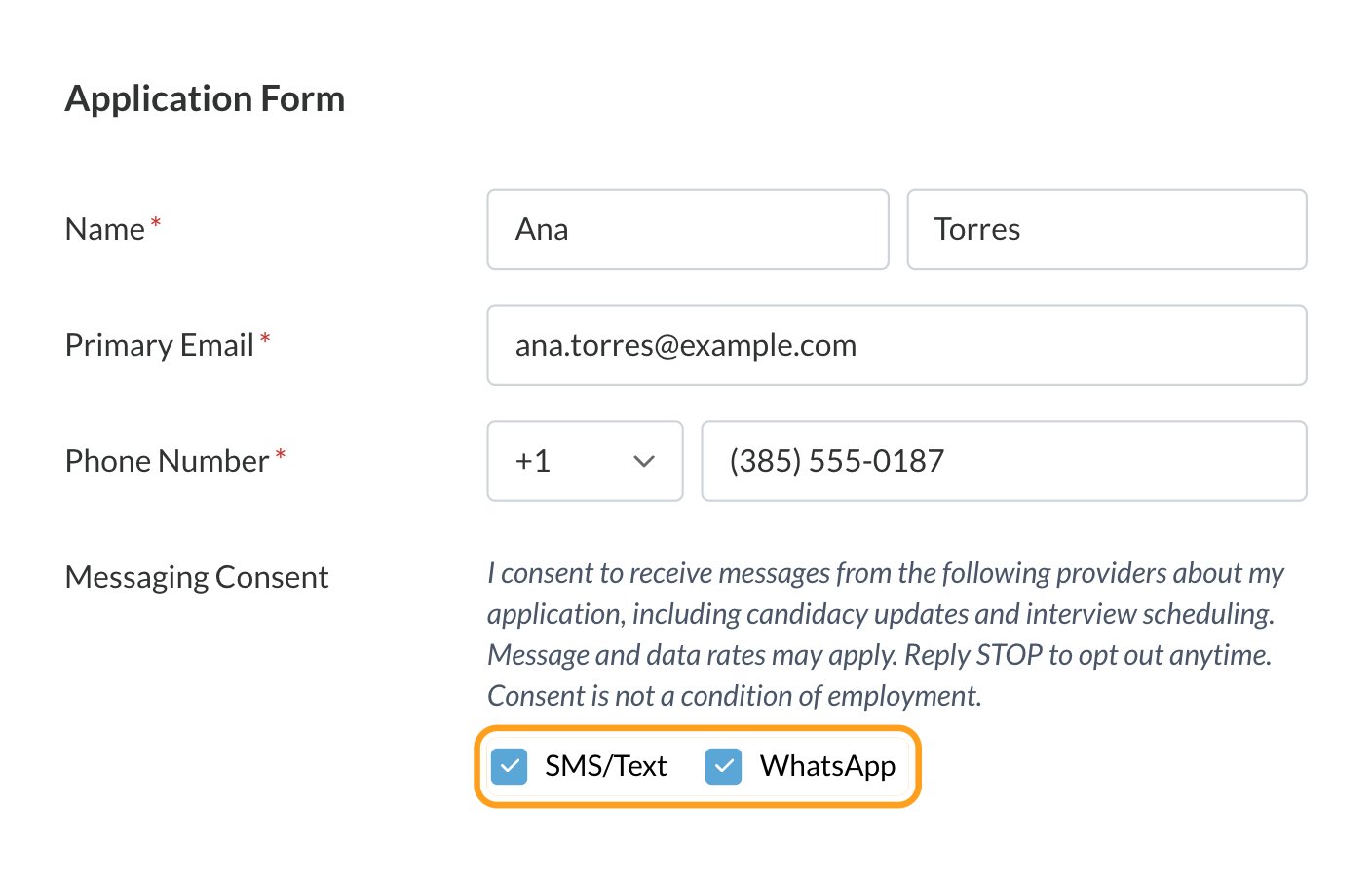
Billing
There’s no separate WhatsApp add-on. If Journeyfront provides your texting account, WhatsApp messages use the same prepaid messaging balance as your texts. If your company uses its own Twilio or Webex Connect account, your provider bills you directly. See Add-ons and credits.What candidates see
WhatsApp messages come from your company’s WhatsApp display name and number, like any WhatsApp business message, with any formatting and buttons from your template.FAQ
Why do I need a template to message a candidate?
Why do I need a template to message a candidate?
WhatsApp requires businesses to use a pre-approved template for the first message in a conversation. It’s their policy to prevent spam. After the candidate replies, you can send free-form messages for 24 hours.
Why was my WhatsApp message not delivered?
Why was my WhatsApp message not delivered?
Hover over Not delivered to see the reason. The most common cause is a Marketing template sent to a U.S. number; rewrite it as a Utility template and resubmit it. Other causes include a candidate who isn’t on WhatsApp, or a free-form message sent more than 24 hours after the candidate’s last reply.
Can we use more than one WhatsApp number?
Can we use more than one WhatsApp number?
No. Each account connects one WhatsApp number.
Does it matter which provider our WhatsApp number uses?
Does it matter which provider our WhatsApp number uses?
Not for sending. The message panel, replies and delivery updates work the same. The one difference is where templates are written: in Journeyfront for Twilio, and in Webex Connect for Webex Connect.
Does WhatsApp cost extra?
Does WhatsApp cost extra?
There’s no separate WhatsApp add-on. If Journeyfront provides your texting account, WhatsApp uses the same messaging balance as your texts. If you use your own Twilio or Webex Connect account, your provider bills you directly.
Related
Text messages
Text candidates by SMS.
WhatsApp setup
Connect your WhatsApp Business number.
Add-ons and credits
See your messaging balance and usage.
Workflows overview
Steps, activities and automation.