

Who can do this: Admins with the Company Settings Access permission. Through Twilio, you also need someone with admin access to your company’s Meta (Facebook) Business account. Through Webex Connect, you need someone who can make changes in your Webex Connect portal.Availability: WhatsApp is part of the Text Messages add-on, so there’s no separate WhatsApp add-on. Ask your Customer Success Manager to turn on Text Messages.
WhatsApp through Twilio
You’ll need:- The number you’ll use for WhatsApp, already added in Settings, then Phone Numbers
- Someone with admin access to your company’s Meta (Facebook) Business account, because you’ll sign in to Facebook during setup
1
Start the connection
Go to Settings, then Add-Ons, then Text Messages. On the WhatsApp card, click Connect WhatsApp (or Connect through Twilio).
2
Choose the number and display name
Choose the phone number candidates will message you on, and confirm your display name. This is what candidates see, and it’s pre-filled with your company name.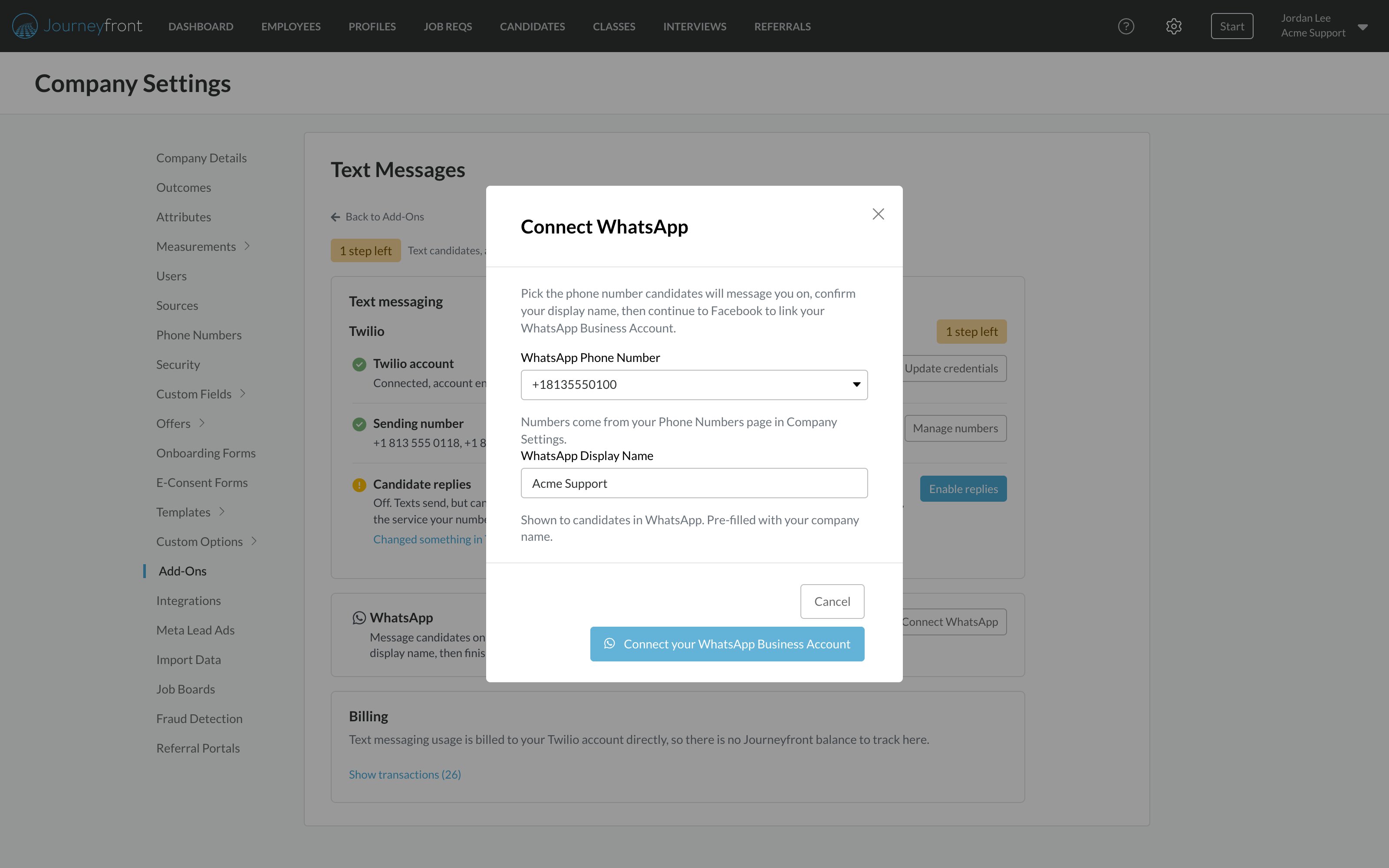
3
Open Facebook
Click Connect your WhatsApp Business Account. A Facebook window opens.
4
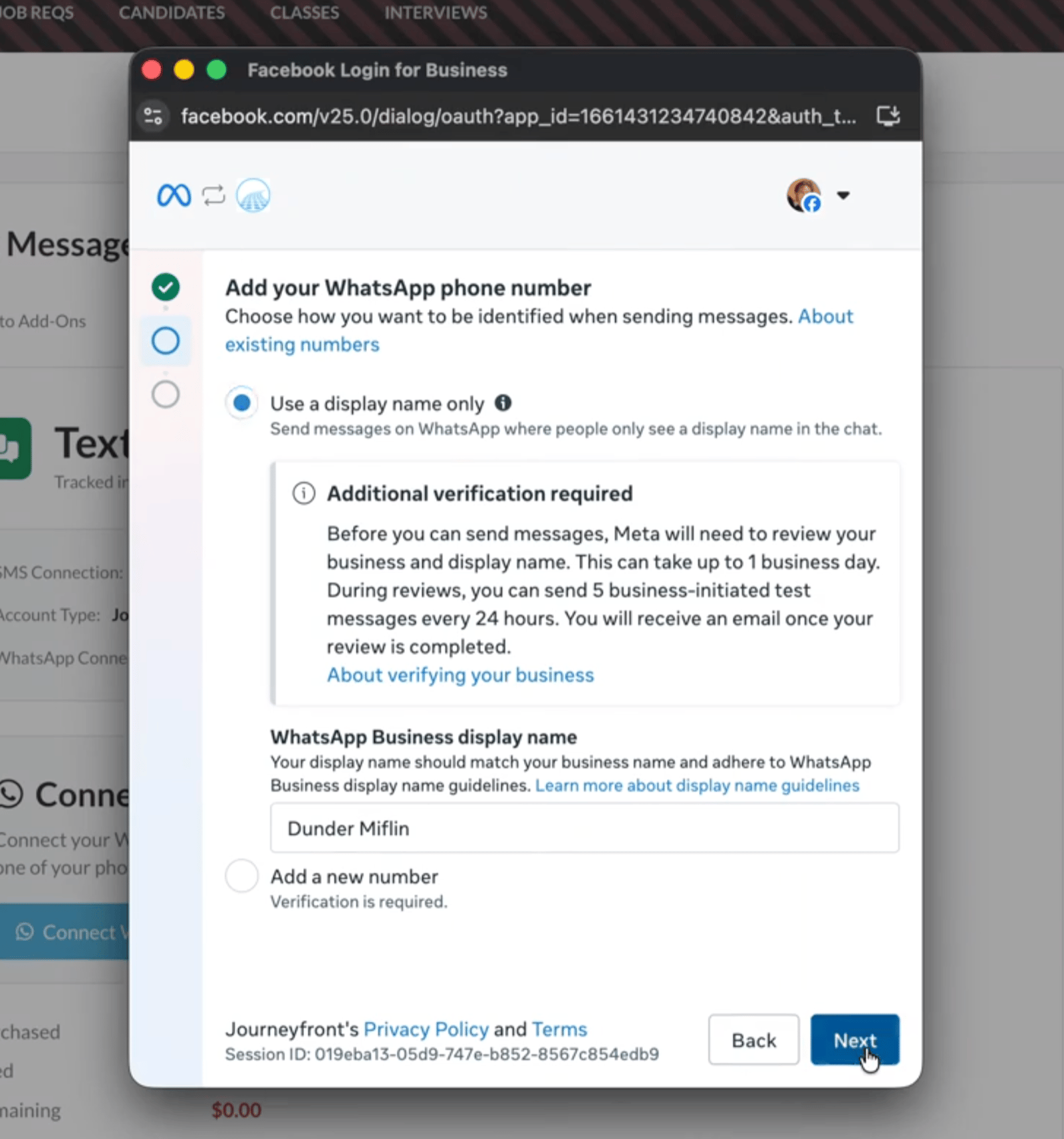
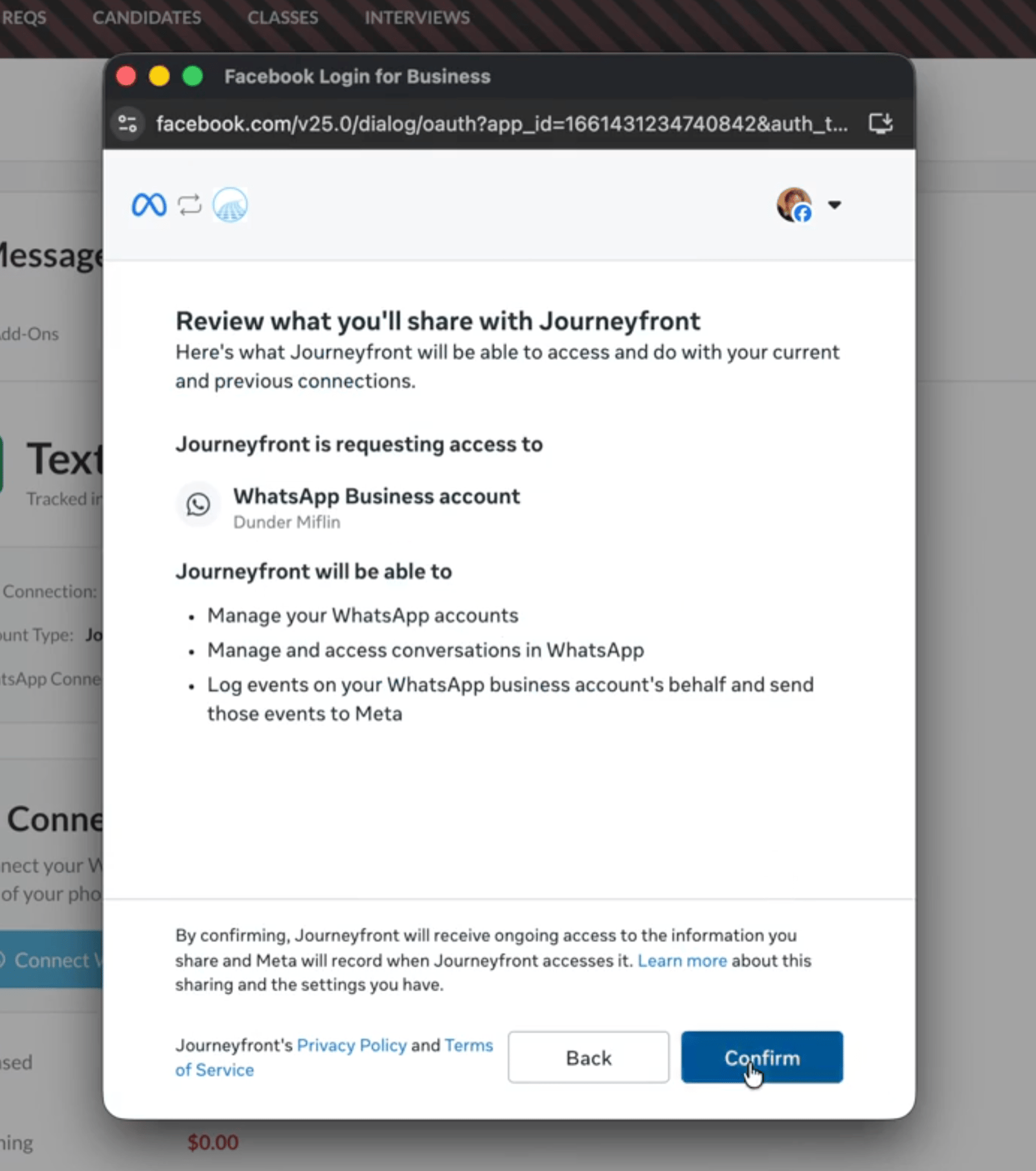
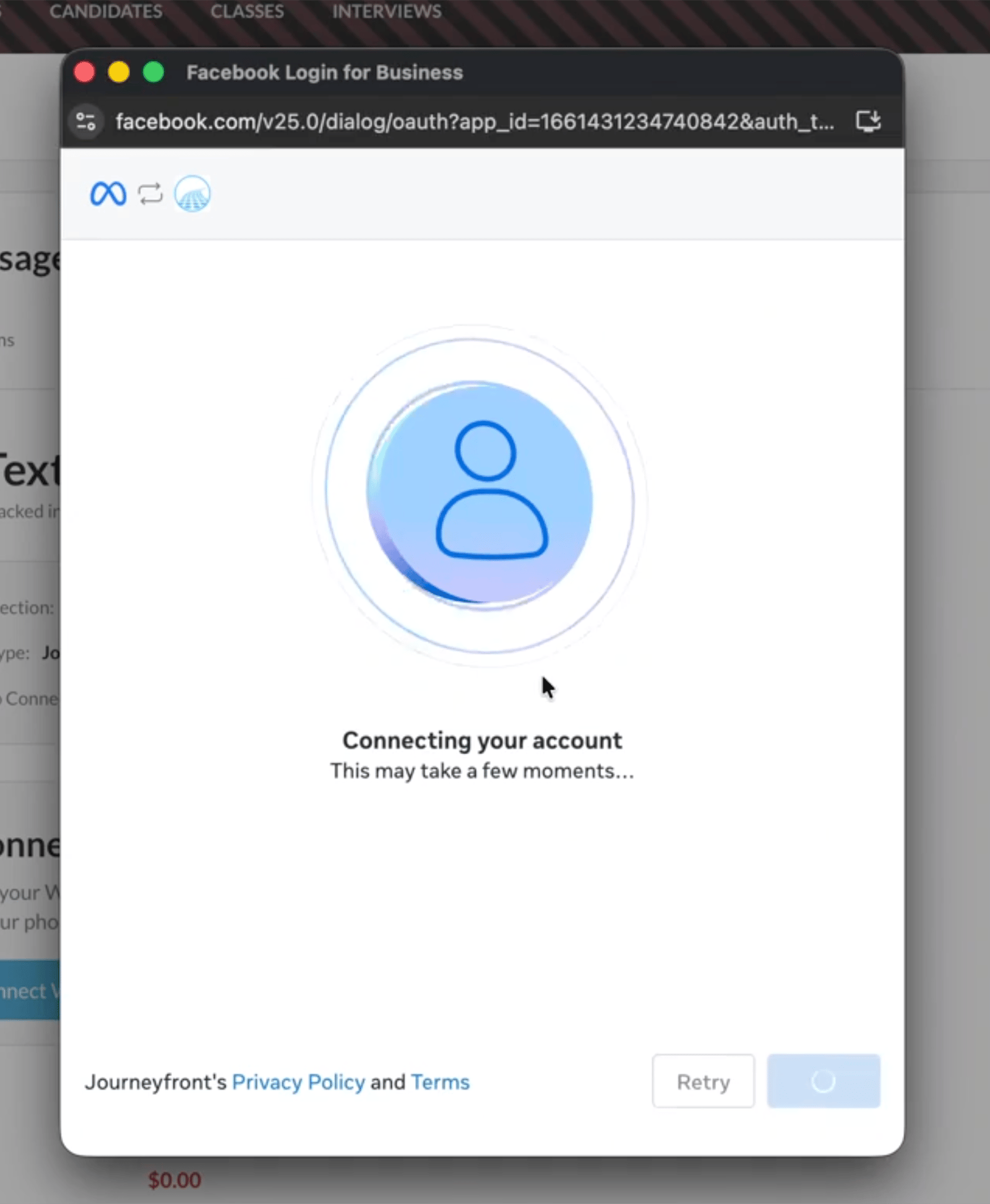
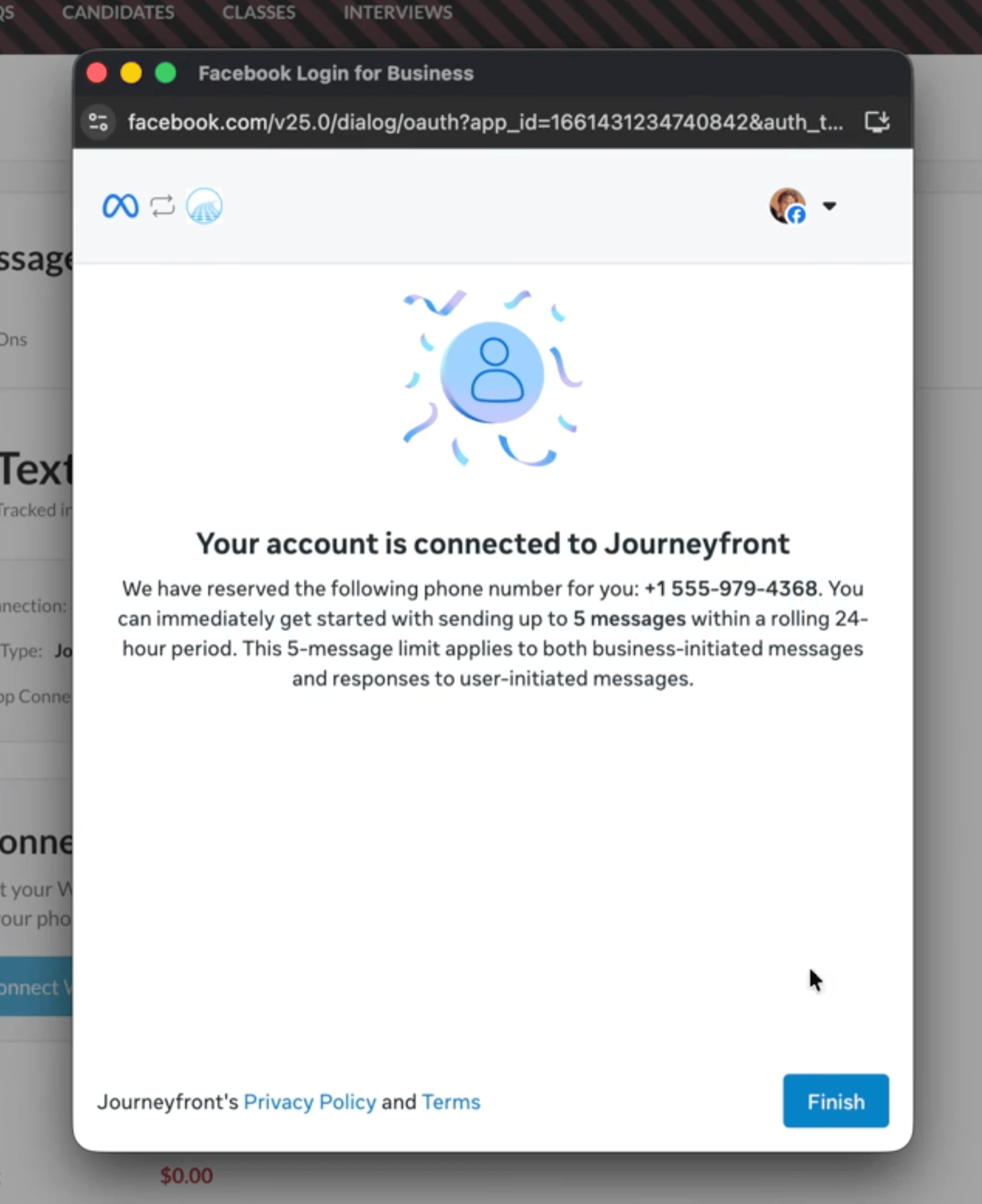
Finish in Facebook
Sign in and select your own business account. When asked about the phone number, choose “Use a display name only.” Journeyfront attaches your real number right after.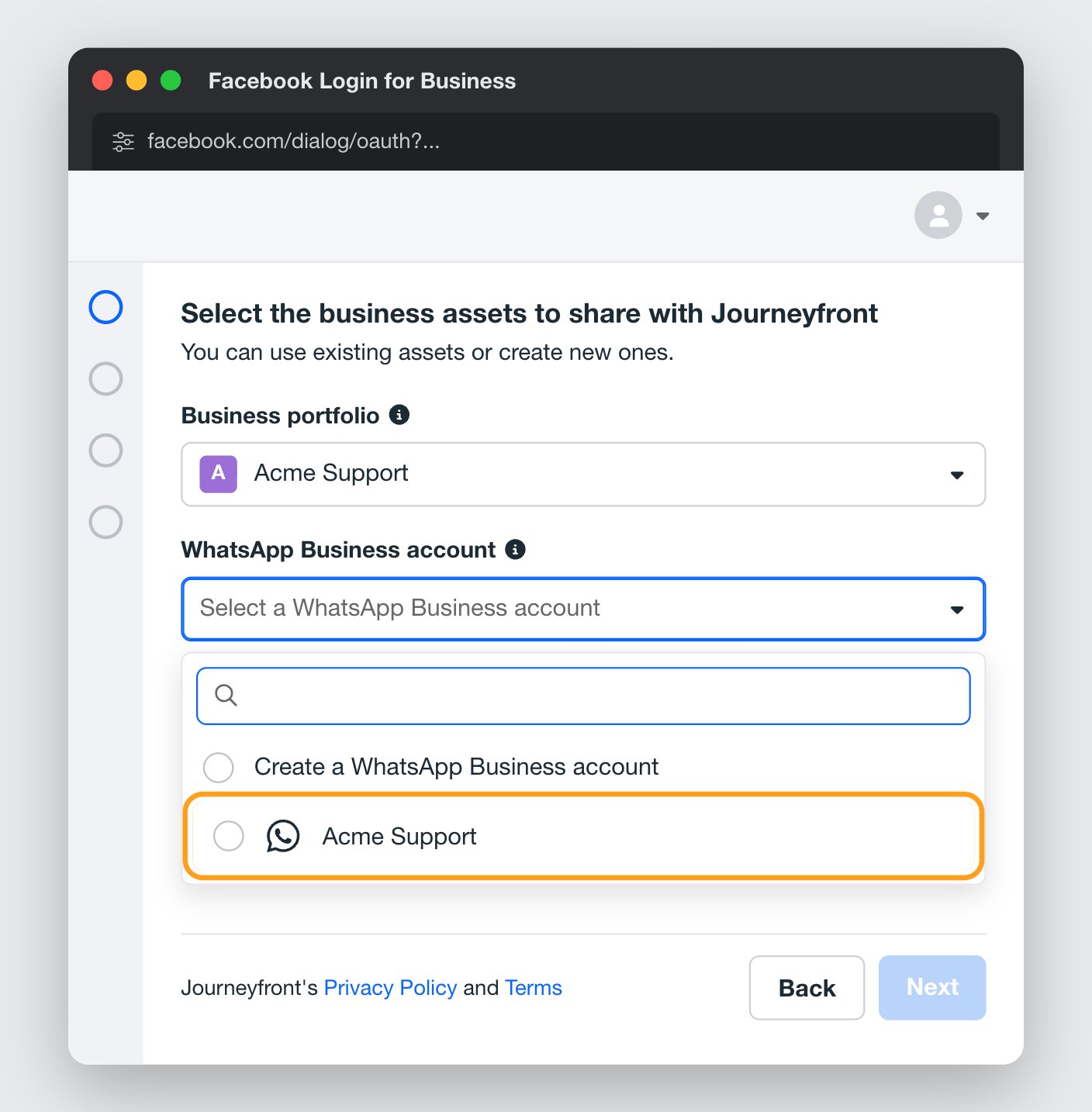
5
Wait for Online
When the window closes, the WhatsApp card shows your number as connected. The status usually moves to Online within a few minutes, which means you’re ready to message. The number also shows up in your Meta WhatsApp Manager, usually shortly after.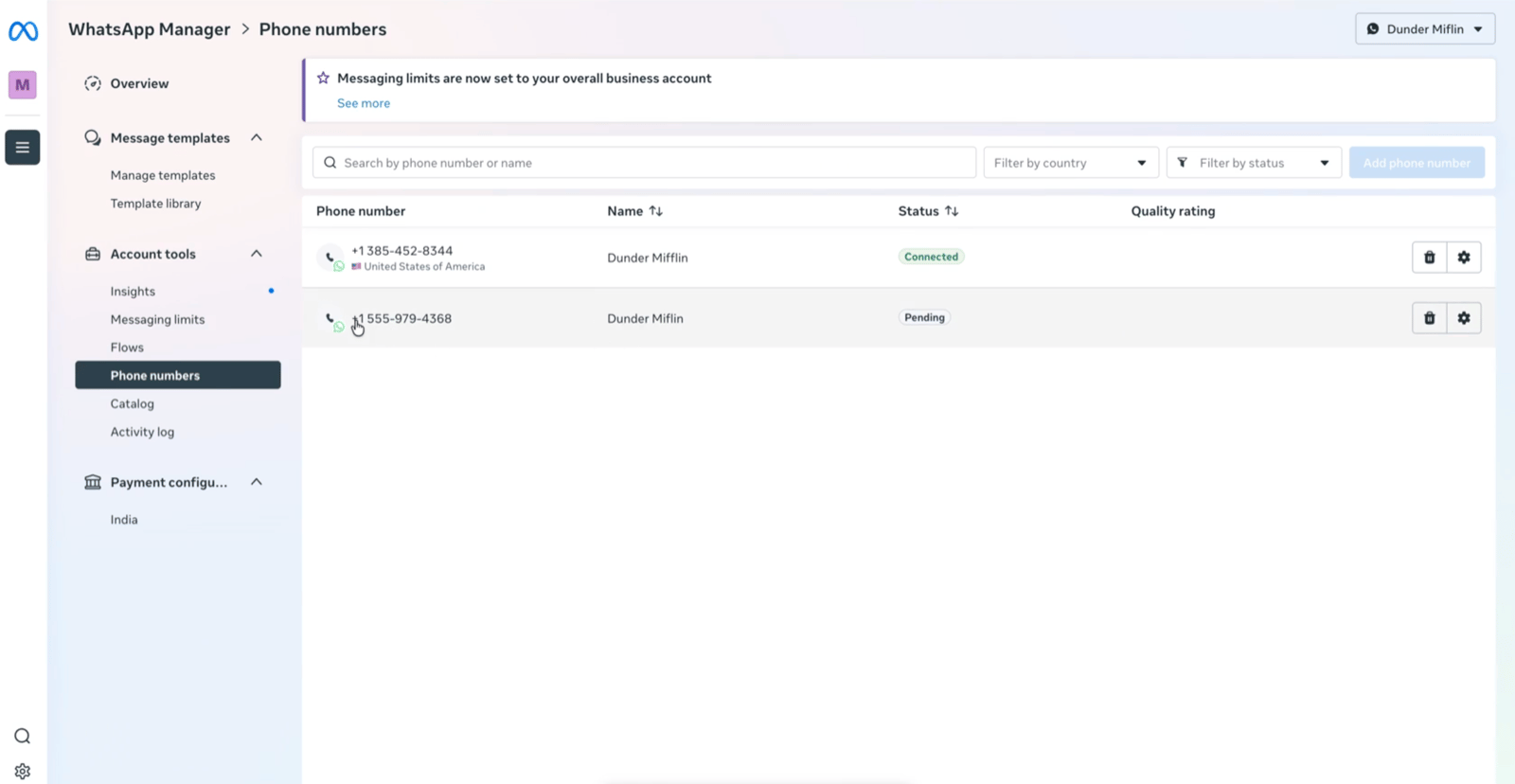
WhatsApp connection status
The WhatsApp card shows a connection status. It doesn’t refresh on its own, so reload the page to see the latest status.WhatsApp through Webex Connect
First, in your Webex Connect portal:1
Create a WhatsApp app
Go to Assets, then Apps, and create a WhatsApp app for your number. Meta verifies your business as part of this. A number generally can’t be registered with WhatsApp in two places at once, so it shouldn’t be in use with WhatsApp anywhere else.
2
Copy the App ID
Once the app is live, copy its App ID. It starts with “a_”.
3
Add a second Outbound Webhook
Add another Outbound Webhook the same way as for text replies, but choose your WhatsApp app as the Entity. Use the same webhook URL and tick Incoming Message.
1
Start the connection
Go to Settings, then Add-Ons, then Text Messages. On the WhatsApp card, click Connect WhatsApp (or Connect through Webex Connect).
2
Enter your details
Enter your WhatsApp Number in international format and the App ID.
3
Link it
Click Link WhatsApp. The card shows your number as connected through Webex Connect, with a Webhook for WhatsApp replies link if you need the URL again.
Link a WhatsApp template from Webex Connect
With Webex Connect, WhatsApp templates are written and approved in Webex Connect (under Tools, then Templates). Then you link each one in Journeyfront.1
Copy the template from Webex Connect
Open the approved template in Webex Connect and copy its template ID and its message.
2
Open the template in Journeyfront
Go to Settings, then Templates, then Message Template. Click Add Message Template, or edit an existing one, and click the WhatsApp tab.
3
Paste the ID and message
Paste the Template ID. Paste the message into Approved Message exactly as it was approved. Variables like
$(name) or {{name}} are picked up automatically.4
Fill the variables
Under Fill Each Variable With, choose the candidate detail for each variable: First Name, Last Name, Company Name, Job Name, Job Invite Link or Current Step. A variable fills itself in only when its name exactly matches a candidate detail’s key:
first_name, last_name, company_name, job_name, job_invite_link or current_step_name.5
Save
The template shows as Active and is ready to send. To unlink it later, clear its Template ID and save.
Disconnect or reconnect WhatsApp
Go to Settings, then Add-Ons, then Text Messages, find the WhatsApp card, click Disconnect and confirm. Your templates and message history are kept. To reconnect, use Connect WhatsApp again.- Twilio: if you’re reconnecting the same number, wait about 10 minutes after disconnecting.
- Webex Connect: disconnecting only stops Journeyfront from sending WhatsApp from that number. Your WhatsApp app stays set up in Webex Connect, and if the number also texts, it keeps texting. Disconnecting Webex Connect itself also removes the WhatsApp number from Journeyfront.
WhatsApp limits and quality
WhatsApp (Meta) sets its own rules for your business account. None of this is configured in Journeyfront, but it helps to know what to expect:- Daily limit on new conversations. Meta limits how many unique candidates a new WhatsApp number can start conversations with in 24 hours, often starting around 250. WhatsApp raises the limit automatically as you build a good sending history. Replying in a conversation the candidate started doesn’t count.
- Limits are shared across your business. They apply to your whole Meta Business account, not to each number separately.
- Verifying your business raises your limits. If you plan to message candidates at volume, complete business verification with Meta.
- Quality rating. WhatsApp rates your number based on how candidates react. If many candidates block or report you, your limits can drop or your templates can be paused. Messages that are relevant, expected and tied to the candidate’s application keep your rating healthy.
FAQ
Do we need a separate add-on for WhatsApp?
Do we need a separate add-on for WhatsApp?
No. WhatsApp is part of the Text Messages add-on and goes through the same provider you text through.
Can we connect more than one WhatsApp number?
Can we connect more than one WhatsApp number?
No. Each account connects one WhatsApp number.
Can we write WhatsApp templates in Journeyfront if we use Webex Connect?
Can we write WhatsApp templates in Journeyfront if we use Webex Connect?
No. With Webex Connect, you write WhatsApp templates and get them approved in Webex Connect, then link them in Journeyfront. With Twilio, you write them in Journeyfront.
Related
Texting providers
Compare providers, and manage phone numbers and billing.
Message candidates on WhatsApp day to day.