

Who can do this: Users with the Send Emails permission. Creating and editing the email templates you pick from needs Company Settings Access.
Email one candidate
1
Open the Candidate Application
Click the candidate’s name on the Candidates page or a job req’s Candidates tab.
2
Choose Email
Click Actions (1), then Email (2). The Email window opens with the candidate already in To.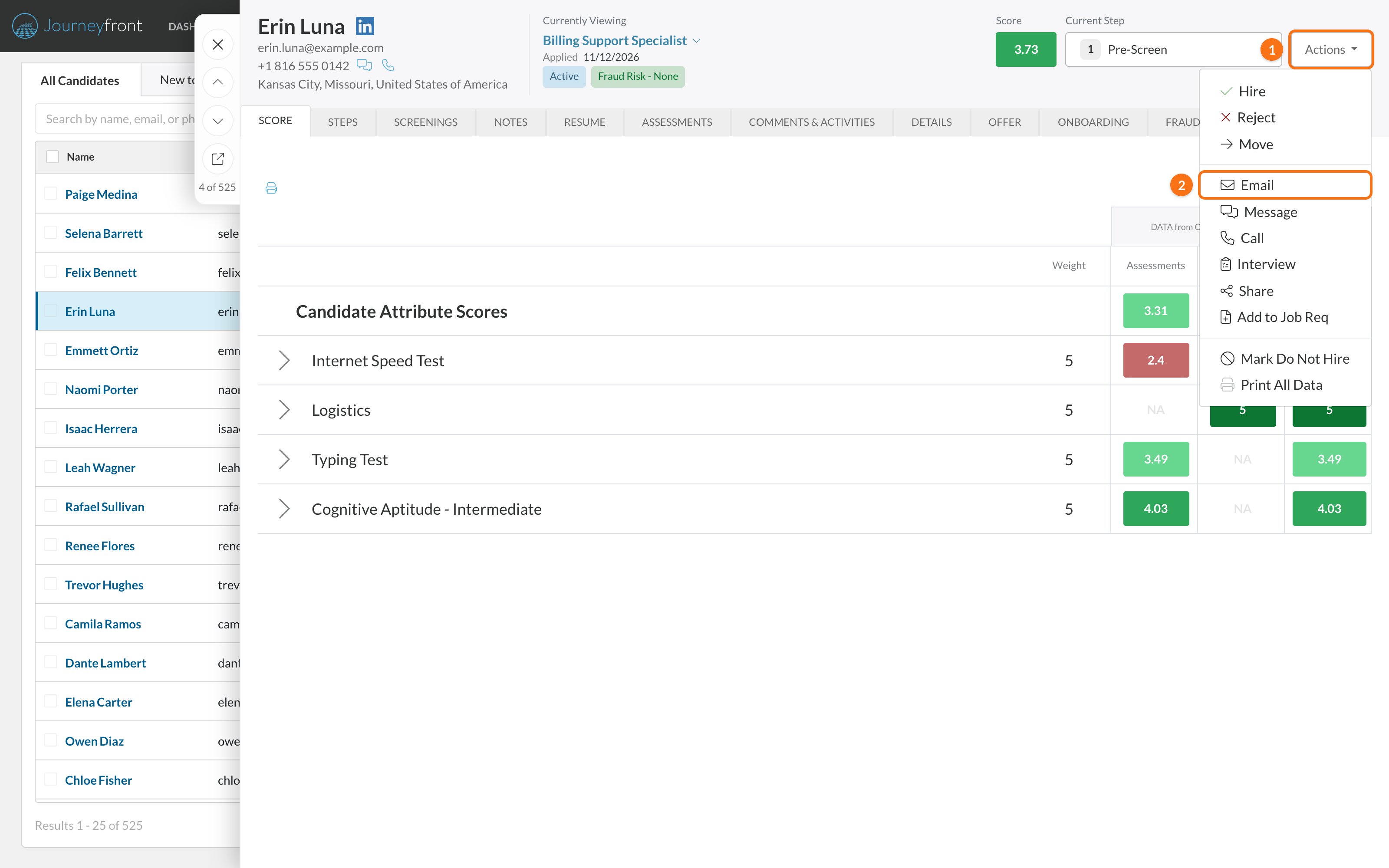
3
Pick a template or write your own
Choose a Template to fill in the sender, subject and body for you, or fill in the fields yourself. Anything you change applies to this email only; the template stays as it is.
4
Send
Click Send. To send it later instead, see Schedule an email.
Email many candidates at once
1
Select the candidates
On the Candidates page or a job req’s Candidates tab, tick the candidates you want to email. You can also select candidates on a hiring class’s candidate list.
2
Click E-mail
Click E-mail in the actions bar. The Email window opens with everyone you selected in To.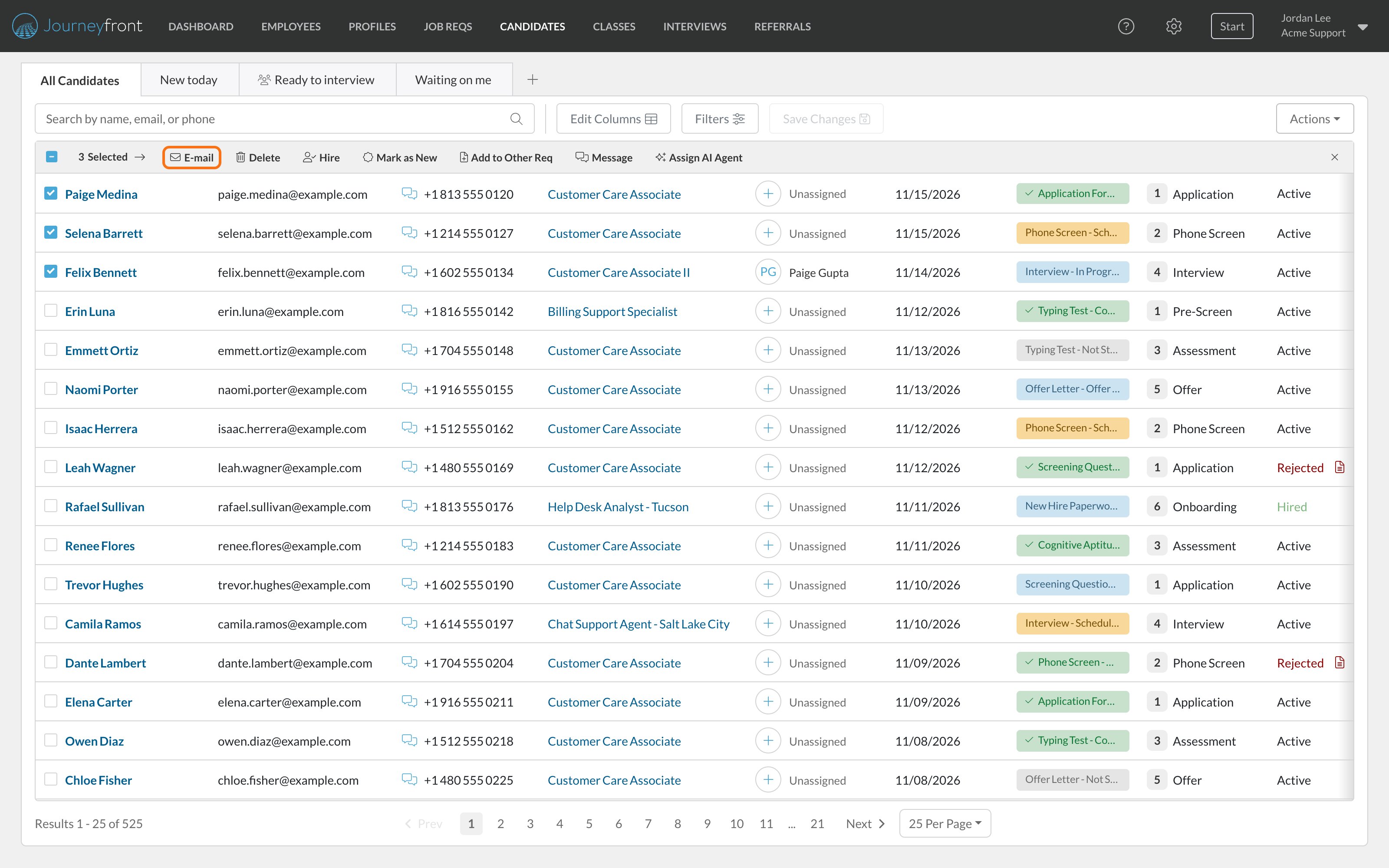
3
Write and send
Pick a template or write your own, then click Send or Schedule.
The Email window
The Email window opens on the right, over the page you’re on.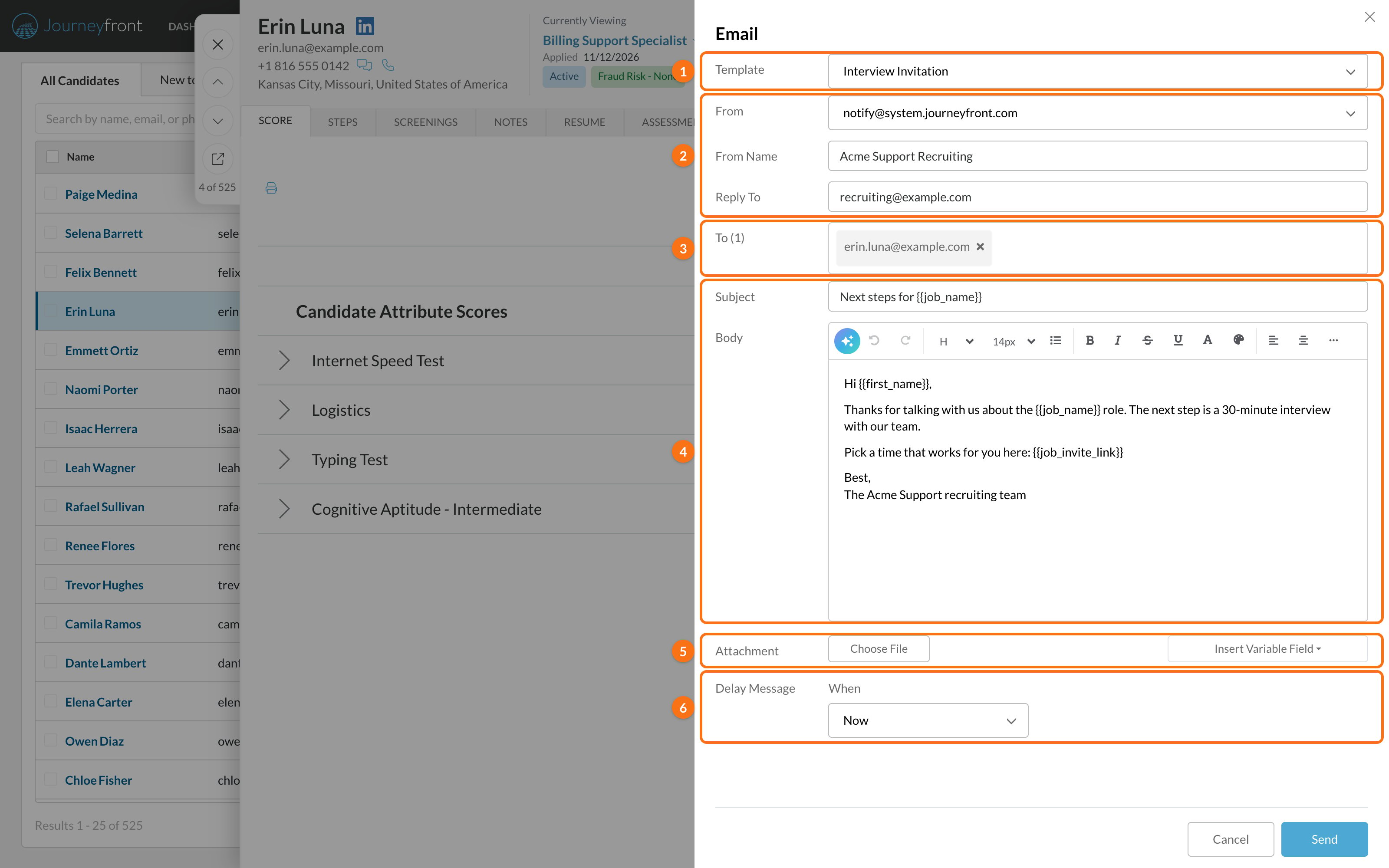
Personalize with template variables
Template variables are placeholders that Journeyfront replaces with each candidate’s details when the email goes out. Type them in double curly braces, or click Insert Variable Field, choose one to copy it, and paste it where you want it.{{company_name}} isn’t in the Insert Variable Field list, but it works the same way. See Template variables for the full list, including the variables in system emails.
Schedule an email
1
Choose Later
Under Delay Message, set When to Later.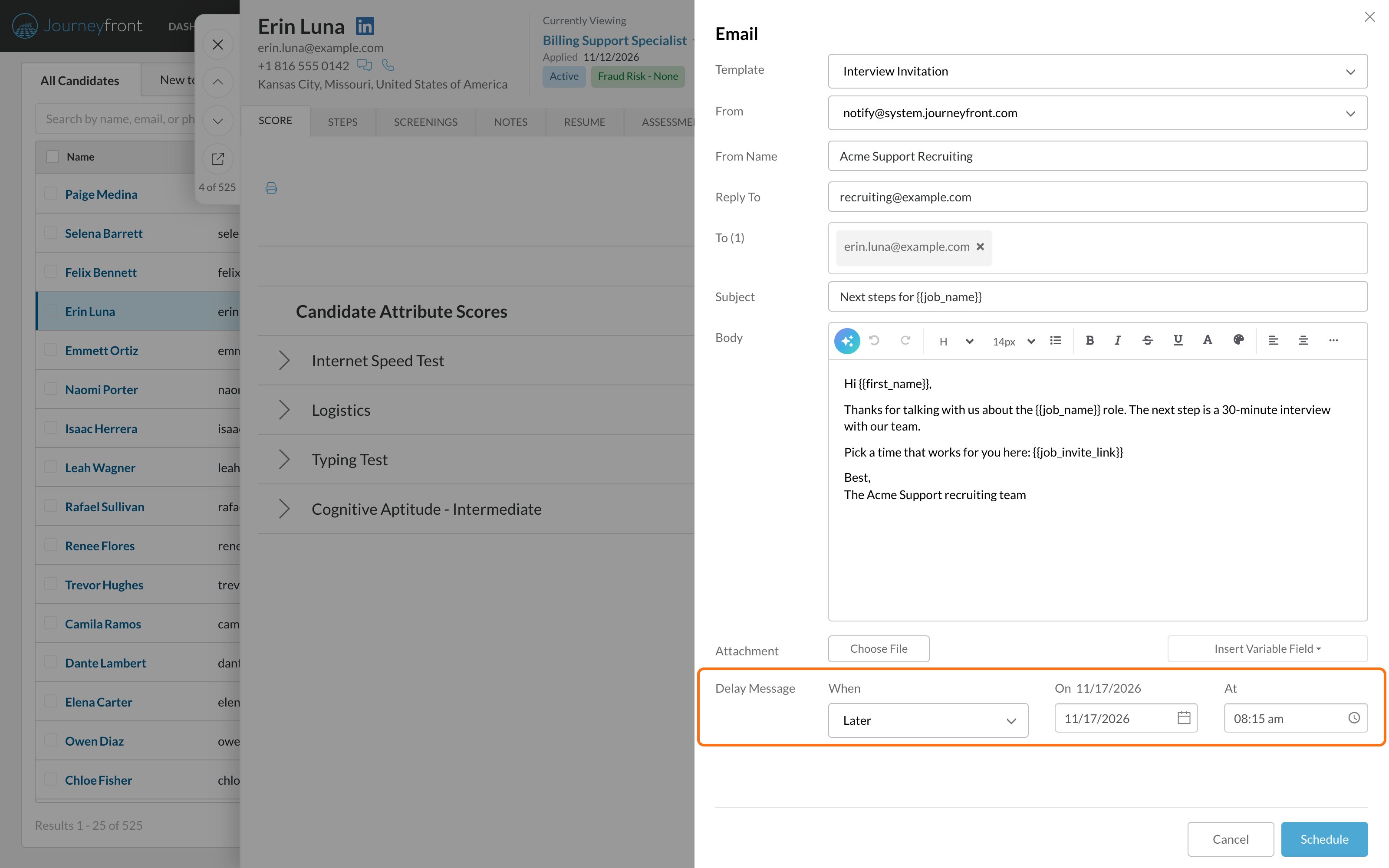
2
Pick the date and time
Choose the date in On and the time in At, in 15-minute steps. Journeyfront suggests 8:15 AM tomorrow.
3
Click Schedule
The Send button changes to Schedule. Click it to schedule the email.
Where sent emails show up
Every email you send is recorded on the candidate’s Candidate Application, on the Comments & Activities tab, as Email Sent. The entry shows the template (if you used one), who it was from, who it went to, the subject and the body, with the candidate’s details filled in. Click Read More to see a long email in full. Scheduled emails appear there once they’re sent.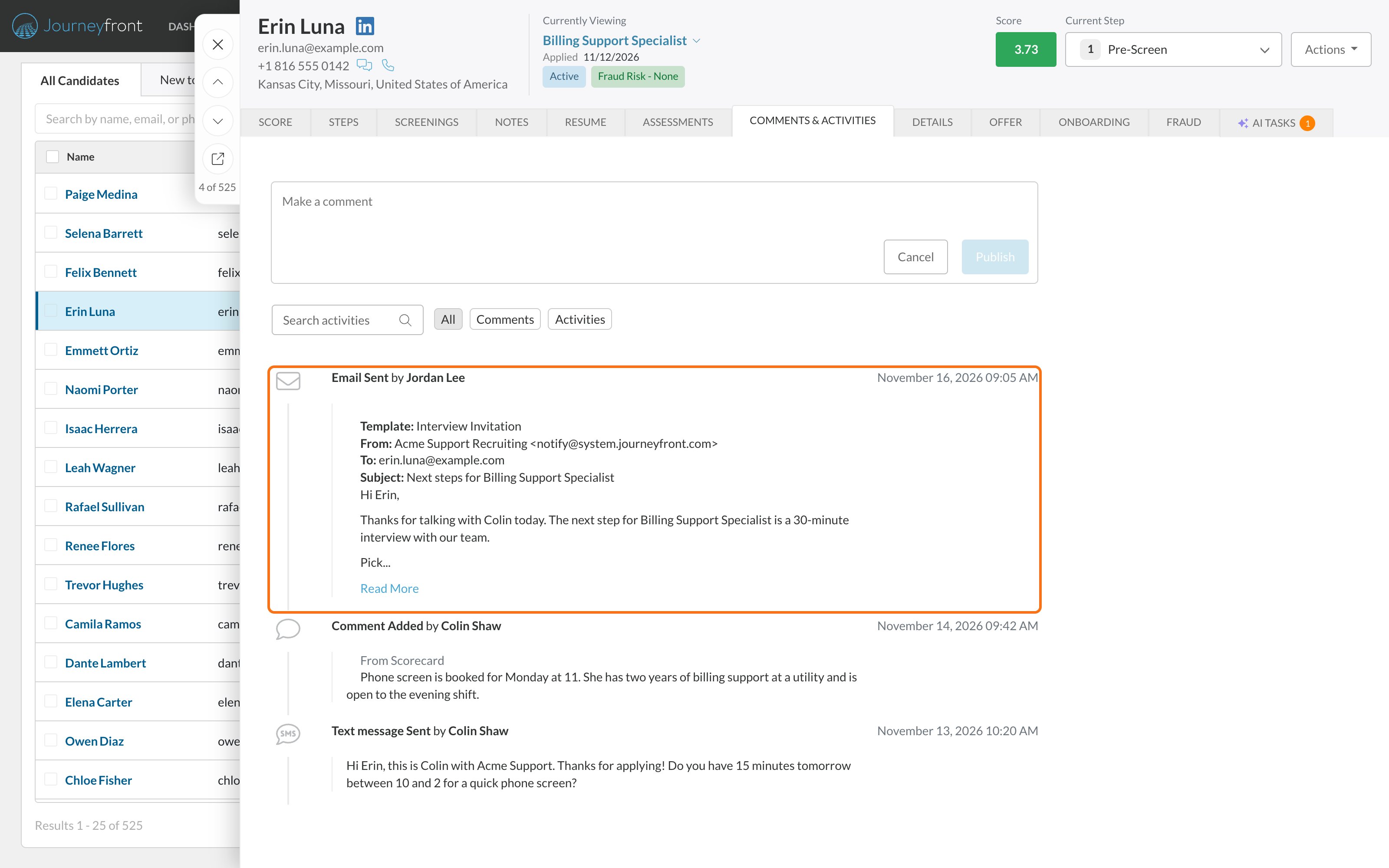
Send emails automatically
- From your workflow: an automation rule with the Send Email to Candidate action sends a team email template when something happens, like a candidate being moved to a step or rejected, with an optional delay. See Automation rules.
- When you change a candidate’s step: tick Send email inviting user to complete the next step in the Change Step window. See Move candidates through steps.
- Reminders: Journeyfront reminds candidates who haven’t finished their application, and before their interviews. See Reminder emails.
FAQ
Why don't I see Email or E-mail?
Why don't I see Email or E-mail?
Both need the Send Emails permission in your security role. Ask your Journeyfront admin. See Security roles.
Can I add other people, or CC a colleague?
Can I add other people, or CC a colleague?
No. To only holds the candidates you selected. You can remove a candidate with the x on their name, but you can’t add other addresses, and there’s no CC or BCC.
Can candidates see who else got the email?
Can candidates see who else got the email?
No. Each candidate gets their own email, addressed only to them.
Where do candidate replies go?
Where do candidate replies go?
To the Reply To address on the email. They don’t appear in Journeyfront, so use an inbox your team checks.
Can I change a template's wording just for this email?
Can I change a template's wording just for this email?
Yes. Choosing a template fills in the fields, and you can edit any of them before you send. The template itself doesn’t change. To change it for everyone, edit it in Settings, then Templates, then E-mail Template.
How big can attachments be?
How big can attachments be?
Up to 15 MB in total per email.
Does rejecting a candidate email them?
Does rejecting a candidate email them?
No. Email them yourself, or set up an automation rule to do it. See Reject candidates.
Should I email or text?
Should I email or text?
Texts get read faster, but candidates have to opt in to them. Email reaches everyone with an email address. Many teams send both for important steps. See Text messages.
Related
Email templates
Create team emails and edit the emails Journeyfront sends.
Template variables
Every variable you can use in emails and texts.
Bulk actions
Act on many candidates at once.
Text messages
Text candidates one at a time or in bulk.