

Who can do this: Everyone on your hiring team. You see candidates on the job reqs you’re on, or on every job req if your security role has All Job Req Access.
Candidate Profiles and Candidate Applications
Journeyfront keeps two kinds of record for every candidate:- The Candidate Profile is the person: contact details, location, resume, work and education history, and every job req they’ve applied to. There’s one per person, identified by their User ID.
- A Candidate Application is that person in one job req: their step, status, scores, screening answers, interviews, offer and onboarding. There’s one for each job req they’re in, identified by its Application ID.
Candidate Profiles and Candidate Applications
What lives on each record, and how to open a Candidate Profile.
Where you work with candidates
- The Candidates page. Click Candidates in the top navigation to see Candidate Applications on every job req you can access, with search, filters, columns and saved views.
- A job req’s Candidates tab. Open a job req to see only its candidates, grouped by status and by step. It has the same list and tools as the Candidates page.
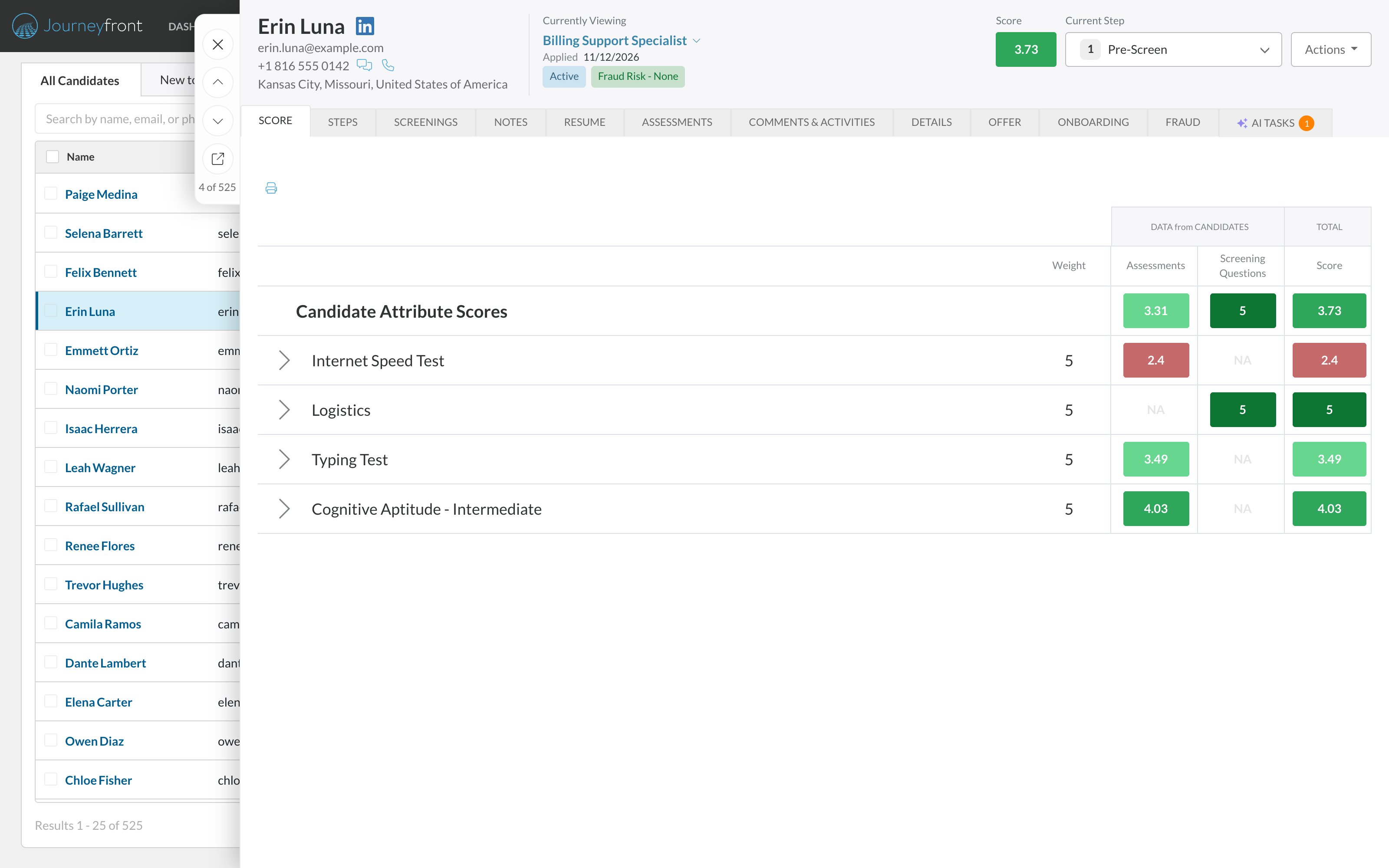
- The Candidate Application. Click a candidate’s name in either list. Their Candidate Application opens in a side panel over the list, so you can move from one candidate to the next without losing your place.
The Candidates page
Search, filter, choose columns and save views.
The Candidate Application
Everything about one candidate in one job req, tab by tab.
Everyday jobs
Related
Bulk actions
Everything you can do to a group of candidates.
Add candidates
Add a candidate to a job req yourself, or invite them to apply.
Reading a candidate's scores
What each score means and where to find it.
Reject candidates
Reject with a reason, and undo a rejection.