

Who can do this: Everyone on a job req can see fraud flags. Admins with Company Settings Access choose which checks run in Settings, then Fraud Detection.Availability: Fraud detection needs to be turned on for your account. Ask your Customer Success Manager.
Risk levels
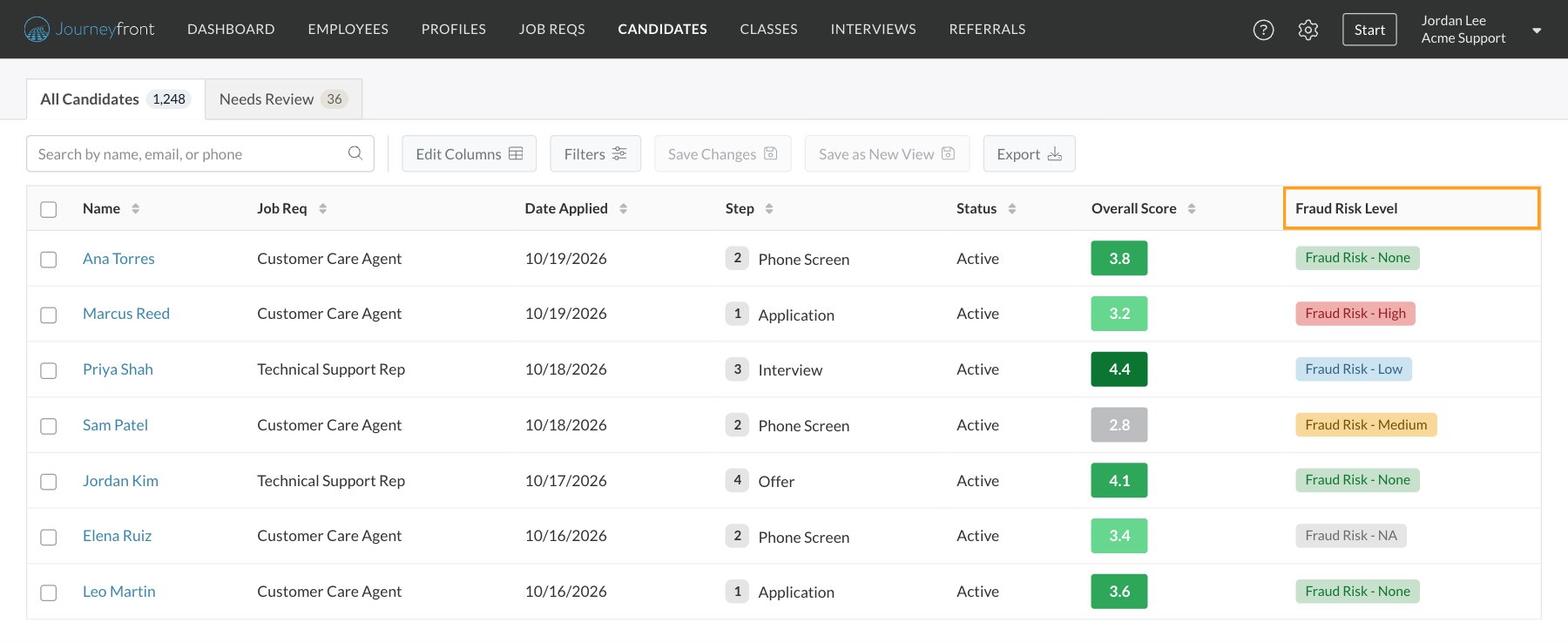
Where you’ll see it
- The Candidates page and a job req’s Candidates tab: add the Fraud Risk Level column with Edit Columns, or filter by Fraud Risk Levels.
- The Candidate Application: open the Fraud tab to see what was found.
Turn fraud checks on or off
Admins choose which checks run for your whole account.1
Open Fraud Detection
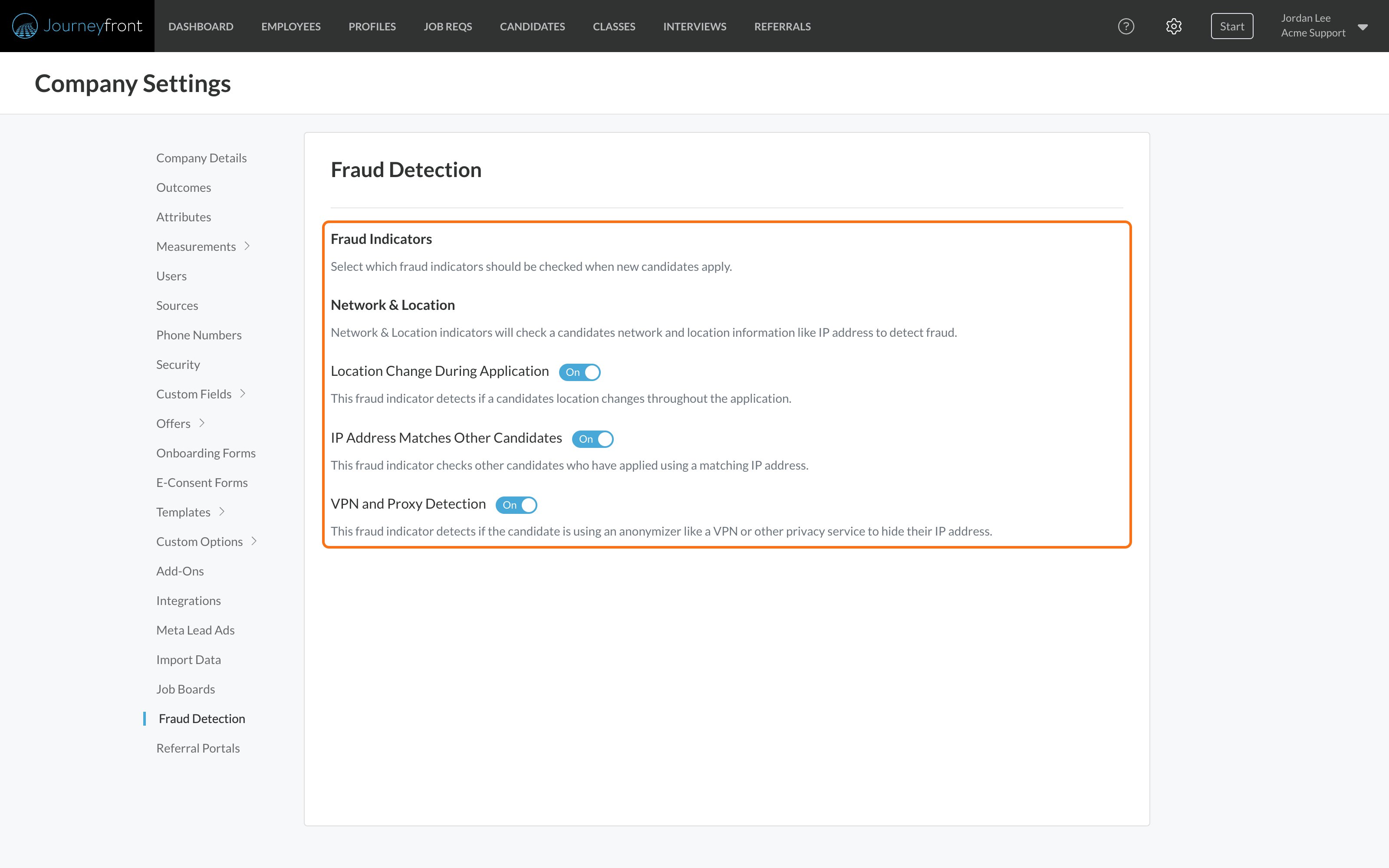
Go to Settings, then Fraud Detection.
2
Choose your Fraud Indicators
Under Network & Location, switch each check on or off:
- Location Change During Application: whether the candidate’s location changes while they work through the application.
- IP Address Matches Other Candidates: whether other candidates applied from the same network address.
- VPN and Proxy Detection: whether the candidate is hiding their location behind a VPN or another privacy service.
3
Save
Click Save. The button appears once you change a switch.
How the risk level is set
Each time a candidate applies, completes an activity, books an interview or submits an onboarding form, Journeyfront records the network address they used and its approximate location. When someone on your team schedules an interview for a candidate, your team member’s network isn’t recorded against the candidate. Each check you’ve turned on looks at those records and gives itself a level:
The application’s fraud risk level is the highest level among its checks. One High check makes the application High, even if the other checks find nothing. Levels only go up as new activity is checked: a later clean step doesn’t lower an earlier flag. A level can also rise after the fact: when a new candidate applies from an address an earlier candidate used, both applications are flagged.
Common, innocent reasons for a flag:
- Shared networks. Family members, roommates, a library, a college campus or your own hiring event’s Wi-Fi can put several real candidates on one address.
- Moving between networks. A candidate who starts on a phone and finishes on home Wi-Fi can show a different city.
- Work or privacy VPNs. Some candidates apply from a work laptop or use a VPN by habit.
Candidate Application
The slide-out panel where the Fraud tab and the risk level appear.
Reviewing a flagged application
1
Spot the risk level
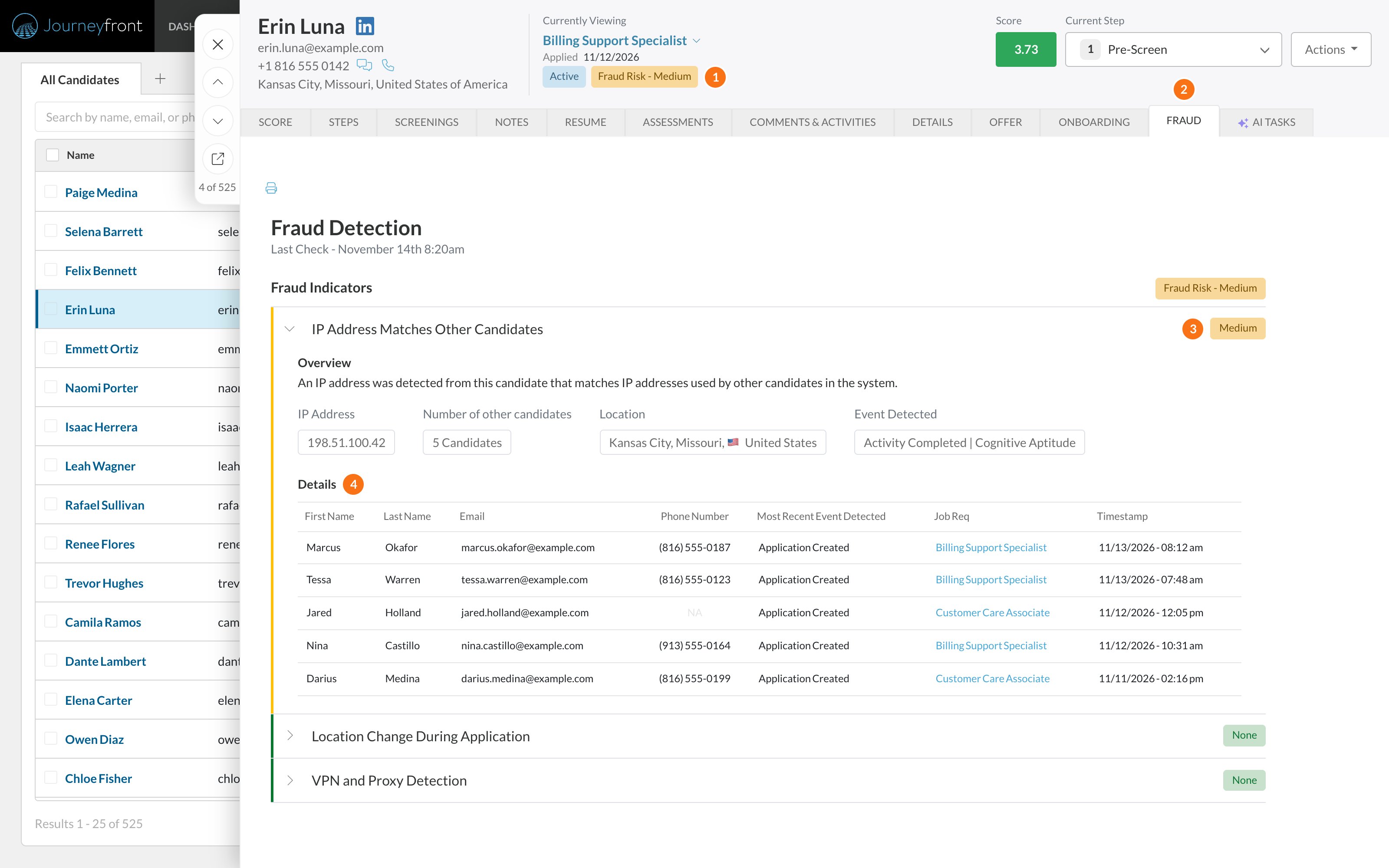
The candidate’s level shows in the header of the Candidate Application (1), next to their status.
2
Open the Fraud tab
Click Fraud (2). Fraud Indicators lists each check with its own level (3). Click a check to see what was found.
3
Read the details
Each check shows an Overview and Details (4):
- IP Address Matches Other Candidates: the shared IP address, the Number of other candidates, the location and a table of those candidates with the job req they applied to. Click a job req to open that candidate’s application. When the list is long, click Export All to download it.
- Location Change During Application: each location detected, with the activity and time it was recorded.
- VPN and Proxy Detection: the network provider and type, and what was detected.
4
Look at the whole application
Compare the flag with the candidate’s answers, resume and contact details. Several candidates on one address who applied minutes apart, with similar answers, is a stronger sign than one household.
5
Decide
Advance, ask follow-up questions in the interview, or reject with a reason.
FAQ
Can candidates see their fraud risk level?
Can candidates see their fraud risk level?
No. Fraud flags are only visible to your team.
Why don't some candidates have a risk level?
Why don't some candidates have a risk level?
Checks run as candidates apply and work through their activities, using the checks that are on at that moment. Earlier activity isn’t checked again later, so a candidate who applied before fraud detection was turned on has no risk level until they do something new. One exception: when a new candidate applies from a network address other candidates already used, those earlier candidates’ IP Address Matches Other Candidates level can go up too. A candidate shows NA when there isn’t enough information to set a level.
Can I change the levels or the rules behind them?
Can I change the levels or the rules behind them?
No. You choose which checks run in Settings, then Fraud Detection. How each check sets its level is the same for every account.
Why don't I see fraud flags at all?
Why don't I see fraud flags at all?
Fraud detection needs to be turned on for your account, and your admins choose which checks run. Ask your Customer Success Manager.
Does Journeyfront reject candidates for fraud on its own?
Does Journeyfront reject candidates for fraud on its own?
No. Journeyfront flags applications for review. Your team, or automation rules your team sets up, decide what happens next.
Related
Automation rules
Move flagged applications to a review step automatically.
How scoring works
What candidate scores mean.