

Who can do this: Admins with the Company Settings Access permission create and edit message templates. Anyone with the Send Messages permission can send them.Availability: Uses the Text Messages add-on. See Texting providers.
Create a message template
1
Open message templates
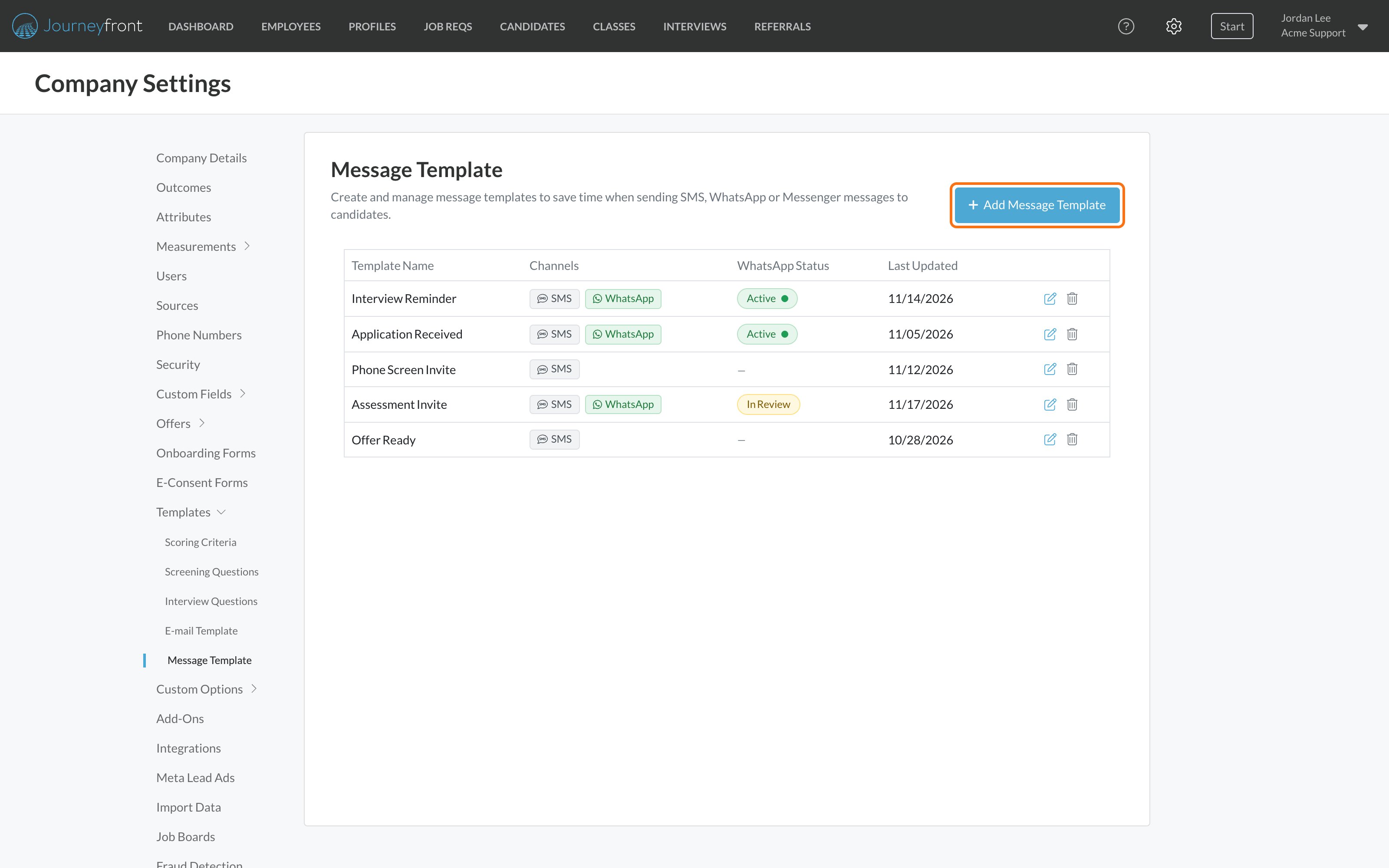
Go to Settings, then Templates, then Message Template, and click Add Message Template.
2
Name it
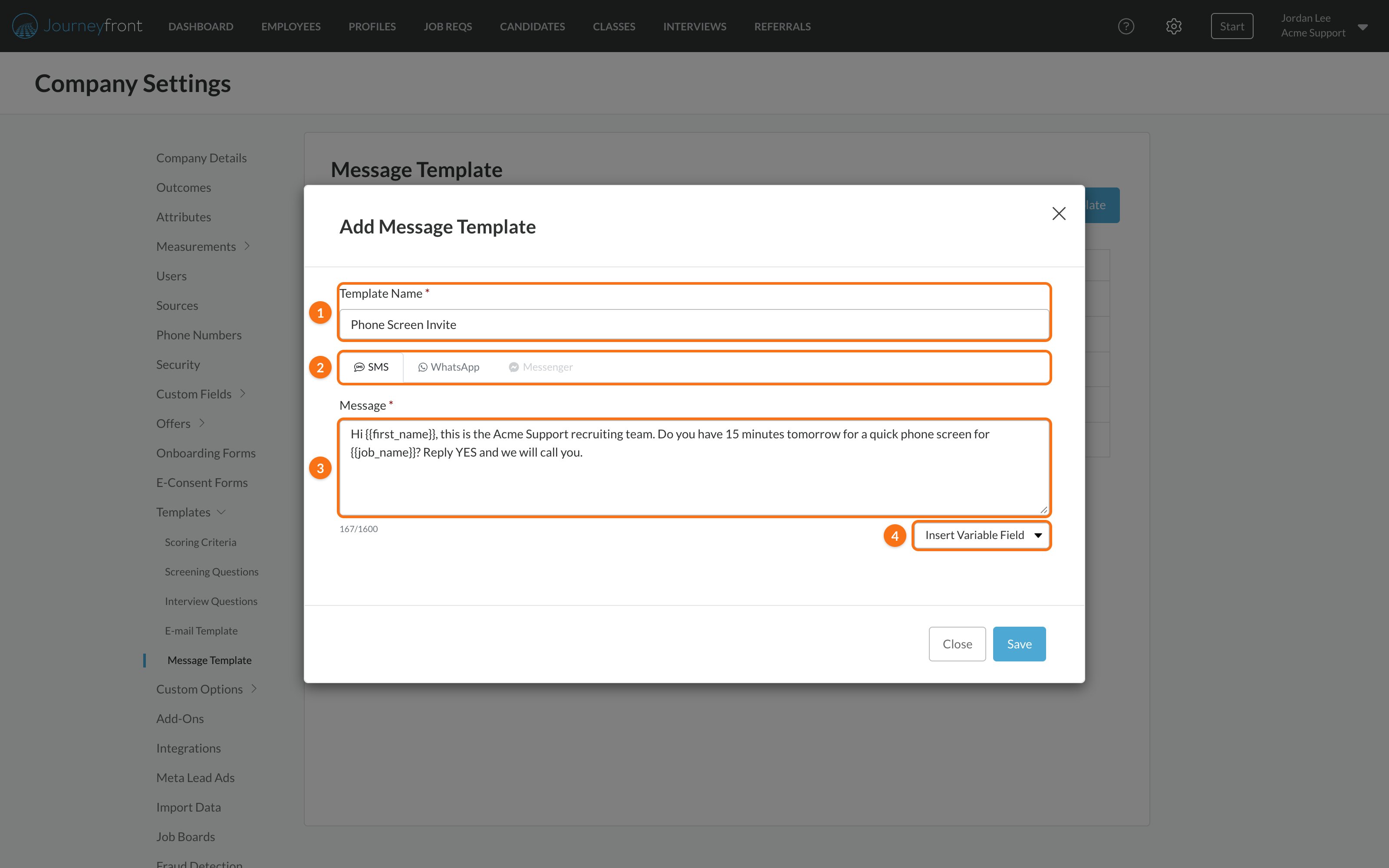
Enter a Template Name (1). Recruiters pick templates by this name, so make it say what the message is for, like “Phone Screen Invite”. Candidates never see it.
3
Write the text message
On the SMS tab (2), write the Message (3), up to 1,600 characters. Add variables for the candidate’s details (see below).
4
Save
Click Save. The template is ready to use right away. Text message templates don’t need approval.
Add variables
Variables are placeholders in double curly braces that Journeyfront replaces with each candidate’s details when the message sends. To add one, choose it from Insert Variable Field (4). It’s copied, so paste it where you want it in the message.
For example, “Hi
{{first_name}}, do you have 15 minutes tomorrow for a quick phone screen for {{job_name}}?” reaches Erin Luna as “Hi Erin, do you have 15 minutes tomorrow for a quick phone screen for Billing Support Specialist?”
Template variables
Every variable you can use in emails and texts.
Add a WhatsApp version
If your company has connected WhatsApp, the same template can also hold a WhatsApp version on its WhatsApp tab. Journeyfront sends the version that matches the channel you send on. Unlike text messages, WhatsApp versions have to be approved by WhatsApp before you can send them, and the WhatsApp Status column shows where each one stands. Until WhatsApp is connected, the WhatsApp tab is greyed out.WhatsApp templates
Write a WhatsApp version, submit it for approval and track its status.
Where templates are used
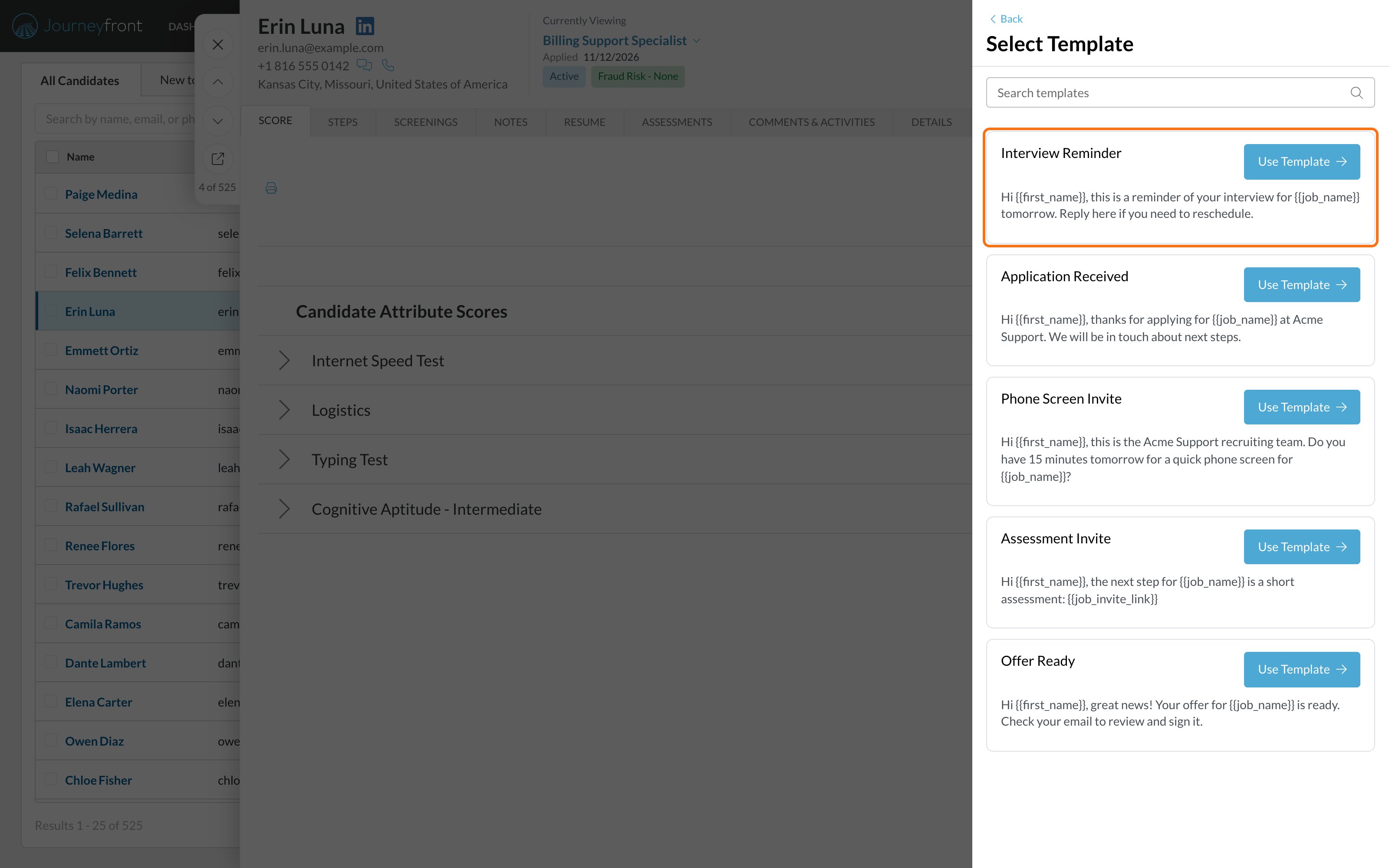
- The message panel. On a Candidate Application, open the message panel and click the bookmark icon (Message Template). Select Template lists your templates with a preview of each. Click Use Template to put it in the message box, where you can still edit it before you send.
- Bulk messages. When you select candidates and click Message, choose a Template to send the same message to everyone, each with their own details filled in.
- Automation rules. The Send SMS to Candidate and Send WhatsApp Message to Candidate actions send one of your templates automatically, for example when a candidate reaches a step.
- AI agents. Agents that send WhatsApp messages use your approved WhatsApp templates.
Text messages
Send texts one at a time or in bulk, and follow each conversation.
Automation rules
Send a template automatically when something happens in your workflow.
FAQ
Why can't I see Message Template in Settings?
Why can't I see Message Template in Settings?
Creating and editing templates needs the Company Settings Access permission. Ask your Journeyfront admin. See Security roles.
Can I change a template's wording just for one message?
Can I change a template's wording just for one message?
Yes. In the message panel, Use Template puts the text in the message box, and you can edit it before you send. The template itself doesn’t change.
Do text message templates need approval?
Do text message templates need approval?
No. Only WhatsApp versions are reviewed by WhatsApp. A text message template is ready as soon as you save it.
If I edit a template, does it change messages already sent?
If I edit a template, does it change messages already sent?
No. Messages already sent stay as they were. The change applies to messages sent from then on.
Are message templates the same as email templates?
Are message templates the same as email templates?
No. Message templates are for texts and WhatsApp. Emails use team email templates. See Team emails and system emails.
Related
Text messages
Text candidates one at a time or in bulk.
Message candidates on WhatsApp.
Template variables
Every variable you can use in emails and texts.
Team emails and system emails
Templates for the emails your team sends.