

Who can do this: Admins with the Company Settings Access permission. Some steps also need someone who can make changes in your Twilio console, your Webex Connect portal or your company’s Meta (Facebook) Business account.Availability: The Text Messages add-on needs to be turned on for your account. Ask your Customer Success Manager.
Available integrations
Twilio
Pick this for the simplest start with Journeyfront’s Twilio account, or if your company already runs its own Twilio account.
Webex Connect
Pick this if your company standardizes on Webex Connect for messaging.
Add a WhatsApp Business number through either provider, once texting is set up.
Choose a provider
Each phone number belongs to one provider, and every message goes out through the provider of the number it’s sent from. Recruiters never pick a provider when they send. Replies, delivery updates and opt-outs from every provider land on the same Candidate Application.
The Text Messages page
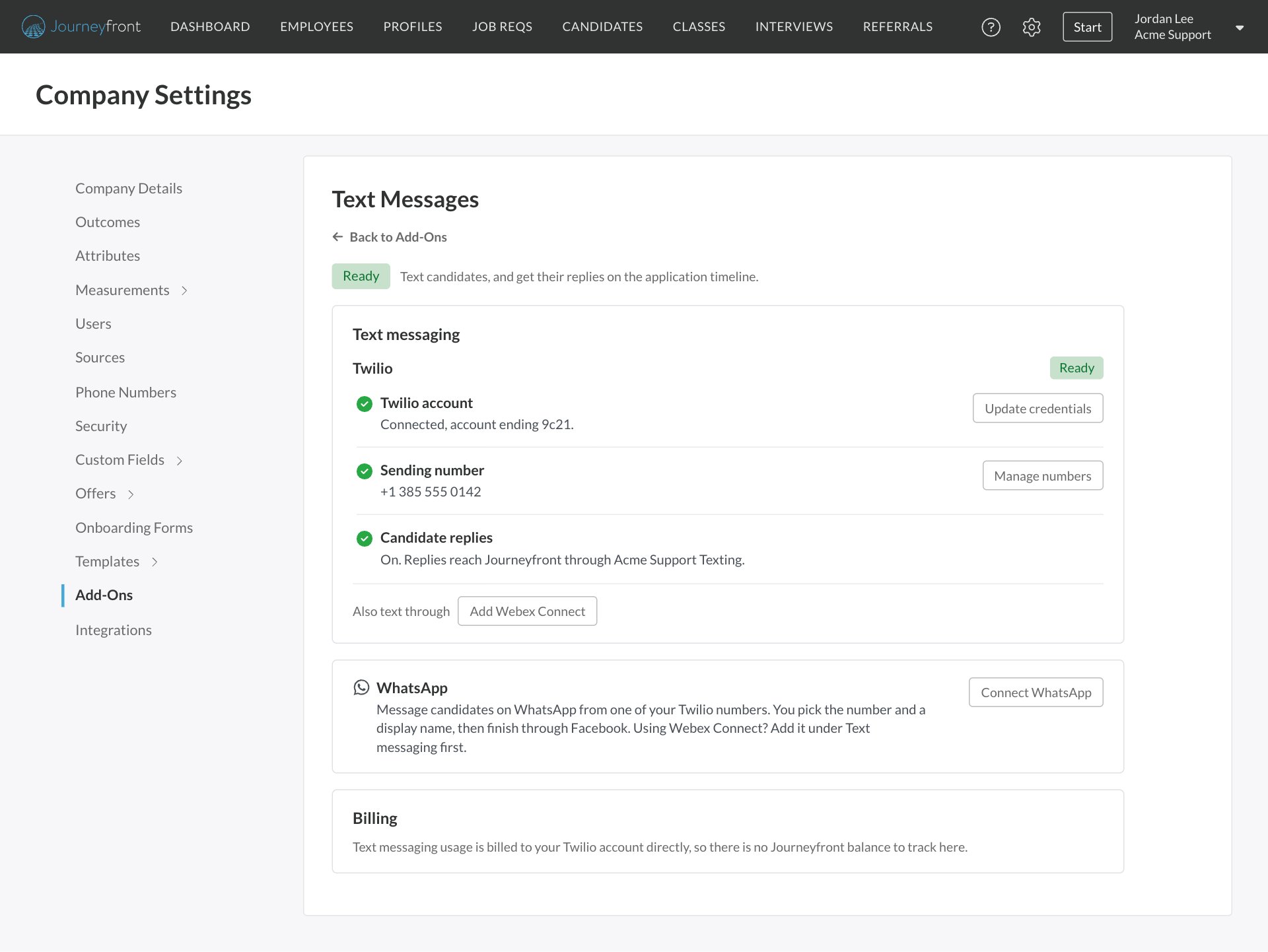
Go to Settings, then Add-Ons, then Text Messages. The page has four parts:- Status: the pill at the top. Ready means at least one provider is fully set up: connected, with a sending number and, when you use your own account, candidate replies turned on. While setup is incomplete, it shows how many steps are left. Not set up means no provider is connected yet. Off means the Text Messages add-on isn’t turned on for your account.
- Text messaging: one section for each provider you text through, each with its setup steps: the provider account, your sending number and, when you use your own account, candidate replies. If Journeyfront provides your Twilio account, the account step reads Managed by Journeyfront and there’s no candidate replies step to set up. Providers you haven’t connected appear as Add buttons. If you use more than one provider, a provider that’s ready folds up to show just its numbers. Click it to open it.
- WhatsApp: connect WhatsApp through one of your providers. See WhatsApp.
- Billing: your messaging balance if Journeyfront provides your Twilio account, or a note that your provider bills you directly. Show transactions lists your usage history. See Add-ons and credits.
Set up texting
1
Connect a provider
If Journeyfront provides your Twilio account, this is done for you. Otherwise, connect your own Twilio account or Webex Connect.
2
Add a sending number
Add the number you’ll text candidates from in Settings, then Phone Numbers.
3
Turn on candidate replies
Without this step, texts go out but candidate replies never reach Journeyfront.
4
Connect WhatsApp (optional)
See WhatsApp.
Phone numbers
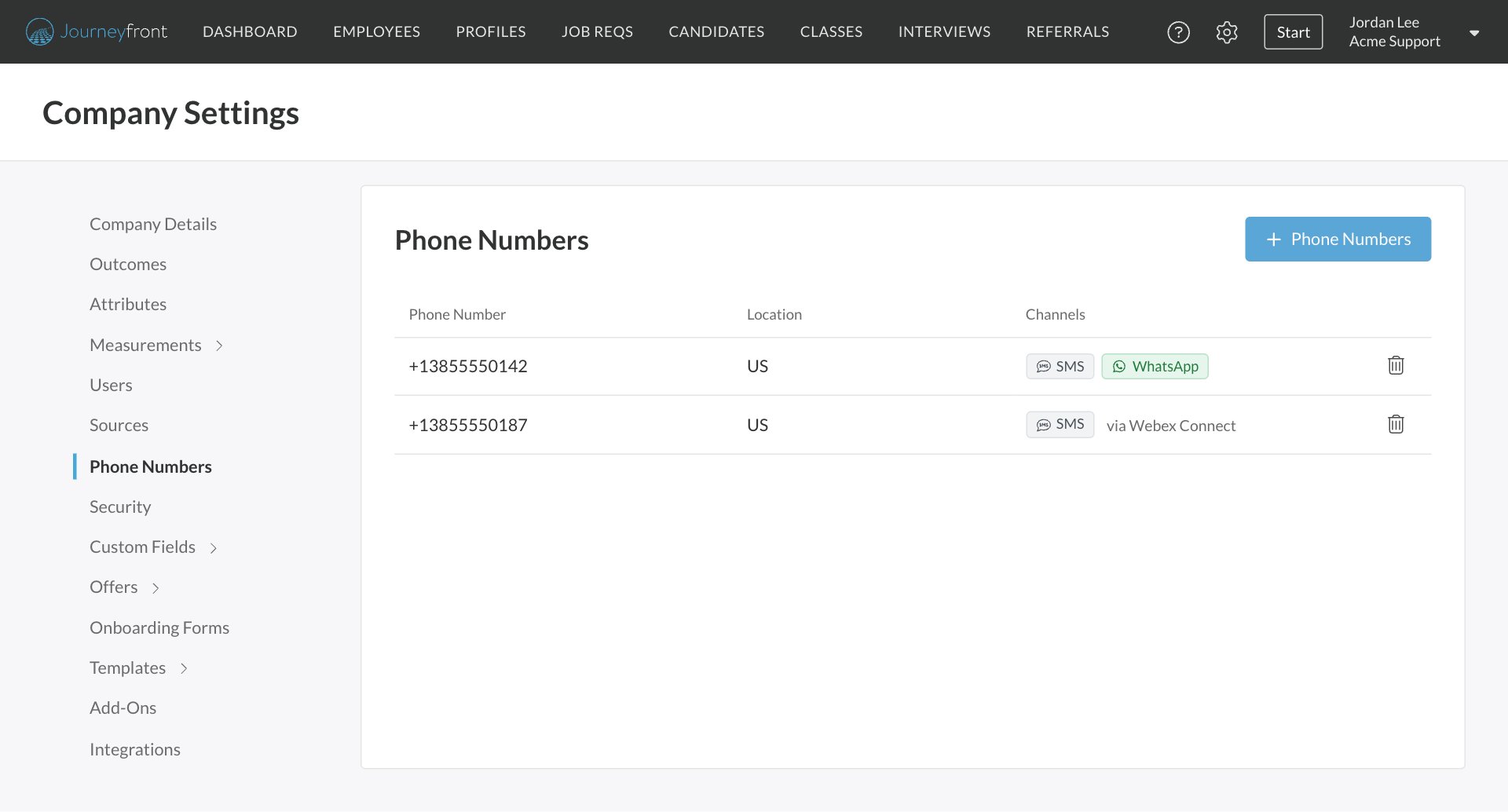
Go to Settings, then Phone Numbers to manage the numbers your team sends from.- Add a number with the add button. If you use more than one provider, choose the provider the number belongs to in Sends Through.
- Channels shows what each number can do: an SMS pill, and a WhatsApp pill once the number is connected to WhatsApp. Numbers on Webex Connect show “via Webex Connect”.
- Remove a number with the remove icon on its row. It’s hidden from messaging everywhere, and its message history is kept.
FAQ
Can we use more than one messaging provider?
Can we use more than one messaging provider?
Yes. Each phone number belongs to one provider, and each message goes out through the provider of the number it’s sent from. Replies, delivery updates and opt-outs from every provider show up on the same Candidate Application.
Why don't I see a messaging balance?
Why don't I see a messaging balance?
A balance only appears when Journeyfront provides your Twilio account. If you use your own Twilio account or Webex Connect, your provider bills you directly.
Texts are going out, but we never see replies. Why?
Texts are going out, but we never see replies. Why?
Check the Candidate replies step for your provider on the Text Messages page. It shows whether replies can reach Journeyfront and what to do if they can’t.
Can I buy phone numbers in Journeyfront?
Can I buy phone numbers in Journeyfront?
No. Buy or move numbers in your Twilio console or Webex Connect, then add them in Settings, then Phone Numbers.
Related
Text messages and WhatsApp
How your team messages candidates day to day.
Add-ons and credits
Your messaging balance and usage history.
Calling
Connect Webex Contact Center or QUO.
Integrations overview
Everything Journeyfront connects to.