

Who can do this: Admins with the Company Settings Access permission, together with someone who can make changes in your Webex Connect portal.Availability: The Text Messages add-on needs to be turned on for your account. Ask your Customer Success Manager. Webex Connect bills you directly for messages.
Webex Connect is for texting and WhatsApp. To call candidates through Webex, see Webex Contact Center, a separate product.
- The Webex Connect service you’ll text candidates from, and its service key (on the service’s API tab)
- A phone number in Webex Connect that can send texts
- For WhatsApp: a WhatsApp app for your number, verified with Meta in Webex Connect, and approved WhatsApp templates
Connect your service
1
Add Webex Connect
Go to Settings, then Add-Ons, then Text Messages. Under Text messaging, click Add Webex Connect. If you already text through Twilio, you’ll find it next to Also text through.
2
Choose your region
Choose the Region where your Webex Connect account is hosted, for example United States (Oregon) or Europe (Ireland). Your Webex Connect administrator can tell you which one.
3
Paste your service key
Paste your Service Key from the API tab of your service in Webex Connect.
4
Connect
Click Connect Webex Connect. Journeyfront checks the key with Webex Connect before saving it. If the key is refused, the reason appears under the field.
Add your Webex Connect sending number
1
Open Phone Numbers
On the Sending number step, click Add number. This opens Settings, then Phone Numbers. Click + Phone Numbers.
2
Choose Webex Connect
In Sends Through, choose Webex Connect.
3
Type the number
Type the number in international format, exactly as it appears in Webex Connect (for example, +15017122661), and save. It shows “via Webex Connect” on your Phone Numbers page.
Turn on Webex Connect candidate replies
Texts go out as soon as your number is added, but candidate replies only reach Journeyfront once you add a webhook in Webex Connect.1
Copy the webhook URL
On the Candidate replies step, copy the Webhook URL.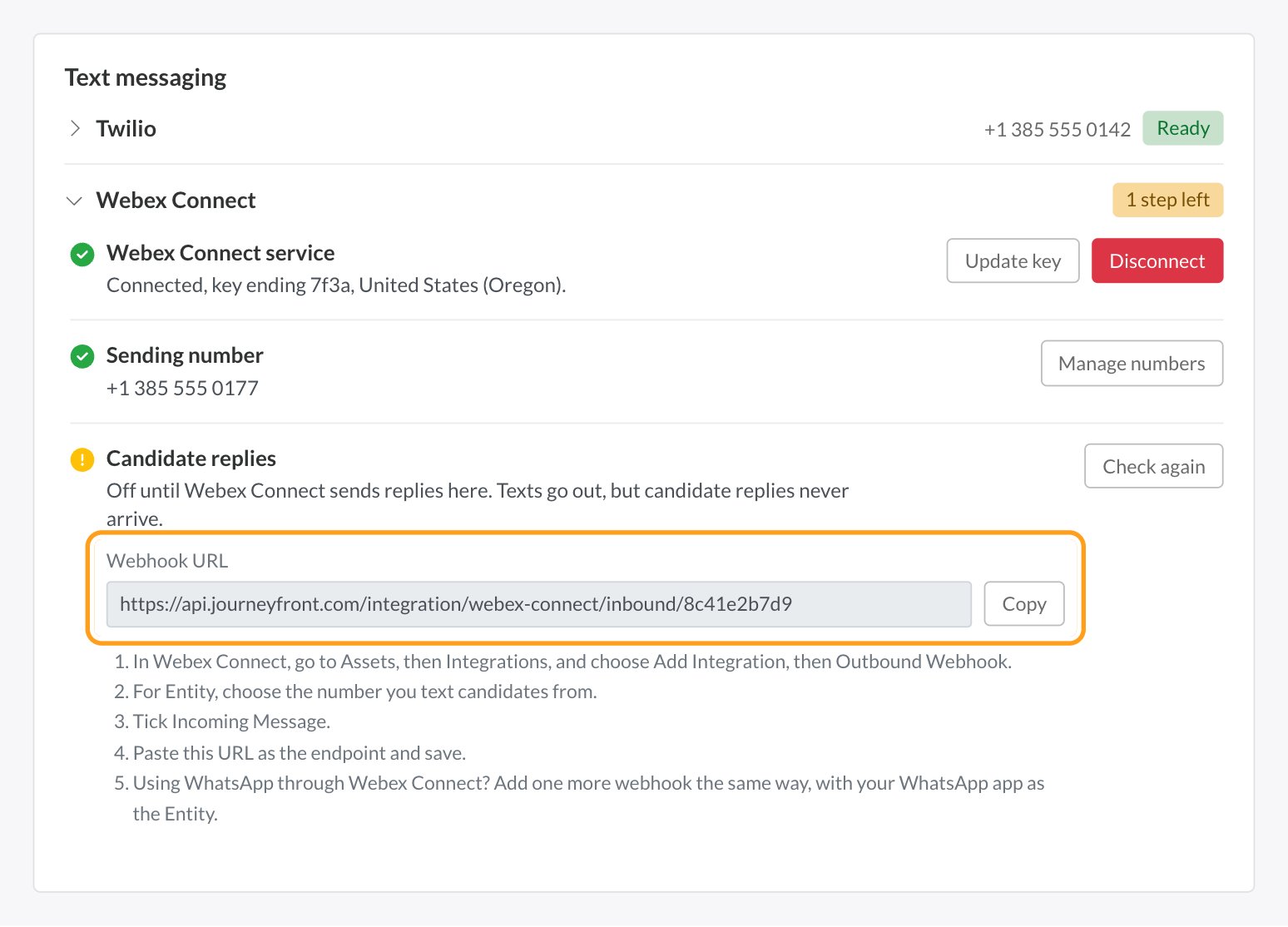
2
Add an Outbound Webhook in Webex Connect
In Webex Connect, go to Assets, then Integrations, and choose Add Integration, then Outbound Webhook.
3
Set it up
For Entity, choose the phone number you text candidates from. Tick Incoming Message. Paste the webhook URL as the endpoint and save.
4
Check it in Journeyfront
Webex Connect checks the URL when you save, and the Candidate replies step turns green. If you had the Journeyfront page open already, click Check again.
Update your key or disconnect
- Update your key: on the Webex Connect service step, click Update key and paste the new key. If your Webex Connect service lets you keep two active keys, create the new key, save it in Journeyfront, then delete the old one to avoid downtime.
- Disconnect Webex Connect: click Disconnect and confirm. Your Webex Connect numbers are removed from Journeyfront, including a WhatsApp number connected through Webex Connect, and message history is kept. If you reconnect later, add the numbers again, and update your webhooks in Webex Connect, because you’ll get a new webhook URL.
Webex Connect troubleshooting
FAQ
Can Journeyfront set up the Webex Connect webhooks for us?
Can Journeyfront set up the Webex Connect webhooks for us?
No. Webex Connect only allows webhooks to be set up in its own portal. Journeyfront gives you the exact URL and steps.
Can we write WhatsApp templates in Journeyfront if we use Webex Connect?
Can we write WhatsApp templates in Journeyfront if we use Webex Connect?
No. With Webex Connect, you write WhatsApp templates and get them approved in Webex Connect, then link them in Journeyfront. See Link a WhatsApp template from Webex Connect. Text message templates are written in Journeyfront for every provider.
Is Webex Connect the same as Webex Contact Center?
Is Webex Connect the same as Webex Contact Center?
No. Webex Connect is Cisco’s messaging platform, used for texts and WhatsApp. Webex Contact Center is for calling candidates. See Webex Contact Center.
Who bills us for Webex Connect messages?
Who bills us for Webex Connect messages?
Webex Connect bills you directly, so there’s no messaging balance in Journeyfront.
Related
Texting providers
Compare providers, and manage phone numbers and billing.
Connect WhatsApp through Webex Connect.