

Who can do this: Admins with the Company Settings Access permission connect your Webex organization, with a Webex Control Hub administrator. Each recruiter then connects their own Webex account in Personal Settings.Availability: Needs your company’s own Webex Contact Center subscription. Calls are part of your Webex service.
- An active Webex Contact Center subscription, with your recruiters set up as Contact Center agents
- A Webex Control Hub administrator to authorize Journeyfront once for your organization
- Each recruiter who makes calls to connect their own Webex account
Set up Webex first
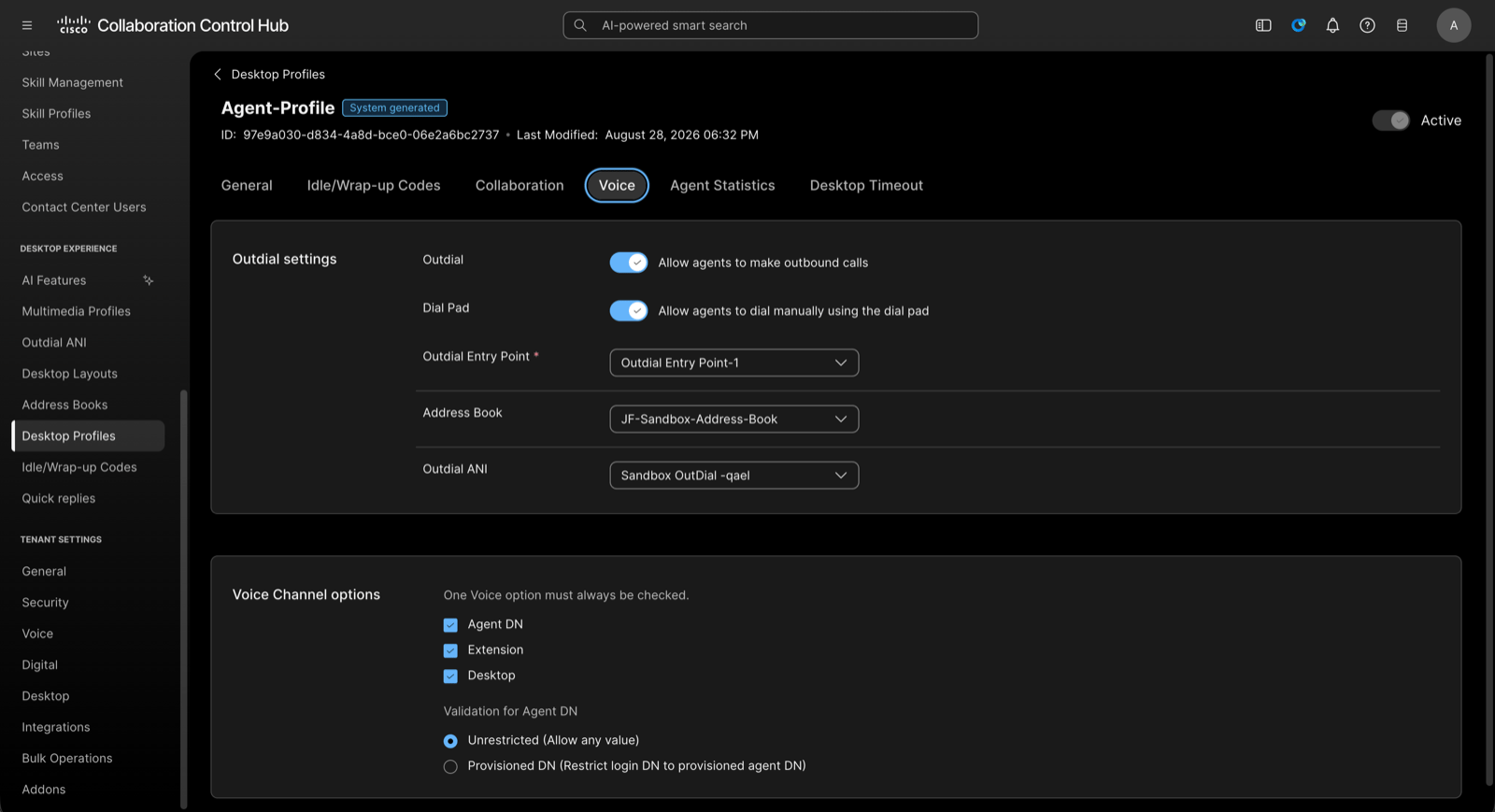
Calling depends on how each recruiter is set up in Webex Control Hub. These settings live in Webex, not Journeyfront, and every one is required for a call to connect. If a call rings briefly and then ends, this list is almost always why. For each recruiter who will make calls:- They’re set up as a Contact Center agent, with an agent profile, a team and a multimedia profile. A Webex organization administrator isn’t automatically an agent.
- On their Desktop Profile, on the Voice tab: outdial is enabled, an Address Book is selected, an Outdial ANI is selected and a dial plan is attached.
- Under Channels, a phone number is mapped to your inbound entry point.
- Your Outdial ANI is configured, including a default.
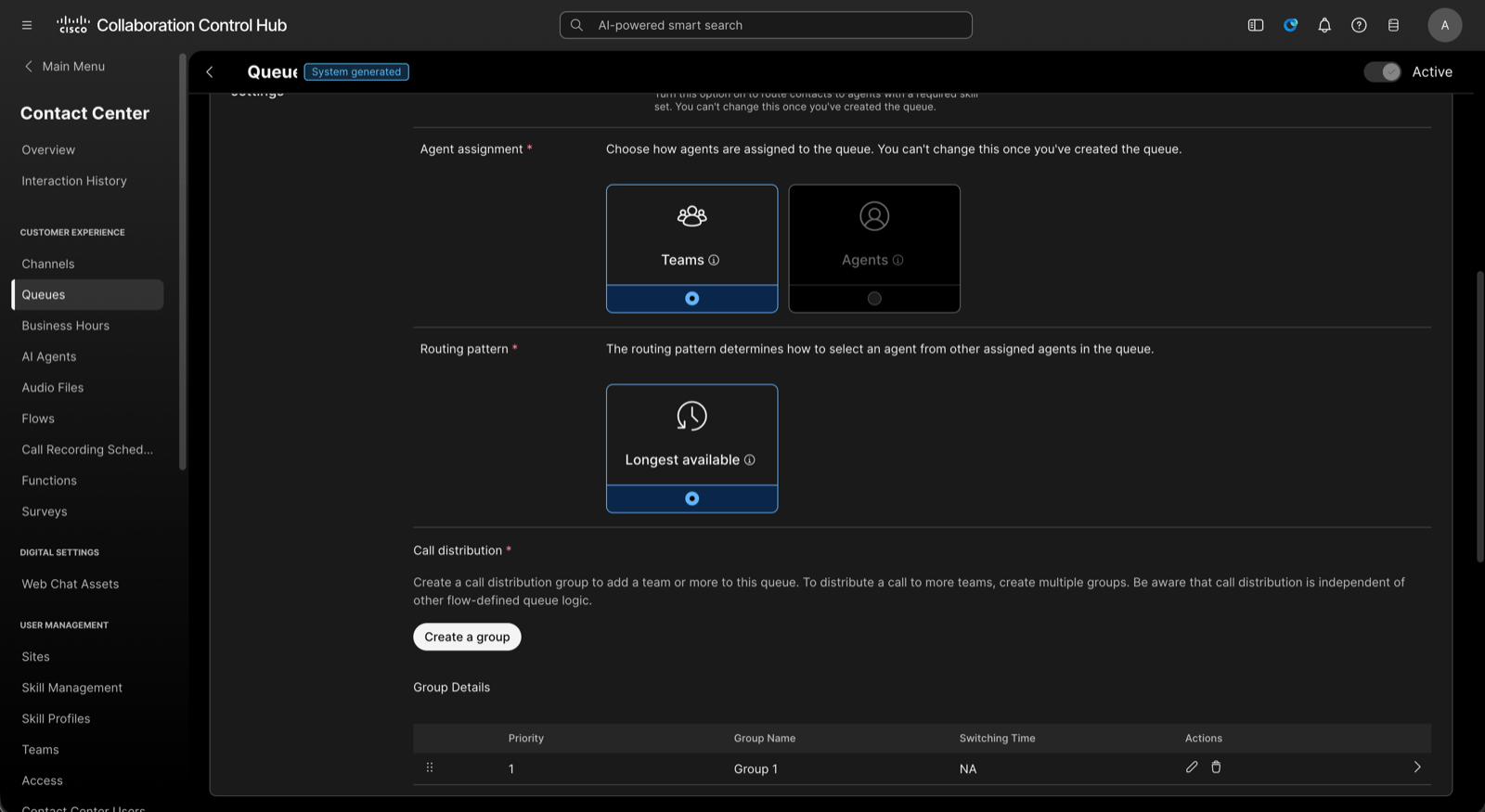
- On your outdial queue, the recruiter’s team is added to a call distribution group. Without this, calls route to a queue with no agents and end after a few seconds.
- The recruiter signs in to the Webex Agent Desktop, sets themselves to Available and chooses Desktop as their station.
Connect your Webex organization
An administrator does this once for your company.1
Open Webex Contact Center
Go to Settings, then Integrations. Under Calling, select Webex Contact Center.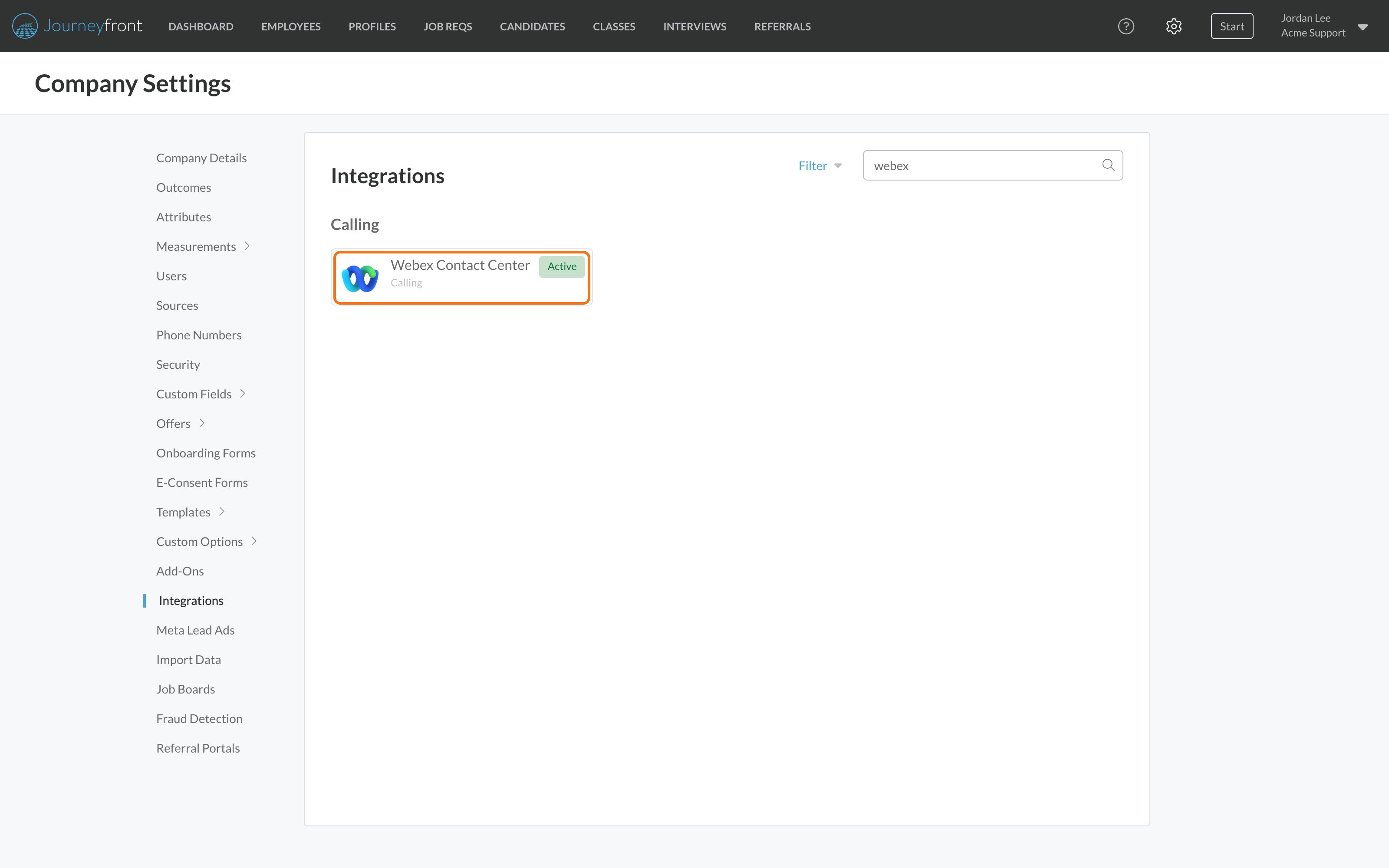
2
Set your region (if needed)
If your Webex organization is outside the US1 region, expand Is your Webex tenant outside the US1 region? and enter your region’s API region base URL. Leave it blank for US1.
3
Connect as administrator
Click Connect as administrator. Sign in with a Webex Control Hub administrator account and approve the access Journeyfront asks for. An ordinary agent account can’t grant it.
4
Check the connection
The page shows who authorized the connection and what it turned on.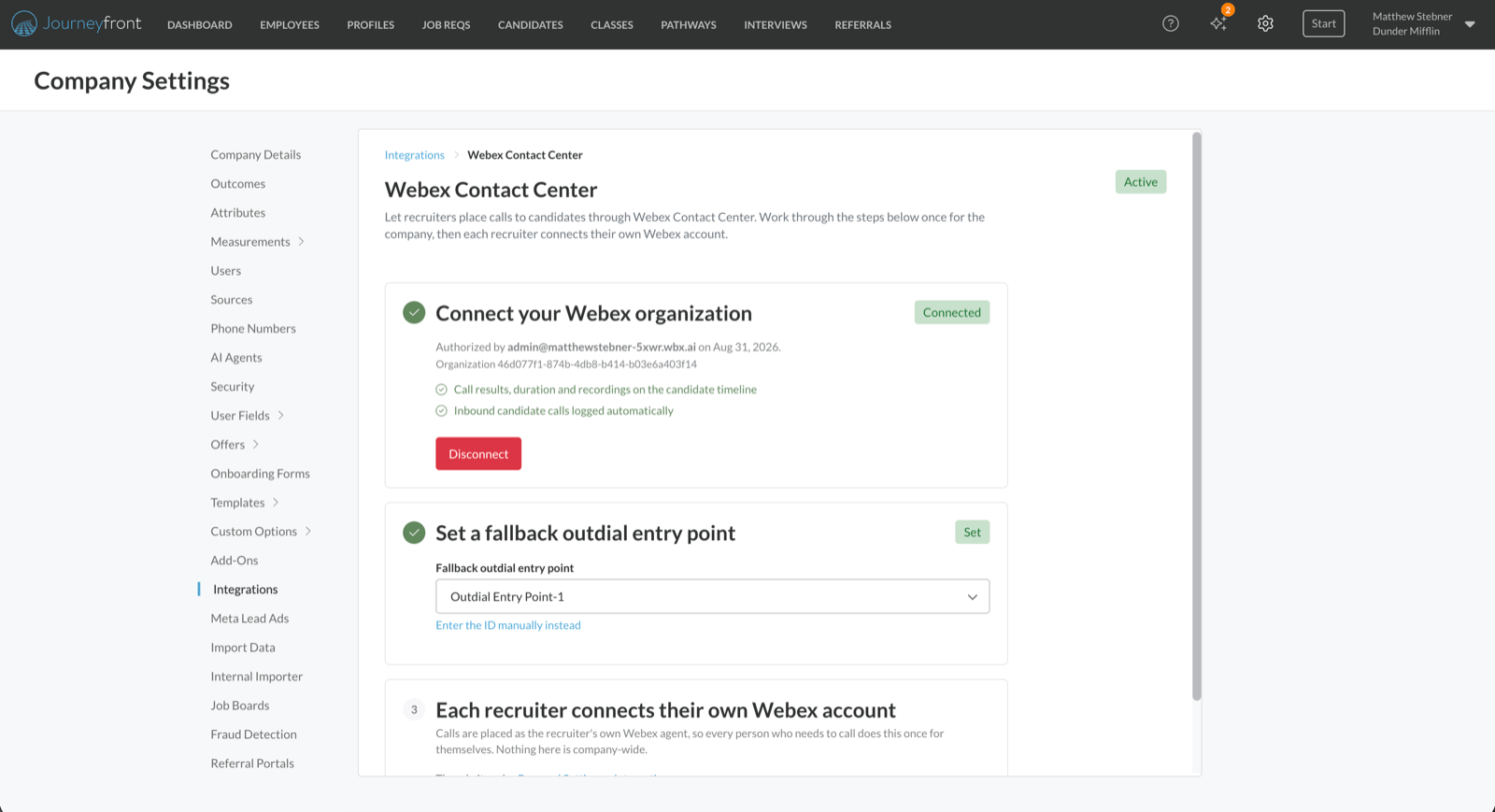
Each recruiter connects their Webex account
Every recruiter who makes calls does this for themselves.1
Open your integrations
Select your name in the top right, then Personal Settings, then Integrations. Click Webex Contact Center.
2
Connect
Click Connect Webex and sign in with the Webex account you use for the Agent Desktop. Approve the access.
3
Check Outbound calling
Your connection shows your Webex account and an Outbound calling line.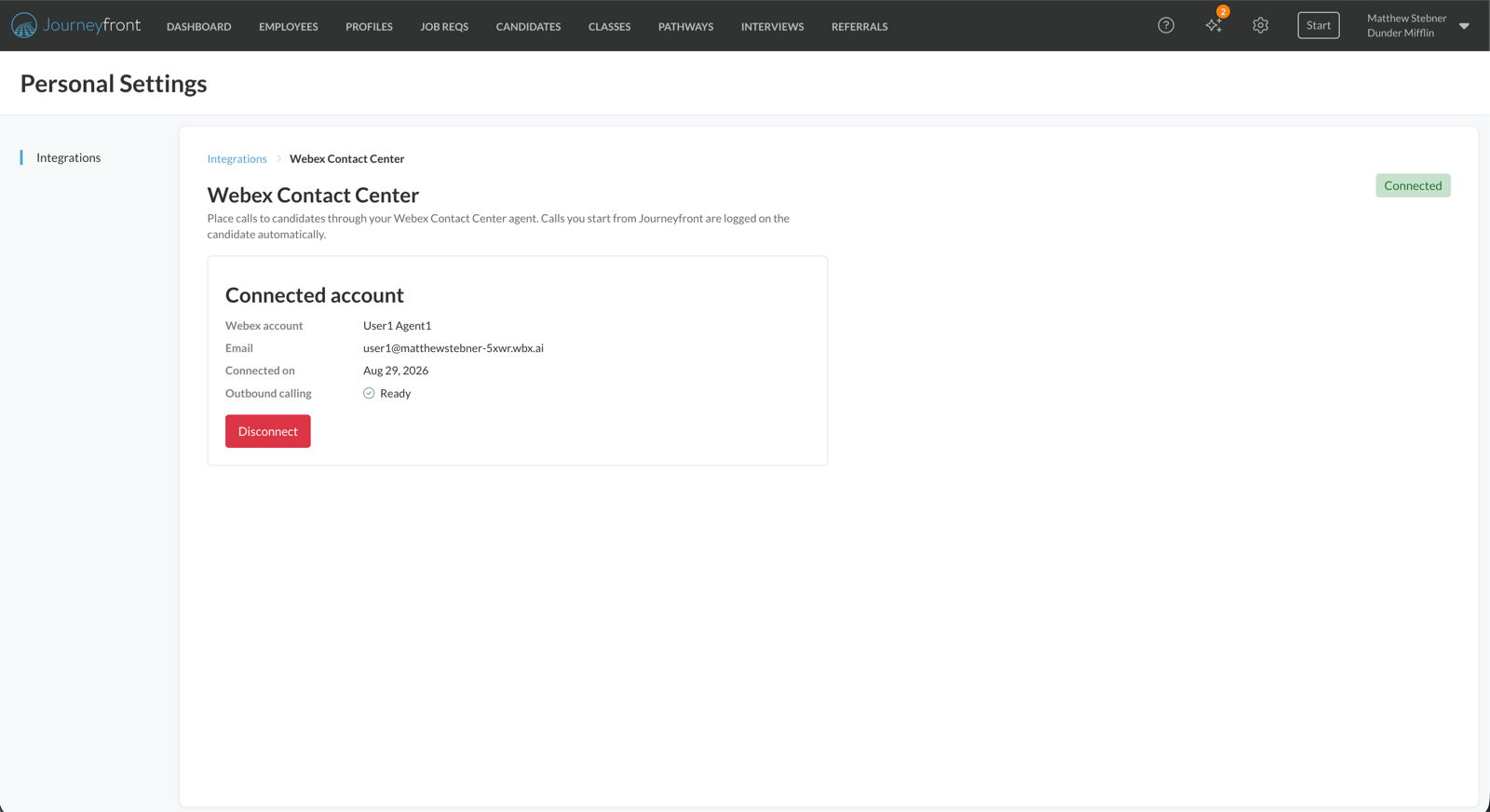
If your organization isn’t connected yet, the Outbound calling line doesn’t appear.
What Webex controls
Some parts of calling live in Webex rather than Journeyfront:Disconnect Webex
- A recruiter’s own account: in Personal Settings, then Integrations, then Webex Contact Center, click Disconnect. Calls already logged stay on their candidates. Until they reconnect, that recruiter’s phone icon opens their computer’s default calling app instead, and those calls aren’t logged.
- Your organization: in Settings, then Integrations, then Webex Contact Center, click Disconnect in step 1. Call results, recordings and logging of calls from candidates stop, and recordings of calls already logged can no longer be played. Calls already logged stay on their candidates.
Webex troubleshooting
FAQ
Why does an administrator need to connect Webex if each recruiter connects too?
Why does an administrator need to connect Webex if each recruiter connects too?
Webex only lets an administrator read the result of a call. Without the organization connection, calls can be placed but their outcome, duration and recording can’t be logged, and calls from candidates aren’t logged at all.
Do we need a separate setup for each country or region?
Do we need a separate setup for each country or region?
Not in Journeyfront. With Webex, each recruiter dials through the entry point on their own Webex profile, so your existing regional setup applies.
Does this replace our Webex reporting?
Does this replace our Webex reporting?
No. Calls are ordinary calls placed by your own agents, so they show up in your Webex reporting as they always have.
Is Webex Contact Center the same as Webex Connect?
Is Webex Contact Center the same as Webex Connect?
No. Webex Contact Center is for calling. Webex Connect is Cisco’s messaging platform, used for texts and WhatsApp. See Webex Connect.
Related
Calling
Compare calling providers.
Calling candidates
Call candidates and find every call log.