

Who can do this: Admins with the Company Settings Access permission connect an ATS. Once it’s connected, anyone who can open a Candidate Application can send that candidate to your ATS.
Connect your ATS
Before you start, have your ATS sign-in details ready. Depending on the ATS, you may also need an API key, subdomain or client secret. The account you connect with needs permission to create candidates and applications and to read jobs.1
Find your ATS
Go to Settings, then Integrations. Find your ATS under ATS to send candidates, or under ATS Assessment to launch assessments from your ATS. Use Filter or Search to find it quickly.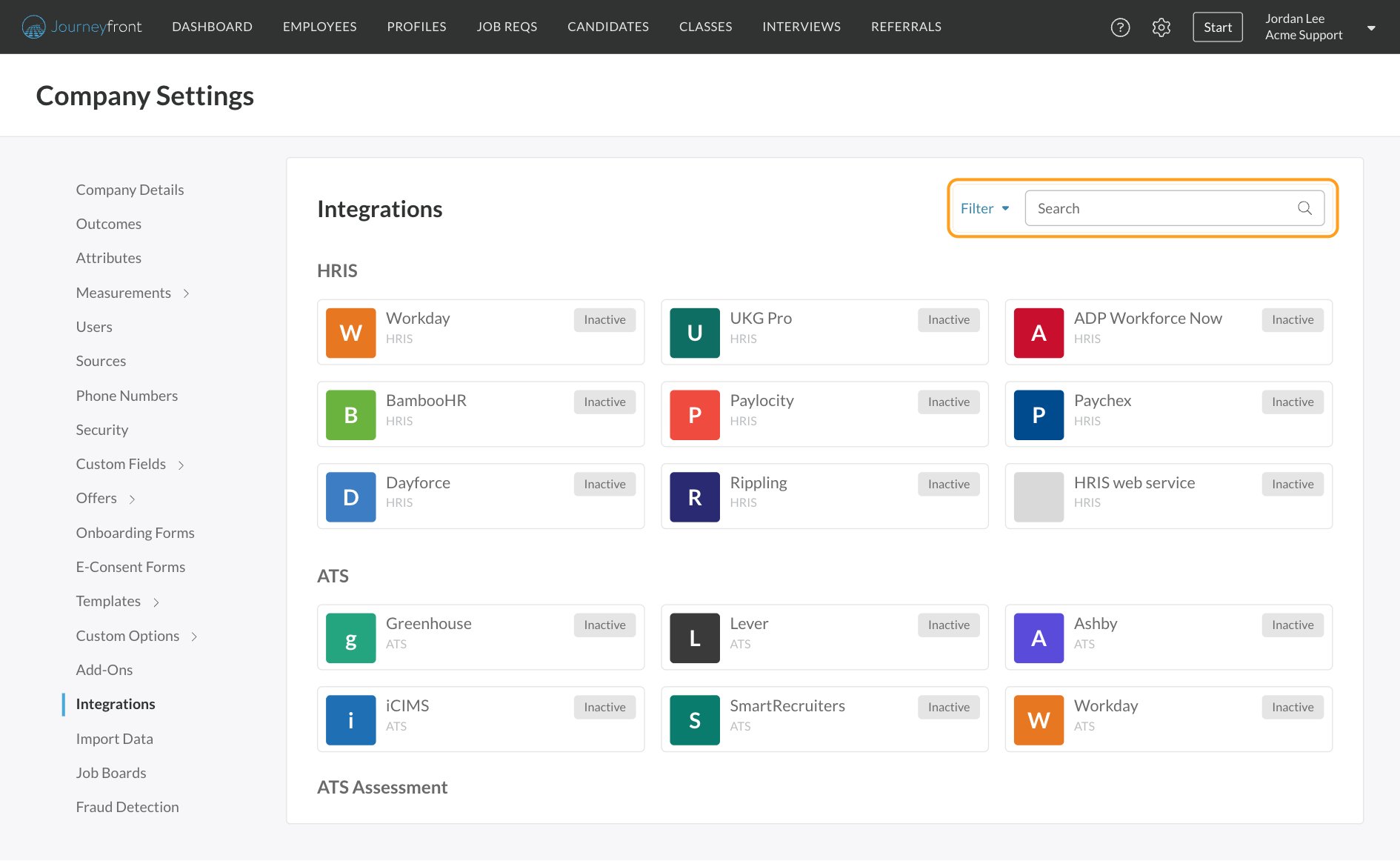
2
Start the connection
Click your ATS’s tile, then click Connect to followed by its name.
3
Review permissions
A secure window lists the data Journeyfront needs. Required permissions must stay on for the integration to work. You can turn optional ones off.
4
Sign in and confirm
Follow the steps for your ATS, such as signing in or entering an API key or subdomain. When it’s done, the tile shows Active and the details show who connected it and when.
Send a candidate to your ATS
Once your ATS is connected, everyone in your account can send candidates to it from the Candidate Application.1
Open the Actions menu
On the Candidate Application, click Actions, then Send to followed by your ATS’s name.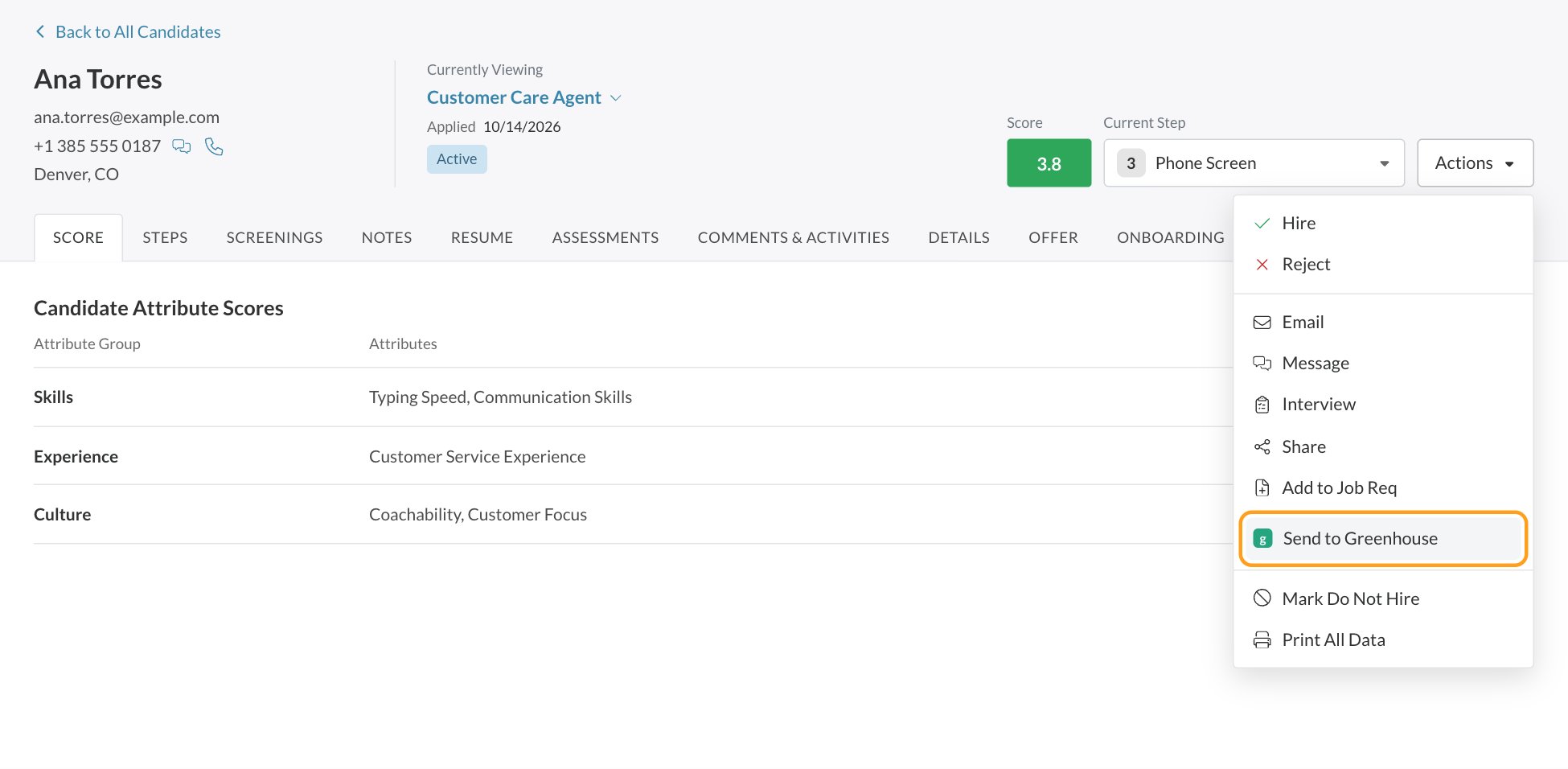
2
Check the pre-filled details
The window shows what Journeyfront mapped from the Candidate Application, such as name, email and phone. Check that it’s correct.
3
Choose the job and stage
Select the job and pipeline stage in your ATS where the candidate should land, and fill in any required fields. Required fields are marked with a red asterisk (*).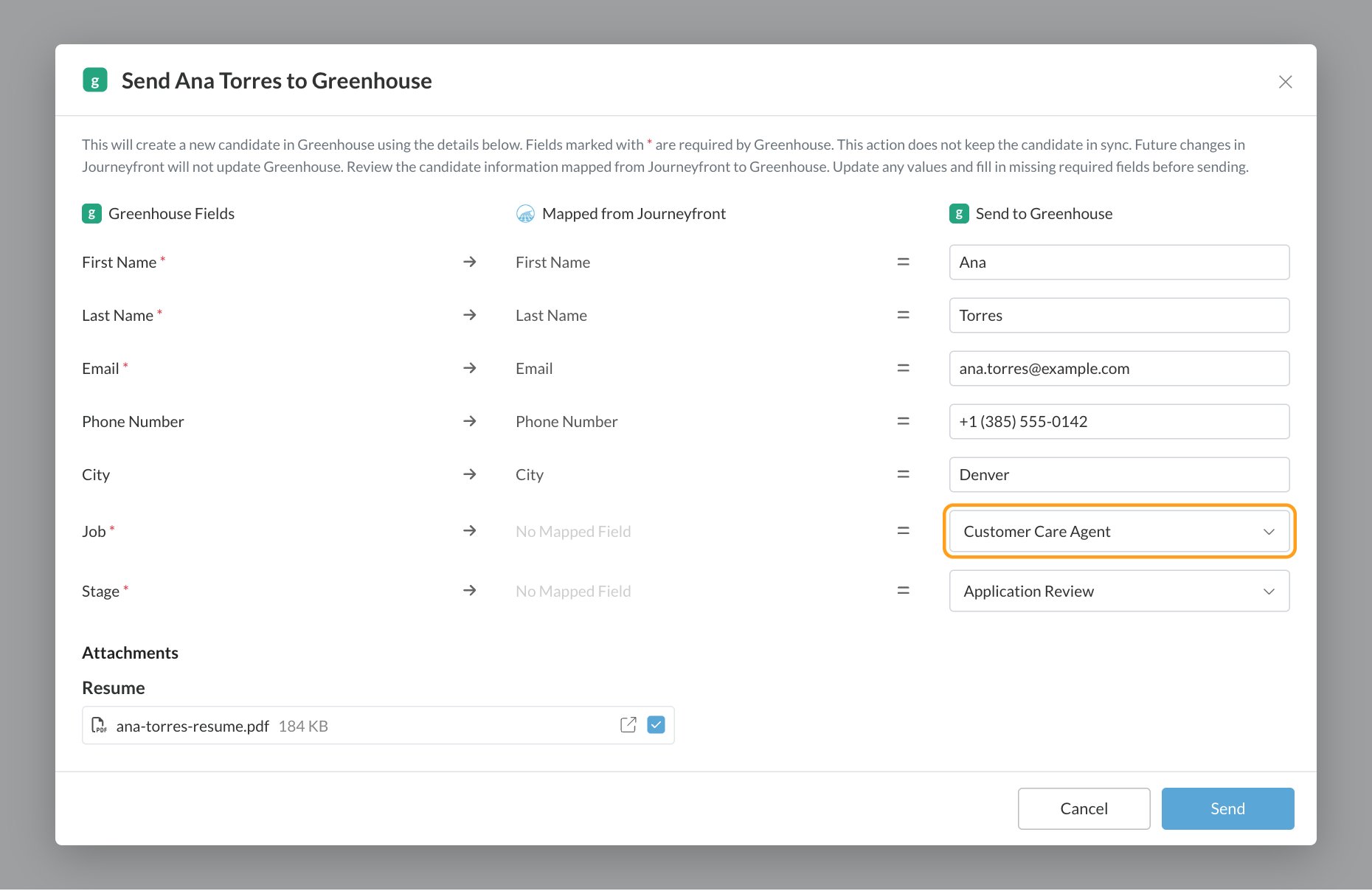
4
Attach documents and send
Choose any documents to include, such as the resume, signed offer letter or screening uploads, if your ATS accepts them. Then click Send.
- A new candidate and application are created in your ATS.
- A note is added to the ATS application with a link back to the candidate’s Candidate Application in Journeyfront, so anyone in your ATS can see their results.
- Comments & Activities in Journeyfront records who sent the candidate and where.
- The menu item changes to Sent to your ATS with a check mark, so you can see at a glance that the candidate is already there.
Launch Journeyfront assessments from your ATS
With an ATS Assessment connection, your recruiters stay in your ATS and order a Journeyfront assessment there, the same way they’d order any other assessment.- Your job reqs become assessments in your ATS. Each Journeyfront job req shows up as an assessment your ATS can order. New job reqs are added automatically.
- A recruiter orders the assessment in your ATS. Journeyfront creates the candidate and their Candidate Application, and emails the candidate an invitation with a link to start. Some ATSs show the link directly instead.
- The candidate completes their Journeyfront workflow. They go through the job req’s steps, just like a candidate who applied in Journeyfront.
- Results go back to your ATS. When the candidate finishes, Journeyfront sends their overall score, their attribute scores and a link to their Candidate Application to your ATS.
What the integration doesn’t do
- It doesn’t sync changes back from your ATS. If someone updates a candidate’s phone number in your ATS, Journeyfront doesn’t see the change.
- It doesn’t update candidates you already sent. Each send creates a new candidate and application in your ATS.
- It doesn’t sync job reqs or postings, other than offering your job reqs as assessments with an ATS Assessment connection.
- It doesn’t follow candidates through your ATS pipeline. Once sent, their progress there isn’t reflected in Journeyfront.
- It doesn’t retry failed sends. Fix the problem and send again.
FAQ
Which ATSs are supported?
Which ATSs are supported?
Every supported ATS is listed on the Integrations page, including Greenhouse, Lever, Ashby, Workday, iCIMS, SmartRecruiters, Teamtailor and many more. If yours isn’t listed, ask your Customer Success Manager.
Can I connect more than one ATS?
Can I connect more than one ATS?
No. Each Journeyfront account connects to one ATS at a time. To switch, disconnect the current one first.
What if my ATS requires a field Journeyfront doesn't have?
What if my ATS requires a field Journeyfront doesn't have?
The send window shows every field your ATS requires. Fill in anything Journeyfront doesn’t have before you click Send. If a required field is always hard to fill in, your ATS administrator may be able to make it optional on the ATS side.
What happens if a send fails?
What happens if a send fails?
You’ll see an error explaining why, usually a missing required field or a connection problem. Fix it and try again. A failed attempt doesn’t create a partial record in your ATS.
Can I disconnect the integration?
Can I disconnect the integration?
Yes. Admins can disconnect it from the ATS’s page in Settings, then Integrations. Candidates you already sent stay in your ATS. Disconnecting can’t be undone; to use the integration again, you connect from the start.
How is this different from exporting a CSV?
How is this different from exporting a CSV?
The integration creates live candidate records in your ATS through a secure connection. There’s no file to download, format or upload.
Related
Integrations overview
Everything Journeyfront connects to.
HRIS integrations
Send new hires to your HR system.
Workflows overview
The steps candidates complete.
How scoring works
What the scores sent to your ATS mean.