

Who can do this: Admins with the Company Settings Access permission connect your QUO workspace. Each recruiter then connects their own QUO user in Personal Settings.Availability: Needs your company’s own QUO workspace. Calls are billed by QUO.
- A QUO workspace and a QUO API key, created in QUO under your workspace settings
- Each recruiter set up as a user on one of your company’s QUO phone numbers, with the same email address they use in Journeyfront
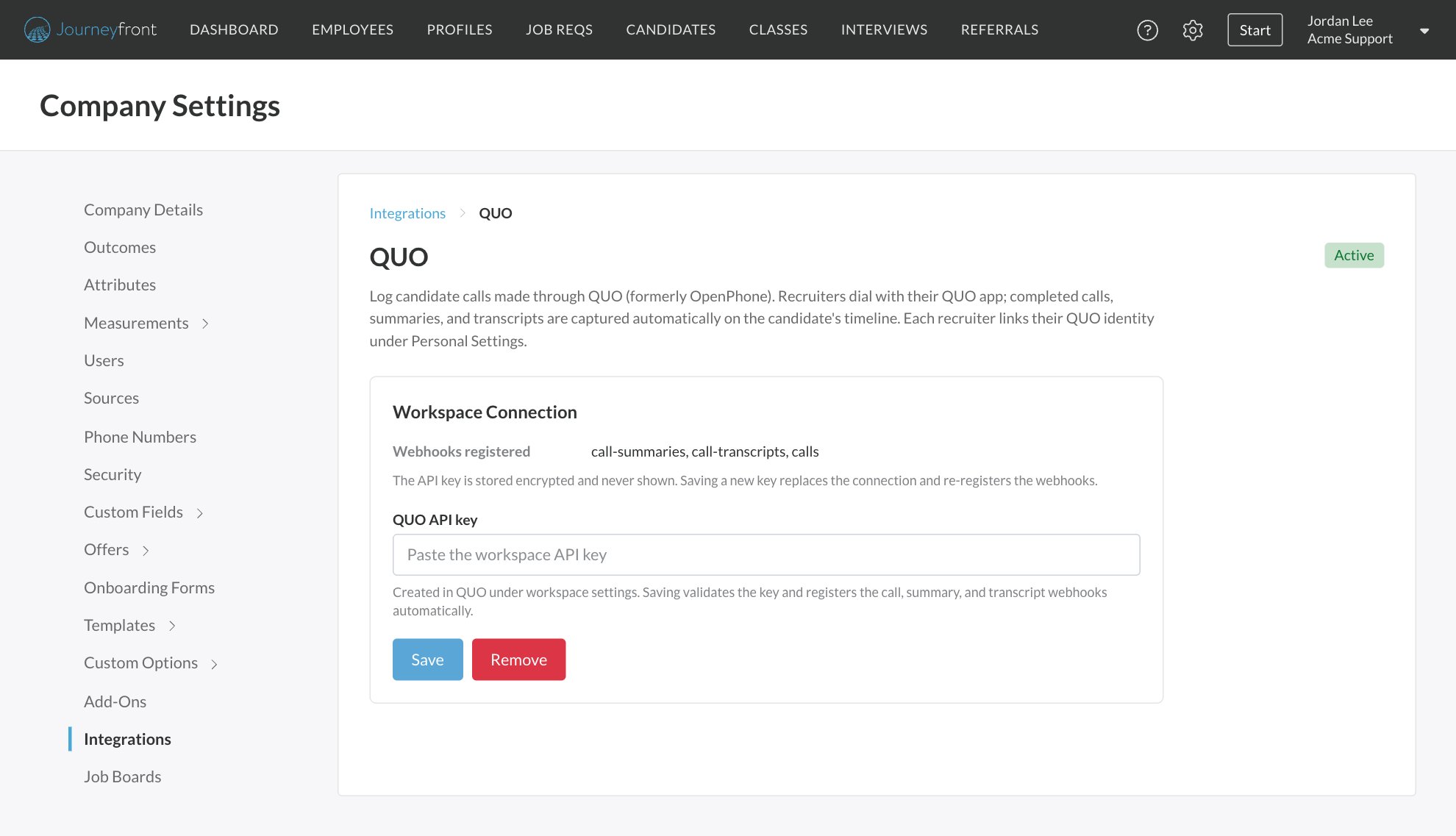
Connect your QUO workspace
1
Open QUO
Go to Settings, then Integrations. Under Calling, select QUO.
2
Paste your API key
Paste your key into QUO API key.
3
Save
Click Save. Journeyfront checks the key with QUO, finds your phone numbers and sets up call logging automatically. The status changes to Active.
Each recruiter connects QUO
1
Open your integrations
Select your name in the top right, then Personal Settings, then Integrations. Click QUO.
2
Connect
Click Connect QUO. Journeyfront matches you to your QUO user by your email address.
3
Check your numbers
Your connection shows your Email, your QUO numbers and when you connected.
How dialing works with QUO
The phone icon next to a candidate’s number opens your computer’s default calling app. It opens QUO only if QUO is set as your default calling app. You can also dial from the QUO app directly; the call is still logged. After a call with a candidate is logged, Journeyfront adds the candidate to your QUO workspace as a contact, with just their name and the number dialed. That way, when the candidate calls back, your QUO app shows who’s calling. Journeyfront never changes existing QUO contacts.QUO troubleshooting
FAQ
Do recruiters have to dial from Journeyfront for calls to be logged?
Do recruiters have to dial from Journeyfront for calls to be logged?
No. Calls dialed straight from the QUO app are logged too, as long as the recruiter has connected QUO and the number matches a candidate.
Does Journeyfront update our existing QUO contacts?
Does Journeyfront update our existing QUO contacts?
No. After a logged call, it adds a contact with the candidate’s name and the number dialed. It never changes contacts that are already in QUO.
Related
Calling
Compare calling providers.
Calling candidates
Call candidates and find every call log.