

Who can do this: Reminders go out automatically. Changing the reminder email needs the Company Settings Access permission.
Who gets application reminders
A candidate gets reminders for a Candidate Application when all of these are true:- The application isn’t 100% complete. Reminders are for applications that are still incomplete.
- It’s been at least a day. The first reminder goes out about 24 hours after they started.
- It’s within the first 7 days. No reminders are sent after that.
- They haven’t been rejected, and the job req hasn’t been archived or deleted.
When reminders go out
A candidate gets at most three reminders per application, all within the first 7 days. Journeyfront checks for candidates who are due a reminder every 15 minutes.
The timing and the number of reminders are the same for every account and can’t be changed. Reminders can be turned off for your whole account; ask your Customer Success Manager.
How “complete” is worked out
The percentage complete counts the activities in the steps a candidate has reached, including the application form. Interviews aren’t counted. (This assumes the job req’s Gate Steps setting is on, which is the default. With it off, every step counts.) When a candidate finishes every counted activity, their application reaches 100% and the reminders stop. If you move them to a new step, the new step’s activities count too, so the percentage can drop below 100% again. If that happens within the first 7 days and they haven’t had three reminders yet, they can get another one.What the reminder email says
The reminder uses the User Reminder system email. By default, the subject is “Reminder - Complete your application”, and the email names the job title and your company, says what percentage of the application the candidate has completed, and links them back to it.Change the reminder email
1
Open the template
Go to Settings, then Templates, then E-mail Template, click System Emails, and click the edit icon on User Reminder.
2
Edit it
Change the body on the Email Body tab, and the Subject, From Name and Reply To on the Details tab.
3
Save
Click Save. Every reminder from now on uses your version.
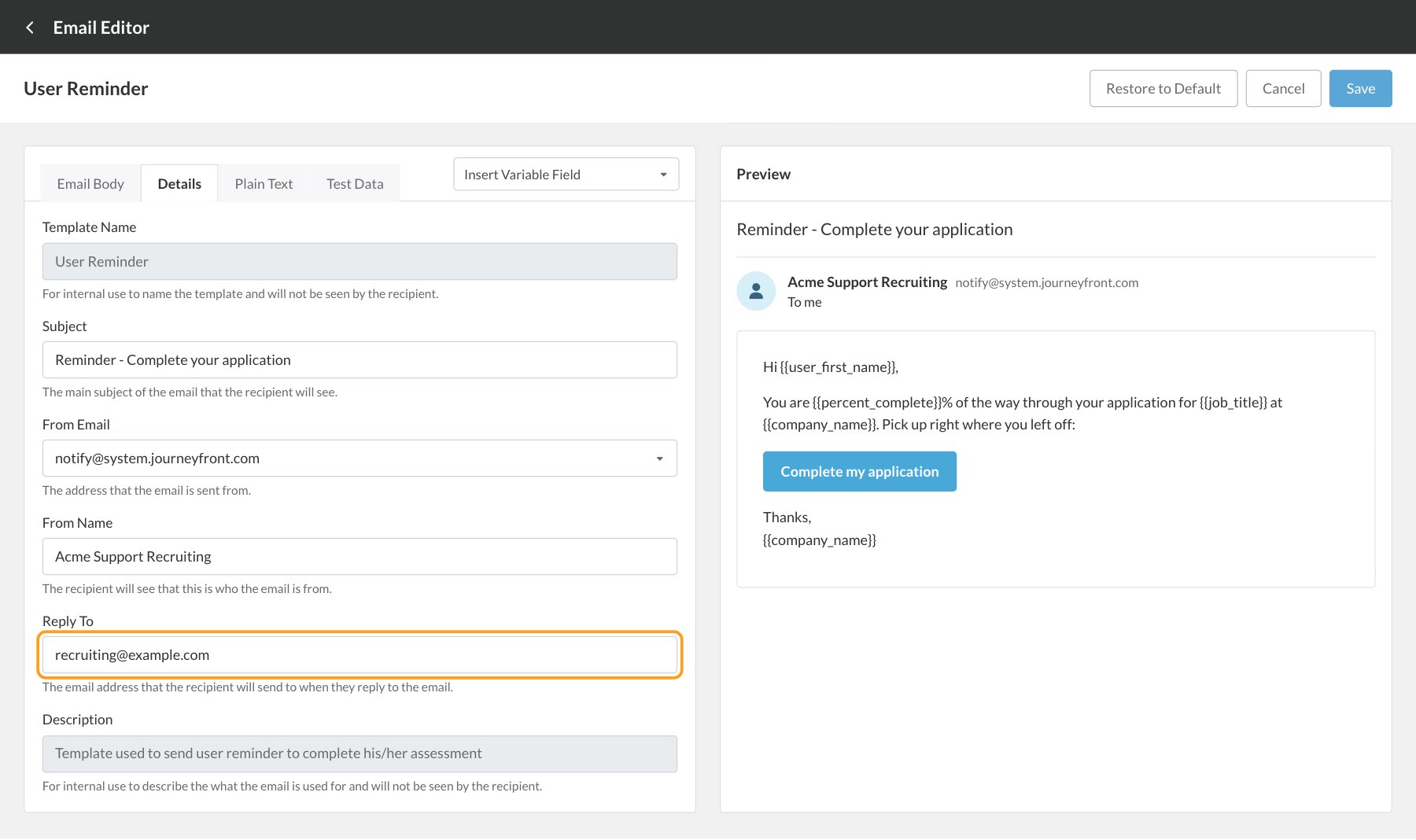
{{user_first_name}}, {{job_title}}, {{company_name}}, {{assessment_link}} and {{percent_complete}}. See Template variables and Email templates.
Send your own reminders
The application reminder is the same for every job req. For reminders that fit a particular step, set up an automation rule on the job req’s workflow:- Trigger: Candidate Time in Step Reaches, with the number of days and hours.
- Action: Send Email to Candidate with a team email template, or Send SMS to Candidate for a text.
FAQ
A candidate finished but still got a 'complete your application' reminder. Why?
A candidate finished but still got a 'complete your application' reminder. Why?
Check these, in order:
- Which job req is it for? The reminder names the job title and company. If the candidate has another Candidate Application, for a different job req or from applying again, the reminder is for that one. Their Candidate Profile shows all of their applications.
- Is the application really at 100%? The percentage counts every activity in the steps they’ve reached except interviews. An activity your team completes, like an offer, keeps it below 100%.
- Did they finish right after it was sent? Reminders are checked every 15 minutes, so one can go out shortly before the candidate finishes.
A candidate replied 'I'm done' to the reminder. Where did it go?
A candidate replied 'I'm done' to the reminder. Where did it go?
To the Reply To address on the User Reminder template. If you haven’t set one, it went to Journeyfront’s support address. Set Reply To to your team’s inbox so you see these replies.
Who is 'Cody at Journeyfront'?
Who is 'Cody at Journeyfront'?
It’s the reminder’s default sender name. Change it in From Name on the User Reminder template’s Details tab, for example to your company’s name.
Can I stop reminders for one candidate?
Can I stop reminders for one candidate?
Not on their own. Reminders stop when the application reaches 100%, after three reminders, after 7 days, or when you reject the candidate.
Can I change how often reminders go out?
Can I change how often reminders go out?
No, the schedule is fixed. Use automation rules for extra reminders on your own schedule, or ask your Customer Success Manager to turn the application reminders off for your account.
Why didn't a candidate get a reminder?
Why didn't a candidate get a reminder?
More than 7 days may have passed since they started, or they’ve already had three. Also ask them to check their spam or junk folder.
Do reminders go out by text?
Do reminders go out by text?
No, application reminders are emails. To text candidates, use an automation rule with Send SMS to Candidate. See Text messages.
Related
Interview reminders
Remind candidates before their interview.
Email templates
Edit the User Reminder email.
Automation rules
Send your own follow-ups at any step.
AI agents
Personal follow-ups for candidates who stall.