

Who can do this: Admins with the Company Settings Access permission.
Create a team email
1
Open the Team Emails tab
Go to Settings, then Templates, then E-mail Template. Team Emails is the first tab.
2
Click E-mail Template
Click E-mail Template at the top right. The Email Editor opens on a New Email Template.
3
Write the email
On the Email Body tab, write the email. The toolbar has headings, font size, lists, bold and other text styles, text and background color, alignment, links, images, video and Edit HTML.
4
Fill in the details
On the Details tab, enter the Template Name and Subject, choose the From Email, and fill in From Name, Reply To and an optional Description. See Template details.
5
Save
Click Save at the top right. The Save and Cancel buttons appear once you’ve made a change.
Template details
Add template variables
Template variables, like{{first_name}}, are replaced with each candidate’s details when the email is sent. Click Insert Variable Field above the editor and choose a variable to copy it, then paste it into the body or subject.
The list shows the variables that template supports. Team emails all share the same set; each system email has its own. See Template variables.
Preview and test data
The Preview panel on the right shows the email as candidates will see it: the subject, the sender and the body. It updates as you type. To see variables filled in, open the Test Data tab and enter a sample value for each variable, like a first name and job title. The preview swaps them in. Test data is only for the preview, and it’s saved in your browser, not with the template.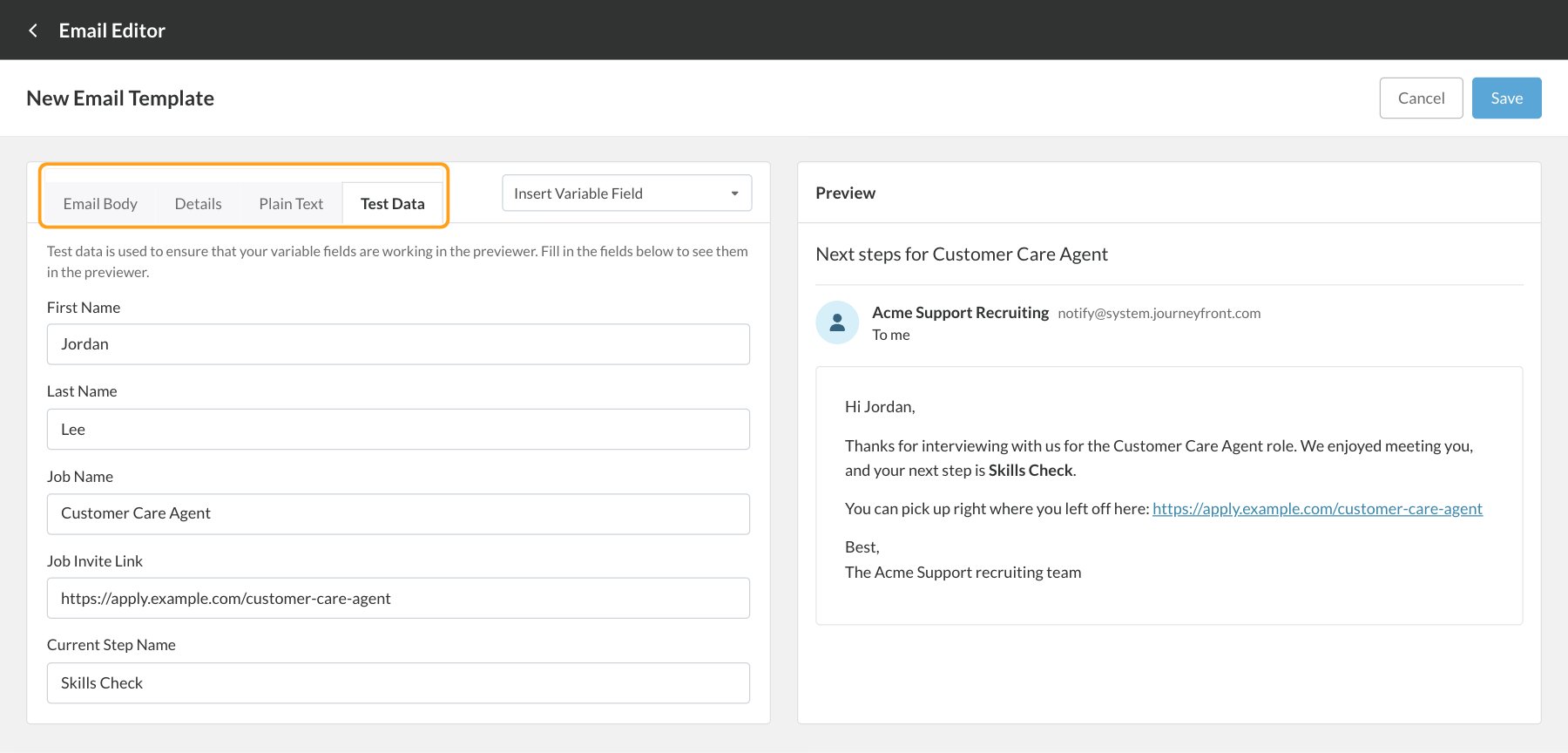
Edit or delete a team email
On the Team Emails tab, click the edit icon on a template’s row to open it in the Email Editor. Make your changes and click Save. To delete a template, click its trash icon, then confirm in the Remove E-mail Template window.System emails
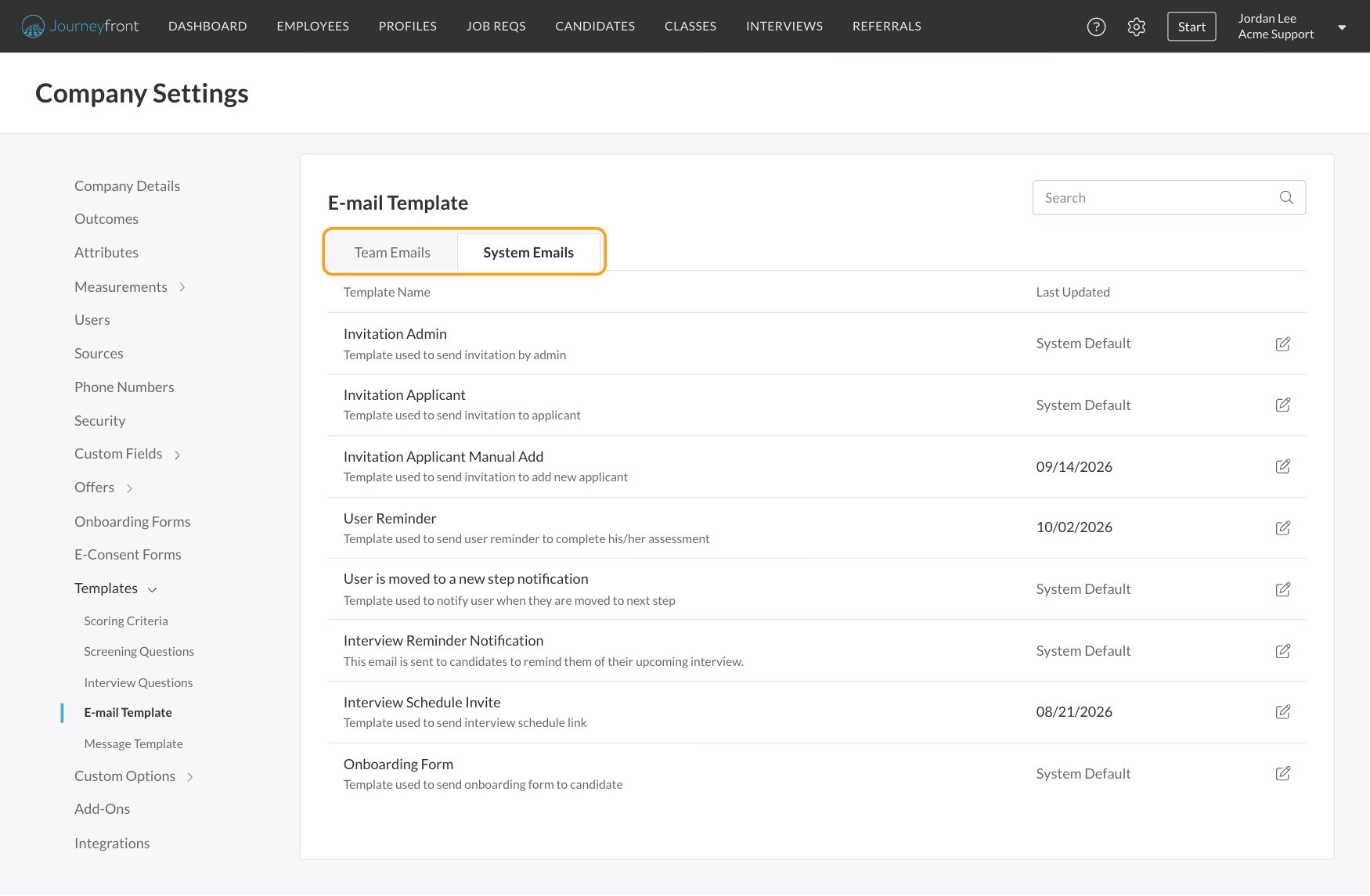
The System Emails tab lists the emails Journeyfront sends for you. Each row shows the template’s name with a short description, and Last Updated shows System Default until someone edits it.
A few standard emails, such as password resets and some notifications to your own team, aren’t in the list and can’t be changed.
Edit a system email
1
Open the System Emails tab
Go to Settings, then Templates, then E-mail Template, and click System Emails.
2
Open the template
Click the edit icon on the template’s row.
3
Make your changes
Edit the Email Body, and on the Details tab, the Subject, From Email, From Name and Reply To. The Template Name and Description of a system email can’t be changed. On the Plain Text tab, update the unformatted version of the email that’s sent along with it, for email apps and screen readers that don’t show formatting.
4
Save
Click Save. Your version is used from now on, for every job req in your account.
Restore a system email
To go back to Journeyfront’s original version, open the template and click Restore to Default, then Restore. All of your changes to that template are lost and can’t be recovered.FAQ
Can I send myself a test email?
Can I send myself a test email?
Not from the editor. Use the Preview panel with the Test Data tab to check the email with sample values before you save.
Does editing a system email change it for every job req?
Does editing a system email change it for every job req?
Yes. Each system email has one version for your whole account.
Can different job reqs send different invite or reminder emails?
Can different job reqs send different invite or reminder emails?
Not with system emails, which are shared across your account. For job-specific messages, create a team email and send it from that job req’s automation rules.
I changed a system email and want the original back. What do I do?
I changed a system email and want the original back. What do I do?
Open it and click Restore to Default. Your changes are replaced with Journeyfront’s original.
Can I add our logo or links?
Can I add our logo or links?
Yes. Use the image and link buttons in the editor toolbar, or Edit HTML for full control.
Related
Email candidates
Send team emails to one candidate or many.
Template variables
Every variable, for team and system emails.
Reminder emails
When Journeyfront reminds candidates to finish.
Automation rules
Send team emails automatically.