

Who can do this: Users with the View and Send Offers permission. Customizing the candidate’s email needs Company Settings Access.Availability: E-signatures use the E-Signatures add-on and e-signature credits. Ask your Customer Success Manager.
How the envelope works
Every offer goes out as one envelope: the offer letter first, then each document in the order your offer package lists them. Every document is personalized with the same candidate and offer details.- Documents with signature fields are signed.
- Documents without signature fields, and PDFs, are included for the candidate to read.
- The candidate completes everything in one sitting.
Send an offer for signature
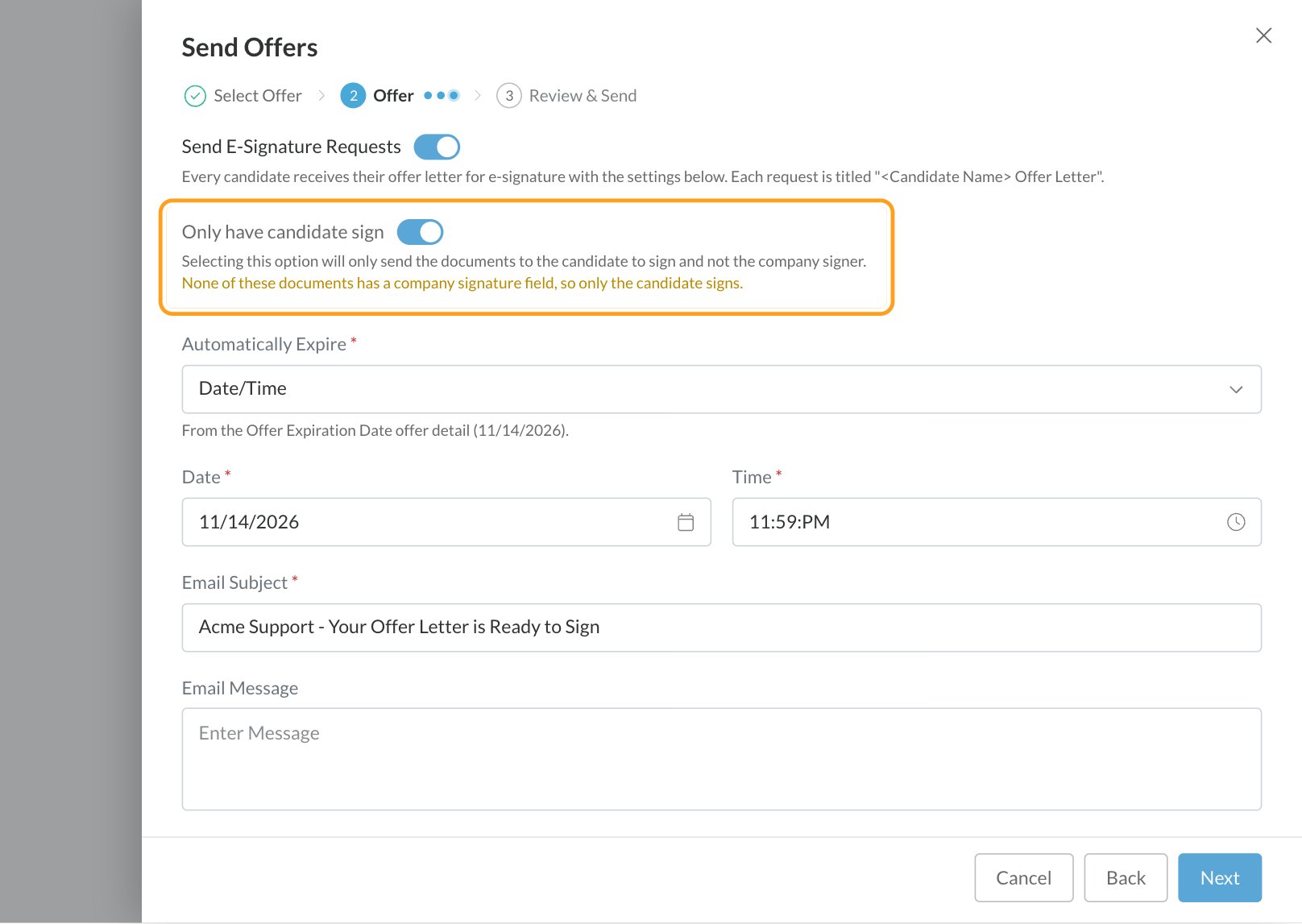
You can send the signature request in two ways:- As part of Send Offer: the e-signature part of the Offer step in the Send Offers window (the last dot next to your Offer activity’s name), for one candidate or a group.
- From the Offer tab: once the documents are generated or uploaded, click Send request in the card’s E-Signature section. In the Offer E-signature window, choose the options below and a Title for the request, click Preview to check the documents as they’ll be signed, then click Send Offer.
Track signatures
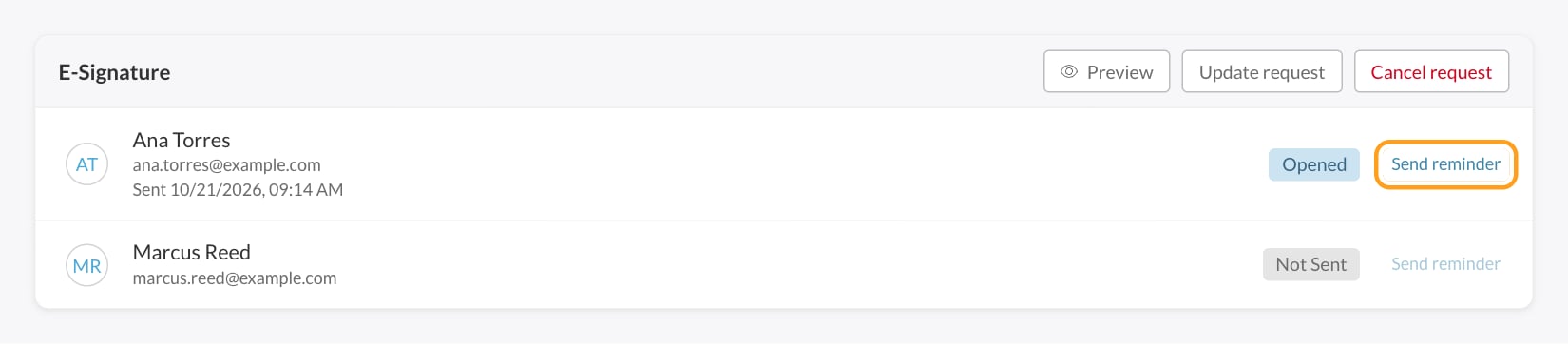
The E-Signature section of the offer’s card on the Candidate Application shows each signer and their status:
With Candidate First or Company First, only the first signer is emailed at the start. The second is emailed automatically when the first finishes. With Send at same time, both are emailed at once.
Remind signers
- Click Send reminder next to a signer to email them again.
- Some accounts can also send reminders automatically: open the job req’s Offer activity settings in its workflow and turn on Auto reminders under Reminders, then choose the Days before first reminder and how often to Repeat reminder. Automatic reminders depend on your e-signature setup and aren’t available on every account; if you don’t see Reminders there, use Send reminder.
Change or cancel a request
- Preview shows the request as it was prepared for signing.
- Update request reopens the Offer E-signature window so you can change the signers or settings of a request that hasn’t been completed, preview it and send it again.
- Cancel request voids the request. The signers are removed and the offer becomes Offer Canceled. You can send a new request at any time.
When everyone signs
- Each signed document is saved on the offer under Documents, plus one combined Signed package (all documents) PDF.
- The offer becomes Offer Accepted.
- The signing is recorded in the candidate’s activity history.
What candidates see
- An email from your company, with the job title, a link to sign, your message, and the expiry date if there is one.
- One signing link for the whole offer. They read each document and sign wherever there’s a signature field, on a computer or phone.
- Documents that don’t need a signature, like a benefits guide, are there to read in the same session.
- An option to decline instead of signing.
- A confirmation email once everyone has signed, with a copy of the signed documents attached.
Customize the candidate’s email
- Go to Settings, then Templates, then E-mail Template, and open the System Emails tab.
- Open the Offer E-Signature Candidate template.
- Edit the subject and body, then click Save. See Email templates.
If your account uses DocuSign
Some accounts send e-signatures through DocuSign. The workflow is the same: send, track and receive the signed letter back automatically. These envelopes include the offer letter only; supporting documents in the package aren’t sent. DocuSign sends the signing email itself, using the Email Subject and Email Message you enter, so the Offer E-Signature Candidate template doesn’t apply.E-signature credits
Each signature request uses your account’s e-signature credits. You can see your balance under Settings, then Add-Ons. When you run out, you’ll see a message on the offer and can’t send new requests until more credits are added. When you send offers in bulk, Journeyfront warns you if you have fewer credits than candidates. See Add-ons.FAQ
Can the candidate sign several documents at once?
Can the candidate sign several documents at once?
Yes. Every document in the offer package goes out in one envelope and is signed in one session.
Can a PDF be signed?
Can a PDF be signed?
No. PDFs are included for the candidate to read. Anything that needs a signature must be a Word template with signature fields. See templates.
Can I send an offer to just the candidate, with no company signer?
Can I send an offer to just the candidate, with no company signer?
Yes. Turn on Only have candidate sign. In Send Offers, it’s already on when no document has a company signature field.
What if the candidate declines or the link expires?
What if the candidate declines or the link expires?
Declining sets the offer to Offer Declined. Expiry sets it to Offer Canceled. Both are recorded in the activity history, and you can send a new request.
Where are the signed documents?
Where are the signed documents?
On the Offer tab of the Candidate Application, under Documents: each signed document on its own, plus the combined PDF. They stay there for your records.
The candidate signed a paper copy. How do I record it?
The candidate signed a paper copy. How do I record it?
In the offer’s Documents section, click Upload, choose the file and tick This is a signed copy. Then record their answer with Accept. See Send an offer.
How do I turn on e-signatures?
How do I turn on e-signatures?
E-signatures are an add-on. Ask your Customer Success Manager.
Related
Send an offer
Create and send one candidate’s offer.
Offer letter and document templates
Add signature fields to your templates.
Offer packages
What goes in the envelope, and in what order.
Add-ons
E-signature credits and other add-ons.