

Who can do this: Admins with Company Settings Access set up offer fields and templates. Admins, or users with the Offer Packages permission, build offer packages. Users with the View and Send Offers permission send offers to candidates.Availability: Sending offers for signature uses the E-Signatures add-on and e-signature credits. Ask your Customer Success Manager.
Journeyfront takes a candidate from “we want to hire you” to a signed offer without leaving your applicant tracking system (ATS). You set up your offer terms and documents once. After that, every offer starts pre-filled, personalized for the candidate and ready to sign, whether you’re sending one offer or offers for a whole hiring class.
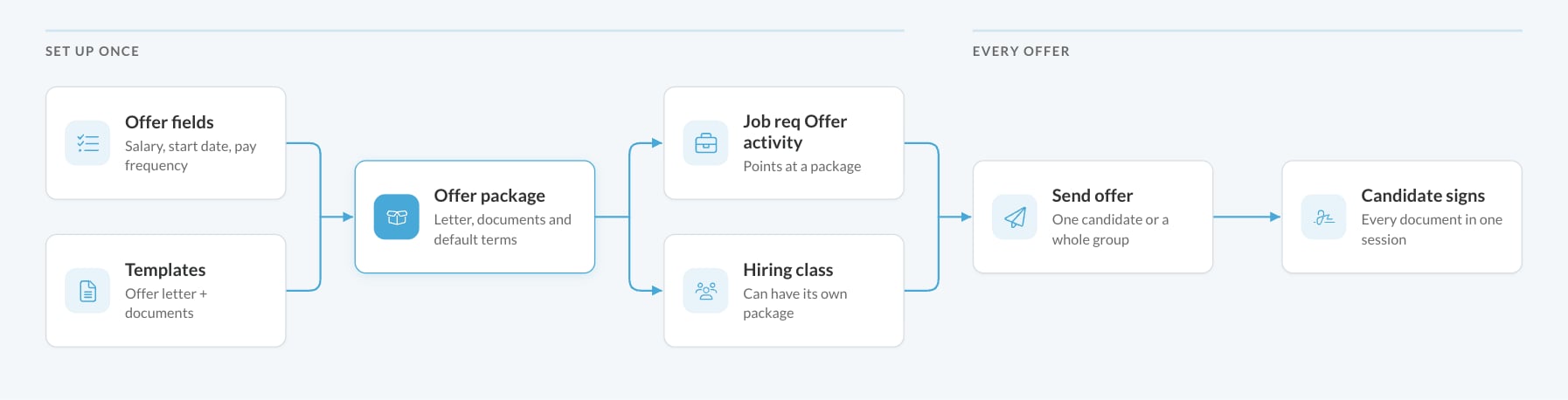
How the pieces fit together
1
Offer fields define the terms
Offer fields are the terms of an offer, such as salary, start date and pay frequency. Each one has a merge key, like
{{SALARY}}, that places its value in your documents. Candidate, job req, hiring class and company details have keys too. See Offer fields and merge keys.2
Templates hold your documents
Your offer letter, and anything that goes with it (an NDA, an agreement, a benefits guide), are Word files with merge keys where the details belong and signature fields where people sign. A document that’s only there to read can also be a PDF. See Offer letter and document templates.
3
Offer packages bundle them
An offer package saves one offer letter, its supporting documents and the default terms under one name. You can lock any default so it can’t be changed on an individual offer. See Offer packages.
4
Packages connect to your hiring
Point a job req’s Offer activity at a package. A hiring class can have its own package, so each class gets its own pay rate, schedule and documents from the same job req.
5
You send, the candidate signs
Send one offer from the Candidate Application, or send offers to a whole group at once. The candidate gets one email and signs every document in one session, and the signed copies come back to the Candidate Application. See Send an offer, Send offers in bulk and E-signatures.
Who does what
FAQ
Do I need e-signatures to use offers?
Do I need e-signatures to use offers?
No. You can create the offer, generate or upload the documents, and record the candidate’s answer yourself with Accept or Decline. E-signatures let the candidate sign online and update the offer automatically. See E-signatures.
Can different hiring classes on one job req get different offers?
Can different hiring classes on one job req get different offers?
Yes. Give each hiring class its own offer package. One Offer activity on the job req serves every class, and each candidate’s offer starts from their class’s package. See Offer packages.
Where do I see a candidate's offer?
Where do I see a candidate's offer?
Open the Candidate Application and click the Offer tab. It shows the offer terms, the documents, the signature status and the candidate’s response. See Send an offer.
Can I put other candidate details in an offer letter?
Can I put other candidate details in an offer letter?
Yes. Candidate, job req, hiring class and company details are built in, and any personal or application field can be given a merge key so its value appears in your documents. See Offer fields and merge keys.
Related
Offer fields and merge keys
The terms of an offer, and the keys that fill your documents.
Offer letter and document templates
Upload the Word files your offers are built from.
Offer packages
Bundle a letter, documents and default terms.
Send an offer
Send and manage one candidate’s offer.
Send offers in bulk
Send offers to a whole hiring class at once.
E-signatures
How candidates sign, and how you track it.