

Who can do this: Admins with Company Settings Access upload and manage templates. Users with the Offer Packages permission can see and preview templates while building a package, but can’t upload or change them.
Letters, documents and PDFs
A template with at least one signature field shows an E-Signature chip. One without shows No signature and goes out with the offer for the candidate to read.
Create a template
1
Design it in Word
Build the letter or document in Microsoft Word, with your logo, headers, tables and styling.
2
Add merge keys and signature fields
Type merge keys in double curly braces where values should appear, such as
{{CANDIDATE_NAME}}, {{SALARY}} or {{HIRING_CLASS_START_DATE}}. Add signature fields where people sign, such as {{CANDIDATE_E_SIGNATURE}}. Save the file as .docx.3
Open the right templates page
Go to Settings, then Offers. Choose Offer Letter Templates for a letter, or Document Templates for a supporting document.
4
Upload the file
Click Add Offer Letter Template or Upload Document and choose the file. The Template Name fills in from the file name; edit it if you like.
5
Check the detected fields
Journeyfront lists the signature fields and merge keys it found in the file. Anything it doesn’t recognize is called out, so you can fix a typo before the template is used.
6
Save, then add it to a package
Click Save. To use the template, add it to an offer package.
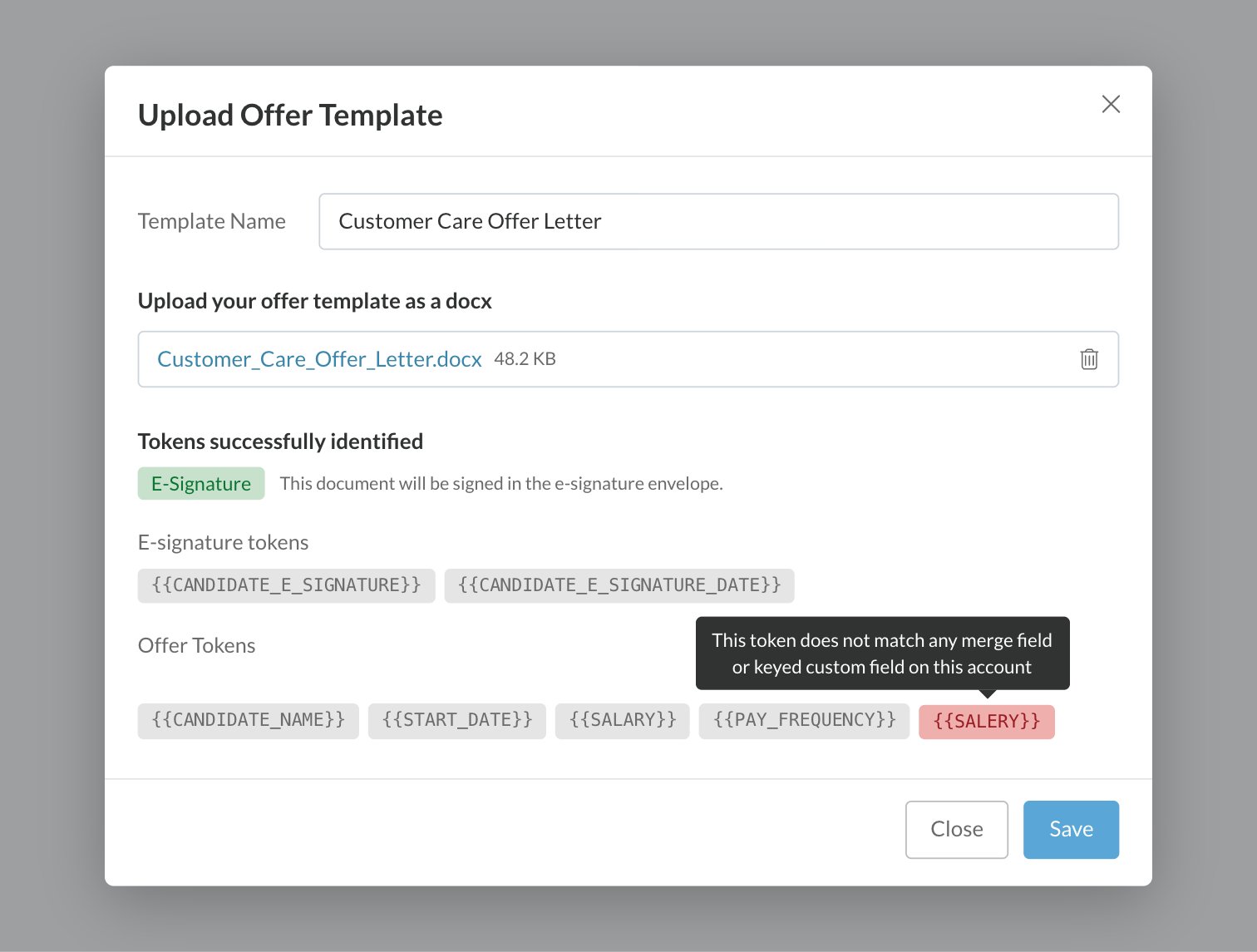
Signature fields
Signature fields mark where each person signs when the offer is sent for e-signature. They aren’t filled with a value; they become signing boxes.Manage templates
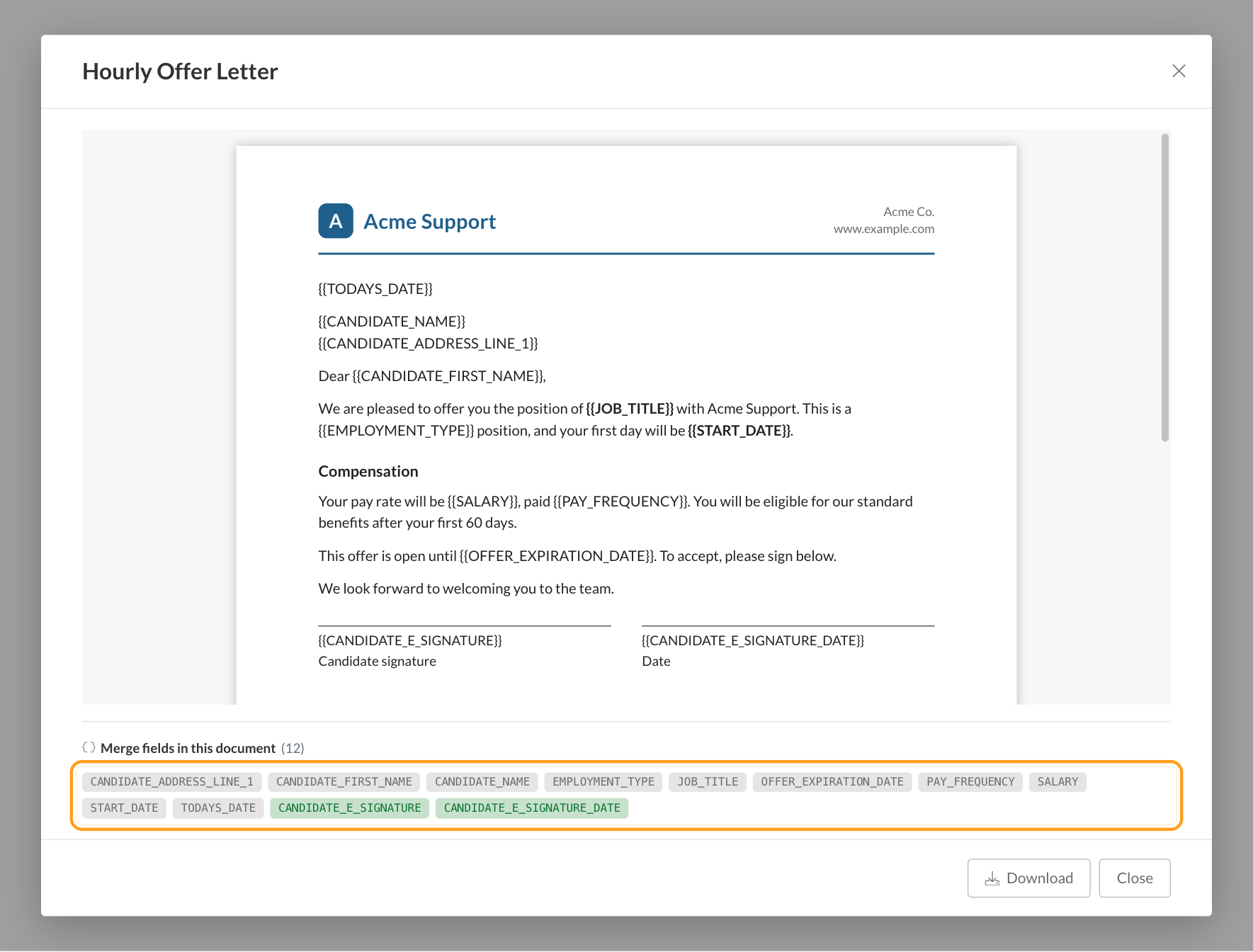
Each row shows the template’s name, its signature chip, Used By (the offer packages that include it; click to see them), and when and by whom it was last updated. Open the row menu to:- Preview the rendered document in your browser. PDFs open in your browser’s viewer. On the Document Templates page, the merge keys the file uses are listed under the preview, signature fields last. You see the same list when you preview a letter or document from the offer package editor or in Send Offers; the Offer Letter Templates page’s own preview shows the letter without it.
- Download the file.
- Edit to rename the template or upload a new version. A new upload re-detects the fields.
- Delete the template. You can’t delete a template that an offer package still includes.
Generate a document outside an offer
You can create a personalized document for a candidate without sending an offer, for example to print and sign in person. In the Documents section on the Candidate Application’s Details tab, click Generate Document, pick a document template, and Journeyfront fills it in for that candidate and saves it there. Nothing is sent for e-signature.FAQ
What file formats are supported?
What file formats are supported?
Offer letters must be Word (.docx) files. Documents can be Word files or PDFs. Every file must be under 5MB. PDFs are attached as uploaded and can’t hold merge keys or signature fields.
What's the difference between an offer letter template and a document template?
What's the difference between an offer letter template and a document template?
They’re the same kind of file with the same fields. The difference is their role in an offer package: exactly one letter, and any number of documents. Upload each file on the page that matches its role.
Can a candidate sign a PDF?
Can a candidate sign a PDF?
No. PDFs are included for the candidate to read. Anything that needs a signature must be a Word template with signature fields.
Why aren't my merge keys being detected?
Why aren't my merge keys being detected?
Check the format: two curly braces on each side, an upper-case key, and no spaces inside. Word sometimes splits a token internally when you edit part of it, so select the whole token, retype it and upload again. Keys in headers, footers or text boxes aren’t detected; move them into the body text. The upload screen lists anything it didn’t recognize.
Why can't I delete a template?
Why can't I delete a template?
An offer package still includes it. Click Used By to see which packages, point them at another template, then delete it.
What happens if a merge key has no value for a candidate?
What happens if a merge key has no value for a candidate?
Your team sees the gap before anything is generated, and either fills in the value or chooses to leave it blank in the documents. See Offer fields and merge keys.
Can I include images and logos?
Can I include images and logos?
Yes. Images, logos, headers, footers, tables and all Word formatting are kept in the generated document.
Related
Offer fields and merge keys
Every key you can use, and how to add your own.
Offer packages
Put your templates to work.
E-signatures
How the letter and documents are signed together.
Offers overview
How all the offer pieces fit together.