

Who can do this: Users with the View and Send Offers permission.Availability: Sending the offers for signature uses the E-Signatures add-on and one e-signature request per candidate. Without it, you can still create the offers and generate the documents in bulk. Ask your Customer Success Manager.
Before you start
- The job req needs an Offer activity in its workflow, pointing at an offer package. The package pre-fills the bulk flow, so offer day becomes review and send.
- If your hiring classes have their own packages, each candidate’s offer starts from their class’s package.
- All the candidates in one run must be on the same job req.
Send offers without moving candidates
Use Send Offers to create offers wherever the candidates are now. Nobody changes step.1
Select candidates
On the Candidates page or a job req’s candidates page, select candidates from the same job req and click Send Offers in the actions toolbar.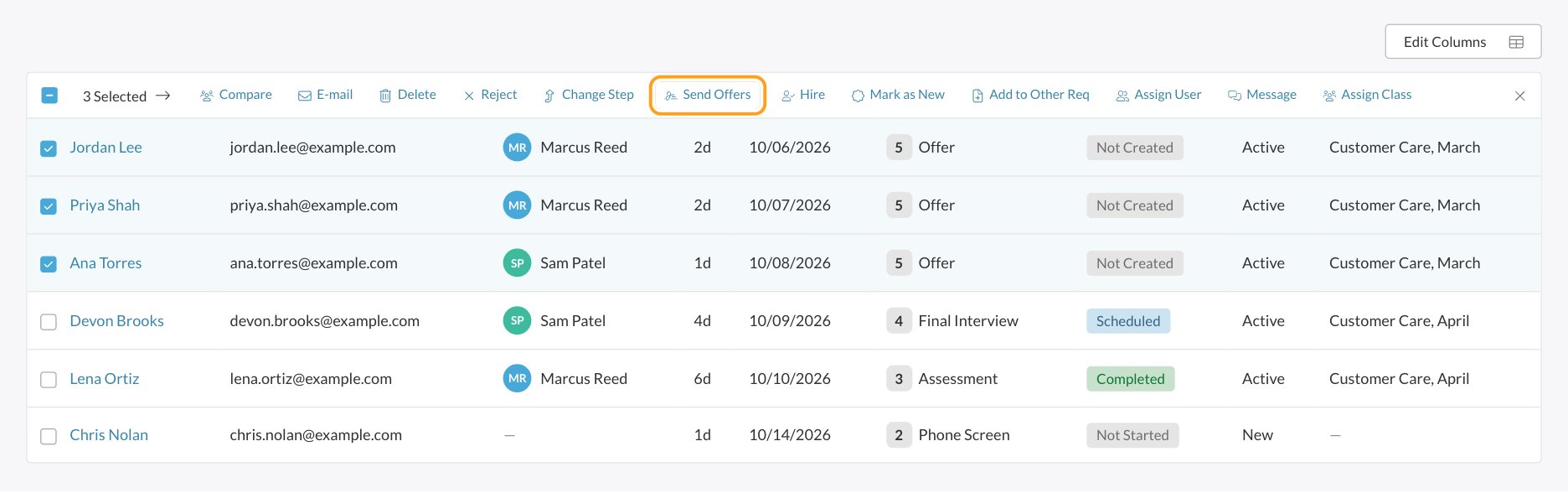
2
Select Offer
Choose the Offer Activity to create the offers on. Each option shows the step it belongs to. If the job req has only one, it’s already selected. A summary shows the offer package the offers start from.
3
Offer
The middle of the progress bar shows your Offer activity’s name, with small dots for its parts. First, enter the shared offer details once and review every candidate’s offer in the grid. See Review each candidate’s offer. Then choose the documents and, with the E-Signatures add-on, the signing options. These work the same as for a single offer; see Send an offer and E-signatures.
4
Review & Send
Check the summary and click Create & Send Offers (or Create Offers if you’re not sending for signature).
Send offers while moving candidates into your offer step
Use Change Step to move a group into the step that holds your Offer activity and create their offers in the same flow.1
Select candidates and click Change Step
On the Candidates page or a job req’s candidates page, select the candidates and click Change Step.
2
Choose the destination step
If the step contains an Offer activity, the Offer activity appears in the window’s progress bar.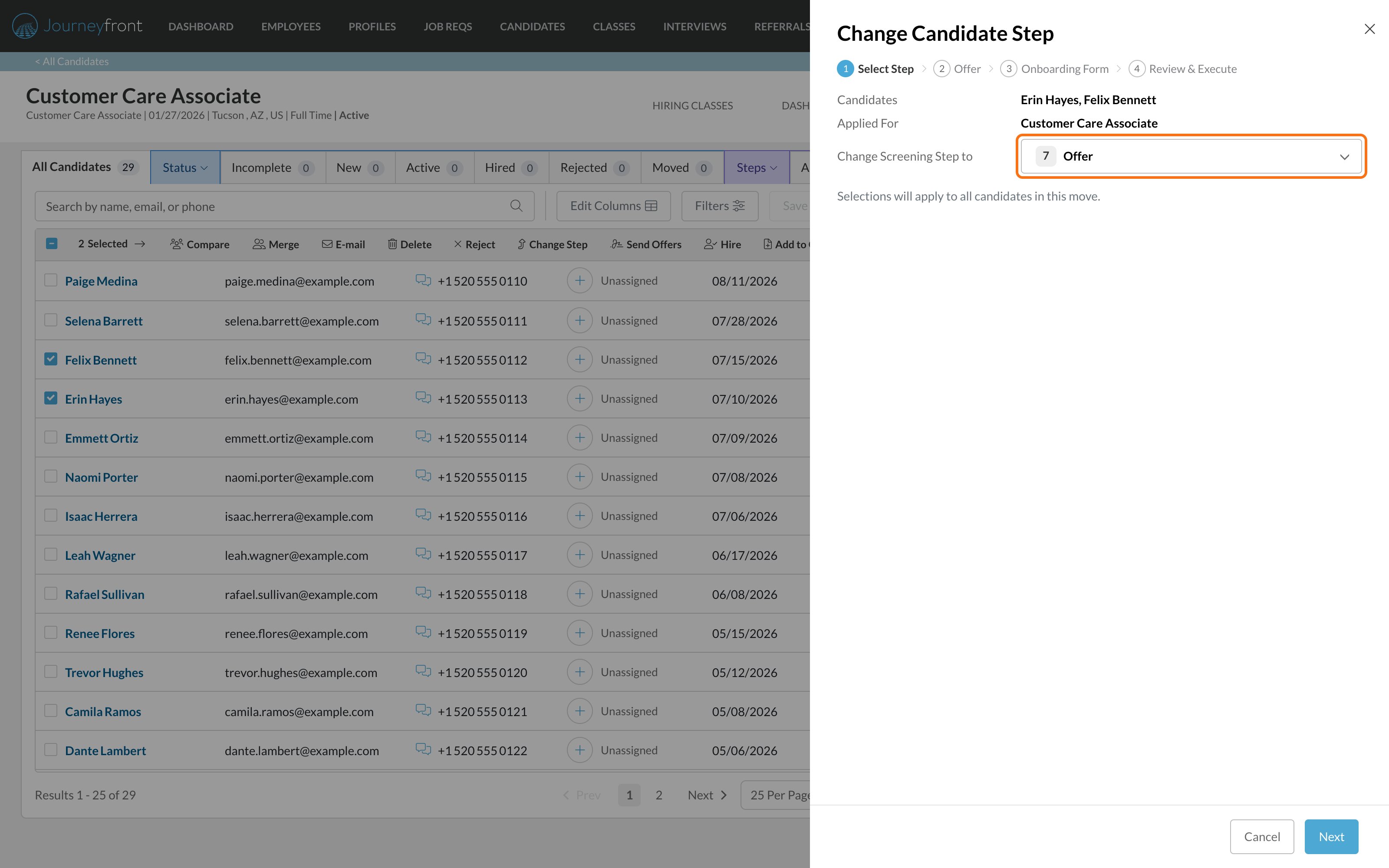
3
Turn on Bulk Create Offers
Click Next to reach the part of the window named after your Offer activity, and turn on Bulk Create Offers. A summary shows the offer package the offers start from. Leave it off to move the candidates without offers.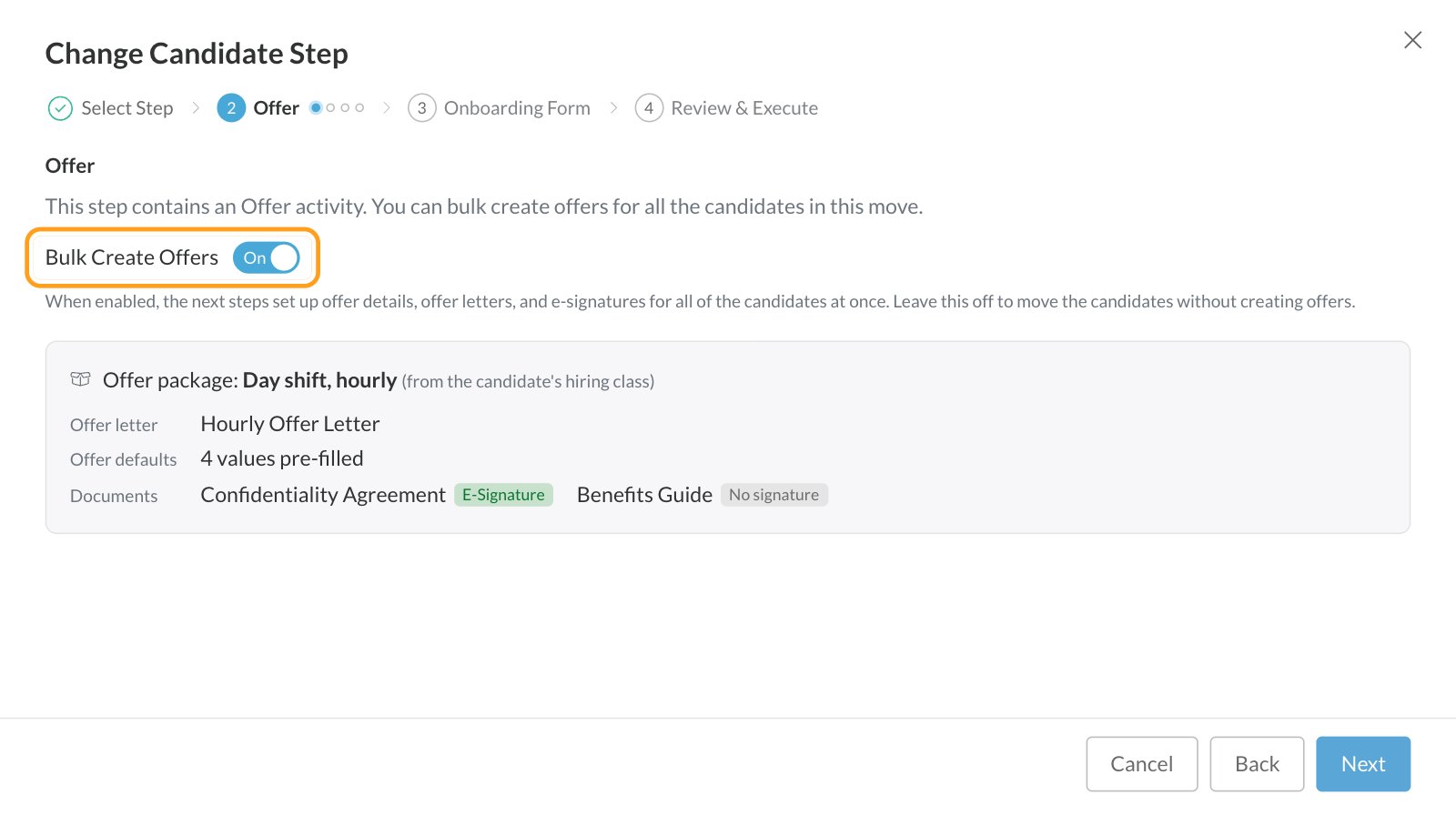
4
Offer details, documents and e-signature
Complete these the same way as with Send Offers.
5
Review & Execute
Check the summary and click Move Candidates & Create Offers. The candidates move first, then each offer is created.
Review each candidate’s offer
The offer details, the first part of the Offer step, are where the bulk flow saves you the most time.- Shared values: enter a term once, such as salary or start date, and it applies to everyone. Package defaults are already filled in, and locked ones can’t be changed. If the Offer activity isn’t locked, you can choose a different Offer package for the run.
- Review Candidate Offer Details: a grid shows every candidate’s exact values, including the candidate, job req and hiring class details that will go into the documents. You can fix a candidate’s phone, address and custom fields in the grid, and those changes save to their Candidate Profile.
- Include or exclude: use the checkboxes to leave anyone out of this run.
Change one candidate’s value
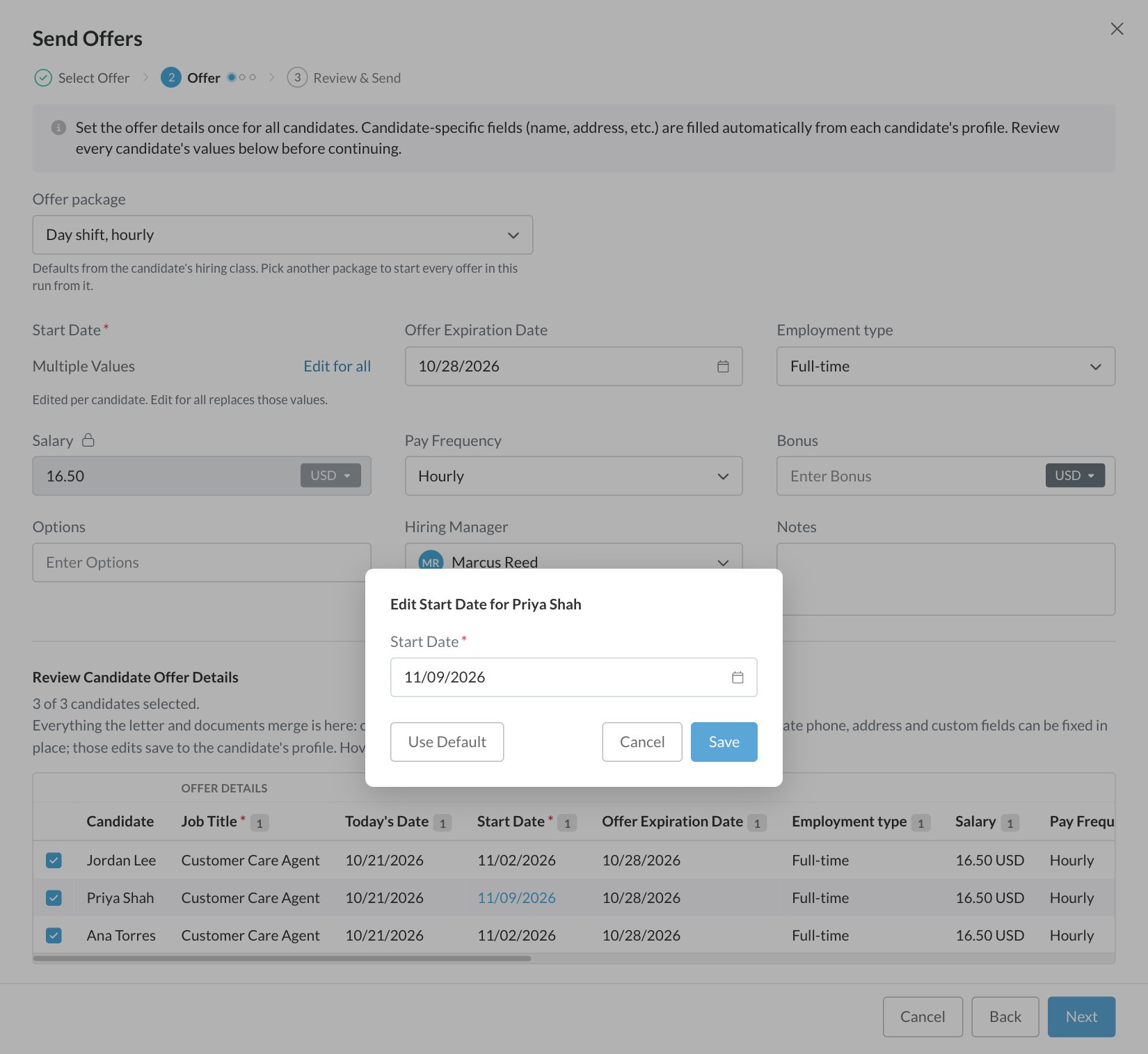
If one person in the group negotiated a different salary or start date, edit just their value:- Hover over the value in the grid and click it.
- Enter the new value in the editor that opens. It uses the same controls as the single offer form, like date pickers and currency selection.
- Click Save. The edited value shows in blue, and only that candidate is affected.
Candidates with different offer packages
When the selected candidates’ offers would start from different packages, for example because they’re in hiring classes with their own packages, Journeyfront shows each group with its package and candidates. Bulk offers use one package for everyone, so choose which group to create offers for in this run. Run the flow again for the other group. In a Change Step run, the candidates outside the chosen group still move; they just don’t get an offer yet.Who’s skipped automatically
- Candidates who already have an offer on the Offer activity are shown with their existing offer’s values greyed out, and skipped. A bulk run never overwrites an offer that’s already in progress.
- Candidates outside the chosen package group are skipped in that run.
Track the run
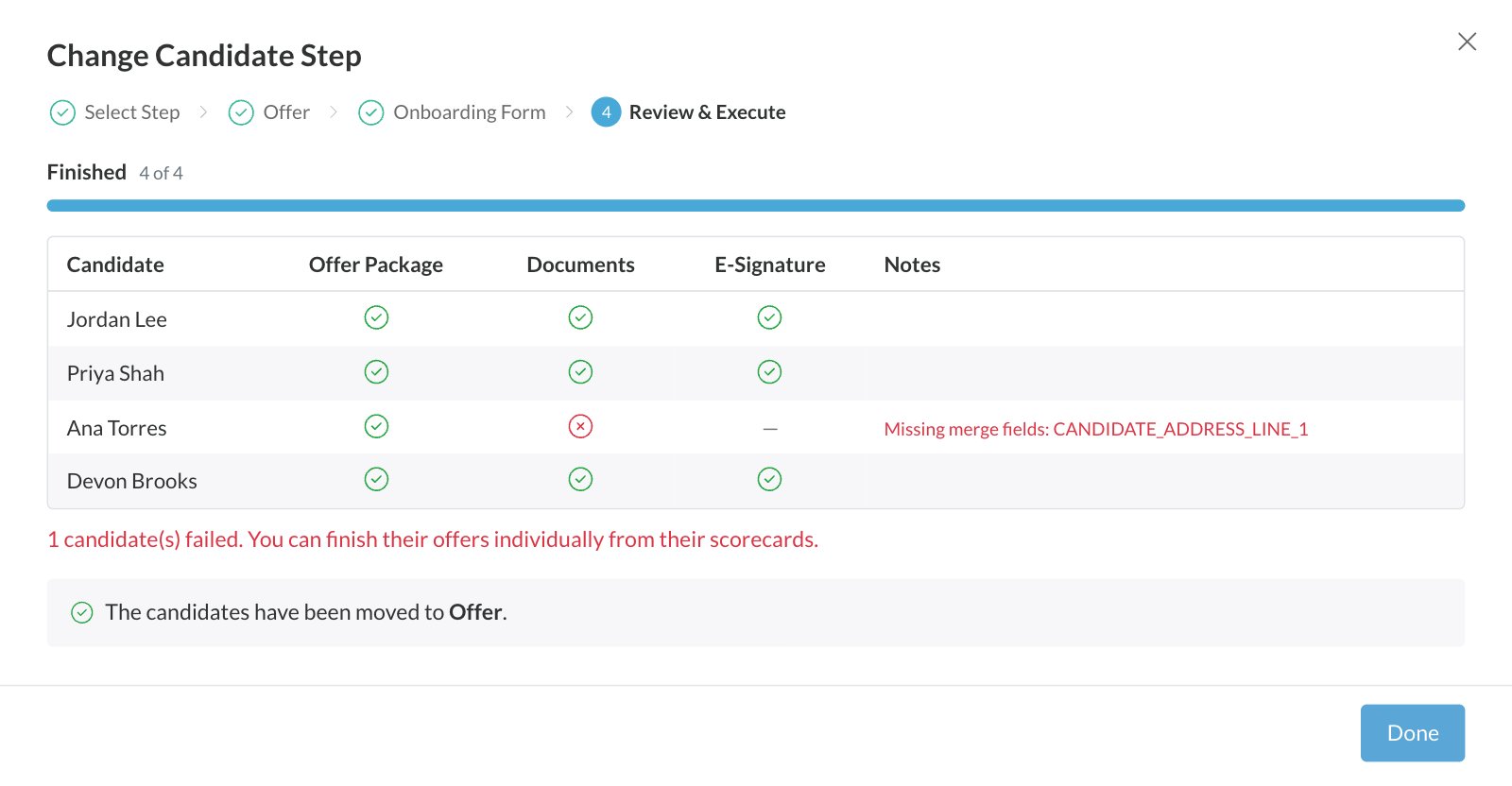
When you confirm, a progress table shows each candidate’s offer details, documents and e-signature request as they’re created. Each candidate is processed on their own: if something fails for one person, the table shows which part failed, and the rest of the group finishes normally. Finish any failed offer from that candidate’s Candidate Application.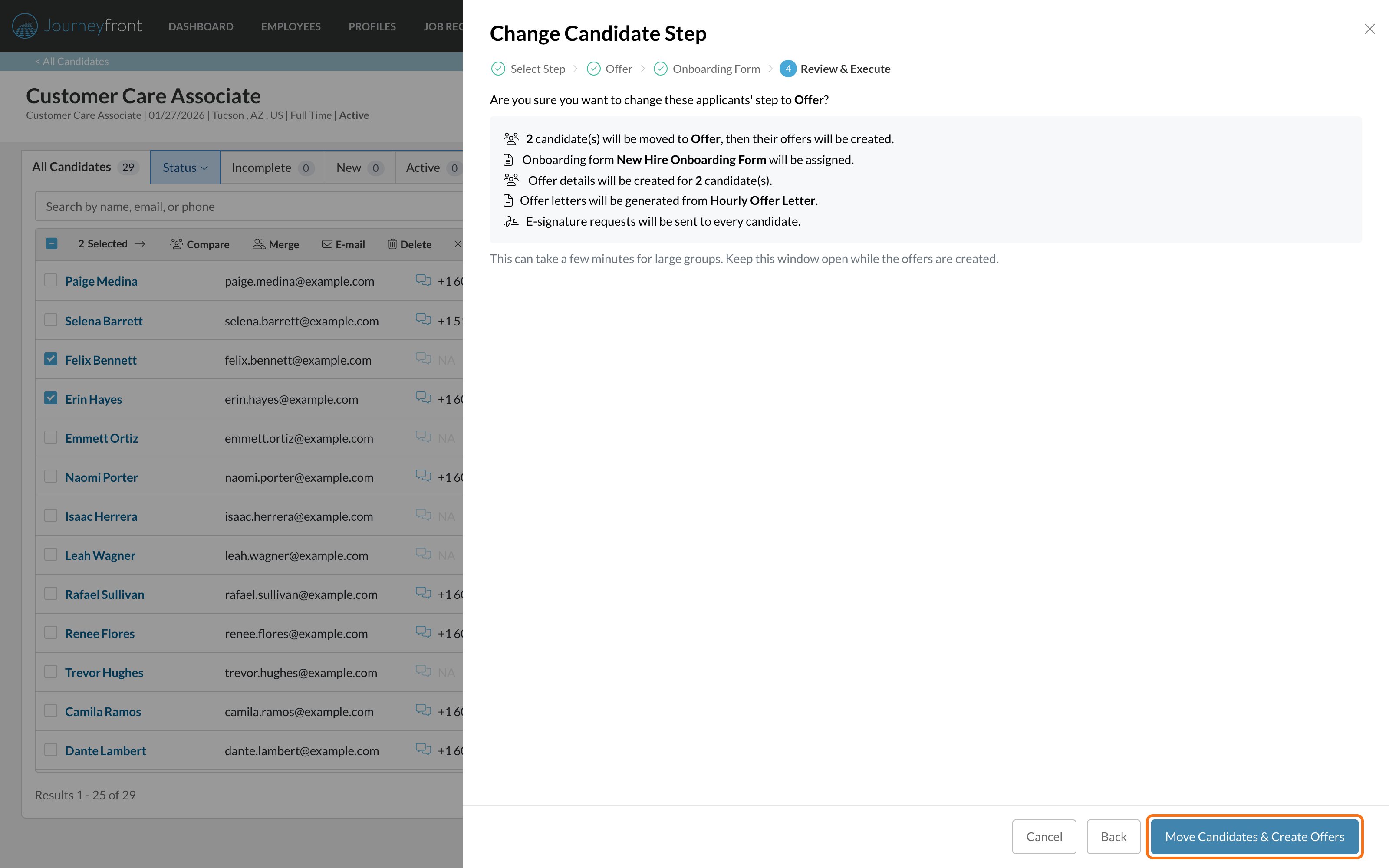
FAQ
Do the candidates have to be on the same job req?
Do the candidates have to be on the same job req?
Yes. Offers use the job req’s offer setup, so each run is for one job req. On the Candidates page, Send Offers appears once your selection is all from the same job req, and on the same version of its workflow. If some candidates are still on an older workflow version, run them separately.
How many candidates can I include at once?
How many candidates can I include at once?
Up to 500 candidates per run.
Does Send Offers move the candidates?
Does Send Offers move the candidates?
No. Send Offers creates and sends offers where the candidates are now. To move them and send offers together, use Change Step.
Do I have to send e-signatures in the same run?
Do I have to send e-signatures in the same run?
No. You can create the offer details only, or details plus documents, and send for signature later from each Candidate Application. Sending for signature needs the documents to be generated in the same run, since they’re what gets signed.
What if I don't have enough e-signature credits for everyone?
What if I don't have enough e-signature credits for everyone?
Journeyfront warns you in the e-signature part of the Offer step when you have fewer credits than candidates. Requests beyond your remaining credits won’t send. See E-signatures.
Are bulk offers different from offers sent one at a time?
Are bulk offers different from offers sent one at a time?
No. They use the same offer fields, packages, templates and e-signature setup, and they appear on each candidate’s Offer tab exactly like an offer sent on its own.
Related
Send an offer
The same flow for one candidate, and managing an offer afterward.
Offer packages
Give each hiring class its own terms and documents.
E-signatures
Signing options, tracking and credits.
Hiring classes
Group hires who start and train together.