

Who can do this: Anyone who can open the job req: its hiring team, and users whose security role has All Job Req Access.Availability: You can add candidates while the job req is Active.
Add one candidate
1
Open the Add New Candidate window
Open the job req, click Actions, then Add New Candidate.
2
Check the email
Enter the candidate’s Email and click Check Email. Journeyfront tells you whether this is a New User or an Existing User.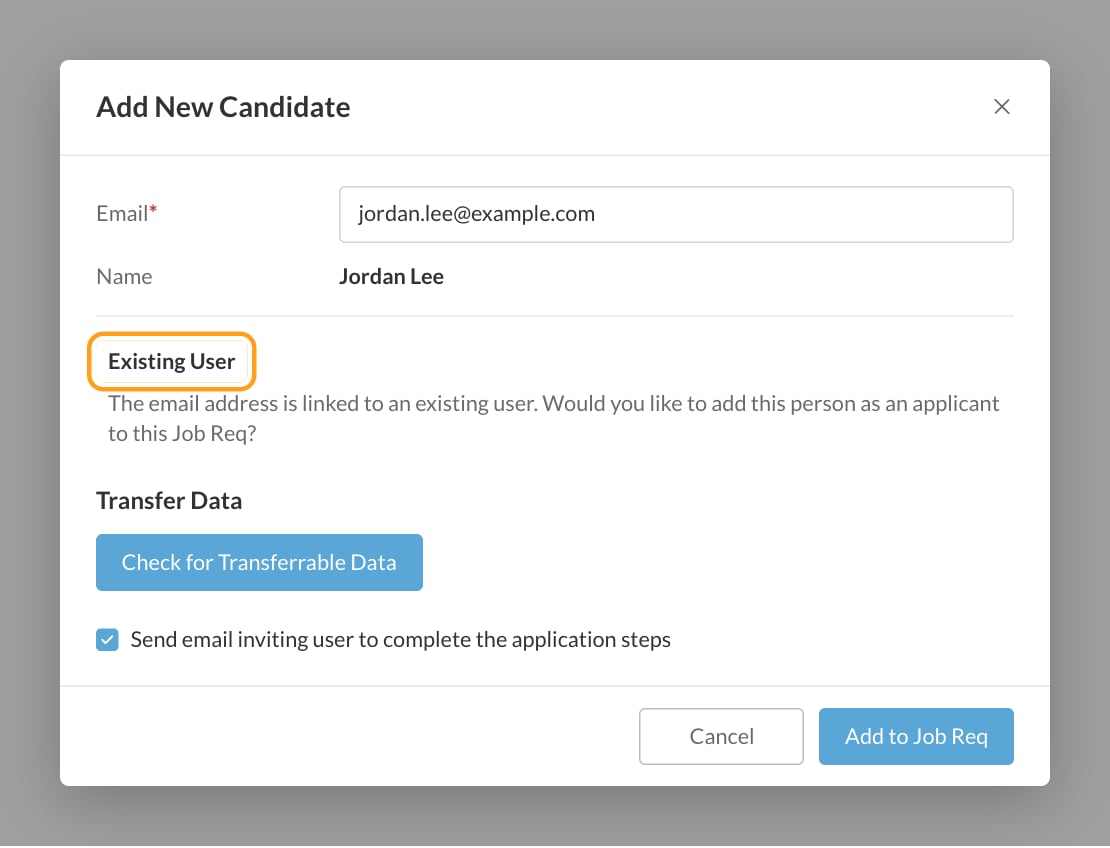
3
Fill in the details
- New User: enter their first and last name.
- Existing User: their name is filled in for you. If they’ve applied to this job req before, the window lists each application with its date and status.
4
Transfer earlier results (optional)
If the person already completed screening questions or tests on another job req, a Transfer Data section appears. Click Check for Transferrable Data to reuse those results here. See Transfer results to the new application.
5
Choose whether to email them
Tick Send email inviting user to complete the application steps to send them a link to continue. Leave it unticked if you’ll contact them another way.
6
Click Add to Job Req
The candidate appears on the job req’s Candidates tab.
Recover a deleted application
If a candidate’s application on this job req was deleted, Add New Candidate brings it back. Enter their email and click Check Email. The deleted application is listed with Recover deleted application next to it. Click it to restore the application.FAQ
Why can't I find Add New Candidate?
Why can't I find Add New Candidate?
It’s in the job req’s Actions menu, not on the Candidates page. Closed and archived job reqs don’t show it, and an Inactive job req shows a message that you can’t add candidates. Activate the job req first. See Job req statuses.
Does the candidate get an email?
Does the candidate get an email?
Only if you tick Send email inviting user to complete the application steps. Otherwise nothing is sent, and you can reach out however you like.
Can I set the source for candidates I add by hand?
Can I set the source for candidates I add by hand?
Not in the Add New Candidate window. After adding them, change the Source on the Candidate Application’s Details tab. See Edit candidate details.
Someone already applied to another job req. Should I add them again?
Someone already applied to another job req. Should I add them again?
Use Add to Job Req instead, so their earlier screening and test results can come with them. See Add a candidate to another job req.
Related
Invite candidates
Let candidates apply to a job req on their own.
Import candidates
Load a list of candidates into a job req.
Add a candidate to another job req
Consider someone for another role and reuse their results.
The Candidates page
Find and work with the candidates you added.