

Who can do this: Admins with the Company Settings Access permission manage the list of sources. Anyone who can edit a candidate can change that candidate’s source.
Sources and source types
The Sources page has two lists:- Custom Sources: sources your team added, such as a local college, an agency or a radio campaign.
- Default Sources: sources built into Journeyfront, such as Indeed, LinkedIn, ZipRecruiter, Referral, Internal Applicant and the Meta Lead Ad sources. You can turn these on or off, but not rename or delete them.
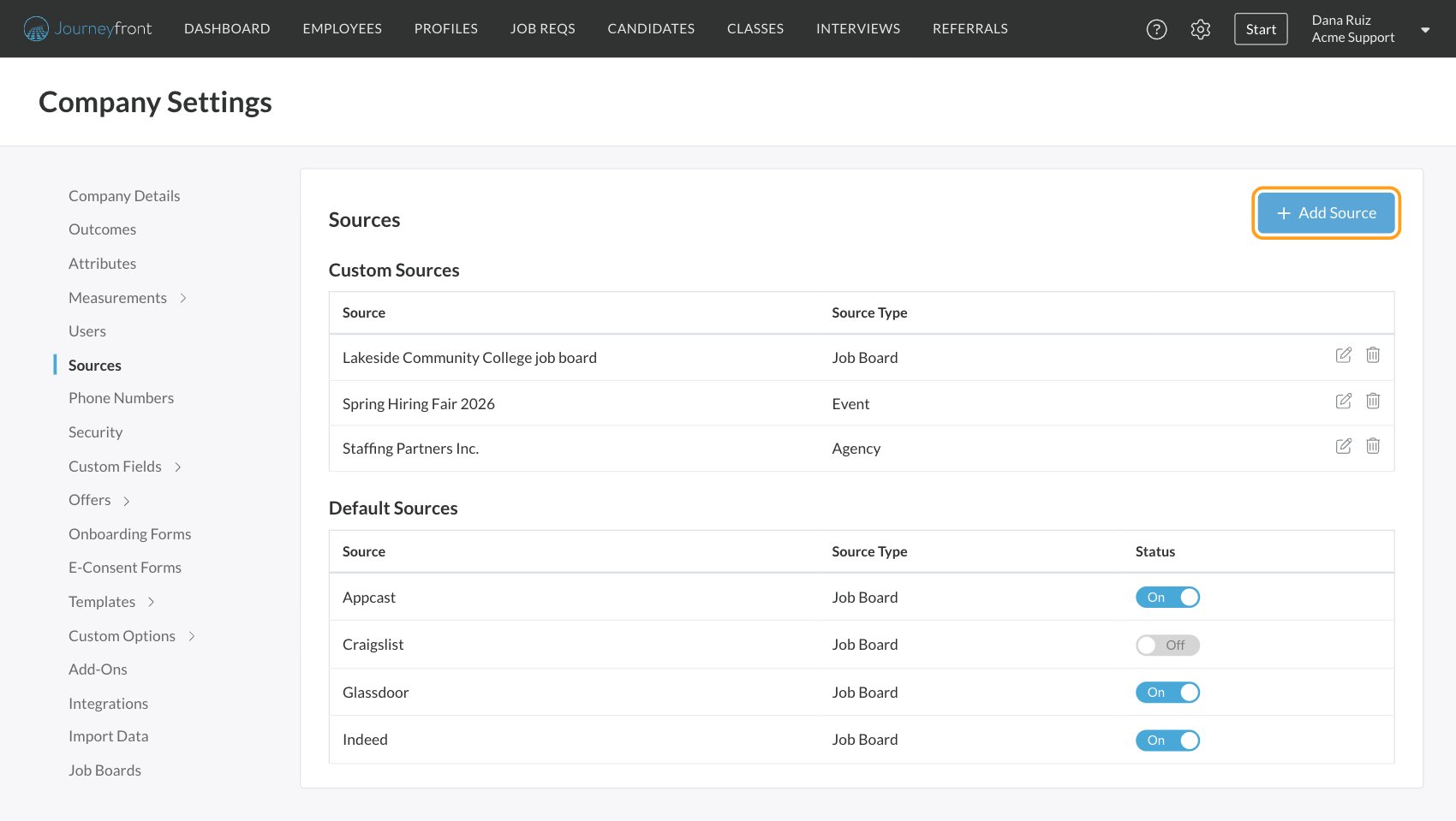
Add a custom source
1
Open Sources
Go to Settings, then Sources.
2
Click Add Source
The Add Source window opens.
3
Choose the type and name
Pick a Source Type, then enter the Source Name, for example “Spring Hiring Fair 2026”.
4
Click Save
The new source appears under Custom Sources, and your team can pick it straight away.
Edit or delete a custom source
- Edit: click the edit icon, change the Source Type or Source Name, and click Update. Candidates who already have the source show the new name.
- Delete: click the trash icon, then Delete. You can only delete a source that no candidate has. If any candidate has it, you’ll see “Cannot delete source because it is assigned to one or more candidates.”
Turn default sources on or off
Use the Status switch next to each default source. Turning a source Off removes it from the lists your team picks from, such as the Invite Candidates window, a candidate’s Details tab and the job board and referral portal settings. Turning a source off doesn’t change candidates who already have it, and links that already use it keep working.How a candidate’s source gets set
Some integrations can also send candidates with a source name that isn’t on your list yet. Journeyfront then adds that source under Custom Sources with the type Other. Check your list now and then, and give those sources the right type.
See or change a candidate’s source
Open the Candidate Application and go to the Details tab. The Application Details card shows the Source, plus the Job Board and Job Post the candidate applied through, when they came from a posting. To correct the source, choose a different one from the Source field. You can also change it right in the list on the Candidates page, by clicking a cell in the Source column. The change is recorded in the candidate’s activity history.See which sources work
Both Source Effectiveness dashboards let you switch between single sources and source types, and filter by dates, status and more.
FAQ
Why do some candidates have no source?
Why do some candidates have no source?
They applied through a link that didn’t carry one, for example a job req’s invite link copied without picking a Source, or a career site link shared without making a source link. Use a separate source link for each place you advertise. See Magic links.
Why can't I delete a source?
Why can't I delete a source?
Some candidates have it. Rename it instead, or turn it into the source you want to keep by changing its name and type. Default sources can’t be deleted; turn them off.
We have two sources for the same channel. How do I combine them?
We have two sources for the same channel. How do I combine them?
There’s no merge. Pick the one to keep, then change the source on the other’s candidates (on each Candidate Application’s Details tab, or in the Source column on the Candidates list). Once no candidate has the extra source, delete it.
Why does a candidate have a source that isn't on the Sources page?
Why does a candidate have a source that isn't on the Sources page?
Candidates who apply through a JobTarget posting get a source named after the job board they came from. Those sources are created automatically, don’t appear on the Sources page, and can’t be changed on the candidate.
Can I change a candidate's source after they apply?
Can I change a candidate's source after they apply?
Yes, on the Candidate Application’s Details tab or in the Source column on the Candidates list. Sources set by some integrations, like JobTarget, can’t be changed by hand. See Edit candidate details.
Does turning off a default source affect old candidates?
Does turning off a default source affect old candidates?
No. Candidates who already have it keep it, and it still appears in your reports and filters. It just stops appearing in the lists your team picks from.
Related
Magic links
Create links that tag candidates with a source.
Dashboards
Compare sources in Source Effectiveness.
Invite candidates
Pick a source for a job req’s invitation link.
Job boards (career site)
Your job boards and their source links.