

Who can do this: Anyone who can open the job req: its hiring team, and users whose security role has All Job Req Access. Job req dashboards don’t need Company Dashboard Access.
Open a job req’s dashboards
Click Job Reqs in the top navigation, open the job req and click its Dashboard tab. It opens on Overview. Click the other tabs to switch dashboards.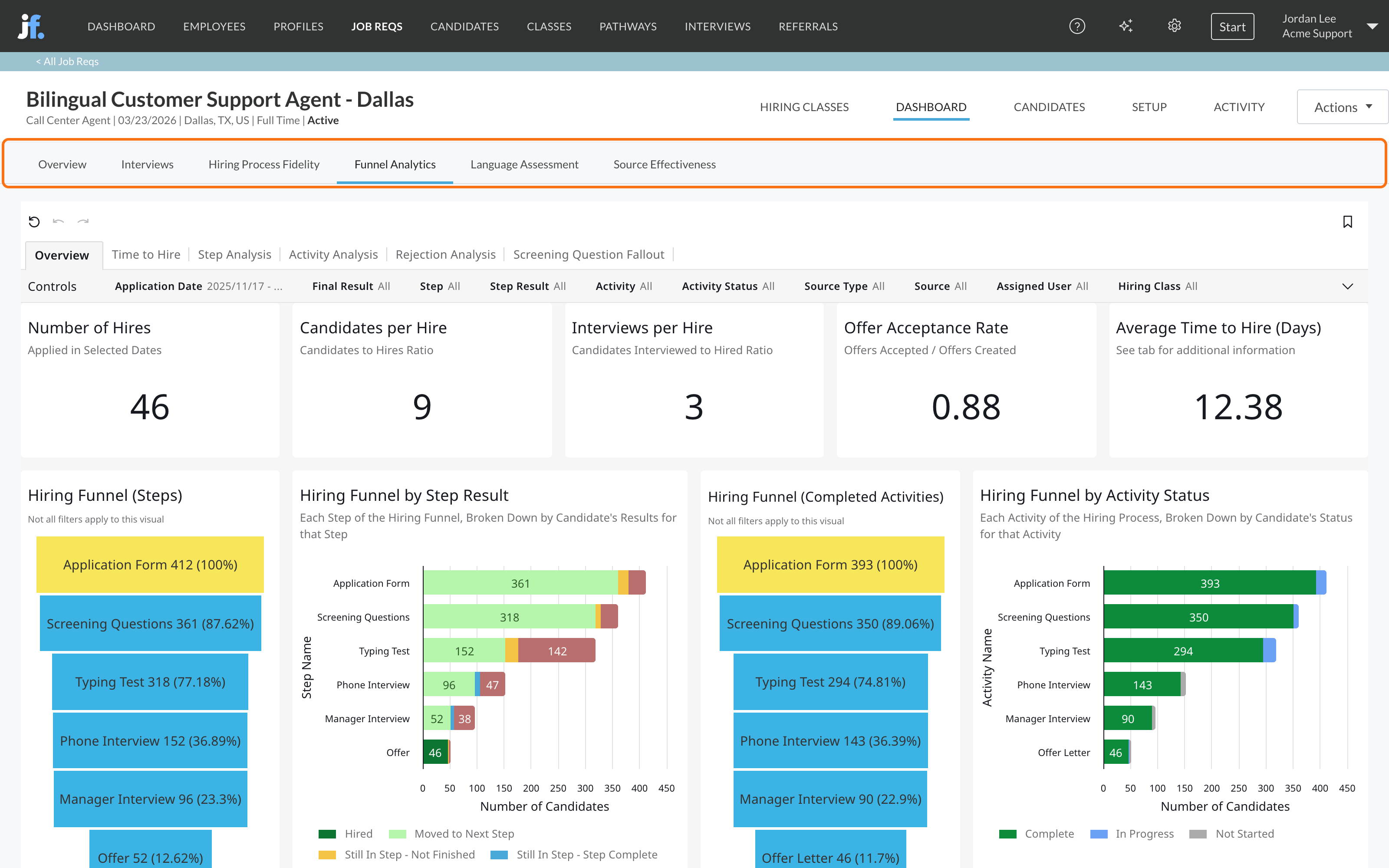
The tabs
Filter, bookmark and reset
Each tab has Controls at the top to filter it, for example by Application Date, Source Type or Source. Use the bookmark icon to save a set of filters and come back to it later, and the reset button to go back to the defaults. Bookmarks work the same as on company dashboards; see Save your filters as bookmarks.FAQ
Why don't I see a job req's Dashboard tab?
Why don't I see a job req's Dashboard tab?
You need access to the job req: be on its hiring team, or have All Job Req Access. If you can open the job req, the Dashboard tab is there.
The Language Assessment tab is empty.
The Language Assessment tab is empty.
It only has data when the job req’s workflow includes a language assessment and candidates have taken it. See Language assessments.
Why doesn't the dashboard match the Candidates tab?
Why doesn't the dashboard match the Candidates tab?
Dashboards count by the date and filters in their Controls. Clear the filters or match the date range before comparing.
Can I export a job req's data?
Can I export a job req's data?
For a spreadsheet of the job req’s candidates, open its Candidates tab and click Actions, then Export Data, or use Export Data in the job req’s own Actions menu. See Export data.
Related
Dashboards overview
Company-wide dashboards across all job reqs.
Funnel and drop-off
Read a job req’s funnel step by step.
Source effectiveness
Which channels bring in hires.
Export data
Download a job req’s candidates to a spreadsheet.