

Who can do this: Users with the Manage Job Req Settings permission add a language assessment to a job req. Anyone who can open a Candidate Application can see the results. The company-wide Language Assessment dashboard needs Company Dashboard Access.Availability: Language assessments are an add-on that uses credits, from Journeyfront’s partners Emmersion and Hallo. They appear in the workflow editor once a partner is turned on for your account. Ask your Customer Success Manager.
What’s measured
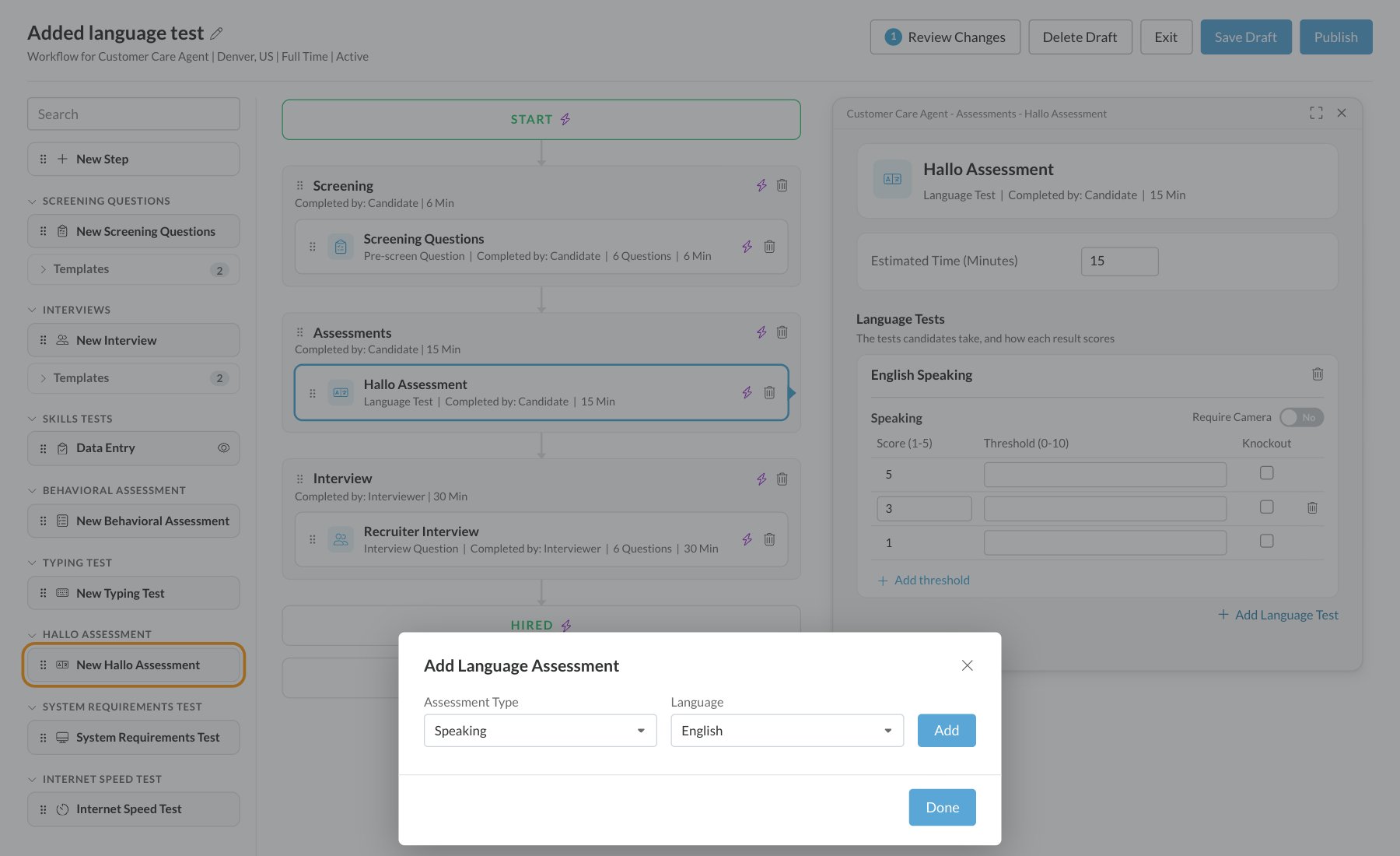
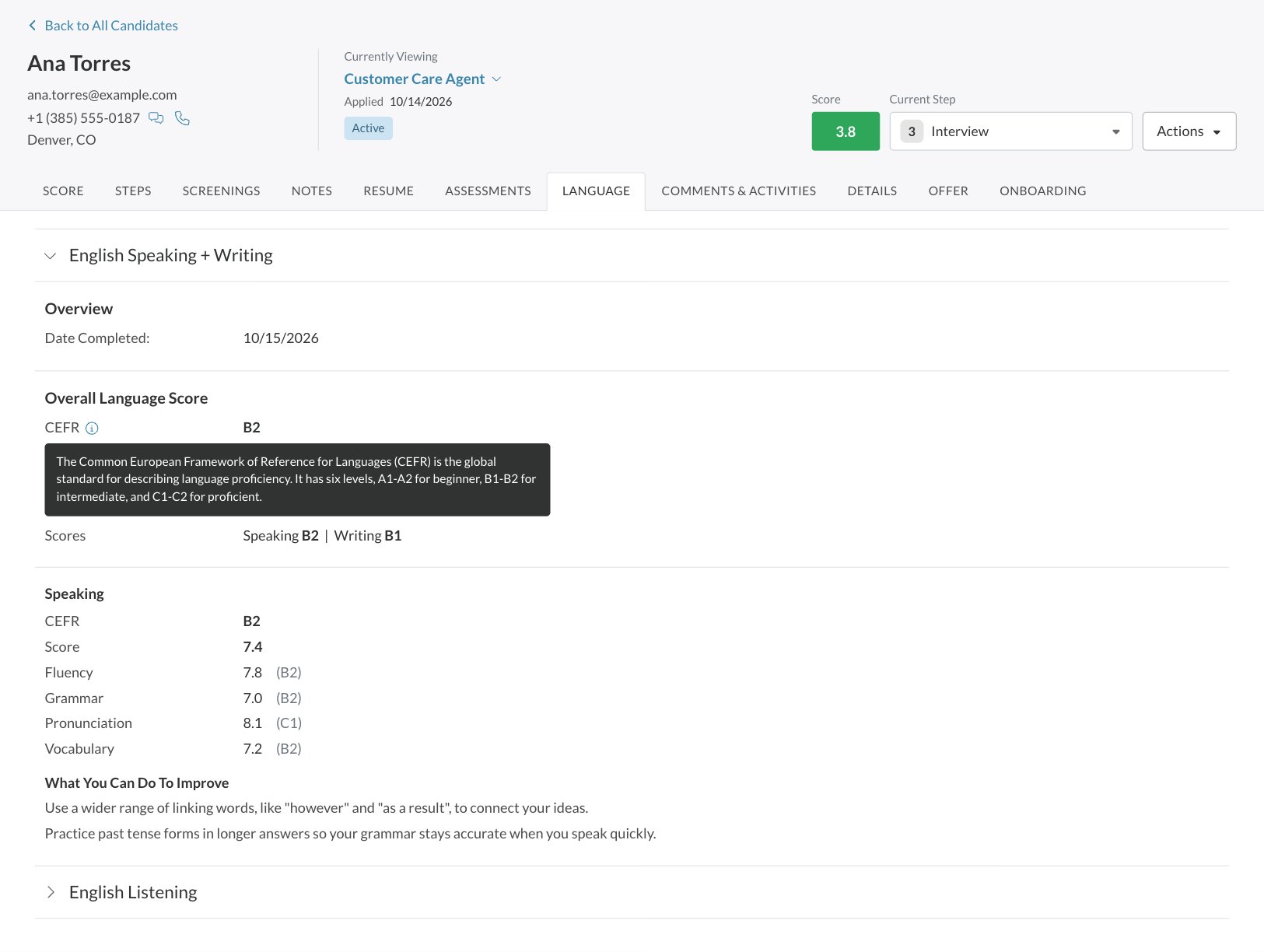
Results use the CEFR (Common European Framework of Reference for Languages), the global standard for describing language proficiency. It has six levels: A1 and A2 for beginners, B1 and B2 for intermediate, and C1 and C2 for proficient speakers. Each partner also gives its own score. With Hallo, you choose the Assessment Type and the Language for each test:
With Emmersion, you pick from the list of tests available to your account.
Each test uses add-on credits. See Add-ons and credits to check your balance.
Add a language assessment to a job req
1
Open the workflow editor
Open the job req and go to Setup, then Workflow. Click Create New Version (or Edit Draft if there’s already a draft).
2
Add the activity
In the building blocks on the left, find your partner’s group, HALLO ASSESSMENT or EMMERSION ASSESSMENT, and drag New Hallo Assessment or New Emmersion Assessment into the step where candidates should take it.
3
Choose the test
Click the activity to open its settings on the right. Under Language Tests, click Add Language Test.
- Hallo: in Add Language Assessment, choose an Assessment Type and a Language, click Add, then Done.
- Emmersion: in Select Assessments to Add, click Add next to a test, then Close.
4
Check the scoring
Each test lists what it measures, with score settings for this job req: which results earn which 1 to 5 score, and whether a result can knock a candidate out. Adjust them if this job needs a different bar.
5
Save, then publish
Set Estimated Time (Minutes) and click Save Draft; you stay in the editor. When you’re ready for candidates to see it, click Publish. See Publish workflow changes.
What candidates see
- The test opens from their application. Hallo tests run inside the candidate’s Journeyfront application. Emmersion tests take the candidate to Emmersion’s site.
- Device needs: speaking tests need a microphone, and listening tests need speakers or headphones. Candidates may also be asked to allow camera access.
See a candidate’s results
Open the candidate’s Candidate Application and select the Language tab. It appears once the candidate has a language assessment. Depending on the partner, you’ll see:- An overall score and CEFR level, plus the partner’s own score.
- Scores for each skill or part, such as fluency, grammar, pronunciation and vocabulary.
- A description of the candidate’s level, and suggestions for what they can do to improve.
- The candidate’s spoken and written responses to open questions, so you can listen and read for yourself.
If the scores are missing
If the Language tab says the assessment is completed but scores are missing, click Refresh Score at the top of the tab to fetch them from the partner. If they still don’t appear, contact Journeyfront support with a link to the Candidate Application.Language assessment dashboards
To see results across many candidates, use the Language Assessment dashboards:- For one job req: open the job req, click the Dashboard tab, then Language Assessment. See Job req dashboards.
- Across your company: click Dashboard in the top navigation and choose Language Assessment from the dashboard menu. See Dashboards overview.
FAQ
Why don't I see a language assessment in the workflow editor?
Why don't I see a language assessment in the workflow editor?
No language assessment partner is turned on for your account yet. Language assessments are an add-on; ask your Customer Success Manager.
The candidate finished, but there are no results. What should I do?
The candidate finished, but there are no results. What should I do?
Results come from the partner. If the Language tab says the assessment is completed but scores are missing, click Refresh Score. If they still don’t appear, contact support with a link to the Candidate Application.
Which languages can we test?
Which languages can we test?
It depends on the partner. With Hallo, the Language list in Add Language Assessment shows every language available for the assessment type you choose. With Emmersion, the test list shows what’s available to your account.
Can a candidate retake a language assessment?
Can a candidate retake a language assessment?
Language assessment scores can’t be deleted from the Candidate Application, so the usual retake option isn’t available. Contact your Customer Success Manager if a candidate needs to take it again.
Does each test use a credit?
Does each test use a credit?
Yes, language assessments use add-on credits. See Add-ons and credits.
What does CEFR mean?
What does CEFR mean?
The Common European Framework of Reference for Languages, the global standard for language proficiency. A1 and A2 are beginner levels, B1 and B2 intermediate, and C1 and C2 proficient.
Related
Add-ons and credits
Check your language assessment credits.
Job req dashboards
Language results for one job req.
Dashboards overview
Company-wide reporting, including language results.
Assessments overview
Every assessment and what candidates need.