

Who can do this: Users with the Manage Job Req Settings permission add assessments to a job req’s workflow. Anyone who can open a Candidate Application can see the results.Availability: Language assessments and the System Requirements Test are add-ons, and skills tests are made available to your account by Journeyfront. Everything else is included. Ask your Customer Success Manager about add-ons.
Choose an assessment
Interviews are activities too, completed by your interviewers rather than the candidate. See Set up an interview activity.
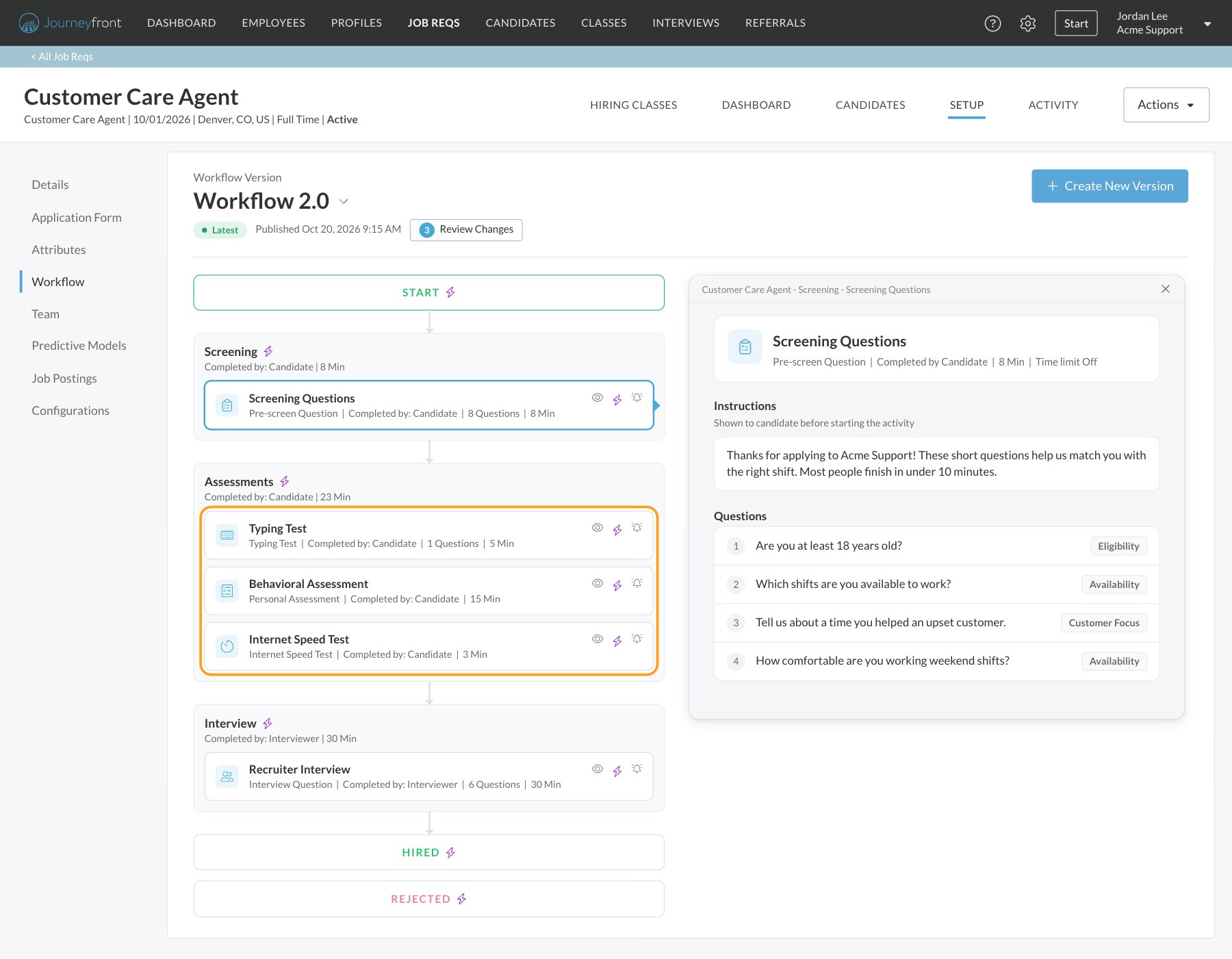
Add assessments to a workflow
Every assessment is added the same way, in the job req’s workflow editor:1
Open the workflow editor
Open the job req and go to Setup, then Workflow. Click Create New Version (or Edit Draft if there’s already a draft).
2
Drag in the assessment
Find the assessment in the building blocks on the left (use Search to find one quickly) and drag it into a step.
3
Set it up
Click the activity to set it up in the panel on the right. Each assessment’s page covers its settings.
4
Save, then publish
Click Save Draft to save your changes; you stay in the editor. When you’re ready for candidates to see it, click Publish. See Publish workflow changes.
How candidates take assessments
- In their application. Candidates see the activities in their current step and work through them in order, unless the job req allows them to take activities out of order. Your team, or an automation rule, moves them to the next step. (This is the job req’s Gate Steps setting, on by default. See Job settings.)
- At their own pace. Candidates can come back to their application between activities. If they leave screening questions partway, their answers are saved so they can pick up where they left off.
- In their language. Candidates can switch the page between English, Spanish and French. Your own questions and text appear as you wrote them.
Supported browsers
Candidates and your team should use an up-to-date version of Chrome, Edge, Firefox or Safari. Older browsers, such as Internet Explorer, aren’t supported.- On an iPhone or iPad, candidates need to use Safari to record video answers.
- For video and audio answers and speaking tests, the browser needs permission to use the camera and microphone. Candidates should allow it when asked.
FAQ
A candidate says they're stuck. What should I check?
A candidate says they're stuck. What should I check?
- Have they finished their current step? Candidates only see the activities in their current step. Once those are done, they wait for your team or an automation rule to move them on. See Move candidates through steps.
- Are they on the right device? The typing test needs a physical keyboard, and the System Requirements Test needs a computer.
- Did they allow the camera and microphone? Video and audio answers and speaking tests need both. On an iPhone or iPad, video answers need Safari.
- Is their browser up to date? Ask them to update it, or try Chrome, Edge or Firefox, and refresh the page.
- Get Help: if it’s turned on for your account, candidates can click Get Help on their application, then Scan & Fix Technical Issues, to check their connection, camera, microphone and browser.
Why do screening questions keep coming back for a candidate?
Why do screening questions keep coming back for a candidate?
If some answers didn’t save, for example a video that didn’t upload, the candidate sees Oops, something went wrong and is asked to answer those questions again. If a video won’t record, they should fully restart their browser and try again, or switch browsers.
A candidate finished, but their score is missing. What should I check?
A candidate finished, but their score is missing. What should I check?
- Answers waiting to be scored: written, video, audio and some other answers are scored by your team unless the question uses AI scoring. Look for a Score button on the Screenings tab.
- Language assessments: if the Language tab says scores are missing, click Refresh Score.
- System requirements: Error Getting Results means Journeyfront is still retrying. After 48 hours, click Retry.
- Attribute scores: an attribute only shows a score once it’s in an attribute group on the job req. See Attributes.
Can a candidate take an assessment again?
Can a candidate take an assessment again?
For most assessments, yes: someone with Can Delete Scores deletes the activity’s score, and the candidate takes it again. See Retakes and resetting scores.
Can candidates see their results?
Can candidates see their results?
Candidates see their typing speed and accuracy when they finish a typing test, and can open a report of their results after a skills test. After the behavioral assessment they can open a report on their own profile, unless your account is set up to hide it. They don’t see the 1 to 5 scores your team uses.
Which assessments use credits?
Which assessments use credits?
Language assessments use add-on credits. The System Requirements Test is also an add-on. See Add-ons and credits.
Related
Activities you can add
Every activity type, including interviews and offers.
How scoring works
Raw results and the Job Adaptive Score.
Reading a candidate's scores
Where each result appears on the Candidate Application.
Retakes and resetting scores
Let a candidate take an assessment again.