

Who can do this: Users with the Manage Job Req Settings permission add the assessment to a job req. Anyone who can open a Candidate Application can see the results.
Two ways to use it
With a predictive model turned on, a candidate’s overall score combines two roll-ups: the Attribute Group roll-up from the job req’s attributes, and the Predictive Model roll-up. How much each counts is set under Setup, then Configurations. See How scoring works and Job settings.
See what the assessment measures
Go to Settings, then Measurements, then Personal Assessments. Each assessment is listed with its version. Expand it to see every trait it measures, with a description of each.Add the assessment to a job req
1
Open the workflow editor
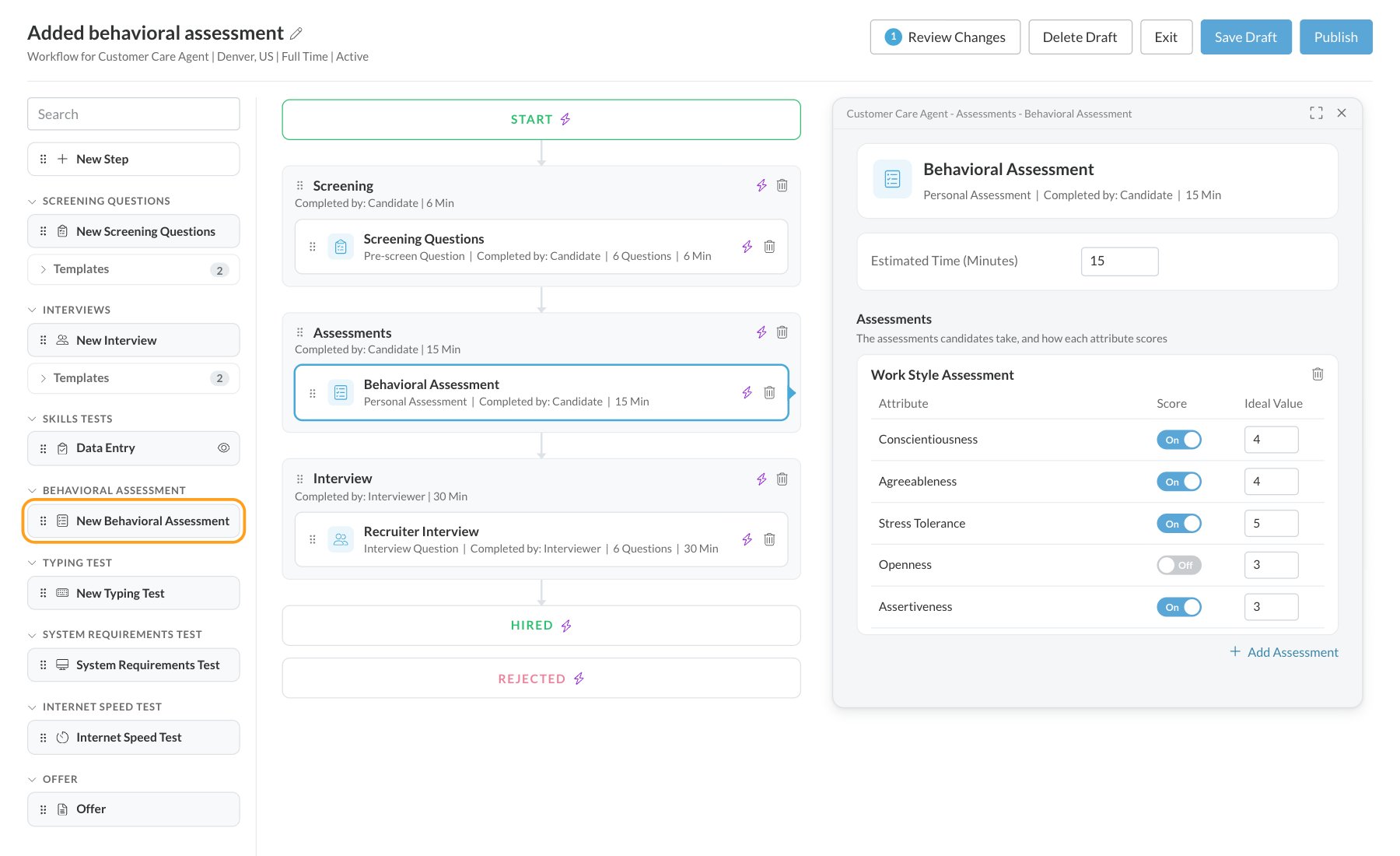
Open the job req and go to Setup, then Workflow. Click Create New Version (or Edit Draft if there’s already a draft).
2
Add the activity
In the building blocks on the left, open BEHAVIORAL ASSESSMENT and drag New Behavioral Assessment into the step where candidates should take it. You can rename the activity at the top of its settings panel. On the Workflow page, its type shows as Personal Assessment.
3
Choose the assessment
Click the activity to open its settings on the right. Under Assessments, click Add Assessment. In the Add Personal Assessment window, choose a version and click Add.
4
Set up the traits
The assessment lists each trait it measures. For each one, turn Score on or off to choose whether it counts for this job req, and set its Ideal Value from 1 to 5: the level of that trait that best fits the role.
5
Save, then publish
Set Estimated Time (Minutes) and click Save Draft; you stay in the editor. When you’re ready for candidates to see it, click Publish. See Publish workflow changes.
What candidates see
- An Authenticity Pledge. Before starting, candidates are asked to pledge to answer honestly.
- Instructions, with the assessment’s name and description, then Got It - Let’s Go.
- The questions, which candidates answer for who they are, as the pledge asks.
- A finish screen with Continue to Next Step. Candidates can also click View My Results to see a short report on their own profile, unless your account is set up to hide results from candidates.
See the results
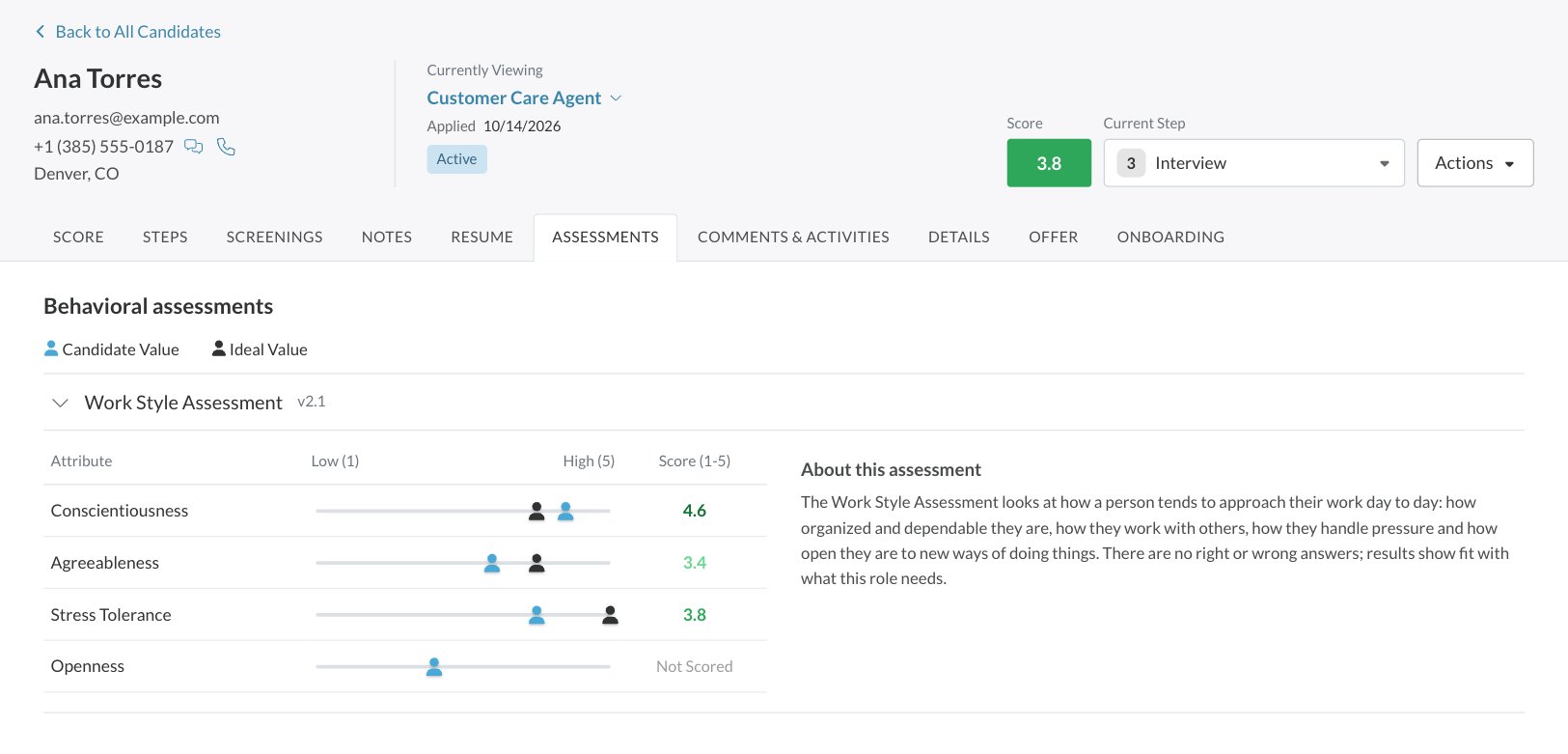
Open the candidate’s Candidate Application and select the Assessments tab. Under Behavioral assessments, expand an assessment to see each trait:- A slider showing the Candidate Value, from Low (1) to High (5), next to the Ideal Value you set.
- Score (1-5), the candidate’s score for that trait, or Not Scored if the trait doesn’t count for this job req.
- A description of the assessment beside the table.
FAQ
Is the behavioral assessment an add-on?
Is the behavioral assessment an add-on?
No. It’s included on every Journeyfront account.
Do I need a predictive model to use it?
Do I need a predictive model to use it?
No. Set an ideal value for each trait and it’s scored on its own. Adding a predictive model later lets Journeyfront learn which traits go with success and retention in your roles. See Predictive models.
What does Not Scored mean?
What does Not Scored mean?
The trait was measured, but Score is off for it on this job req, so it doesn’t count toward the candidate’s score.
Can candidates see their results?
Can candidates see their results?
By default, candidates can open a short report on their own profile from the finish screen. Your scores and ideal values aren’t shown to them. To hide the report, ask your Customer Success Manager.
Can a candidate take the assessment again?
Can a candidate take the assessment again?
Yes. Someone with Can Delete Scores can delete the assessment’s score on the Steps tab, and the candidate can take it again. See Retakes and resetting scores.
Can I see the questions?
Can I see the questions?
Use Preview Activity (the eye icon) on the activity on the job req’s Workflow page to see the assessment as a candidate does.
Related
Predictive models
Learn which traits predict success in your roles.
Attributes
Choose which traits count for each job req.
How scoring works
How scores roll up into the overall score.
Reading a candidate's scores
Find behavioral results on the Candidate Application.