

Who can do this: Users with the Manage Job Req Settings permission.Availability: The Referrals card applies to referral portals, which need to be turned on for your account. Ask your Customer Success Manager.
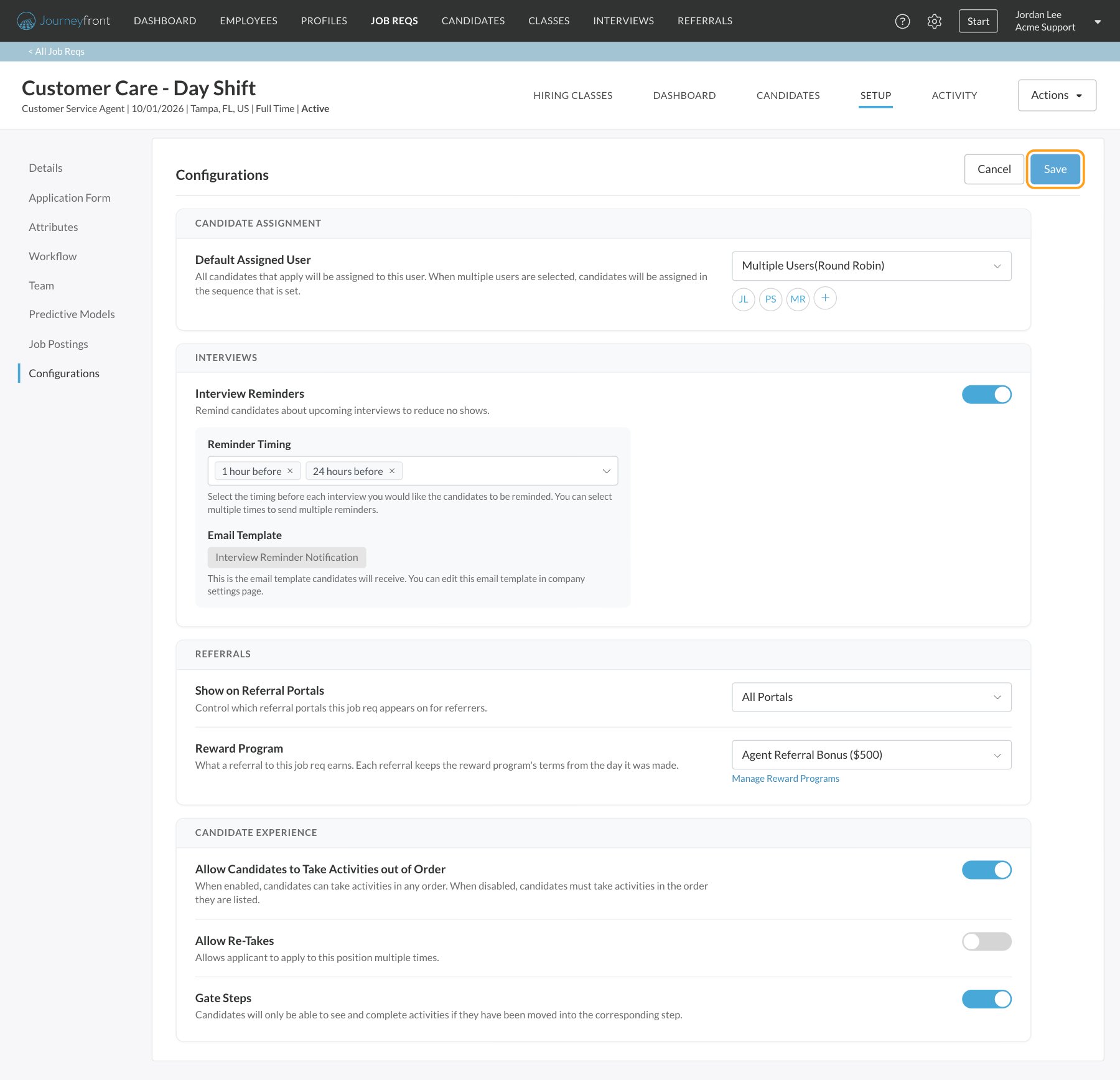
Candidate Assignment
Default Assigned User decides who new candidates are assigned to when they apply.- Single User: every candidate is assigned to one person.
- Multiple Users(Round Robin): candidates are assigned to a list of people in turn, in the order you set. You can add up to 20 people.
Interviews
Interview Reminders remind candidates about upcoming interviews, to cut down on no-shows. It’s on for new job reqs.- Reminder Timing: choose when reminders go out: 1, 2, 4, 12, 24 or 48 hours before the interview. Pick several to send several reminders. New job reqs remind candidates 1 hour and 24 hours before.
- Email Template: the email candidates receive. It’s shown here for reference; edit it in your company settings.
Referrals
Show on Referral Portals controls which of your referral portals list this job req for referrers:- All Portals (the default)
- No Portals
- Specific Portals: choose the portals in the box that appears.
Candidate Experience
- Allow Candidates to Take Activities out of Order: when on, candidates can complete their activities in any order. When off, they must take them in the order they’re listed in the workflow. On by default.
- Allow Re-Takes: lets a candidate apply to this job req again. When it’s on, set Days before re-apply: how many days someone must wait before applying again. It doesn’t limit their first application. Off by default.
- This is about applying again, not retaking a single activity. For activity retakes, see Retakes.
- Gate Steps (on by default): candidates only see and complete the activities in the step your team or an automation has moved them into (see Move candidates through steps). Turn it off to let candidates continue through their activities without waiting.
Scoring & Reporting
- Use Predictive Model: includes the Candidate Predictive Score in the candidate’s overall score. When it’s on, Scoring Weights appear, where you set how much the predictive score and the job req’s own attributes each count toward the overall score. See Predictive models.
- Hide Interviewer Names: shows interviewers as “Interviewer 1”, “Interviewer 2” and so on instead of their names in all reports. On by default for new job reqs.
FAQ
Where are Require Resume and Require LinkedIn?
Where are Require Resume and Require LinkedIn?
On the job req’s application form. Set Resume or Linkedin URL to Required, Optional or Hidden on Setup, then Application Form. See Application form.
If I change the Default Assigned User, are existing candidates reassigned?
If I change the Default Assigned User, are existing candidates reassigned?
No. The default assigned user applies to candidates as they apply. Candidates who already applied keep their current assignee. To reassign them, see Candidate assignment.
Why can't I find the Configurations page?
Why can't I find the Configurations page?
It’s on the Setup tab, which needs the Manage Job Req Settings permission. Ask your Journeyfront admin to check your security role.
Can I use different settings for each job req?
Can I use different settings for each job req?
Yes. Every job req has its own configurations. When you duplicate a job req, the copy starts with the same settings.
Related
Candidate assignment
Every way to decide who owns each candidate.
Interview reminders
What candidates receive before an interview.
Workflows overview
The steps and activities candidates move through.
Predictive models
How predictive scores fit into the overall score.