

Who can do this: Users with the Manage Job Req Settings permission manage a job req’s team on its Setup tab. Admins with Company Settings Access and the Manage Users permission can also manage it from each user’s settings.
Who can see a job req
- People with the All Job Req Access permission in their security role see every job req, whether or not they’re on its team.
- Everyone else sees only the job reqs they’re on the hiring team for. Those are the job reqs on their Job Reqs page.
Add someone to the team
1
Open the Team page
Open the job req and go to Setup, then Team. The Team Members list shows everyone on the team.
2
Click Team Member
Click Team Member (with the plus) at the top right. The Add Team Member window opens.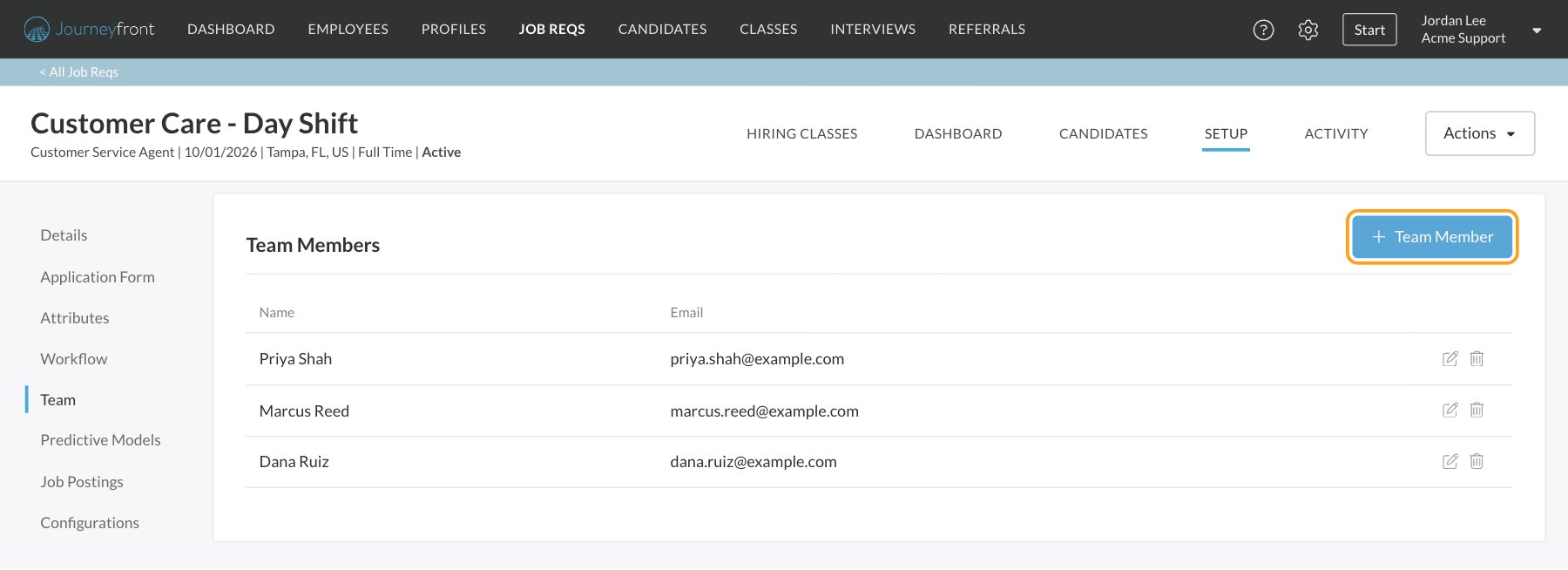
3
Enter their email
Enter the Team Member Email and click Save.If no one in Journeyfront has that email yet, you’re asked for their first and last name. Click Add Name to create their user and add them to the team.
Remove someone from the team
On Setup, then Team, click the trash icon on their row and click Confirm. They won’t see the job req anymore, unless their security role has All Job Req Access.Add people from user settings
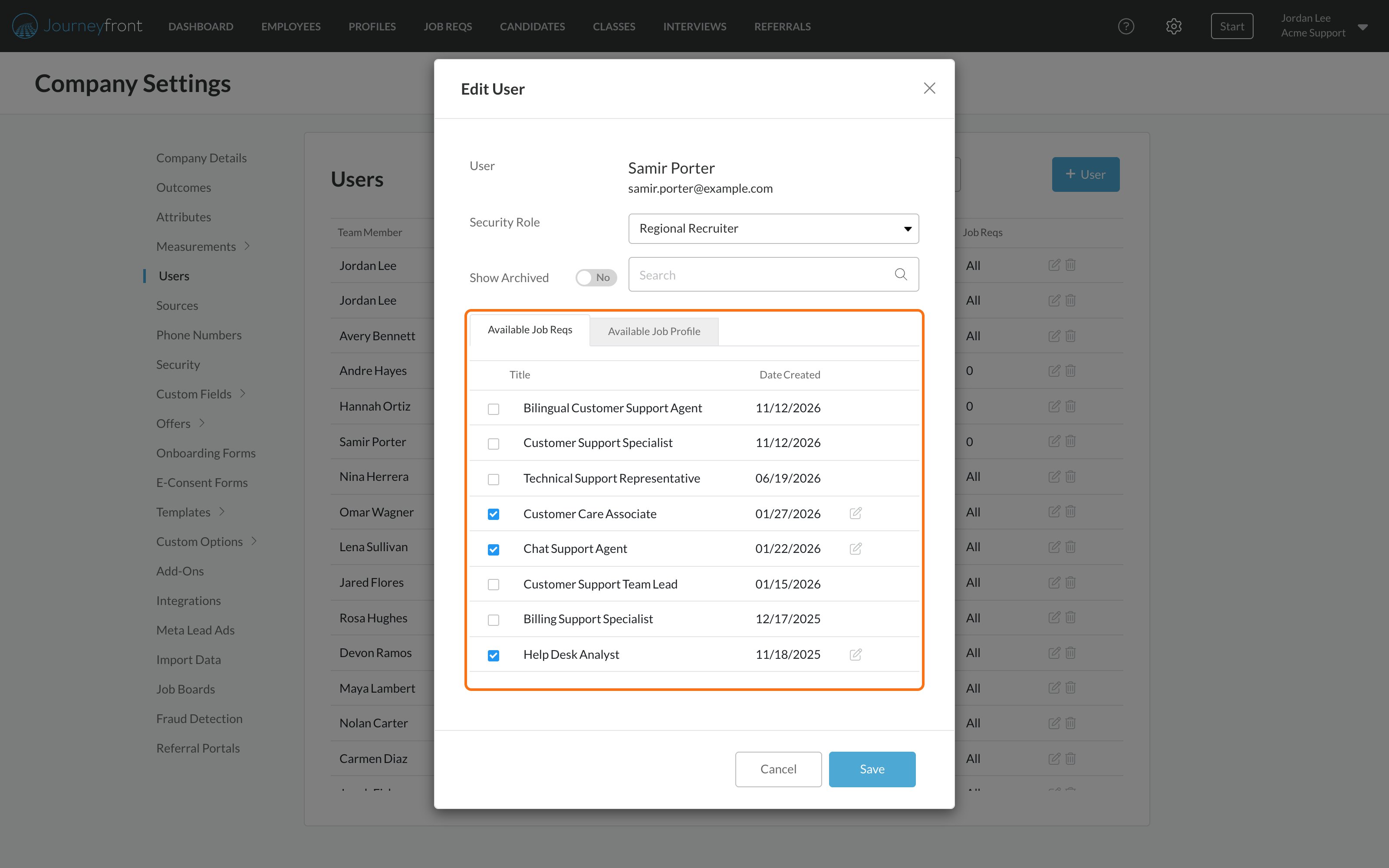
Admins can manage everything one person works on from their user record instead of job req by job req.- Go to Settings, then Users, and edit the user.
- On the Available Job Reqs tab, tick the job reqs the person should work on and untick the ones they shouldn’t.
- Click Save.
Get an email when a candidate finishes applying
Each team member can choose to get an email when a candidate completes their whole application for the job req. The email names the candidate and links to their Candidate Application.1
Edit the team member
On Setup, then Team, click the edit icon on the person’s row. The Edit Team Member window opens.
2
Turn on the notification
Under Notifications, set Candidate completes application to Yes.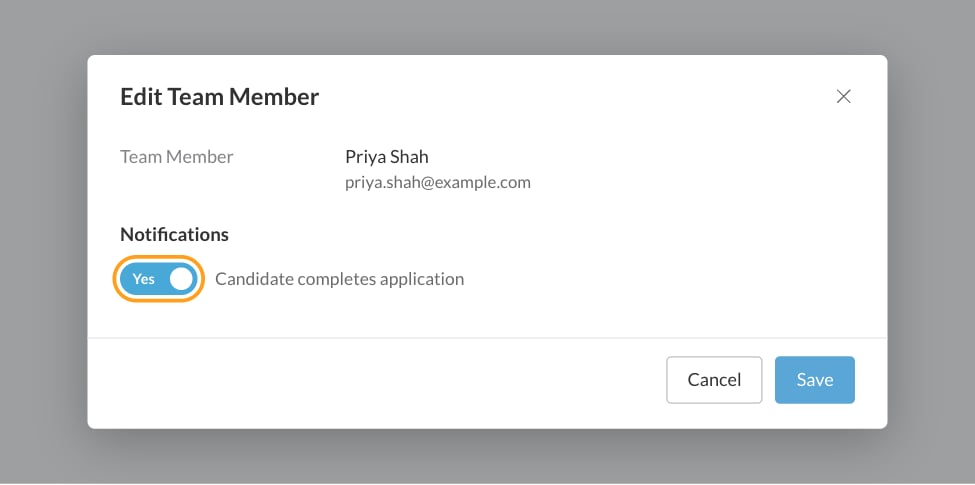
3
Save
Click Save.
Get an email when a candidate finishes an activity
To hear about one activity instead, for example a skills test you review by hand, use the bell on that activity in the job req’s workflow.Get notified when an activity is completed
Add yourself or teammates to an activity’s Get Notified list.
FAQ
A hiring manager can't see the job req. What do I do?
A hiring manager can't see the job req. What do I do?
Add them to the job req’s hiring team on Setup, then Team. Unless their security role has All Job Req Access, people only see job reqs they’re on the team for.
Do I need to add admins to every hiring team?
Do I need to add admins to every hiring team?
No. People whose security role has All Job Req Access already see every job req. Add them to a team only if they should be in that team’s lists, for example to be picked as a default assigned user.
Does duplicating a job req copy its hiring team?
Does duplicating a job req copy its hiring team?
Yes. The copy has the same team members, with their “Candidate completes application” emails turned off. Turn them back on for the people who want them.
How do I stop getting these emails?
How do I stop getting these emails?
On the job req’s Team page, edit yourself and set Candidate completes application to No, or ask someone with the Manage Job Req Settings permission to do it. For activity emails, open the activity’s bell and remove yourself from the list.
Related
Security roles
Permissions like All Job Req Access and Manage Job Req Settings.
Users
Add users to your account.
Job settings
Candidate assignment, reminders and gate steps.
Job reqs overview
What’s inside a job req.