

Who can do this: Users with the All Job Req Access permission see every job req. Everyone else sees the job reqs they’re on the hiring team for. The Setup tab needs the Manage Job Req Settings permission.
Open a job req
Click Job Reqs in the top navigation and click a job req’s name. It opens on the Candidates tab. See The Job Reqs page for finding job reqs in a long list. The header shows the job req’s name and, below it, the external job title, created date, location, employment type and status. The Actions menu on the right holds everything you do to the job req as a whole: inviting, adding and importing candidates, exporting data, and changing its status.The tabs on a job req

| Tab | What it’s for |
|---|---|
| Hiring Classes | The groups of hires for this job req, each with its own openings and start date. See Hiring classes. |
| Dashboard | Reporting for this job req. See Job req dashboards. |
| Candidates | Everyone who has applied, where they are in the workflow and their scores. See The Candidates page. |
| Setup | How the job req is built. Only shown to users with the Manage Job Req Settings permission. |
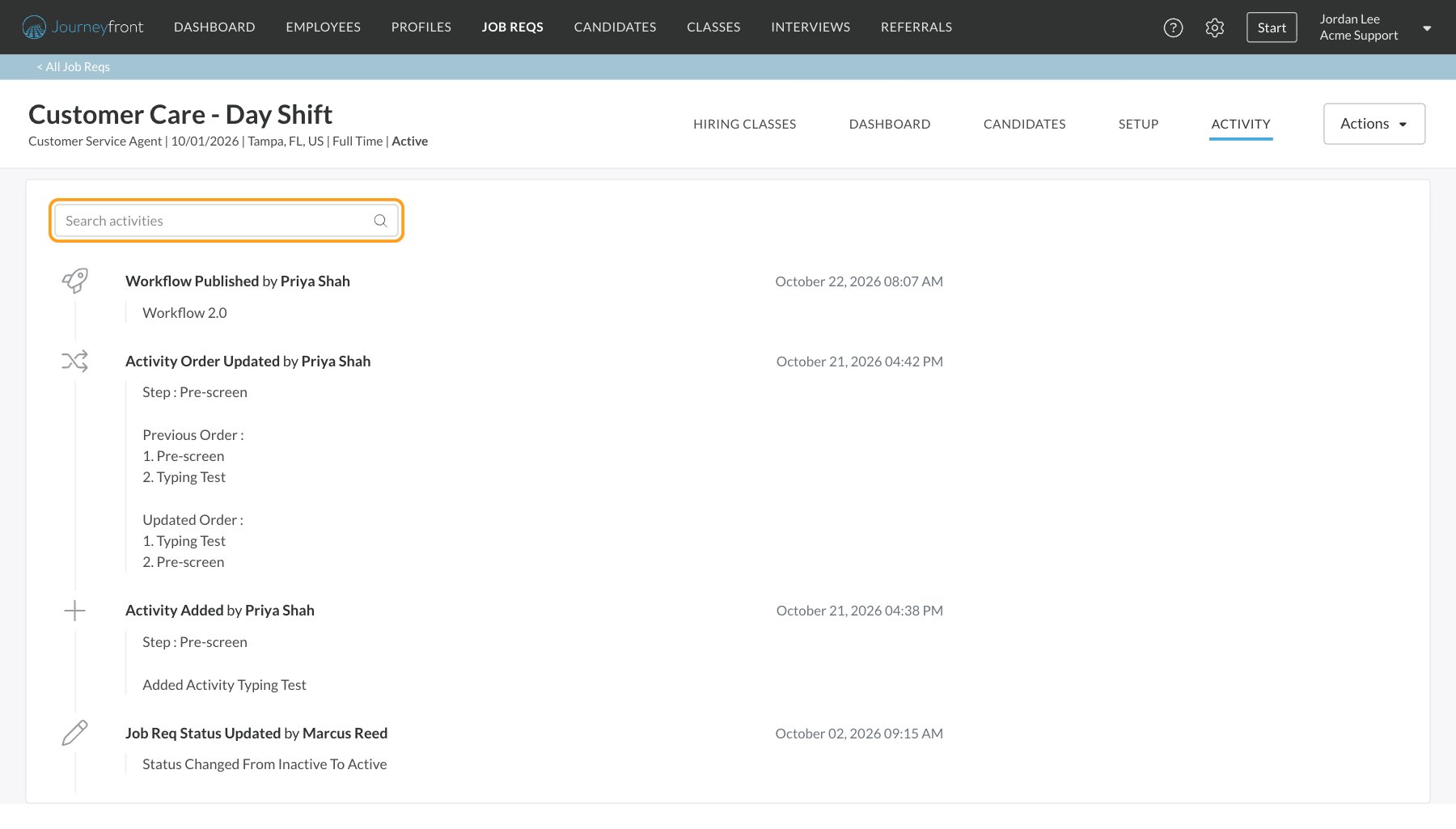
| Activity | A history of changes to the job req’s setup. |
Setup
The Setup tab has a menu down the left side:- Details: the job req’s name, external job title, job profile, description, location, employment type and custom fields. See Create a job req.
- Application Form: the fields candidates fill in when they apply. See Application form.
- Attributes: the traits and skills this job req measures. See Attributes.
- Workflow: the steps, activities and automation rules candidates move through, and its versions. See Workflows overview.
- Team: who works on the job req. See Hiring team.
- Predictive Models: see Predictive models.
- Job Postings: where the job is advertised. See Job postings.
- Configurations: candidate assignment, interview reminders, referral portal visibility, the candidate experience, and scoring and reporting options. See Job settings.
Lead ads
Link lead forms to this job req, map their questions and choose whether candidates get an invitation email.
Job req name and external job title
Every job req has two names:- Job Req Name is for your team. Make it as specific as you need, for example “US Customer Care - Tampa - Client A”, so it’s easy to tell apart in lists and filters.
- External Job Title is what candidates see, for example “Customer Service Agent”. It’s used on the candidate’s application, in candidate emails and text messages, and on referral portals.
Activity tab
The Activity tab is an audit trail of changes to the job req, newest first. It records:- The job req being created, or duplicated (with the job req it was copied from)
- Status changes, for example from Active to Closed
- Workflow publishes
- Steps added, deleted or reordered
- Activities added, removed or reordered
- Screening and interview questions added or removed, and screening questions reordered
- Changes to attributes and attribute groups
FAQ
Why can't I find a job req?
Why can't I find a job req?
You only see job reqs you’re on the hiring team for, unless your security role has the All Job Req Access permission. Ask someone on the job req’s hiring team, or your Journeyfront admin, to add you. Archived job reqs are also hidden from the Job Reqs page until you filter by status.
Why don't I see the Setup tab?
Why don't I see the Setup tab?
The Setup tab needs the Manage Job Req Settings permission. Ask your Journeyfront admin to check your security role.
Does the Activity tab show what candidates did?
Does the Activity tab show what candidates did?
No. It records changes to the job req itself. Each candidate’s history is on their Candidate Application, in the Comments & Activities tab.
Can candidates see the Job Req Name?
Can candidates see the Job Req Name?
No. Candidates see the External Job Title. The Job Req Name is only shown to your team.
Should I create a new job req for each hiring wave?
Should I create a new job req for each hiring wave?
Usually not. Keep one job req for the role and add a hiring class for each start date. Create a separate job req when the role itself is different, for example a different workflow, location or client.
Related
Create a job req
Set up a new job req and get it ready for candidates.
Job req statuses
Deactivate, close, archive, duplicate or delete a job req.
Workflows overview
The steps and activities every candidate follows.
Hiring classes
Fill wave after wave of hires from one job req.