

Who can do this: Admins with the Company Settings Access permission edit security roles. Anyone with Manage Referral Settings can choose a portal’s admins.Availability: Referrals need to be turned on for your account. Ask your Customer Success Manager.
The Referrals permissions
Referrals permissions live in each security role, in the Referrals section. Go to Settings, then Security, and open a role. The section only appears when Referrals is turned on for your account. See Security roles and permissions.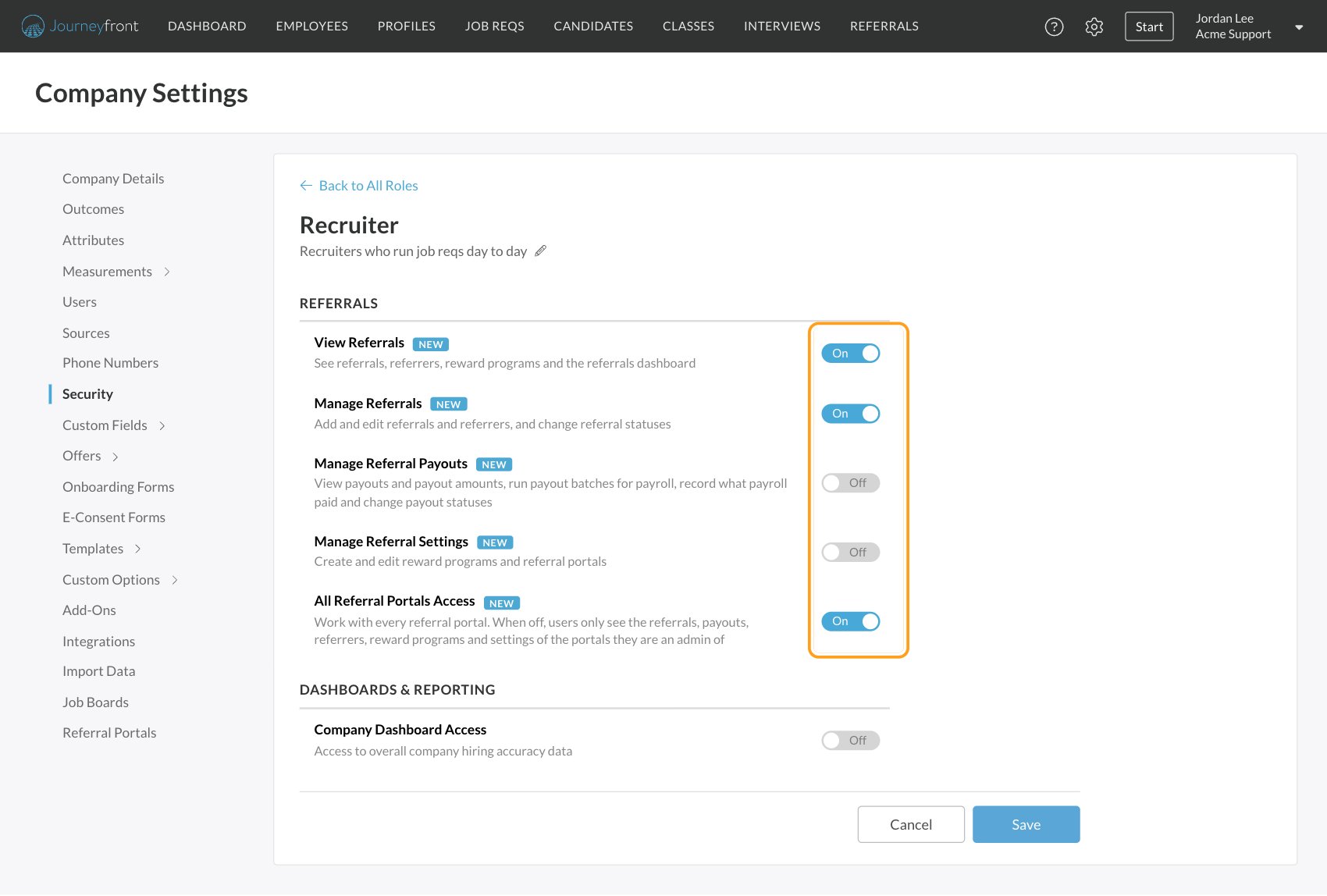
Defaults
- Existing roles have View Referrals, Manage Referrals and All Referral Portals Access turned on. Roles with Company Settings Access also have Manage Referral Payouts and Manage Referral Settings.
- New roles start with the Referrals permissions turned off, except All Referral Portals Access, which is on. Turn on what the role needs before you save.
What people without a permission see
Journeyfront hides what a role doesn’t allow:- Without View Referrals, the Referrals menu item and the job req Reward Program setting don’t appear.
- Without Manage Referral Payouts, the Payouts and Payout Batches tabs don’t appear and the dashboard leaves out payout amounts. The Referrals tab has no Paid, Owed, Upcoming or Next Earned On columns. The Referrers tab has no Paid, Owed, Overdue or Upcoming columns and no Overdue Payouts filter, and a referrer’s Rewards card shows only Referrals and Hires. Exports leave those columns out, and you can’t sort by them.
- Without Manage Referral Settings, there’s no New Reward Program button, no menu on reward program cards, and no Referral Portals page in Settings.
Limit someone to certain portals
If your company runs several referral portals, for example one per region, you can give each portal its own admins. A portal admin only sees and changes that portal’s data.1
Turn off All Referral Portals Access
In the person’s security role, turn off All Referral Portals Access and click Save. Leave on the other Referrals permissions they need.
2
Open the portal
Go to Settings, then Referral Portals, and open the portal.
3
Add them as an admin
On the General tab, add the person under Admins, then click Save. Only people whose role has View Referrals appear in the list.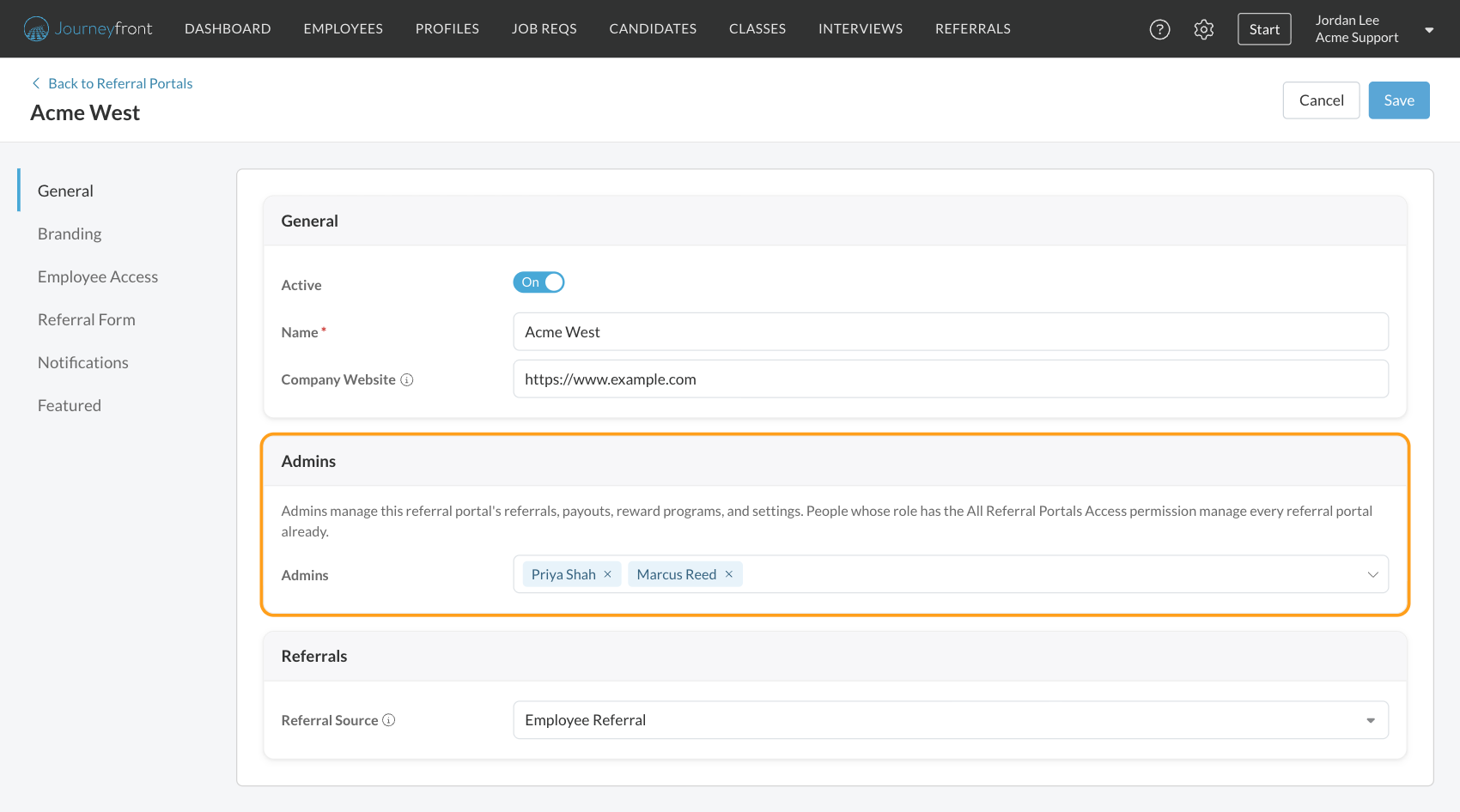
What a portal admin sees
Anything outside their portals behaves as if it doesn’t exist for them. Account-wide settings, such as when an earned payout counts as overdue, can only be changed by someone with Manage Referral Settings and All Referral Portals Access.
How a referral gets its portal
Every referral belongs to exactly one portal, and its payouts belong to the same portal. That’s what decides which portal admins see it.
In bulk uploads, if some job reqs are on several portals, you choose one Referral Portal for those rows. See The Referrals page.
Move a referral to another portal
Open the referral, click Edit, and choose a new Referral Portal. The picker only appears if you can manage referrals and there’s more than one portal to choose from. A portal admin can only move referrals between portals they manage. The referral’s payouts move with it, and the change is recorded in its history. See Referral details and milestones.FAQ
Someone can't see the Payouts tab. Why?
Someone can't see the Payouts tab. Why?
Their role doesn’t have Manage Referral Payouts. Turn it on in their security role if they should see pay data.
Why can't I find the Referrals permissions on the Security page?
Why can't I find the Referrals permissions on the Security page?
The Referrals section only appears when Referrals is turned on for your account. Ask your Customer Success Manager.
A portal admin sees no referrals at all. What's wrong?
A portal admin sees no referrals at all. What's wrong?
Their role has All Referral Portals Access turned off, but they aren’t listed as an admin on any portal yet. Add them under Admins on a portal’s General tab.
Why can't someone be added as a portal admin?
Why can't someone be added as a portal admin?
Only people whose role has View Referrals appear in the Admins list. Turn it on in their role first.
Why is there a lock on a reward program?
Why is there a lock on a reward program?
The program is shared with portals you don’t manage. Only someone who manages all of its portals can change it.
Can someone set up portals without full Company Settings access?
Can someone set up portals without full Company Settings access?
Yes. Manage Referral Settings is enough to reach Settings, then Referral Portals, and to create and change reward programs.
Related
Security roles and permissions
Create roles and turn permissions on or off.
Set up a referral portal
Create a portal and choose its admins.
Reward programs
What a referral pays, and on which portals.
How referrals work
The big picture and a setup checklist.