

Who can do this: View Referrals to see the page. Manage Referrals to add, edit, delete and change the status of referrals.Availability: Referrals need to be turned on for your account. Ask your Customer Success Manager.
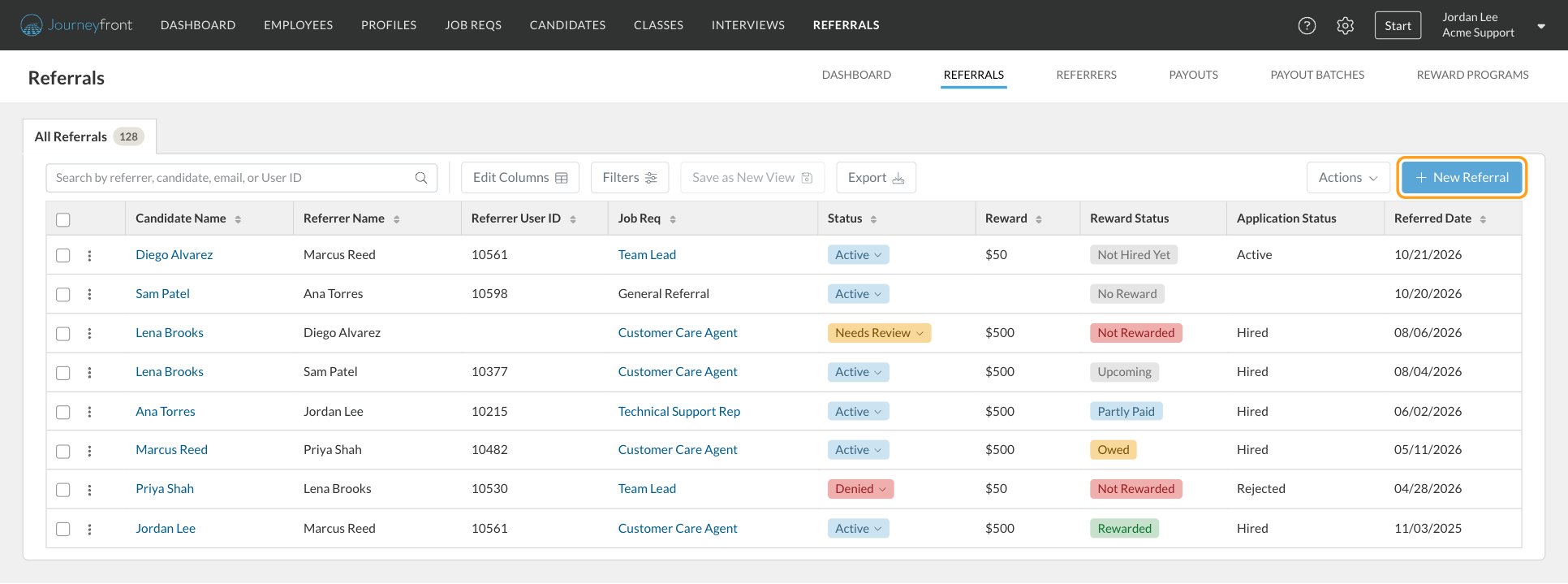
What each column shows
These are the default columns:
Click Edit Columns to add more. The extra columns are grouped the same way as the filters:
- Default Fields: Referrer Email, Candidate Email, Note, Origin, Referral Portal, Applied Date, Added By and Referral Code.
- Candidate Location: Candidate Country, Candidate Region/State and Candidate City.
- Reward & Payout: Reward Program, Paid, Owed, Upcoming, Next Earned On and Rewarded Date. Paid, Owed, Upcoming and Next Earned On are pay data, so they’re only listed for people who also have Manage Referral Payouts.
- Employment: the hire’s Start Date, Turnover Date, Employee Job Title, Job Profile, Tenure and Separation Reason, from their employee record.
- Job Location: Job Req Country, Job Req Region/State and Job Req City.
Search, filter and save views
- Search by referrer, candidate, email or User ID.
- Click Filters to filter by Status, Job Req, Application Status, Origin and Referral Portal. Add more filters for the referred date, Reward Status, Added By, candidate and job req location, reward amount, currency and program, Payout Status, Rewarded Date, the hire’s Employment Status and their Start Date.
- Click Save as New View to keep your columns and filters as a tab of your own. On a view you made, Save Changes updates it and Remove Changes puts it back the way it was saved.
Add a referral
Use this when an employee tells you about someone in person, by email or anywhere outside the referral portal.1
Open New Referral
On the Referrals tab, click New Referral.
2
Enter the referrer
Under Referrer, enter their First Name, Last Name and Email. Journeyfront matches the referrer to their employee record so their payouts follow their employment.
3
Enter the candidate
Under Candidate, enter their First Name, Last Name and Email. Phone, Country, Region/State and City are optional and are saved to the candidate’s profile. If the email matches someone already in Journeyfront, the referral is added to that person.
4
Choose the job req
Under Referral, pick the Job Req, or check General Referral to refer the candidate without choosing a specific job req. For a job req, Journeyfront also creates the candidate’s application for that job.If the job req is on more than one of your referral portals, or it’s a general referral and you have more than one portal, choose the Referral Portal. The referral, and its payouts, belong to the portal you pick.
5
Add a note and invitation
Add a Note if you’d like. For a job req referral, check Email the candidate a link to apply to send the candidate an invitation email with a link to begin their application.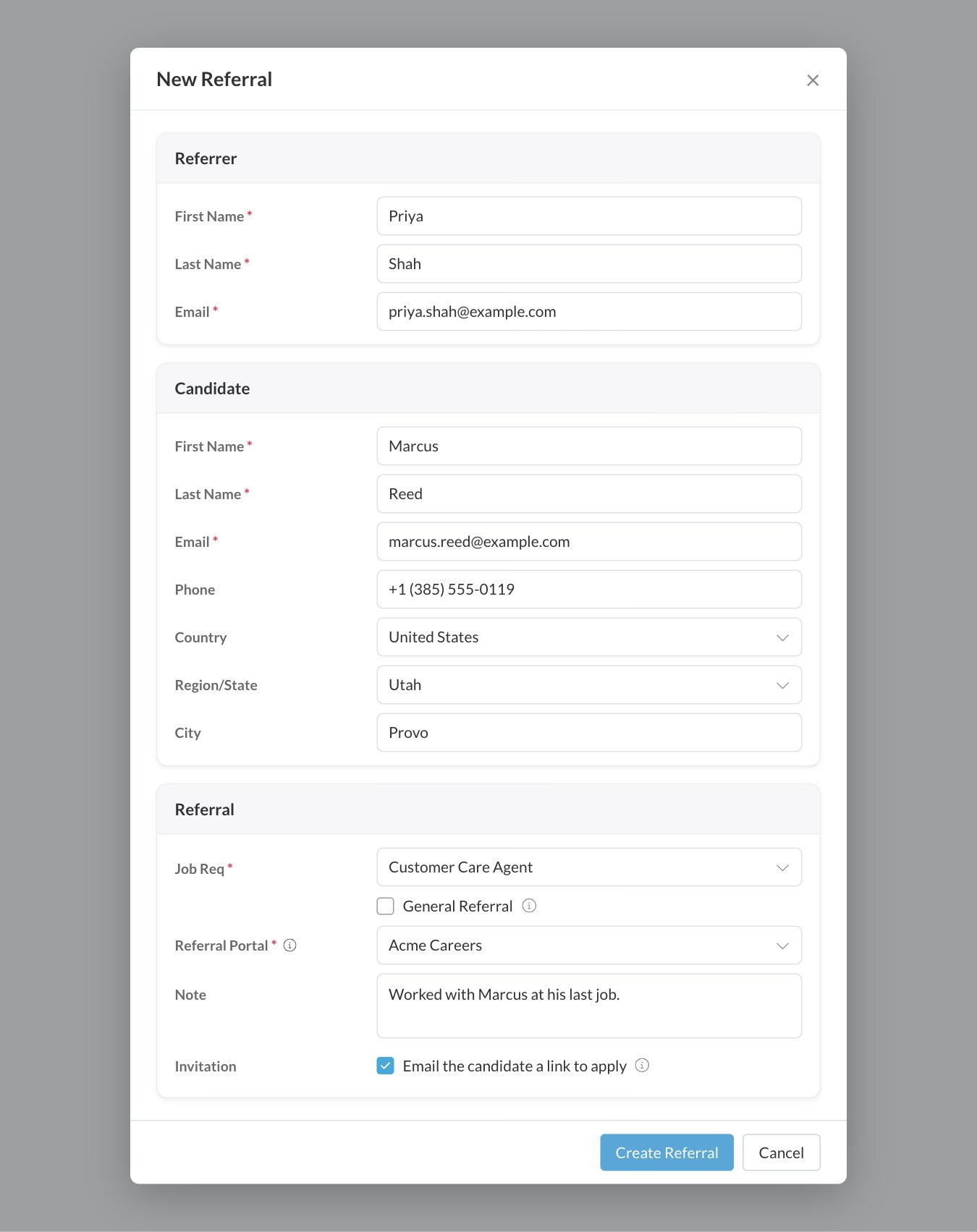
6
Create the referral
Click Create Referral.If the candidate already has an application for that job req, or has already been referred, Journeyfront warns you first. Click Create Referral Anyway to add it, or Go Back to change it.
Add referrals in bulk
Use this to catch up on a stack of referrals, for example from a hiring event or a spreadsheet you kept before.1
Open Add Referrals
On the Referrals tab, click Actions, then Add Referrals in Bulk.
2
Choose how to add them
Under Add referrals by, choose one:
- Enter Them: type one referrer, then each person they referred under People They Referred. Click Add Person for each new row. Leave a row’s Job Req on General Referral for a general referral.
- Upload a File: upload a CSV or Excel file (up to 10 MB) with one referral per row. Identify the job req by its exact title in Job Req, or by Job ID.
3
Check the referrals
Click Check Referrals. Nothing is added yet. Journeyfront shows each row with its result: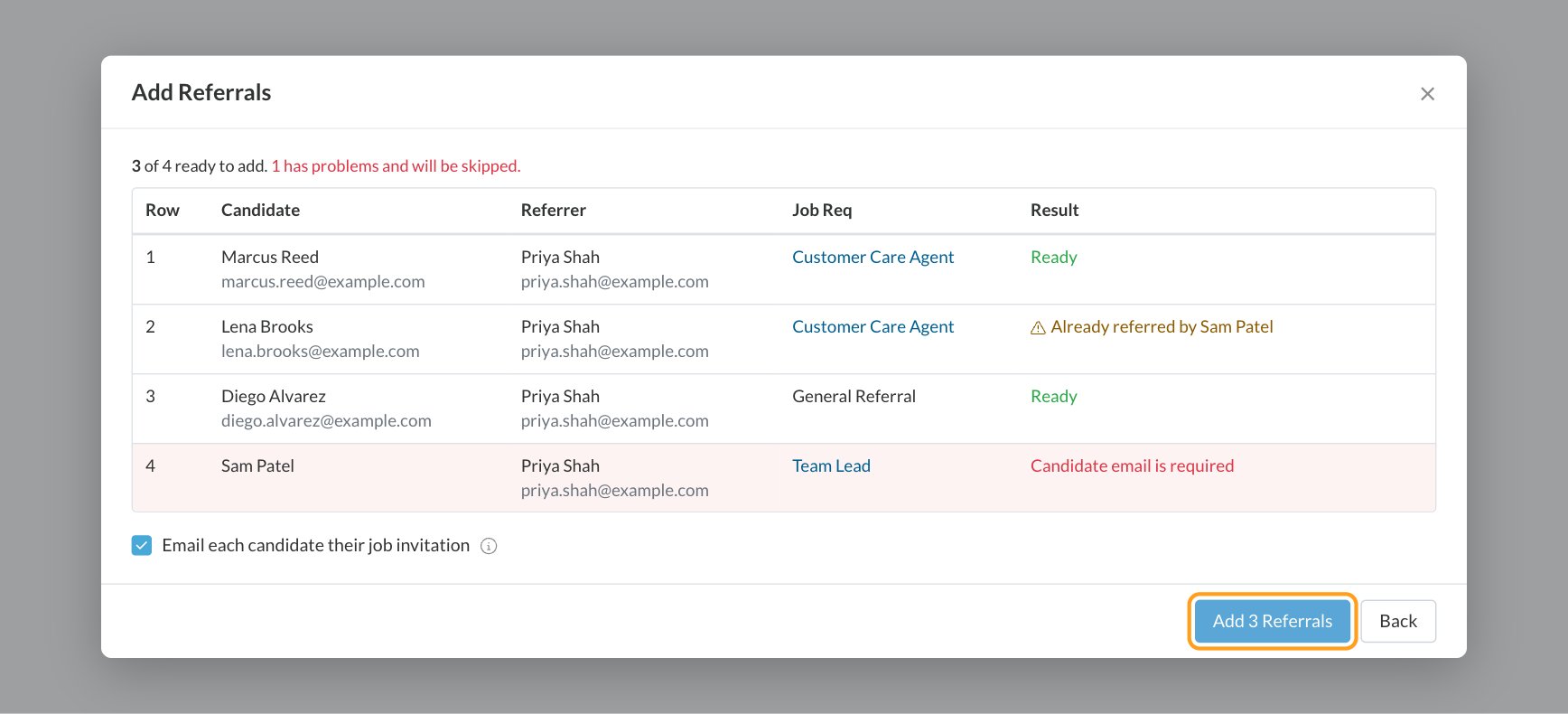
- Ready: the row will be added.
- Warnings in amber, such as Already has an application for this job req or Already referred by another employee. The row is still added, so decide whether you want it before you continue.
- Errors in red, such as a missing email or a job req that matches several reqs. These rows are skipped.
4
Add them
Check Email each candidate their job invitation if you want to send invitations. Only referrals to a specific job req get one. Then click Add (for example Add 3 Referrals). Click Back to fix the rows first.
Change many statuses at once
With Manage Referrals, check the boxes next to the referrals you want, then click Change Status in the bar above the list. Choose Active or Denied and click Change Status. Denying referrals works the same as denying one at a time: their unpaid payouts become ineligible and each referrer is told. See Review, credit and Reward Status.Row actions
Click the menu at the start of a row for:- View Details or Edit to open the referral. See Referral details and milestones.
- View Candidate Profile and View Application, which open in a new tab.
- Delete to remove the referral. This can’t be undone, and a referral with paid payouts can’t be deleted.
Referrals on a candidate’s record
Referrals also show in the Referrals card on the Candidate Profile and on the Details tab of the Candidate Application. Each one shows who referred the candidate, the job req, how it came in and its status. From the card you can change the status, edit the referrer and note, link the referral to one of the candidate’s applications with Associated Application, or delete it. To add one, click New Referral on the Candidate Profile or Add on the Candidate Application.FAQ
Why do I only see some referrals?
Why do I only see some referrals?
If your security role doesn’t have All Referral Portals Access, you only see referrals from the referral portals you’re an admin of.
Which job reqs can I pick in New Referral?
Which job reqs can I pick in New Referral?
Active job reqs. If the job you need isn’t listed, choose General Referral or check the job req’s status.
What happens if I add a referral for someone who already applied?
What happens if I add a referral for someone who already applied?
Journeyfront warns you first. If you add it anyway, the referral is linked to their existing application, and it’s flagged Needs Review because the person applied before the referral. You then decide whether it counts.
Does a bulk upload stop if one row has a problem?
Does a bulk upload stop if one row has a problem?
No. Rows with errors are skipped and the rest are added. Rows with warnings are added too, so check them on the results screen before you click Add.
Why is the Reward column blank on some referrals?
Why is the Reward column blank on some referrals?
The referral has no reward program, usually because it’s a general referral or its job req doesn’t offer a reward. Its Reward Status shows No Reward.
Can I undo a delete?
Can I undo a delete?
No. Deleting a referral removes it for good. To stop a referral from paying without losing its history, set its status to Denied instead.
Related
Review, credit and Reward Status
Decide which referrals count and see what each has paid.
Referral details and milestones
Open a referral to see its reward and record milestones.
Referrers
See every employee who refers and what they’ve earned.
Rewards on job reqs
Choose which reward a job req’s referrals earn.