

Who can do this: Anyone who can open the job req: its hiring team, and users whose security role has All Job Req Access.Availability: Candidates can apply through an invitation link while the job req is Active.
Ways to invite candidates
Copy the invitation link
1
Open the invite window
Open the job req, click Actions, then Invite Candidates. The Invite Participants window opens.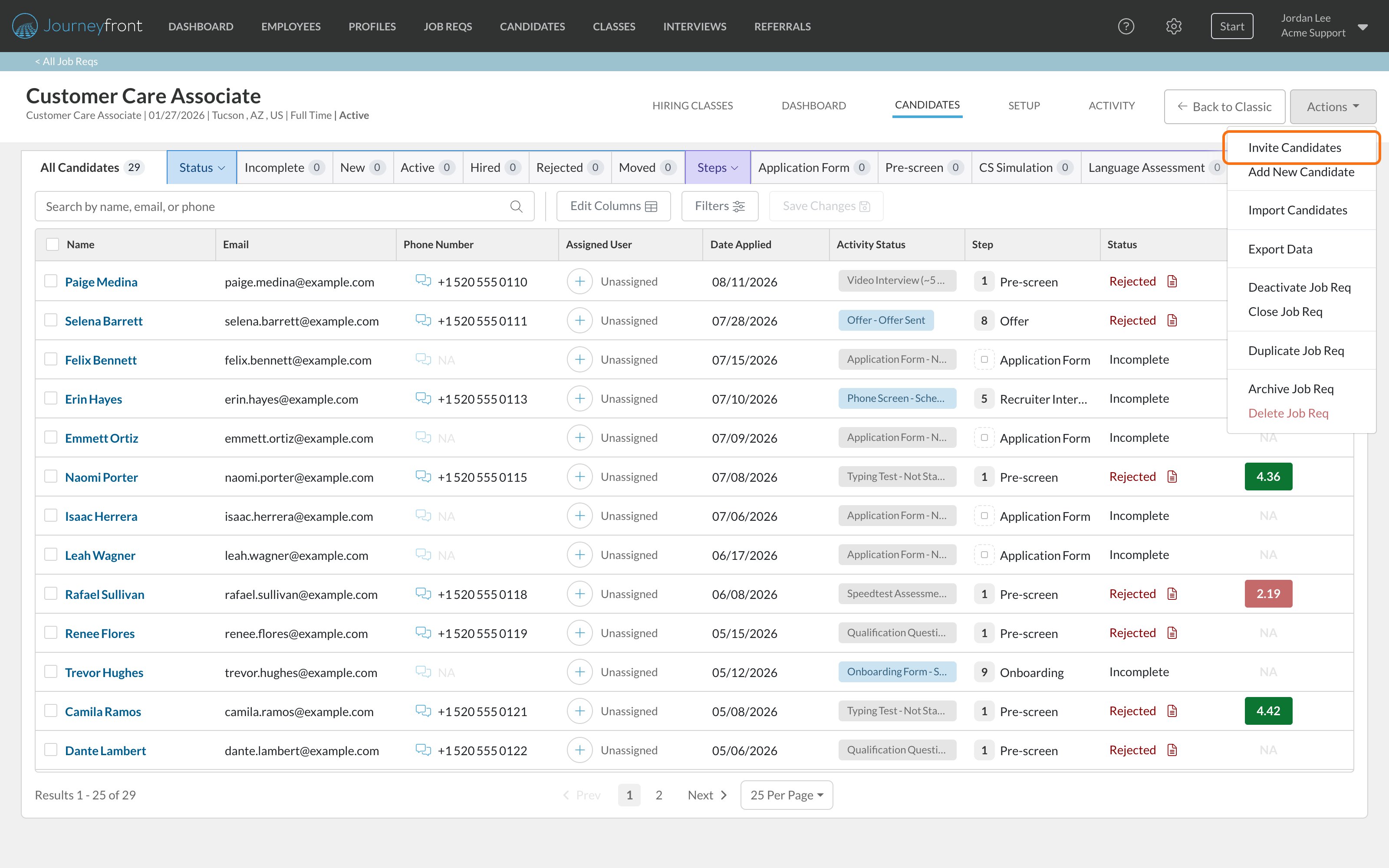
2
Pick a source (optional)
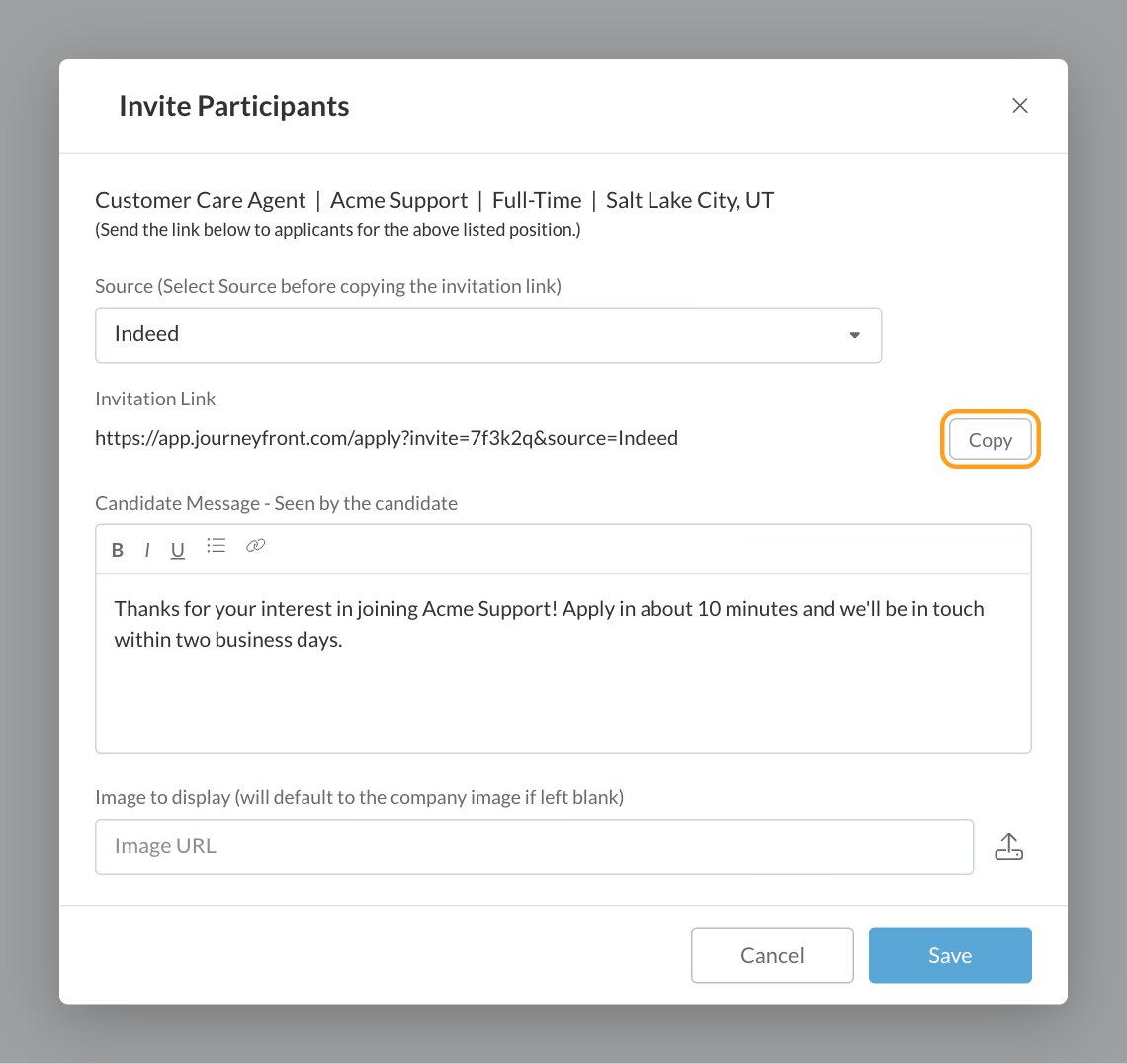
Pick a Source before you copy the link and it becomes a magic link: everyone who applies through it is tagged with that source. The list shows your account’s enabled sources, grouped by source type; type in the box to search it. See Magic links.
3
Copy the link
Under Invitation Link, click Copy.
4
Customize what candidates see (optional)
Write a Candidate Message and add an Image to display. Click Save to keep the message and image. See Customize the sign-in page.
Text or email the link
Paste the link into a text or email you send from your own phone or inbox, for example right after a phone screen, or to a list of people who signed up at a hiring event. Keep the message short: the job, why they’d like it, and the link. For people who are already candidates in Journeyfront, use Email or Message with the{{job_invite_link}} template variable instead. It gives each candidate their own link to their application. See Email candidates, Text messages and Template variables.
The Invite Participants window doesn’t send anything. To have Journeyfront email someone an invitation, add them with Add New Candidate or Import Candidates and tick the email option.
Share it on social media
Paste the link into a post, a story, a group or your profile, or use it as the destination of an ad. Pick a social source, such as Facebook or TikTok, before you copy it. For Facebook and Instagram lead ads, which bring candidates in without a link, see Social media.Put it on a QR code or poster
Turn the link into a QR code with any QR code tool, then print it on flyers, posters, table tents or business cards so people can scan it with their phone and apply on the spot. Give each event or location its own source, so you can see which ones bring in candidates. You can also give a link with its own source to each partner or agency that sends you candidates.Customize the sign-in page
Two settings in the Invite Participants window change what candidates see when they open the link:- Candidate Message: a welcome note, shown below the job title. Use it to set expectations, for example how long the application takes or what happens next.
- Image to display: shown at the top of the page. Upload a JPEG or PNG with the upload icon, or paste an image URL. Leave it empty to use your company logo.
What candidates see
1
The sign-in page
The candidate sees your image (or your company logo), the job req’s External Job Title, your company name with the job req’s city and state, and your Candidate Message. They can switch the page to English, Spanish or French.
2
Email and name
They enter their email address. New candidates then enter their first and last name.
3
Password
New candidates set a password. People who already have a Journeyfront profile enter theirs.
4
The application
They click Continue and start the job req’s application at the first step of its workflow, just like someone who applied from a job posting.
When the link works
The link itself doesn’t change. If you deactivate a job req and activate it again later, links you’ve already shared start working again. See Job req statuses.
FAQ
Does the link expire?
Does the link expire?
No. It works whenever the job req is Active, for as long as the job req exists.
Is the invitation link the same as a job posting link?
Is the invitation link the same as a job posting link?
No. A job posting link opens the job description first, and the candidate clicks Apply to position to continue. The invitation link skips the description and goes straight to sign-in. Use a posting link when candidates need to read about the job, and the invitation link when they already know about it.
Can one link cover several job reqs?
Can one link cover several job reqs?
No. Each job req has its own invitation link. To let candidates choose from several jobs, share a job board link instead. See Job boards.
I chose a source, but the candidate has no source. Why?
I chose a source, but the candidate has no source. Why?
Check that you picked the source before clicking Copy, that the source hasn’t been renamed or deleted since, and that the link wasn’t cut short when it was pasted. If the candidate had already applied to this job req, their original source stays. See Magic links.
Can I use a different message for each link?
Can I use a different message for each link?
No. The Candidate Message and image belong to the job req, so every link for that job req shows the same ones. Only the source differs from link to link.
Where do candidates who use the link show up?
Where do candidates who use the link show up?
On the job req’s Candidates tab, and on the Candidates page, like anyone else who applied. See The Candidates page.
Related
Magic links
Make links that tag every applicant with a source.
Add candidates
Add one person yourself and email them an invitation.
Import candidates
Load a list of candidates into a job req.
Social media
Bring in candidates from your social posts and ads.