

Who can do this: Each action has its own permission: Deactivate Job Reqs, Close Job Reqs, Duplicate Job Reqs, Archive Job Reqs and Delete Job Reqs. Existing security roles have all five turned on. A role you create with New Role starts with every permission off, so turn on the ones it needs. Admins manage them under Settings, then Security. See Security roles and permissions.
The statuses
When a job req isn’t Active, its application link tells candidates: “This position is not accepting new applications at this time.”
When a job req becomes Inactive, Closed or Archived, Journeyfront turns off its job postings and takes them down from job boards. They don’t come back on by themselves. After you reactivate a job req, turn its postings back on under Setup, then Job Postings: open each posting and turn on Make job posting page active and Post job to job board. See Job postings.
The Actions menu
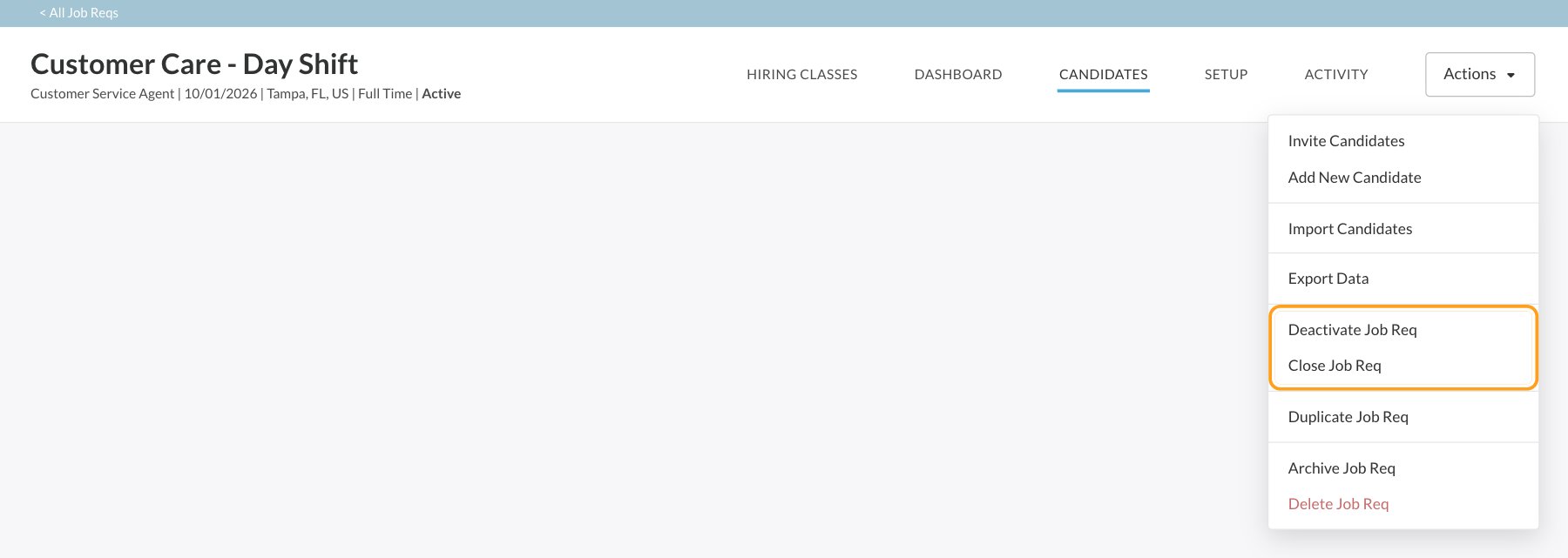
The same menu also has Invite Candidates, Add New Candidate and Import Candidates (see Invite candidates, Add candidates and Import candidates), and Export Data, which downloads the job req’s candidates as a CSV file (see Export data). Closed and archived job reqs don’t offer the invite, add and import actions, and an inactive job req won’t let you add or import candidates.
Deactivate or activate
Deactivate a job req to pause applications for a while, for example when you have enough candidates for the next class. Click Actions, then Deactivate Job Req, and click Deactivate. To open it again, click Actions, then Activate. Then turn its job postings back on. Publishing a new workflow version on an inactive job req also makes it Active. Keep that in mind if you publish changes while a job req is paused.Close or re-open
Close a job req when you’ve finished hiring for it. Click Actions, then Close Job Req, and click Close. Your team can still open it and see its candidates, but no one can apply and you can’t invite, add or import candidates. If you need it again, click Actions, then Re-Open. It comes back as Inactive; activate it when you’re ready for applications.Archive or un-archive
Archive a job req to clear it out of your Job Reqs list while keeping everything in it. Click Actions, then Archive Job Req. There’s no confirmation step. To find an archived job req, filter Status on the Job Reqs page to include archived job reqs. Open it and click Actions, then Un-archive Job Req. It comes back as Inactive.Duplicate
Click Actions, then Duplicate Job Req, and click Duplicate. Journeyfront copies the job req’s setup, including its workflow, application form, settings and hiring team, and opens the copy. Candidates, hiring classes and job postings aren’t copied. See Start from an existing job req.Delete
Click Actions, then Delete Job Req, and click Delete. You’re taken back to the Job Reqs page.Status history
Every status change is recorded on the job req’s Activity tab, with who made it and when. See Job reqs overview.FAQ
Why can't candidates apply to my job req?
Why can't candidates apply to my job req?
Only Active job reqs take applications. Check the status under the job req’s name. New job reqs start Inactive; click Actions, then Activate when you’re ready.
I reactivated a job req, but it's not on the job boards.
I reactivated a job req, but it's not on the job boards.
Deactivating, closing or archiving a job req turns off its job postings, and reactivating doesn’t turn them back on. Go to Setup, then Job Postings, and turn each posting back on.
What's the difference between Inactive and Closed?
What's the difference between Inactive and Closed?
Both stop new applications and turn off job postings. Use Inactive for a pause: Activate opens the job req again in one click. Use Closed when you’ve finished hiring: your team can’t invite, add or import candidates, and re-opening it brings it back as Inactive.
Where did my archived job req go?
Where did my archived job req go?
Archived job reqs are hidden from the Job Reqs page by default. Filter Status to include archived job reqs to see them.
Related
Job reqs overview
What’s inside a job req.
Create a job req
Create a job req or copy an existing one.
Job postings
Turn postings on and off on your career site and job boards.
Security roles
Who can deactivate, close, archive, duplicate and delete job reqs.