

Who can do this: Users with the Manage Job Req Settings permission. Without it, the job req’s Setup tab doesn’t appear.
A workflow is the hiring process for one job req. It’s made of steps, each step contains activities, and automation rules act on candidates as they move through. Every candidate who applies to the job req follows its workflow.
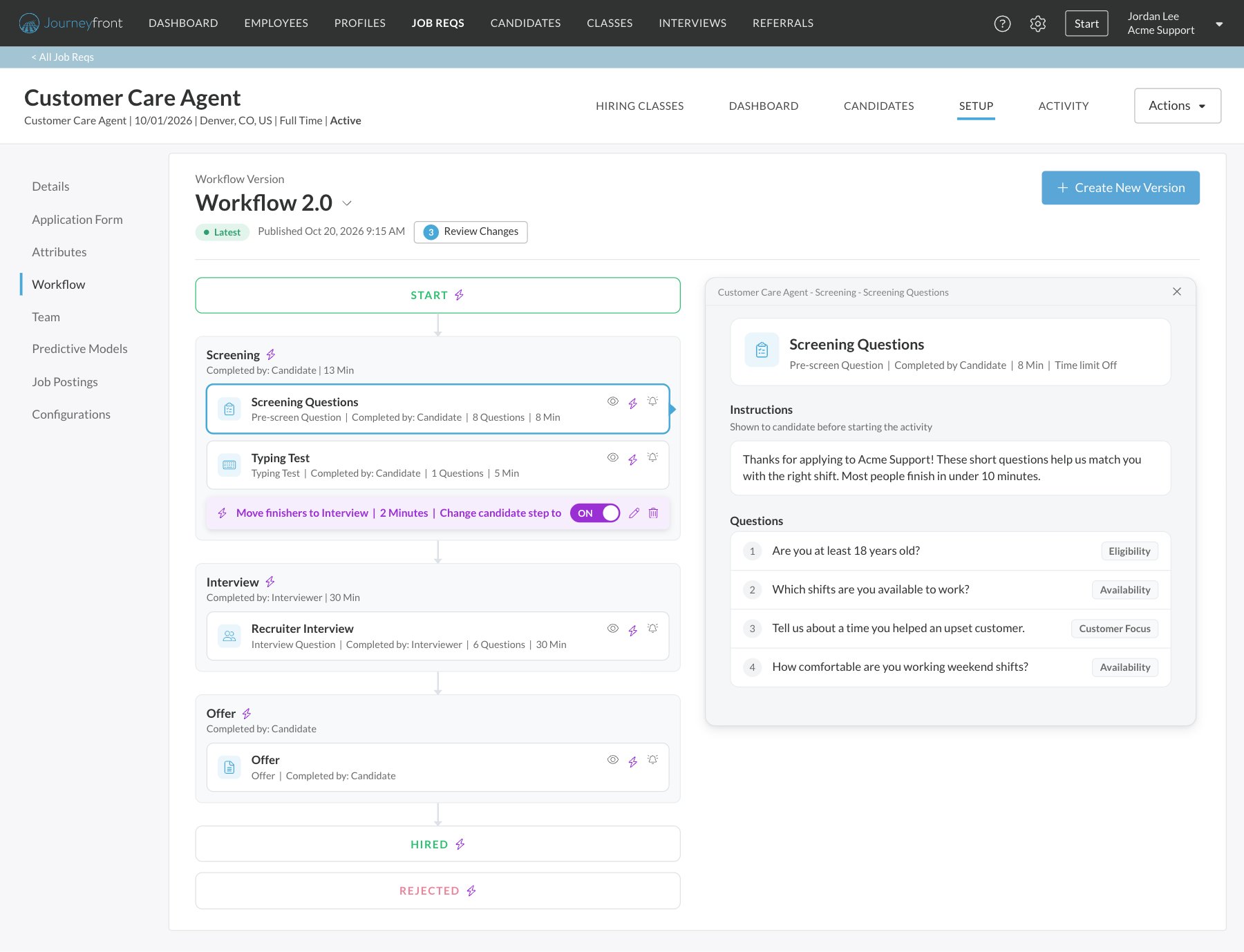
To see a job req’s workflow, open the job req and go to Setup, then Workflow. The page shows the whole process as a flow, from START at the top to HIRED and REJECTED at the bottom.
What’s on the Workflow page
- Workflow Version: which version of the workflow you’re looking at. The label under it shows its state, for example Latest with the date it was published. Click the version name to look at other versions. See Publish workflow changes.
- Steps, in the order candidates move through them. Each step shows who completes its activities and roughly how many minutes they take in total.
- Activities inside each step, with their type, who completes them, how many questions they have and their estimated minutes. Click one to see its details in the panel on the right.
- Automation rules, shown as purple bars with a lightning bolt, next to the start, step, activity or outcome they act on.
- Create New Version (or Edit Draft when there’s a draft): opens the editor, where you add, remove and rearrange steps and activities. See Build a workflow.
Steps
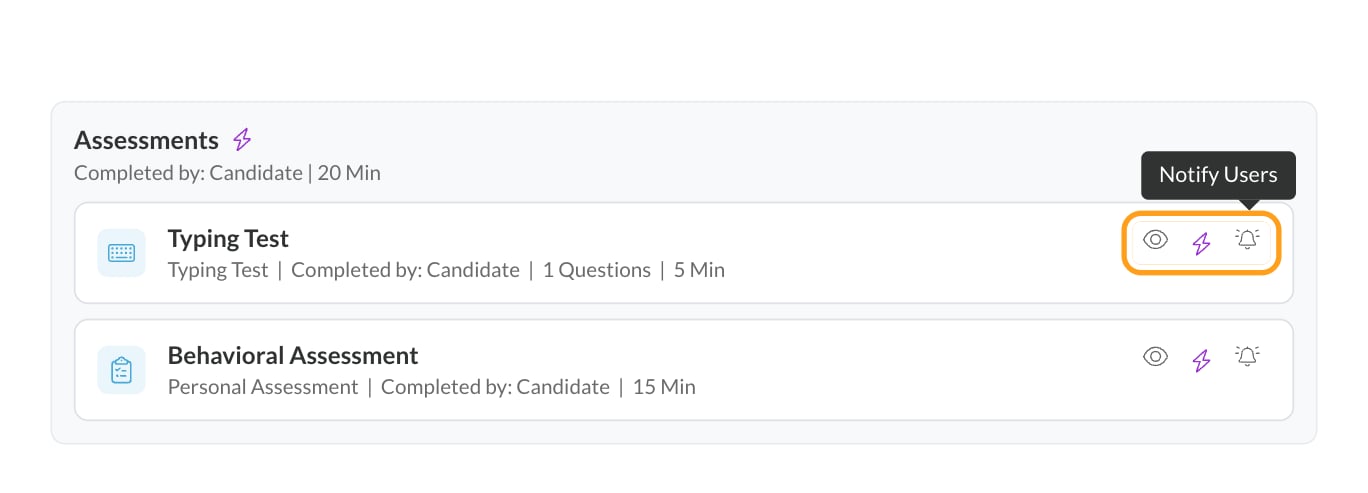
Steps are the stages a candidate moves through, in order. A typical high-volume workflow looks like this:1
Application
The candidate applies and fills in the application form.
2
Screening
Screening questions and assessments check for fit.
3
Interview
The candidate books an interview and meets your team.
4
Offer
The candidate receives and signs an offer.
5
Onboarding
The new hire completes onboarding forms before their start date.
Activities
Activities are what happens inside a step. Common activities include screening questions, assessments, typing and skills tests, interviews, offers, onboarding forms and background checks. Most activities produce a score. See Activities you can add.Automation
Each workflow can have automation rules that act on candidates for you: moving them to the next step, sending a message, or assigning a recruiter when something happens. Automation is what lets a small team keep up with thousands of applicants. See Automation rules.Versions
You change a workflow in a draft, and candidates only see the change once you publish it. You can publish right away or schedule an exact date and time. Candidates already in progress stay on the version they started with. Every published change becomes a new version, so you can always look back at what candidates followed before. See Publish workflow changes.FAQ
Can different job reqs have different workflows?
Can different job reqs have different workflows?
Yes. Every job req has its own workflow, so a customer care role and a technical support role can screen candidates differently.
What happens to candidates already in the workflow if I change it?
What happens to candidates already in the workflow if I change it?
Nothing, until you publish. After that, new candidates follow the new version, and candidates already in progress stay on the version they started with, keeping their scores, interviews and offers. See Publish workflow changes.
Why can't I edit the workflow?
Why can't I edit the workflow?
Seeing and editing it needs the Manage Job Req Settings permission. Ask your Journeyfront admin to check your security role.
Related
Build a workflow
Add steps and activities in the workflow editor.
Publish workflow changes
Drafts, versions and when changes reach candidates.
Automation rules
Move, message and route candidates automatically.
How scoring works
What the scores from each activity mean.