

Who can do this: Users with the Manage Job Req Settings permission.
How versions work
Every published change to a job req’s workflow is a version with its own name. The job req has one live version, marked Latest, that new candidates follow. You change the workflow by editing a draft, and the draft becomes the new Latest version when you publish it. On the Workflow page (Setup, then Workflow), the version name at the top is a menu. Click it to look at any version: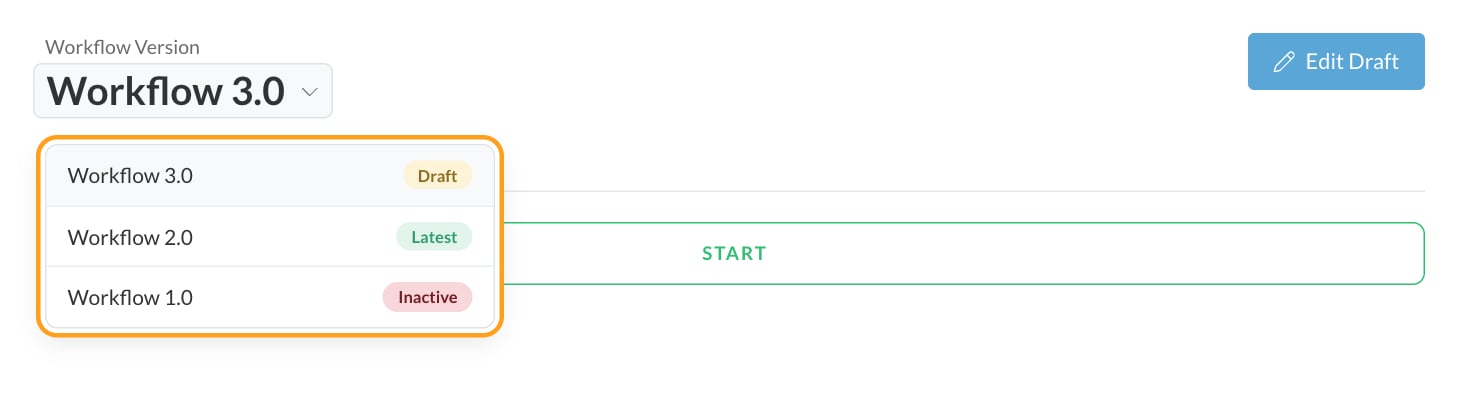
A job req has one draft or scheduled version at a time. When it has one, the Workflow page opens on it.
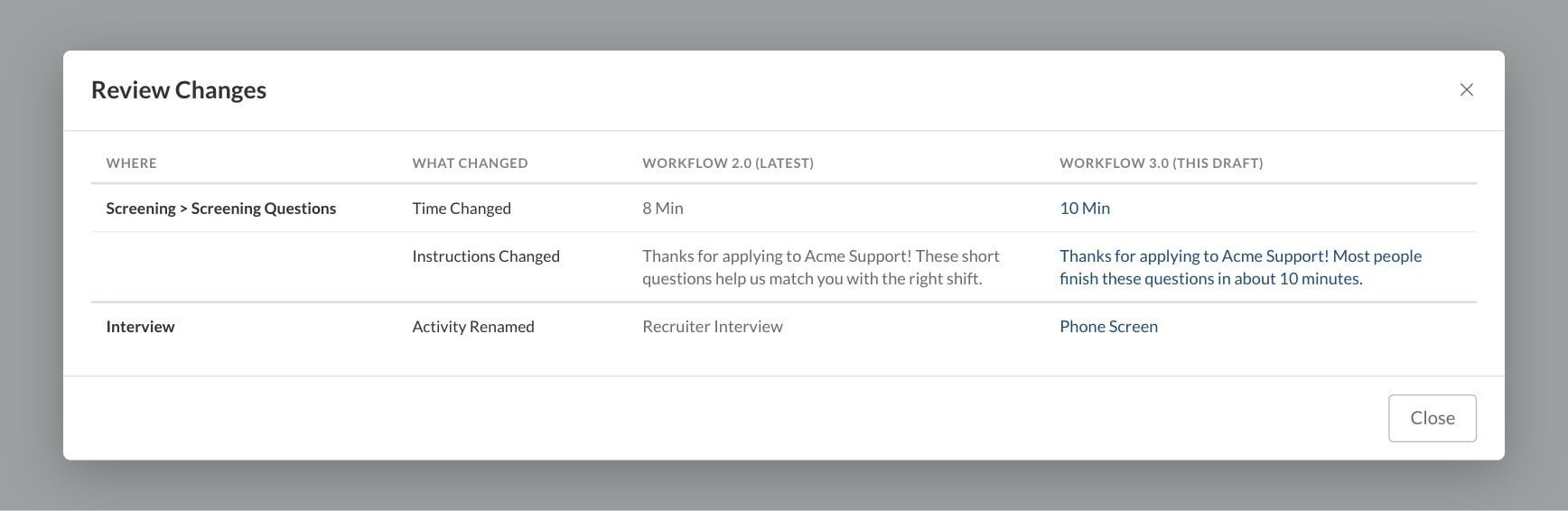
Review Changes, under the version name, lists everything that’s different from the version before the one you’re looking at, step by step. The number on the button is how many changes there are.
Make and publish changes
1
Open the editor
On the Workflow page, click Create New Version to start from a copy of the Latest version. If there’s already a draft, the button reads Edit Draft (or Edit Scheduled Version for a scheduled one) and opens that version instead.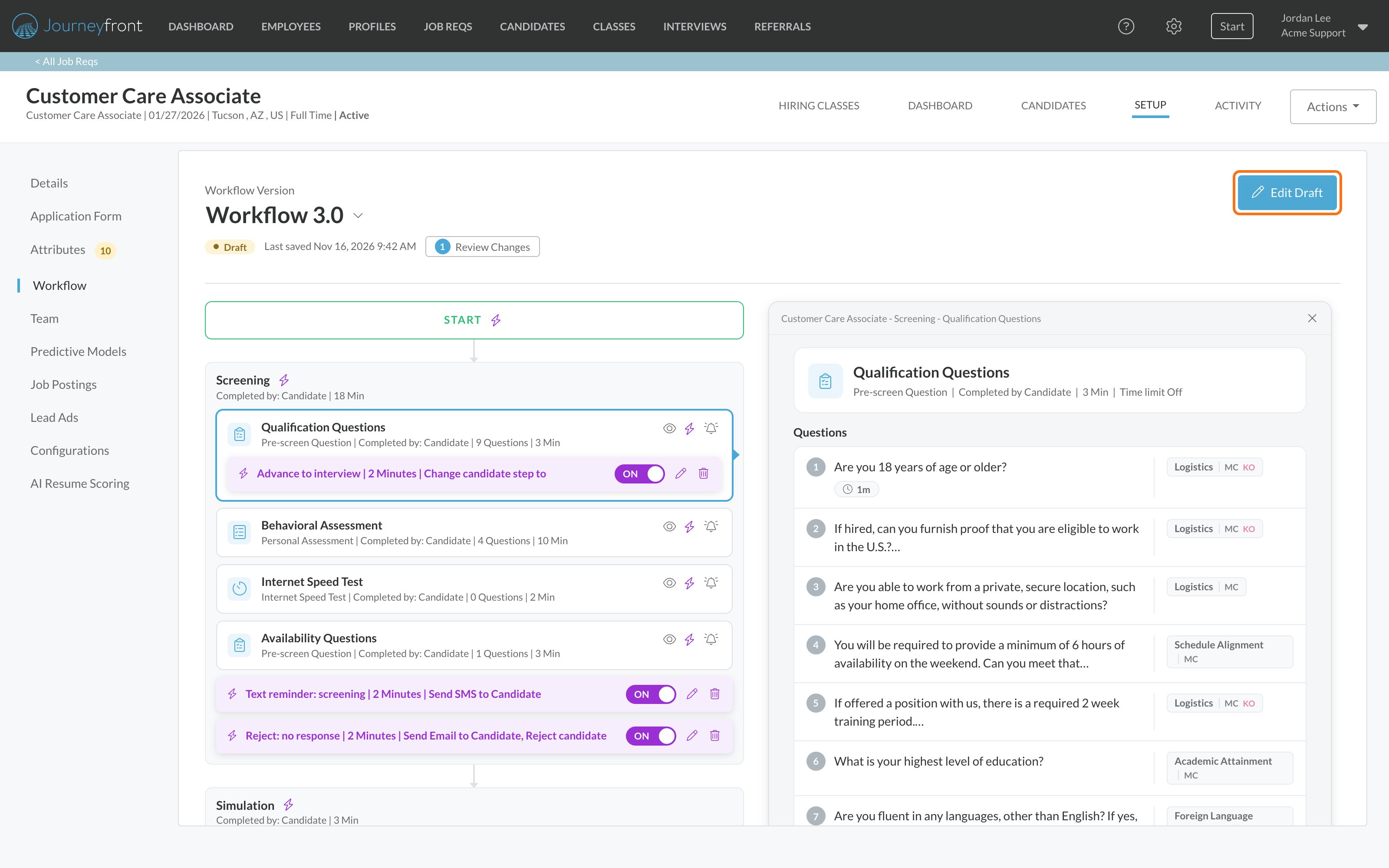
2
Make your changes
Add, remove and rearrange steps, activities and automation rules. See Build a workflow. Nothing changes for candidates while you work.
3
Name the version
The version’s name is the title at the top of the editor. A new version is named for you from the last one, so Workflow 2.0 is followed by Workflow 3.0. To rename it, click the title and type, like “Added typing test, Oct 2026”. Each version on the job req needs a different name.
4
Save the draft
Click Save Draft as often as you like. Journeyfront saves the draft and you stay in the editor.
5
Review your changes
Click Review Changes to compare your draft with the Latest version.
6
Publish
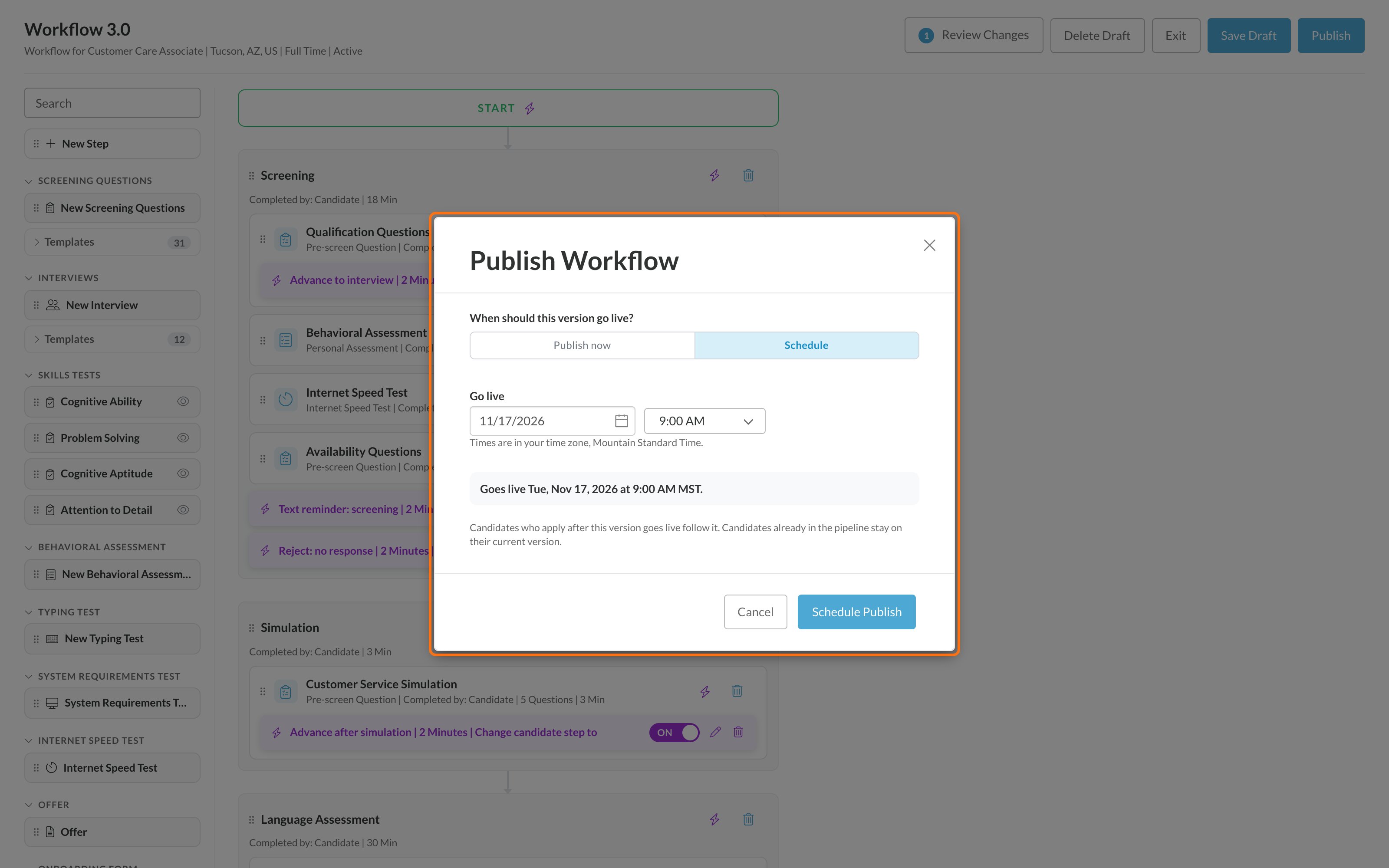
Click Publish. If you have unsaved changes, Journeyfront saves them first. In the Publish Workflow window, choose when the version goes live (below), then click Publish Now or Schedule Publish.
Choose when it goes live
- Publish now: the version goes live right away.
- Schedule: pick a Go live date and time, in half-hour steps. Times are in your own time zone, which the window names, and a summary underneath shows exactly when it goes live, for example “Goes live Tue, Nov 17, 2026 at 9:00 AM MST”. The time has to be in the future. The version shows as Scheduled until then.
Who follows the new version
A new version is for candidates who apply from the moment it goes live.- Candidates already in progress stay on the version they started with and keep their scores, interviews and offers.
- Hired, rejected and withdrawn candidates stay where they are.
- New candidates follow the new version.
Candidates on different versions
On the job req’s candidate list, the Job Version column shows which version each candidate is on. Change Step, Send Offers and Compare work on one version at a time, so they’re hidden when your selection mixes candidates from different versions. Automation rules belong to a version too. Each candidate is checked against the rules of the version they’re on.Automation rules
How rules act on candidates, and which version’s rules apply.
A new job req’s first version
A new job req starts with a draft named Workflow 1.0, holding its starter workflow, and stays Inactive. Change the draft as you need, then publish it. Publishing the first version makes the job req Active, so candidates can apply. See Create a job req.FAQ
Can I have more than one draft?
Can I have more than one draft?
A job req has one draft or scheduled version at a time. When you open the editor, it picks up where that version left off.
Can I go back to an earlier version?
Can I go back to an earlier version?
You can view earlier versions from the version menu on the Workflow page. To go back to an earlier process, make the same changes in a new draft and publish it.
Do candidates see anything when a new version goes live?
Do candidates see anything when a new version goes live?
No. Candidates already in progress stay on their version, so nothing changes for them, and nothing is sent to anyone when you publish. Candidates who apply after the version goes live see its steps and activities.
Can I change automation rules without publishing?
Can I change automation rules without publishing?
Yes, on the Workflow page itself. Changes you make to rules there save straight to the version you’re viewing, so on the Latest version they’re live right away. Changes made in the editor (Create New Version or Edit Draft) are part of your draft and take effect when you publish.
Can I move candidates who are already in progress to the new version?
Can I move candidates who are already in progress to the new version?
Not yet. Candidates already in progress stay on the version they started with, so their interviews and offers are never affected by a publish.
What time zone is the go-live time in?
What time zone is the go-live time in?
Yours. The Publish Workflow window names your time zone, and the version goes live at that moment everywhere. A teammate in another time zone sees the same moment in their own time.
Related
Build a workflow
Add steps and activities.
Automation rules
Rules that act on candidates for you.
Workflows overview
How steps, activities and automation fit together.
How scoring works
What rescoring means for a candidate.