

Who can do this: Setting a job req’s default assignment needs the Manage Job Req Settings permission. Anyone with access to a job req can assign its candidates, one at a time or in bulk.
- Automatically as they arrive, with the job req’s Default Assigned User setting.
- One at a time, from the candidate list or the Candidate Application.
- In bulk, with the Assign User action.
- With an automation rule, when candidates meet conditions you set.
Who can be assigned
The list of people you can assign comes from the job req’s team. To make someone assignable, add them to the job req under Setup, then Team. See Hiring team.Assign new candidates automatically
1
Open Configurations
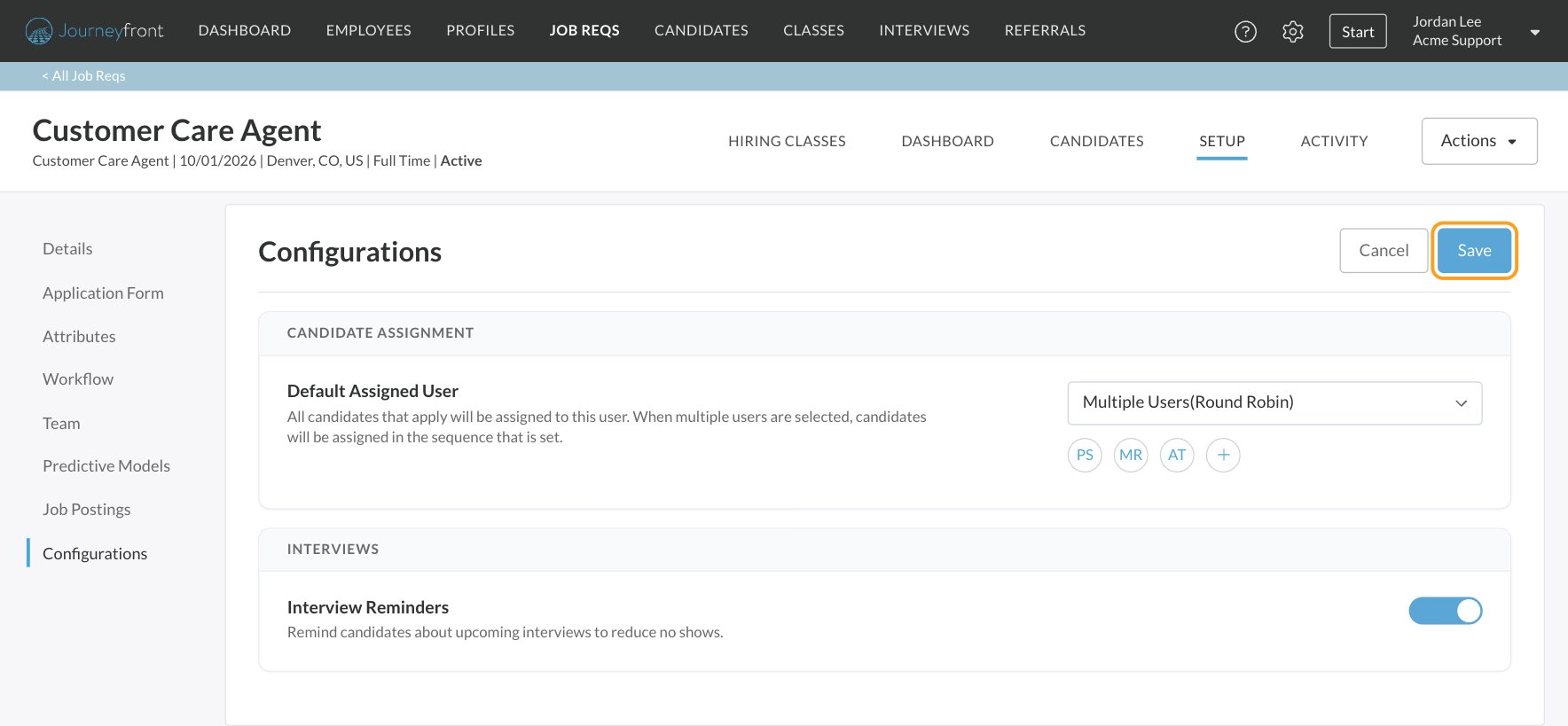
Open the job req, click Setup, then Configurations. The first card is Candidate Assignment.
2
Choose the method
Under Default Assigned User, choose Single User to give every new candidate to one person, or Multiple Users(Round Robin) to take turns between several people. Changing the method clears the users you’d picked.
3
Add the users
Click the + button, search by name or email, and pick a user. For round robin, add up to 20 users in the order you want them to take turns. To remove someone, hover over their initials and click the x.
4
Save
Click Save at the top of the page.
- It applies when a new Candidate Application is created on the job req, whether someone applies or your team adds or imports them. It doesn’t change candidates who are already in the job req.
- It only fills an empty spot. If a candidate already has an assigned user when their application is created, they keep that person.
- Round robin goes in order. Each new candidate goes to the next user in the list, and after the last user it starts again with the first. You can add the same person more than once to give them a bigger share.
- Saving restarts the rotation. Each time you save the Configurations page, round robin starts again from the first user in the list.
Assign one candidate
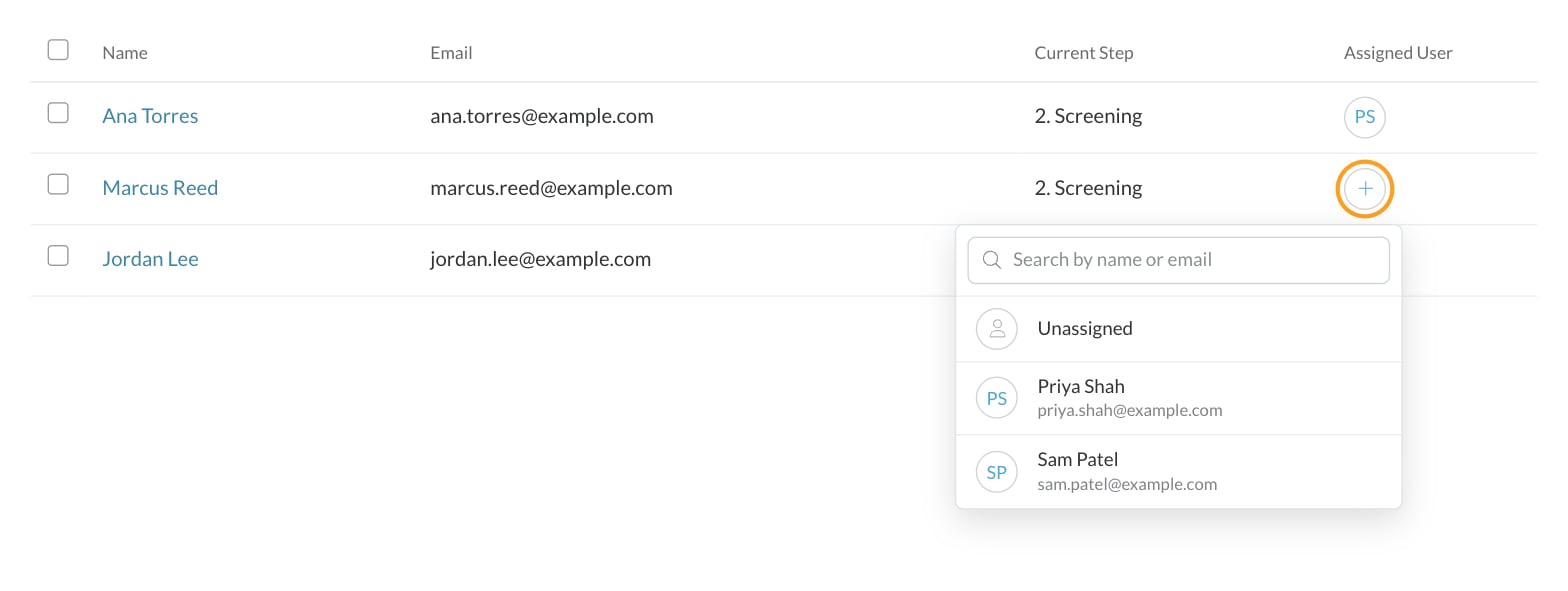
- From the candidate list: click the candidate’s Assigned User cell (their assignee’s initials, or the + if nobody’s assigned yet). Search by name or email and pick a user.
- From the Candidate Application: open the Details tab and change Assigned User in the Application Details card.
Assign many candidates at once
1
Select the candidates
On the job req’s candidate list or the Candidates page, tick the candidates you want to assign.
2
Click Assign User
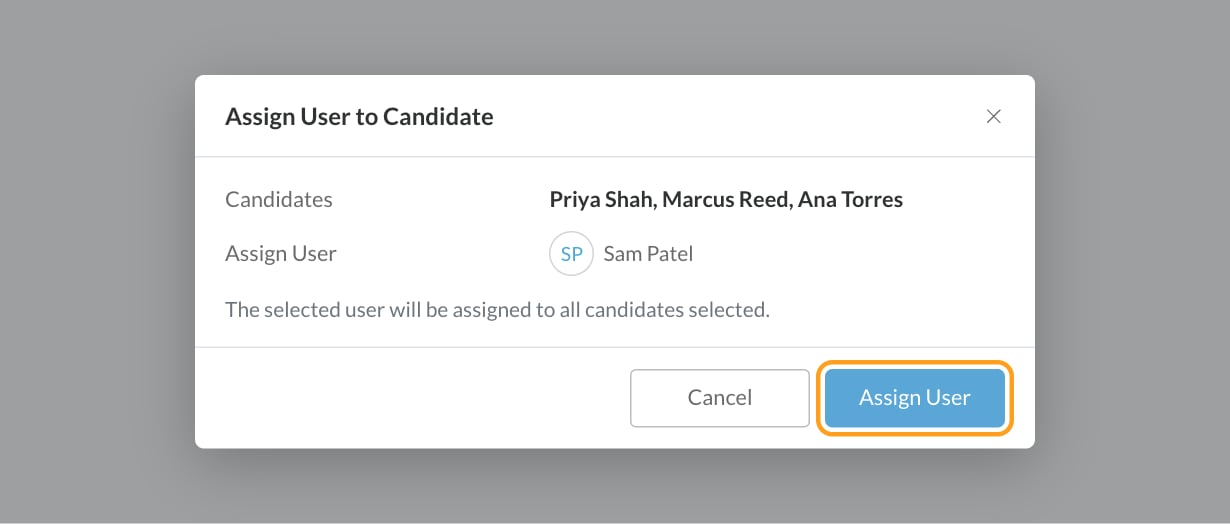
In the bar above the list, click Assign User. The Assign User to Candidate window opens.
3
Pick the user and confirm
Click the +, pick the user (or Unassigned), then click Assign User. That person replaces whoever was assigned to each selected candidate.
Assign with an automation rule
An automation rule’s Assign User action assigns candidates when something happens and they meet your conditions, for example routing every candidate from one state to the recruiter who covers it. Choose:- Single User: always the same person.
- Multiple Users(Random): one of the users you list, picked at random each time.
See who’s assigned
- Filter by assignee: use the Assigned User filter on the job req’s candidate list or the Candidates page to see one person’s candidates.
- Add the column: the Assigned User column shows each candidate’s assignee at a glance.
- Check the history: every change is recorded on the Candidate Application’s Comments & Activities tab as User Assigned, with who it changed from and to.
FAQ
Candidates were assigned to someone who isn't in our Default Assigned User list. Why?
Candidates were assigned to someone who isn't in our Default Assigned User list. Why?
Something else assigned them after the default assignment ran. Check:
- Automation rules on the job req with an Assign User action. They run after the candidate is created and replace the default assignee.
- Manual changes. The candidate’s Comments & Activities tab shows every User Assigned change and who made it.
- Where the job req came from. A duplicated job req starts with the original’s Default Assigned User list. Review it under Setup, then Configurations.
Does changing the default reassign candidates already in the job req?
Does changing the default reassign candidates already in the job req?
No. The default only applies to new Candidate Applications. To reassign existing candidates, select them and use Assign User.
Can a candidate have more than one assigned user?
Can a candidate have more than one assigned user?
No. Each Candidate Application has one assigned user. The same person can have different assignees on different job reqs.
Is the assigned user notified?
Is the assigned user notified?
No email is sent when a candidate is assigned. Recruiters find their candidates with the Assigned User filter.
Why can't I find someone in the list of users?
Why can't I find someone in the list of users?
The list comes from the job req’s team. Add the person under Setup, then Team, and they’ll appear.
Why is Assign User missing from the bulk actions?
Why is Assign User missing from the bulk actions?
Your selection includes candidates from more than one job req. Select candidates from a single job req, or filter the Candidates page to one job req first.
Why did round robin start over with the first user?
Why did round robin start over with the first user?
Saving the Configurations page restarts the rotation from the top of the list, even when you only changed a different setting on that page.
Related
Automation rules
Assign candidates based on location, source or score.
Job settings
Everything else under Setup, then Configurations.
Hiring team
Add the people who work on a job req.
Bulk actions
Everything you can do to many candidates at once.