

Who can do this: Admins with the Company Settings Access permission create and edit job boards. Job postings are added from each job req; see Job postings.
Job boards and job postings
You set up the board once. Each job req then gets one or more postings, and each posting is linked to one board. See Job postings.
Create a job board
1
Open Job Boards
Go to Settings, then Job Boards. The list shows each board’s Status and how many Active Postings and Published Postings it has.
2
Create the board
Click Create New Board, enter a Job Board Name and click Save.
3
Open the board's settings
Click the ⋮ menu next to the board, then Edit Job Board. The board opens on its General tab.
4
Turn it on
Set Enable Job Board to Yes. New boards start turned off, so candidates can’t see them until you do this.
5
Add your details and save
Fill in the Home Website and upload a Header Logo (see below), then click Save at the top of the page.
6
Brand it (optional)
Open the Customize tab to add your banner text, background image and colors. See Customize the look.
General settings
The General tab holds the board’s address and the basics.
If Indeed is activated for your account, a new job board starts with Post Jobs to Indeed and Allow Indeed Easy Apply already checked. Uncheck them on the General tab if this board shouldn’t go to Indeed.
Customize the look
The Customize tab is a visual editor. Settings are on the left and a live preview of the board is on the right. Your changes show in the preview as you make them, and go live when you click Save. Click Cancel to throw away changes you haven’t saved.
Use the buttons above the preview to see the board on a desktop, tablet or phone, and the refresh button to reload it.
Multi-language
Turn on Multi-Language to add a language menu to the board, so candidates can switch between English, Spanish and French. The board also opens in the candidate’s browser language when it’s one of these. The menu translates Journeyfront’s own text, like the search and filter labels and buttons. It doesn’t translate what you write, such as job titles, job descriptions or the hero text.What candidates see
Candidates see your logo, the banner and your open jobs, newest first. They can:- Search by Job Title, and filter by Location and Remote Option.
- Click Company Website to go to your Home Website.
- Click View Job to open a posting, then Apply to position to start the job req’s application.

Job postings
Create the posting for each job req and choose whether it shows on the board.
Embed the board in your website
1
Turn on Enable Iframe
On the board’s General tab, set Enable Iframe to Yes, then click Save at the top of the page.
2
Copy the embed code
Click the copy icon at the end of the Iframe URL field. The code shows the board at the full width of the space it’s placed in, 600 pixels tall.
3
Add it to your careers page
Paste the code into your website’s careers page, or send it to whoever manages your website. You can change the height in the code to fit your page.
Share a job feed
Each board has a Feed URL: an XML feed of the board’s jobs that job advertising partners, such as Appcast, can read to advertise them. Copy it from the board’s General tab and send it to your partner. The feed updates itself as you open and close postings. See Appcast. The feed lists the board’s active postings on Active job reqs, with each job’s title, location, employment type, remote option, description, pay and links to the posting and the application.The feed always includes each posting’s pay, even when Show This Field is off for Pay on the posting. If you don’t want pay shared with a partner, leave the pay fields empty on that posting.
Track where candidates come from
To see which channel brings in applicants, share a source link instead of the plain board address. Anyone who applies after opening that link has the source recorded on their Candidate Application.1
Open Generate Source Link
In Settings, then Job Boards, click the ⋮ menu next to the board, then Generate Source Link.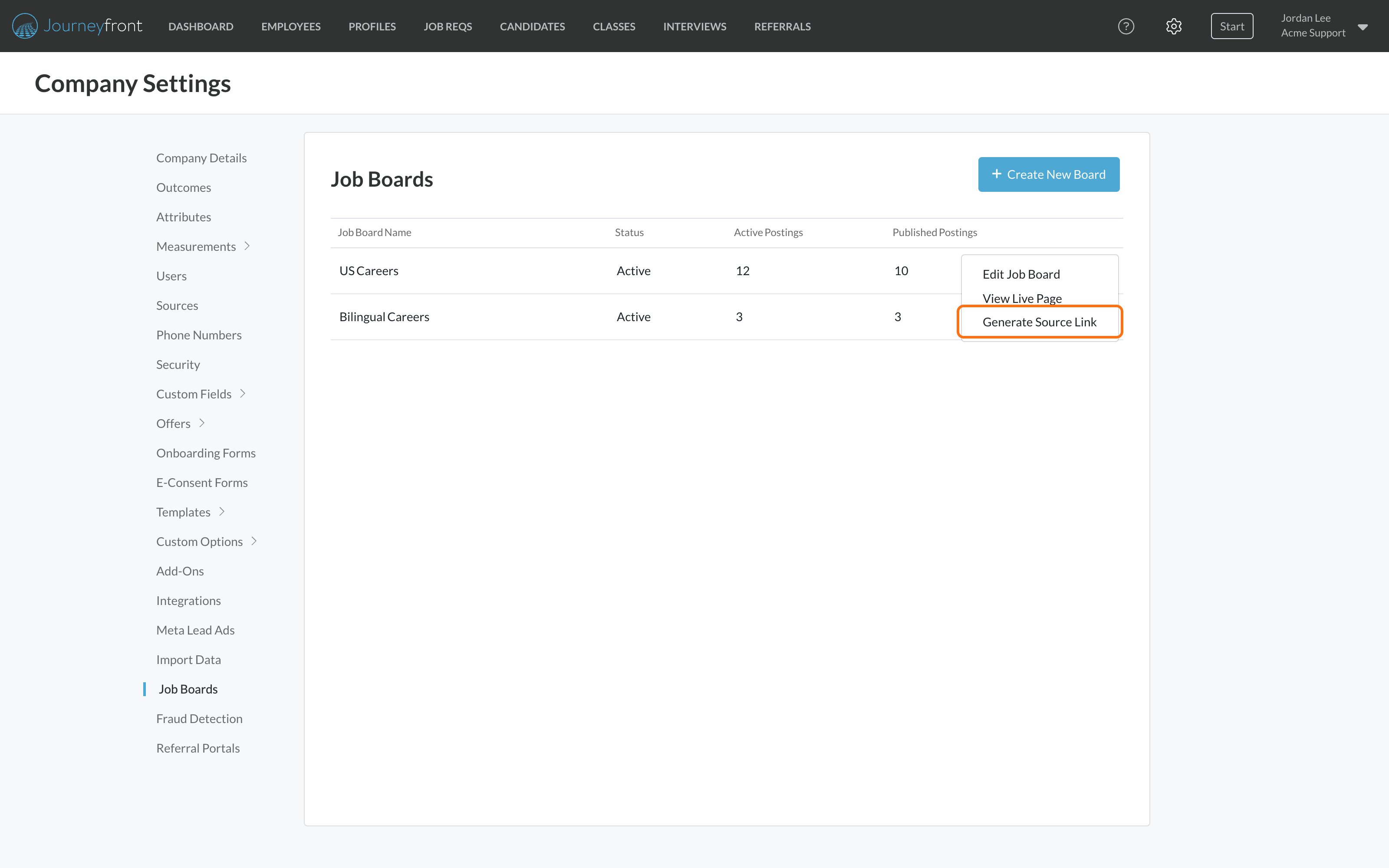
2
Pick a source and generate
Choose a source under Select Source, then click Generate.
3
Copy the link
Click the link or its copy icon to copy it, then share it in that channel.
Magic links
Tag applicants with the channel they came from.
FAQ
Can I change my job board's URL?
Can I change my job board's URL?
No. Journeyfront creates the address when you create the board, and it stays the same even if you rename the board. That way links you’ve already shared keep working.
Why can't candidates open my job board?
Why can't candidates open my job board?
Check that Enable Job Board is set to Yes on the board’s General tab, and that you clicked Save. New boards start turned off.
Why isn't a job showing on my board?
Why isn't a job showing on my board?
A job shows on the board when its posting is linked to this board, Make job posting page active is on and Post job to job board is on. Deactivating, closing or archiving the job req turns its postings off. See Job postings.
Can I delete a job board?
Can I delete a job board?
There’s no delete option. Set Enable Job Board to No to take a board offline.
Does Multi-Language translate my job descriptions?
Does Multi-Language translate my job descriptions?
No. It translates Journeyfront’s own labels and buttons. Job titles, descriptions and your hero text appear exactly as you wrote them.
My embedded board shows a blank space. What's wrong?
My embedded board shows a blank space. What's wrong?
Make sure Enable Iframe is set to Yes on the board’s General tab and saved. Without it, browsers won’t show the board inside another website.
Can I have different branding for different boards?
Can I have different branding for different boards?
Yes. Every board has its own logo, colors, fonts and banner.
Related
Job postings
Create the posting for each job req and publish it to a board.
Magic links
Tag applicants with the channel they came from.
Job board integrations
Send your postings to Indeed, JobTarget and Appcast.
Sources
Manage the list of sources your links can use.