

Who can do this: View Referrals to open a referral. Manage Referrals to edit it or change its status. Manage Referral Payouts to see its payouts and record milestones.Availability: Referrals need to be turned on for your account. Ask your Customer Success Manager.
Open a referral
On the Referrals tab, click the candidate’s name, or open the row’s menu and click View Details. The referral opens in a panel on the right. Click the X or press Esc to close it.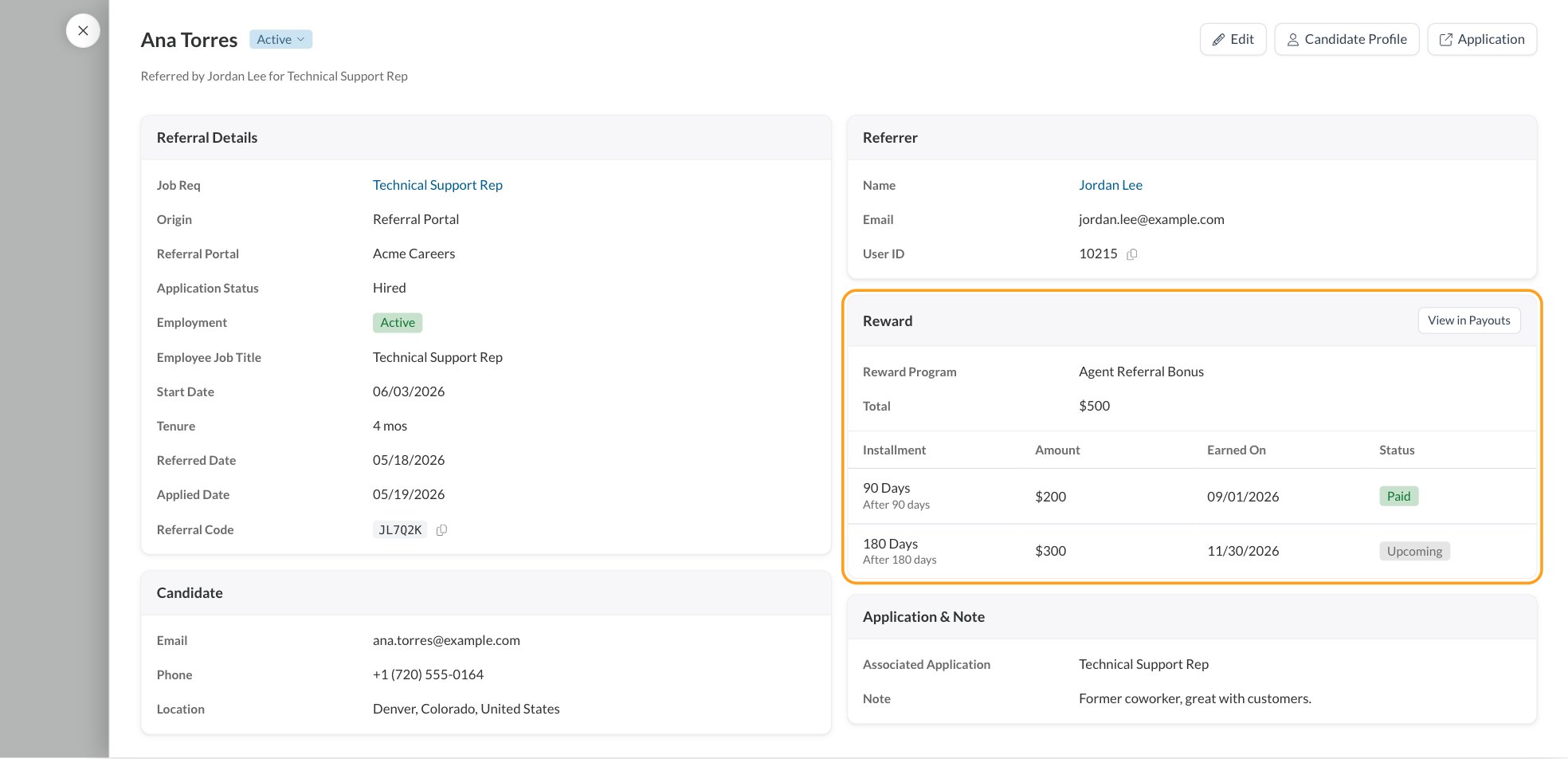
The header
- The candidate’s name and status chip. With Manage Referrals, click the chip to change the status. It saves right away. See Review, credit and Reward Status.
- Referred by the referrer, for the job req, or General Referral.
- Edit, Candidate Profile and Application. Candidate Profile and Application open in a new tab.
What each card shows
Employment details come from the hire’s employee record. See Employee records.
The Reward card
The Reward card follows the referral from promise to payment. Before the hire, it shows the Reward Program, the Total and the schedule copied onto the referral when it was made, for example $200 after 90 days.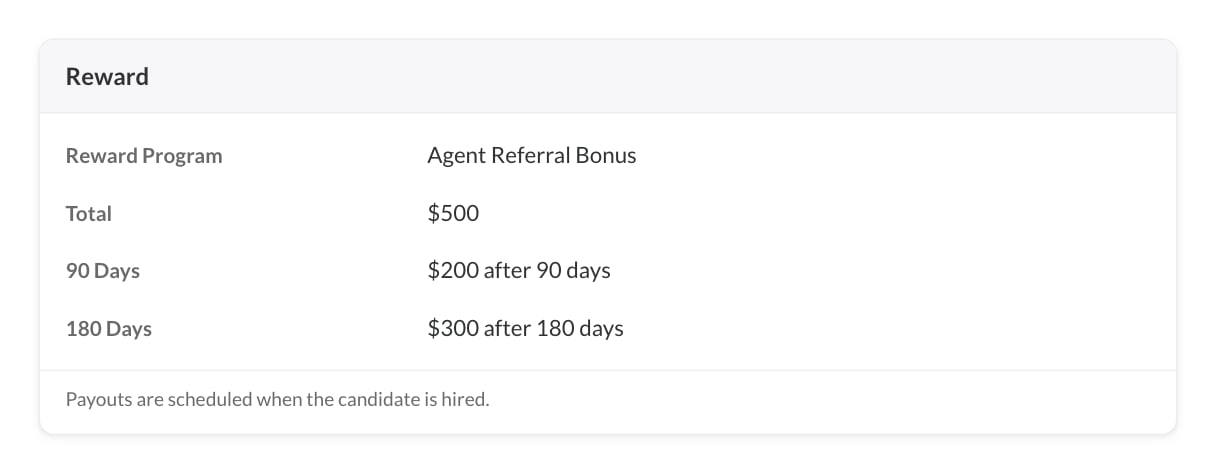
Click View in Payouts to see the same payouts on the Payouts tab. See Payouts.
People without Manage Referral Payouts keep seeing the reward schedule, not the payouts.
Record a milestone
Some installments are earned at a milestone, like Training Completed, instead of after a number of days. Journeyfront doesn’t know when the hire reached it, so someone with Manage Referral Payouts records the day.1
Find the installment
Open the referral. In the Reward card, find the installment that shows Mark Reached under Earned On.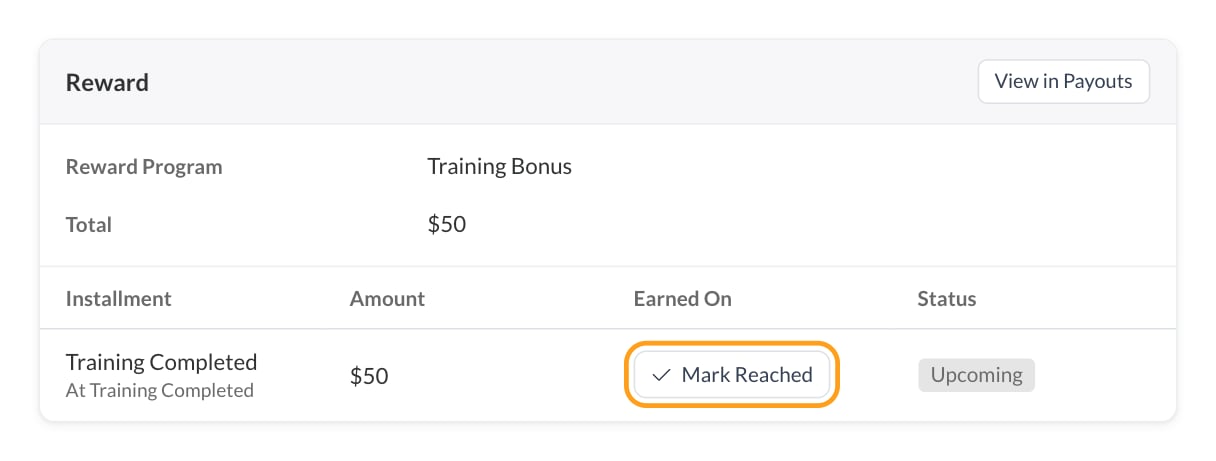
2
Click Mark Reached
The Record Milestone window shows the Milestone, the installment’s Label when it has its own name, the Amount and the Hire.
3
Enter the date
Enter Reached On, the day the hire reached the milestone. It can’t be in the future. Add a Note for other admins if you’d like, such as where the date came from. Employees never see notes.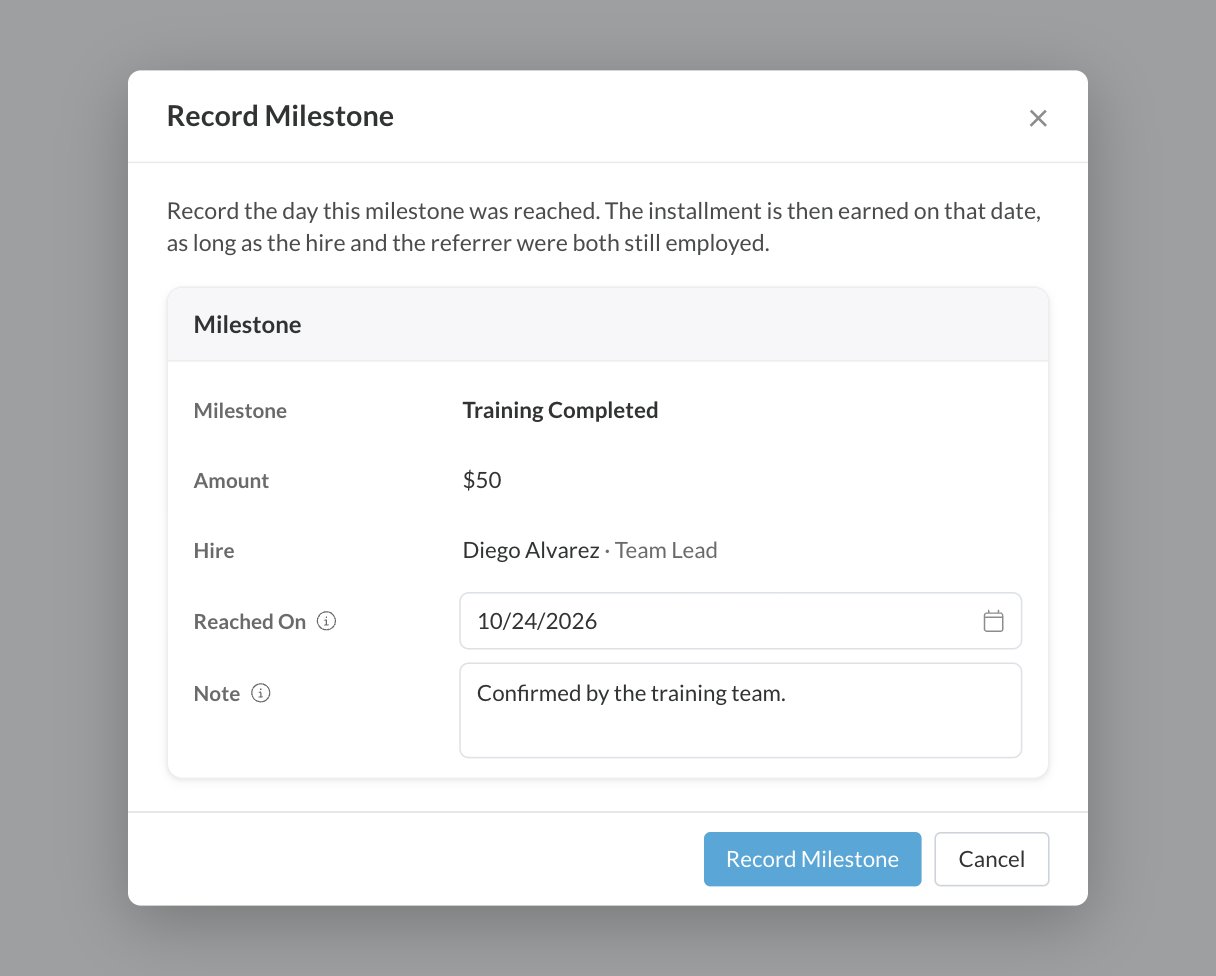
4
Save
Click Record Milestone. The installment is earned on that date, as long as the hire and the referrer were both still employed.
Edit a referral
With Manage Referrals, click Edit. You can change:- The referrer’s First Name, Last Name and Email.
- The Reward Program. Changing it applies the reward program’s current terms. Draft programs aren’t offered, and archived programs show (Archived).
- The Referral Portal, if you work with more than one. The referral’s payouts move with it.
- The Associated Application and the Note.
FAQ
Why don't I see payouts on a hired referral?
Why don't I see payouts on a hired referral?
Payouts are pay data, so they only show with Manage Referral Payouts. Without it, you see the reward schedule.
Why is the Reward Program box grayed out?
Why is the Reward Program box grayed out?
Payouts are already scheduled from that program, so it can no longer change. Hover the box to see the reason.
What if the hire left before the milestone?
What if the hire left before the milestone?
The installment is only earned if both the hire and the referrer were still employed on the Reached On date. Otherwise it becomes Ineligible.
I recorded the wrong milestone date. How do I fix it?
I recorded the wrong milestone date. How do I fix it?
Go to the Payouts tab, open that payout’s menu and click Change Milestone Date. Change the date, or click Clear Reached Date.
Where does the Employment information come from?
Where does the Employment information come from?
From the hire’s employee record in Journeyfront, which your HR system can keep up to date. If the hire has no employee record yet, those rows don’t show.
Can I move a referral to a different portal?
Can I move a referral to a different portal?
Yes, if you work with more than one referral portal. Click Edit, choose the Referral Portal and save. Its payouts move with it.
Related
Review, credit and Reward Status
Decide which referrals count.
Payouts
Every installment across all referrals.
Reward programs
Set up rewards, installments and milestones.
The Referrals page
Find and manage every referral.